


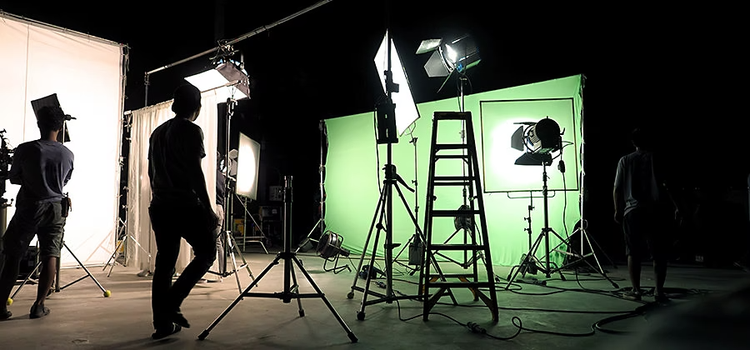
Film anywhere, in or out of this world, with a green screen background.
Green screen or blue screen video shoots can be game changers for creating live-motion projects involving customised backgrounds or for compositing in special effects worthy of Hollywood. Shooting with a green screen involves filming a person or adding visual effects in front of a solid colour. Then, by digitally removing or “keying out” that colour, you can drop that scene onto the background of your choice in post-production. This process, known as chroma keying, lets you replace that background with any image or video of your choice.
What is a green screen?
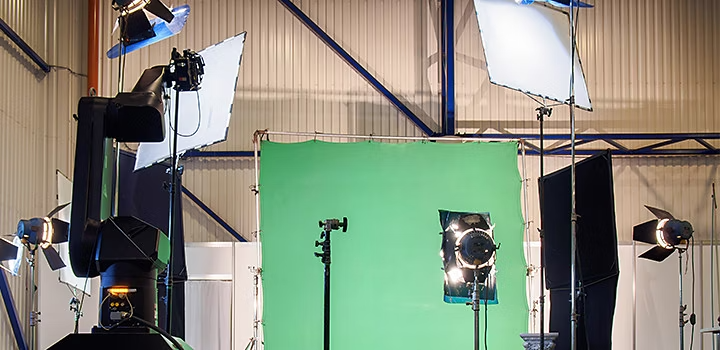
A green screen is a solid colour backdrop that is used video and photo production to make it easy to digitally replace the background later on.
Why are green screens used?
Green screens are used to easily separate the subject from the background because green doesn’t match natural skin tones or hair colours. This makes it easier to remove green screen in editing tools like Adobe Premiere without affecting the subject. However, if your project includes green props or requires a darker tone, a blue screen background works better for accurate compositing.
Tips to use your green screen for best results.
Shooting on a green screen can save you time and resources, but it only creates more work if it’s done incorrectly. To achieve the best results, start by ensuring your green screen background is as flat and smooth as possible, avoiding wrinkles or uneven textures.
Next, learn how to light a green screen evenly. Proper lighting helps you achieve clean separation between the subject and background, making it easier to remove green screen while editing. Use consistent, diffused lighting across the screen to minimise shadows.
Finally, if possible, shoot in high resolution to capture sharper edges and avoid noise around your keyed-out subject. Good lighting and resolution together make post-production faster and more accurate.
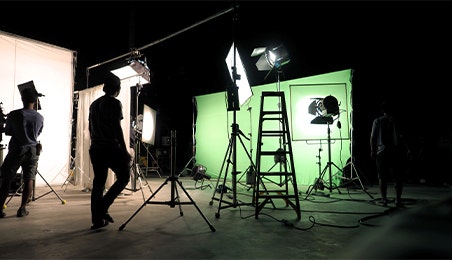
First light your screen, then your subject.
The biggest mistake you can make with green screen lighting is treating the screen and the subject as one. For a coloured background or “chroma” that is easily keyed out, light your screen first.
“It needs to be as evenly lit as possible at about 40 to 50 per cent luminance,” says production head Mitch Apley. Aim for diffused, nondirectional lighting that hits your screen from above. You’ll likely need multiple lights set up specifically for the screen to avoid shadows and colour inconsistencies.
To check your lighting accuracy, use a waveform monitor in your video setup or editing software like Adobe Premiere. When you see a flat line across the monitor, you know your green screen is properly lit and ready for editing or chroma keying.
A “green screen kit” is not your friend.
Avoid relying on inexpensive green screen kits sold online, as they often use thin fabric that wrinkles and reflects uneven light, making it difficult to achieve a clean key during editing. Instead, use a professional green screen setup with a material that can be stretched tightly, such as nylon or spandex, or paint a wall with chroma key green paint for a smoother and more consistent result.
“That kit seems like it’s solving all your problems, but it’s introducing an entire world of new problems,” says producer and director Martin Vavra.
For small studios or home creators, an affordable alternative is using matte-finish fabric or portable collapsible screens, which are easier to store and maintain.
The best types of lights for green screen footage.
Vavra recommends renting two 1000-watt lights for lighting the screen itself and a method for diffusing, like softboxes, to put around them. Next, get a 650-watt light and a 500-watt light, again with diffusion through a softbox or even white bedsheets. These should be used to light the subject of your video. You may also want to use a hair light to create a sharper line between your subject and background. “As a beginner, you can rent professional lights locally, which is a smart investment to ensure your footage looks professional,” says Vavra.
For creators or smaller setups, LED panels or ring lights with adjustable brightness can be an affordable alternative to large studio lights, while still producing even chroma key lighting.
Preparing your subject for the green screen.
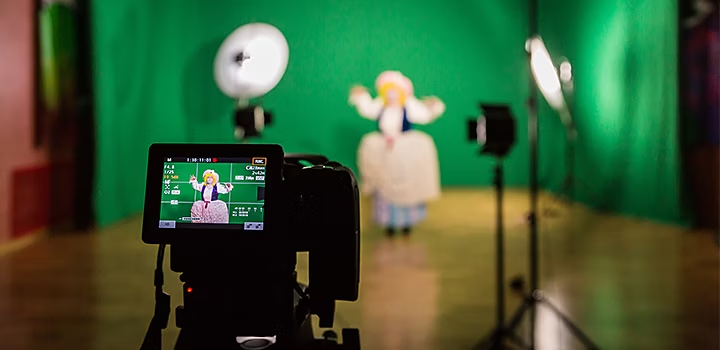
Knowing what type of footage you’ll be using for your new background will tell you how best to light the objects or people in front of your green screen.
Videographer Gerry Holtz says, “What kills a green screen composite is if there’s sunlight from the left in the background shot and you lit them from the other side. There’s no way to make those two things look right.”
Matching the lighting direction, tone, and intensity between your subject and background helps create a seamless, realistic effect when editing.
Have as much space between the subject and the green screen as possible.
Keeping your subject as far from the green screen background as possible will help you accurately mimic the lighting in your new background clip. Plus, it will help to prevent green tones from spilling off the screen and onto the edges of your subject.
Aim for about 10 to 15 feet of distance between your subject and the screen to get clean results. If you’re working in a smaller room or home studio, even creating a few metres of space or adjusting your lighting angle can significantly reduce green reflections.
Maintaining enough separation also improves depth and makes it easier to remove the green screen background cleanly, giving your final video a polished, professional finish.
Remember, if it’s green, it’s going to go away.
If someone shows up in a green tie, the Ultra Key tool in the video editing software will blast a hole through their chest. Look out for colours that have just a hint of green too. “I’ve seen people show up wearing khakis that are slightly greenish. What happens is they look semi-translucent,” Apley says. Mirrored or reflective objects can also be a problem. Bring makeup powder to get rid of shine on the face or head.
Avoid green or reflective clothing, jewellery, and props, as these can blend into or reflect the green screen background, making editing more difficult. Before you start filming, run a quick test shot and preview it to ensure no part of the subject disappears or picks up colour spill from the screen. This step helps you save editing time and ensures a clean, professional result.
Adding your background image to your green screen video.
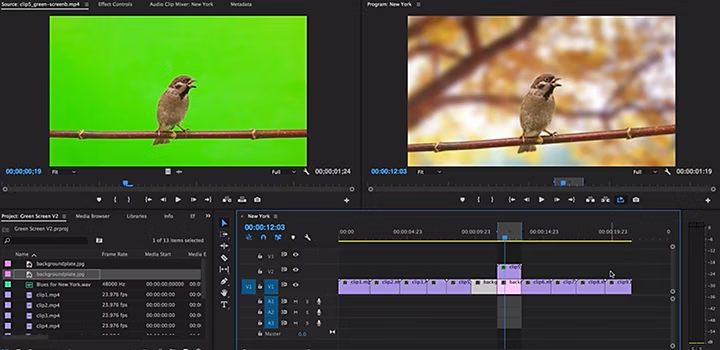
Once your green or blue screen video clip is filmed, you’re ready to use a video editing programme or green screen software to remove the coloured background and add in your new scene.
This process, known as chroma keying, allows you to blend live-action footage with virtual backgrounds, whether it’s a landscape, city view, or animation. Follow these tips to ensure a smooth, professional-looking edit in Adobe Premiere.
Lock in your content before keying out the footage.
Before you spend time editing out your green screen background or even doing colour correction on your footage, complete a rough edit. You don’t want to spend time doing these complex tasks on frames that won’t make the final cut.
This saves time and processing power, especially when working on high-resolution projects, and helps maintain smoother performance during editing.
Use the Ultra Key tool.
Once your footage is narrowed down, use the Ultra Key tool in Adobe Premiere to remove your green screen background. Open the Effects panel, locate Ultra Key, and drag it onto your clip. Then, use the Eyedropper tool to select the green or blue area you want to key out.
If you’re lucky, this will do most of the work for you. Otherwise, adjust the sliders labelled Matte Generation, Matte Clean-up, Spill Suppression and Colour Correction. These will tweak the way in which your key is being removed.
Experimenting with subtle slider adjustments can help avoid harsh edges or colour outlines, giving your video a more polished, professional finish.
Consider edits to your new background.
Once you’ve added and replaced your background, make sure it visually matches your original green screen footage. If you’re shooting a close-up interview, add some depth of field by making the background slightly soft. “Think, ‘what would that background look like if it were really there when I shot it? How am I going to adjust for that?’” says Holtz.
These small edits help achieve a seamless blend and a more natural final video. You can also experiment with colour grading to ensure your background and subject share the same visual tone, creating a cohesive and professional look.
Take it further with creative green screens.
Look for small, fold-out background panels that resemble a round section of green screen. You can use these to shoot keyable footage on the go. Hold the pop-up screen behind the person or object you want to shoot. In your video editor, cut a simple matte (called a rubbish matte) between the person and the edge of the green area and remove the background beyond the line of the matte.
Anything solid in color can potentially be a screen for a keying project. Creative studio Abby Priest experimented to discover whether or not they could use liquid paint as a green screen. Watch how they did it and see the stunning result of their work.
Keep your eye on the latest tutorials and updates to Premiere through resources like Adobe Live and try out new ways to use Chroma Key tools in your videos. “Because editing capabilities change every few months,” explains Apley, “it’s important to be continuously learning.” As long as your lighting is set up correctly, there are countless ways to introduce fascinating new backgrounds to your projects within the world of chroma keying.
See green screen in action with a real product ad transformation.
Now that you’ve learned the essentials of lighting, shooting, and editing, explore this real-world case study that turns a simple green screen clip into a cinematic product commercial.
Frequently asked questions about using a green screen.
A green screen is a solid-coloured backdrop used in video production to replace the background of a scene through a process called chroma keying. It allows editors to add new settings or special effects digitally.
Green is commonly used because it contrasts with most skin tones and clothing, making it easier to remove without affecting the subject. However, a blue screen can be used when the scene includes green elements.
Light your green screen evenly using soft, diffused lighting to avoid shadows and colour variations. Always light the screen first, then your subject separately, to make the background easier to key out during editing.
Use the Ultra Key tool in Adobe Premiere. Apply the effect to your clip, select the green area with the Eyedropper, and adjust settings such as Matte Generation, Spill Suppression, and Colour Correction for a clean result.
After removing the background, import your desired background footage or image and place it behind your keyed-out subject. Adjust brightness, shadows, and colour balance to create a natural blend between the two layers.
Common issues include uneven lighting, green colour spill on the subject, or wearing green clothing. Keeping distance between your subject and screen, and checking lighting levels, helps prevent these problems.
Yes. Green screen techniques work for films, educational videos, online tutorials, and social media content. They are ideal for adding virtual sets or dynamic environments without physical location shoots.

title
How to use a green screen.
tags
caas:content-type/article,caas:products/premiere-pro,caas:product-categories/video,caas:topic/edit-video,caas:topic/edit-video
description
Get advice from the pros on how to properly light your screen and subject. Then incorporate your new background image seamlessly using the Ultra Key tool in Adobe Premiere.
cardImage
cardImageAltText
Film crew sets up the lighting of a green screen


Speed up your video workflows with Adobe Firefly generative AI.
Visualise shots and effects ahead of the shoot, generate assets missed in production to complement your edit and eliminate tedious tasks to stay focused on your creative ideas.


