




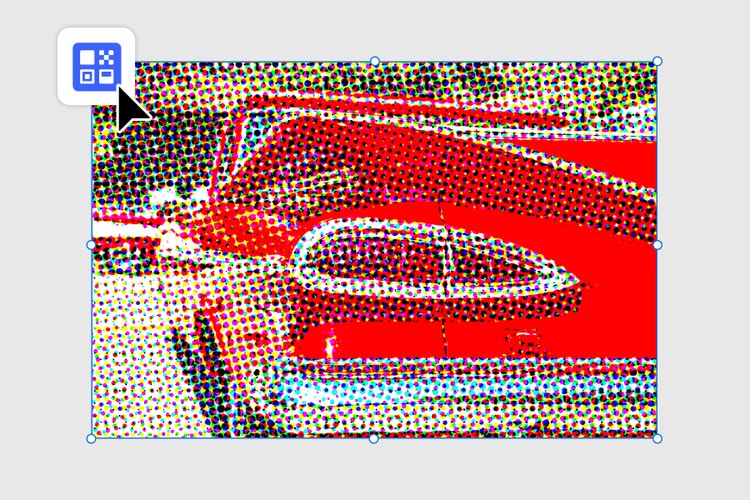
Get a retro look with halftone effects.
Cruise back to an old-school CMYK printing style with Adobe Photoshop.
Drag and drop an image
to try it today.
File must be JPEG, JPG or PNG and up to 40 MB
By uploading your image or video, you agree to the Adobe
Terms of Use and Privacy Policy
- File size larger than 40 MB
- Unable to process the request
- We are unable to process this file type. Please try again.
- Only one file can be uploaded at a time.
- Image exceeds maximum dimensions (8,000 x 8,000 pixels). Please resize and try again.
- promoid=XPCNGX89&mv=other
Halftone effects give you a cool vintage vibe.
Use a halftone filter in Adobe Photoshop to evoke the look of old-fashioned colour printing. Halftones were developed by 20th-century printers for presses that used only cyan, magenta, yellow and black (CMYK) inks. Fields of tiny dots in those four colours created every shade that could be printed. You can easily recreate this retro technique for a vintage look in your own pop art, screen printing or graphic design.
What are halftone effects?
Halftone is a 20th-century printing technique where patterns of dots were used to create images. At a time when printing processes were limited, halftone was the method used to create the appearance of colours and shades. Today, simulating halftone effects is a way to reference or play with vintage photo effects by evoking the dotted, grainy look of old-fashioned colour printing.
Early colour presses used only cyan, magenta, yellow and black (CMYK) inks. Printers developed the halftone as a way to print a wider spectrum of colours. Halftones were made up of fields of tiny dots in those four colours, positioned closely together. When grouped together, the dots appeared to mix and form other shades. Using just these four colours, together with variations in dot spacing, pattern and size, printers mixed and matched halftones to produce all of the colours that could be printed.

How to achieve a halftone filter effect in Adobe Photoshop.
Follow this quick and easy tutorial to add a halftone pattern in Photoshop.
1. Add your images.
Select the images you want to add a halftone effect to and add them to Photoshop.
2. Find your Filter.
In the top navigation bar, go to the Filter drop-down menu.
3. Choose Pixelate.
From the options in the Filter menu, select Pixelate.
4. Select Colour Halftone.
Choose Colour Halftone in the Pixelate menu. From here, you can further adjust two other variables, Radius and Channel, to affect how the halftone texture appears.
Radius
The Radius setting affects the size of the halftone dots and the spacing in between. Adjust the size of the dots to change the gradient and blur of the colour and image. Smaller dots will look smoother and subtler, while larger dot sizes will evoke lower-grade print material like vintage comics, old advertisements or DIY grunge ‘zines.
Channel
The Channel setting adjusts the way the dots are placed and how they overlap. Each Channel is controlled by a Screen Angle setting. The value is listed in degrees. Adjusting the value changes the angle at which the Cyan, Magenta, Yellow and Black dots are added to the pattern. Where the dots overlap, they can form new colours, depending on how they combine.

Halftone effects in the digital age.
Halftone images are a staple of pop art, screen printing and graphic design, referencing printing styles of a bygone era. Give halftoning a try to evoke nostalgia, make something look aged or vintage or reference the first decades of colour printing.
You may also like
title
Harken back to the early days of colour printing with high-resolution images that look like CMYK prints.
ContentType
Article
tags
caas:content-type/article,caas:products/photoshop,caas:product-categories/photo,caas:products/adobe-creative-cloud
description
Harken back to the early days of colour printing with high-resolution images that look like CMYK prints.
cardImage

cardImageAltText
Halftone effects

