File must be JPEG, JPG or PNG and up to 40 MB
https://main--cc--adobecom.aem.page/cc-shared/assets/img/upload-white.svg Upload your photo
By uploading your image or video, you agree to the Adobe
Terms of Use and Privacy Policy
File must be JPEG, JPG or PNG and up to 40 MB
https://main--cc--adobecom.aem.page/cc-shared/assets/img/upload-white.svg Upload your photo
By uploading your image or video, you agree to the Adobe
Terms of Use and Privacy Policy
to try it today
File must be JPEG, JPG or PNG and up to 40 MB
https://main--cc--adobecom.aem.page/cc-shared/assets/img/upload-white.svg Upload your photo
By uploading your image or video, you agree to the Adobe
Terms of Use and Privacy Policy
- File size larger than 40 MB
- Unable to process the request
- We are unable to process this file type. Please try again.
- Only one file can be uploaded at a time.
- Image exceeds maximum dimensions (8,000 x 8,000 pixels). Please resize and try again.
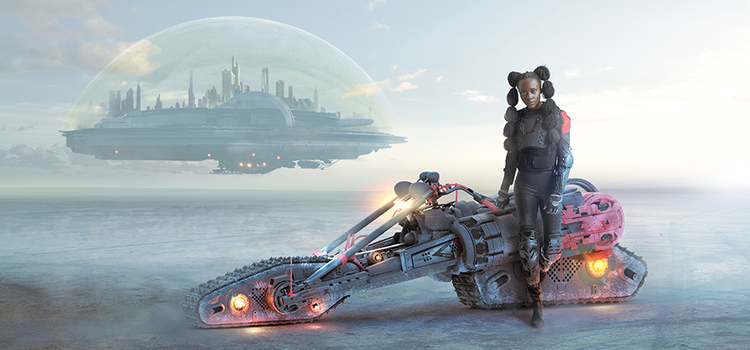
How real meets surreal with photo manipulation in Photoshop.
Follow the rules of photography — perspective, lighting, shadows and colour — even when crafting the most surreal images. In Photoshop, non‑destructive layers and AI‑powered selection tools such as Generative Fill can help you align your photos with similar colours, lighting and perspective, then combine elements from darkest to lightest, paying close attention to blending shadows.
Altering, retouching and making new art with photos.
Photo manipulation didn’t begin with the invention of photo editing software. Photographers, editors and retouchers have been cutting up, combining and creating new work out of existing assets for over a century. Photo manipulation can be used for everything from surrealistic photomontages to the creation of alien worlds on the covers of sci-fi novels. It is also central to everyday image manipulation tasks such as removing distractions or extending backgrounds for social media. “I’d call it a medium by itself,” says photographer Eduardo Valdes-Hevia. “It sits somewhere between photography, painting and more traditional arts.”
Photo manipulation and ethics.
It’s important to understand photo manipulation’s checkered history. A famous Civil War battlefield image of Ulysses S. Grant on a horse is actually the combination of multiple images. Stalinist Russia made ample use of doctored photos for propaganda purposes. In 1982, National Geographic courted controversy by altering the pyramids of Giza to fit on their cover.
If you’re a photojournalist and you’re attempting to represent subjects accurately, you should not combine or distort photos in certain ways. The National Press Photographers Association (NPPA) is very clear about this in their code of ethics, which states:
Editing should maintain the integrity of the photographic images’ content and context. Do not manipulate images or add or alter sound in any way that can mislead viewers or misrepresent subjects.
Photo manipulation is for artistic and aesthetic expression, not deception. With that in mind, here’s how to put whales in the sky, aeroplanes in the ocean and far-off planets in the sky above Earth.
Responsible and ethical photo editing in India.
In India, while there are no formal guidelines for photojournalism like the NPPA’s code, ethical practices are still expected in editorial and advertising contexts. Misleading image edits, particularly in political or health-related campaigns, may fall under the purview of the Press Council of India or advertising self-regulation through the ASCI (Advertising Standards Council of India). Maintaining transparency in visual content helps uphold public trust and editorial integrity.
Tips for creative photo manipulation in Photoshop.
Know your goals.
Before combining any images or manipulating photos, define the story you want to tell and the platform you will publish on. “You need to have a very clear idea of what you want,” says Edwin Antonio, an artist who combines modern fashion with historical fine art. “That way, you don’t get distracted. Just focus on your goal.”
Plan ahead.
If you’re creating digital art, think about what you’re combining and what themes you’ll be using in your work. Know what you’re going to do before you start in on your work. Sketch concepts, gather reference images and create a shot list before you open Adobe Photoshop online or on desktop. “It’s good to write down ideas when you have them,” says photographer Ronald Ong. “When ideas come up, I sketch them."
Get real.
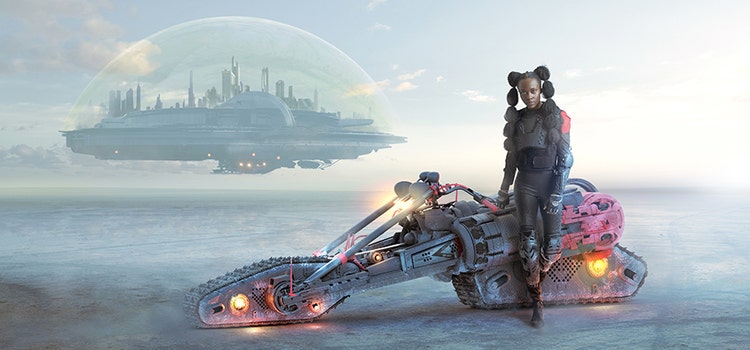
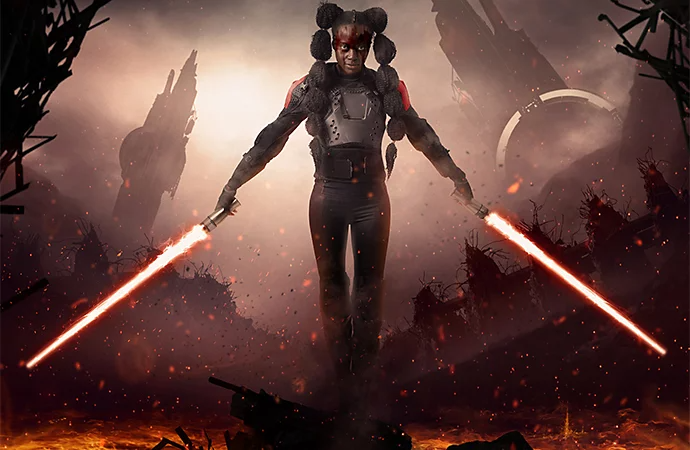
Photographic art can break all laws of physics and reality, but it still has to obey the rules of photography. “The picture you’re creating should be as realistic as possible,” says Ong. That doesn’t mean you can only create scenes that can be found in real life. Sci‑fi elements such as minotaurs, mermaids or star fighters can work if perspective, lighting, shadows and colour are consistent. As an AI photo editor, Photoshop uses Generative Fill and Neural Filters to accelerate these adjustments, making otherworldly scenes feel believable.
Use images that work well together.
Achieving that realism starts with combining complementary photos. The images you’re working with should have something to do with each other when it comes to factors like colour and light. “You can be amazing and know what you’re doing,” says Valdes-Hevia, “but if you are using two pictures that are radically different, that have very different perspectives or lighting, you’re going to have to heavily edit it.” The more editing required, the longer your workflow and the greater the risk of visual inconsistencies.
Get the perspective right.
Perspective is the first thing you’ll want to line up when combining photos. While it’s possible to alter lighting and colours in Photoshop, altering perspective is much more difficult. Use the Vanishing Point filter or the Free Transform Warp grid to align horizon lines before you add or remove objects.
Match lighting and colour.
After that, match lighting, going from darkest to lightest elements in your composition. “When you’re trying to match lighting, you want to match the darkest colour of your subject to match the darkest colour of your background,” says Valdes-Hevia. “Same with the highlights.”
Making sure colours match is your next step in combining images. Matching shadows and their range of colours, is important. An ordinary viewer might not be able to articulate why shadows look wrong, but they will notice it. “I always adjust the hue and saturation settings,” says Ong. “Make sure shadows blend into the background. Brightness, contrast, shadows, highlights — try to make it blend.” AI‑powered Local Tone Mapping in Photoshop can automate part of this balancing act and speed up colour correction.
Control subjects and elements in camera.
Finding stock images or other existing photos with complementary elements is possible, but sometimes the best photos are the ones you take yourself in a controlled photoshoot. “It often looks better if you take your own pictures because you can plan ahead and match all the lighting and perspective beforehand,” says Valdes-Hevia. Shooting tethered to Lightroom Mobile lets you preview exposure and perspective in real time, saving hours of corrective editing later. Getting shadows and perspective to line up and work together is much easier if you’re the one who created those shadows and perspectives in the first place.
Mask up.
As you edit, make sure that you can go back and change things or restart your workflow. “One of the first things I had to learn was how to edit non-destructively,” Valdes-Hevia emphasises. “Make sure you can go back later and change things you’ve done in the beginning. Masks are your friends.” Use Layer Masks, Vector Masks and the Select and Mask workspace to isolate subjects cleanly, then save versions in Photoshop Cloud Documents so you can revert at any time.
Try these photo manipulation ideas.
Creating new images out of existing photos is an art. It’s difficult, but rewarding. The best way to get good at it is to do it. “Work on it. Try different things. It’s not going to look amazing at first, but it’s all about practice,” says Valdes-Hevia. “You’ll build an eye for realism, perspective, lighting and colours as prn go along. Don’t get discouraged.”
Here are five photo manipulation ideas to help you get started online or on desktop:
- Create composite photos: Merge two or more pictures into one seamless scene.
- Do a double take: Produce striking double‑exposure portraits.
- Swap skies with AI: Replace dull skies instantly using Generative Fill.
- Miniature worlds: Shrink subjects to toy‑scale for a playful look.
- Colour splash effect: Desaturate a scene while keeping one colour in focus.
Create composite photos.
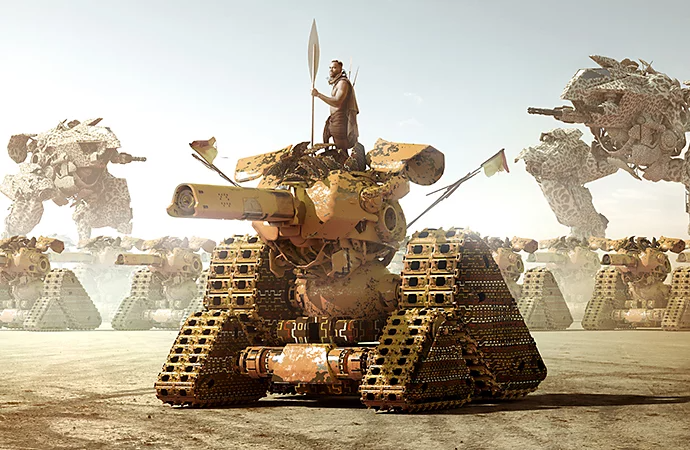
Blend multiple photos to create dramatic composite images by matching perspective, colour and lighting. Start by isolating your main subject with the Remove Background tool or Select Subject AI, then refine edges with Layer Masks. Use Soft Light and Overlay blend modes to integrate textures, and finish with a global Colour Lookup adjustment for cinematic toning.
Do a double take.
Double exposure is one of the oldest photo effects. Recreate it digitally by stacking two images, lowering the top layer’s opacity and experimenting with Screen or Lighten blend modes. For precision, add a Layer Mask and paint on key details. Try combining a portrait with landscape textures to suggest mood or narrative.
Swap skies with AI.
A quick way to transform atmosphere is by replacing a dull sky. Open the Sky Replacement workspace (Edit › Sky Replacement) and choose from built‑in presets or import your own dramatic clouds. Toggle the Shift Edge slider to perfect horizon blending and use Generative Fill to extend the canvas if needed.
Build miniature worlds.
Create a toy‑town effect by scaling subjects against oversized props. Cut out your subject, shrink it with Free Transform, then blur background layers with Tilt‑Shift Blur to mimic shallow depth of field. Add soft shadows beneath the subject for realism.
Apply a colour splash effect.
Direct a viewer’s eye by desaturating an entire scene except one hue. Convert to Black & White adjustment, invert the Layer Mask and paint white on the area you want to keep in colour. Fine‑tune edges with Feather and Density sliders for a clean finish.
As you practise, learn your tools. “I learn the most just messing around in Photoshop,” says Valdes‑Hevia. “I think to myself, I have never clicked this. What does it do?” Be curious as you investigate photo manipulation in Photoshop and get familiar with the software. “Know the name of each tool and what they are used for,” advises Antonio.
Grow your skills with step‑by‑step photo manipulation tutorials, study manipulated images to reverse‑engineer techniques, and experiment with stock images for endless inspiration. Tools like the AI image extender give you a larger canvas for creative exploration. As you do, your vision will take shape and your own worlds will emerge.
Best apps for photo manipulation and AI editing.
Adobe offers a powerful suite of creative apps for image editing, combining precision control with the latest in AI-powered tools. Whether you are working on high-end composites or quick edits on the go, here are the best Adobe apps for photo manipulation across desktop, mobile and web:.
Adobe Photoshop
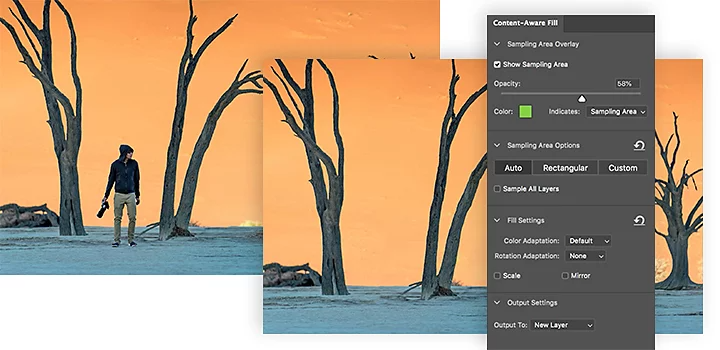
Photoshop is the professional’s choice for advanced photo manipulation. It allows you to blend, retouch and create photorealistic compositions with pixel-level accuracy. AI features such as Generative Fill, Remove Background, Content-Aware Fill, and Neural Filters enable faster, more intuitive editing. Photoshop is available on desktop and now online in your browser, making it easier to manipulate photos wherever you are.
Photoshop Express
Ideal for quick edits on mobile, Photoshop Express brings the power of Photoshop to your fingertips. Use it to apply filters, remove blemishes, change backgrounds and make instant enhancements. It’s especially useful for beginners or social media content creators looking for fast, effective image manipulation.
Adobe Lightroom
While Adobe Lightroom is designed primarily for photo retouching and colour correction, it plays an important role in preparing images for manipulation. Use AI features like automatic sky and subject selection, healing tools, and adaptive presets to fine-tune photos before exporting them to Photoshop for more complex compositing.
Adobe Express
For quick creative projects, Adobe Express includes AI image editing tools that simplify background removal, content layout and image resizing. It’s perfect for users who want to manipulate images for use in graphics, social posts or branded templates, without diving into advanced layers or masking.