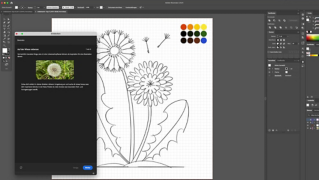
Ein Monogramm ist eine Art Namenszeichen. Es besteht aus einem oder mehreren Buchstaben, meistens Initialen, die ineinander verschlungen sind, ähnlich den Design-Kreationen für Wappen oder Hochzeitseinladungen. Ob einfach oder komplex, elegant oder witzig – Monogramme sind perfekt geeignet, um deine Persönlichkeit symbolisch zum Ausdruck zu bringen.
In diesem Tutorial lernst du, wie du mit nur drei grafischen Elementen – Buchstaben, Form und Farbe – ein Monogramm erstellst. Anregungen findest du in der PDF-Datei, die du über den blauen Button oben herunterladen kannst.
1
Das Dokument einrichten.
Klicke auf dem Startbildschirm auf „Neu“, oder wähle „Datei > Neu“.
Wähle das Profil „Druck“, und klicke auf „OK“.
Tipp: Wähle den Arbeitsbereich „Grundlagen“ aus, um alle Bedienfelder anzuzeigen, die du für dieses Projekt benötigst.
2
Initialen eingeben.
Drücke die T-Taste, um das Text-Werkzeug auszuwählen. Klicke auf die Zeichenfläche, um eine Einfügemarke hinzuzufügen.
Setze oben auf der Steuerungsleiste den Schriftgrad auf 60 Punkt, um eine bessere Lesbarkeit zu erzielen.
Gib einen Buchstaben oder deine Initialen ein, und markiere den Text mit dem Cursor.
Klicke auf der Steuerungsleiste auf das Symbol „Zentrieren“.
3
Eine passende Schrift auswählen.
Öffne auf der Steuerungsleiste das Pulldown-Menü „Schriftfamilie einstellen“. Wähle eine vorhandene Schrift aus, oder füge eine neue Schrift aus Adobe Typekit hinzu (nur mit einem Creative Cloud-Abo möglich). Klicke auf „Schriften aus Typekit hinzufügen“, um die Typekit-Website in deinen Browser zu öffnen.
Hier kannst du aus mehreren Tausend Schriften wählen. Gib im Suchfeld „League Gothic“ ein, und klicke dann auf „+ Schriftarten verwenden“. Wähle die gewünschte Variante aus, und klicke auf „Ausgewählte Schriftarten synchronisieren“. Die Schrift wird automatisch auf deinem Computer gespeichert und ist sofort einsatzbereit.
Wähle „League Gothic“ im Schriftenmenü aus, und drücke die Esc-Taste, um das Text-Werkzeug zu deaktivieren.
Hinweis: Einige Schriften sind nur im Rahmen eines kostenpflichtigen Creative Cloud-Abos verfügbar. Weitere Informationen dazu findest du auf denHilfeseiten von Adobe Fonts .
4
Einen Rahmen für die Initialen erstellen.
Klicke auf der Werkzeugleiste länger auf das Rechteck-Werkzeug, um die Werkzeuge für andere Formen anzuzeigen. Wähle das Ellipse-Werkzeug aus.
Halte die Umschalttaste gedrückt, und zeichne einen Kreis neben den Initialen.
Klicke auf der Steuerungsleiste auf das Farbfeld für die Fläche, und wähle eine Farbe aus.
Optional: Klicke auf das Farbfeld daneben für die Kontur, und erstelle eine farbige Kontur um die Form. Passe bei Bedarf die Konturstärke an.
5
Monogrammkomponenten zusammensetzen.
Während die Form noch ausgewählt ist, wähle „Objekt > Anordnen > In den Hintergrund“.
Ziehe deine Initialen mit dem Auswahl-Werkzeug über die Form, und platziere sie dort.
Tipp: Um Initialen und Form perfekt auszurichten, wähle beide Elemente aus, und klicke auf der Steuerungsleiste auf die Schaltflächen „Horizontal zentriert ausrichten“ und „Vertikal zentriert ausrichten“.
Optional:
Wenn du verschiedene Varianten des Monogramms mit unterschiedlichen Farben, Schriften und Größen erstellt hast, kannst du diese in einer Creative Cloud-Bibliothek speichern, um sie später wiederzuverwenden oder zu teilen. Weitere Informationen dazu findest du unterWas sind Creative Cloud-Bibliotheken?
6
Die Größe der Elemente ändern.
Die Größe der Form und Initialen lässt sich jederzeit ändern.
Um die Form proportional von der Mitte aus zu skalieren, wähle die Form aus. Drücke die Alt- bzw. Optionstaste, und ziehe an einer Ecke des Begrenzungsrahmens.
Um die Größe deiner Initialen zu ändern, wähle sie aus und ändere auf der Steuerungsleiste den Schriftgrad.
Wenn du mit der Größe und den Proportionen des Monogramms zufrieden bist, wähle beide Objekte aus. Wähle dann „Objekt > Gruppieren“, oder drücke Strg+G (Windows) bzw. Befehl+G (macOS).
7
Für die Ausgabe vorbereiten.
Im letzten Schritt kopierst du dein Monogramm über die Zwischenablage in ein neues Dokument.
Wähle das gruppierte Monogramm aus, und drücke Strg+C (Windows) bzw. Befehl+C (macOS), um es zu kopieren. Wähle „Datei > Neu“ und anschließend das Profil „Druck“.
Mit Strg+V (Windows) bzw. Befehl+V (macOS) wird das Monogramm in der Mitte der Zeichenfläche platziert.
Um das Monogramm für den Druck zu speichern, wähle „Datei > Speichern“ und anschließend „Adobe PDF“. Wähle für „Adobe PDF-Vorgabe“ die Option „Qualitativ hochwertiger Druck“ oder „Druckausgabequalität“, je nach Empfehlung deines Druckdienstleisters.
Um das Monogramm für die Anzeige auf dem Bildschirm zu speichern, wähle „Datei > Für Web speichern“. Wähle im Menü „Vorgabe“ JPEG oder PNG aus. Lege die Bildgröße fest, z. B. 400 x 400 Pixel für ein Profilbild auf Twitter, und deaktiviere das Kontrollkästchen „Ganze Zeichenfläche exportieren“. Klicke auf „Speichern“, um das Monogramm zu exportieren. Jetzt kannst du es in deinem Blog, auf deiner Website oder in einer digitalen Publikation verwenden.
Bild von:
Matty Newton
4. März 2020
Probiere diese Tutorials mit Illustrator aus
Illustrationen und andere Grafiken mit Vektoren erstellen
You can control how Adobe websites use cookies and similar technologies by making choices below. But note that if you disable cookies and similar technologies entirely, Adobe websites may not function properly.
Cookies are small text files stored by your web browser when you use websites. There are also other technologies that can be used for similar purposes like HTML5 Local Storage and local shared objects, web beacons, and embedded scripts. These technologies help us do things like remembering you and your preferences when you return to our sites, measure how you use the website, conduct market research, and gather information about the ads you see and interact with.
You can make choices in the menu below about what cookies and other technologies you want us to use on Adobe sites when you visit them from this browser. You can always change those choices later by clicking on the Cookie Preferences link at the bottom of the page.
If enabled:
We can improve your experience by tailoring the site and the content to things we think might be of interest
We can better keep track of your preferences — like what language you prefer to use
We will better understand your likely interests so we can provide you more relevant Adobe ads and content on non-Adobe websites and in non-Adobe apps
It will help us improve the performance of our website and those of our partners who use the Adobe Experience Cloud
If disabled:
We won’t be able to remember you from session to session so the experience may not be tailored to your interests
You’ll still have access to the content of the site but certain features that depend on cookies may not function
You’ll still see ads, they just may not be as relevant to you
General information
You can control how Adobe websites use cookies and similar technologies by making choices below. But note that if you disable cookies and similar technologies entirely, Adobe websites may not function properly.
Cookies are small text files stored by your web browser when you use websites. There are also other technologies that can be used for similar purposes like HTML5 Local Storage, web beacons, and embedded scripts. These technologies help us do things like remembering you and your preferences when you return to our sites, measure how you use the website, conduct market research, and gather information about the ads you see and interact with.
You can make choices in the menu below about what cookies and other technologies you want us to use on Adobe sites when you visit them from this browser. You can always change those choices later by clicking on the Cookie Preferences link at the bottom of the page.
If enabled:
We can improve your experience by tailoring the site and the content to things we think might be of interest
We can better keep track of your preferences — like what language you prefer to use
We will better understand your likely interests so we can provide you more relevant Adobe ads and content on non-Adobe websites and in non-Adobe apps
It will help us improve the performance of our website and those of our partners who use the Adobe Experience Cloud
If disabled:
We won’t be able to remember you from session to session so the experience may not be tailored to your interests
We’ll still count your use of our site and services
You’ll still have access to the content of the site but certain features that depend on cookies may not function
You’ll still see ads, they just may not be as relevant to you
Operate the site and core servicesOperate site and measure engagement
Always active
These cookies are required, and they are used to enable the site and related services core functionality. Without them the site could not operate, so they cannot be disabled.
These cookies enable the site and related services’ core functionality and collect statistics about user engagement, such as counting active use to help us understand trends. These cookies cannot be disabled.
Measure performance
These cookies are used to analyze site usage to measure and improve performance. Without them Adobe cannot know what content is most valued and how often unique visitors return to the site, making it hard to improve information we offer to you.
These cookies are used to analyze site usage to measure and improve performance. Without them Adobe cannot know what content is most valued, making it hard to improve information we offer to you.
Extend functionality
These cookies are used to enhance the functionality of Adobe sites such as remembering your settings and preferences to deliver a personalized experience; for example, your username, your repeated visits, preferred language, your country, or any other saved preference.
Personalize advertising
These cookies are used to enable Adobe and our partners to serve ads more relevant to your interests. Without them you will still see ads, but they might not be as relevant to you.
Personalize advertising
These cookies are used to enable Adobe and our partners to serve ads more relevant to your interests. Without them you will still see ads, but they might not be as relevant to you.