El movimiento triunfa en Internet, por lo que los GIF están en todas partes. Añadir movimiento a una imagen puede hacer que transmita una historia más compleja y Adobe Photoshop hace que crear GIF sea pan comido. Observa cómo la diseñadora y creadora de contenido Kendall Plant da una nueva vida a uno de sus bocetos convirtiéndolo en un GIF.
View tutorial in Photoshop
Follow along in the app
Con un trabajo que abarca naturaleza, fotografía callejera e incluso calaveras, Kendall Plant es una diseñadora, directora de arte y creadora de contenido que aporta su enfoque creativo único a Adobe como directora creativa asociada.
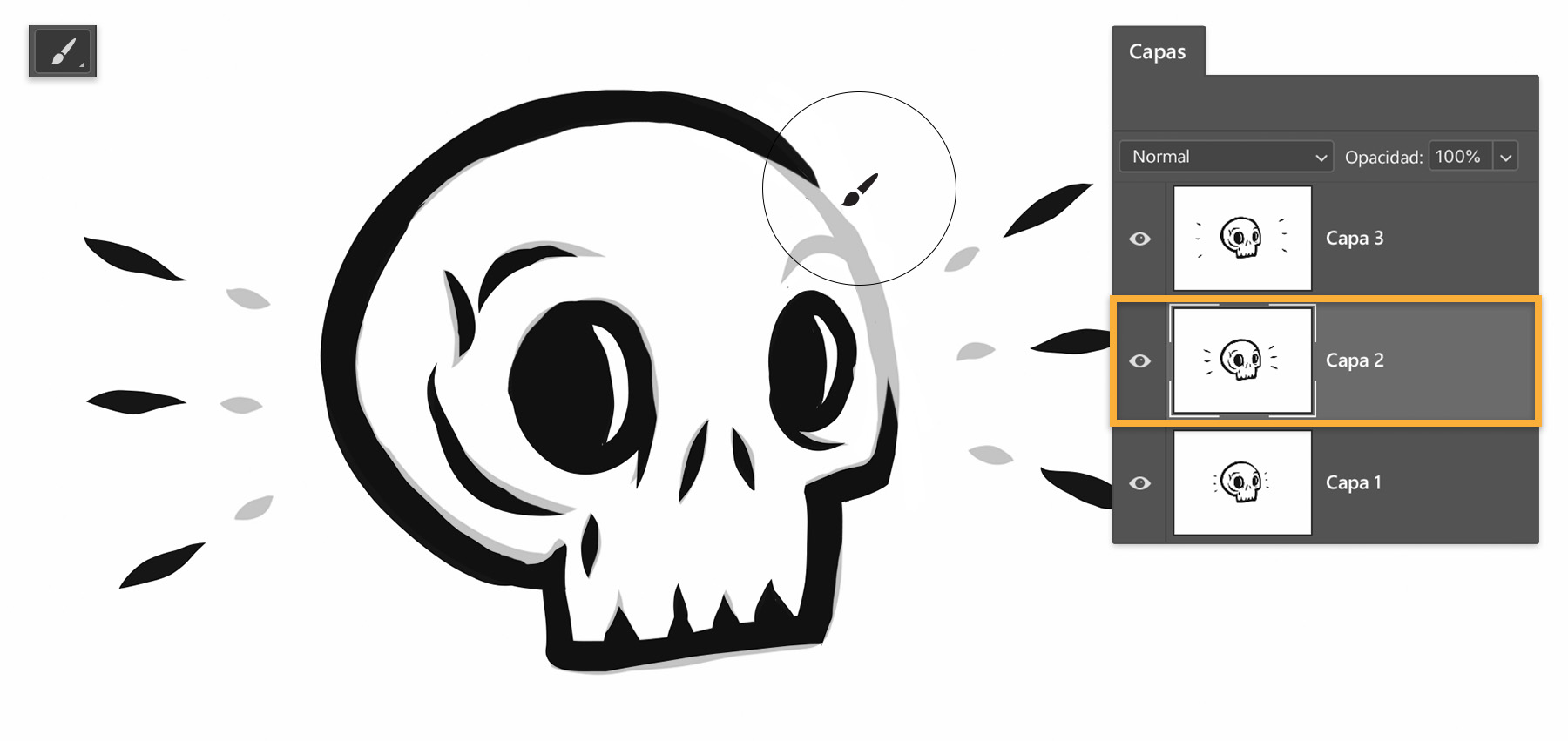
El primer paso de Kendall fue crear variaciones de su primer dibujo para reflejar los distintos estados de movimiento y guardar cada una como un archivo separado. Luego, abrió el primer boceto en Photoshop y arrastró el resto de los archivos de su ordenador al documento, pulsando la tecla Retroceso (o Intro) para colocar cada archivo en su propia capa. A continuación, hizo clic en el icono del candado para desbloquear la capa original.
2
Dale vida
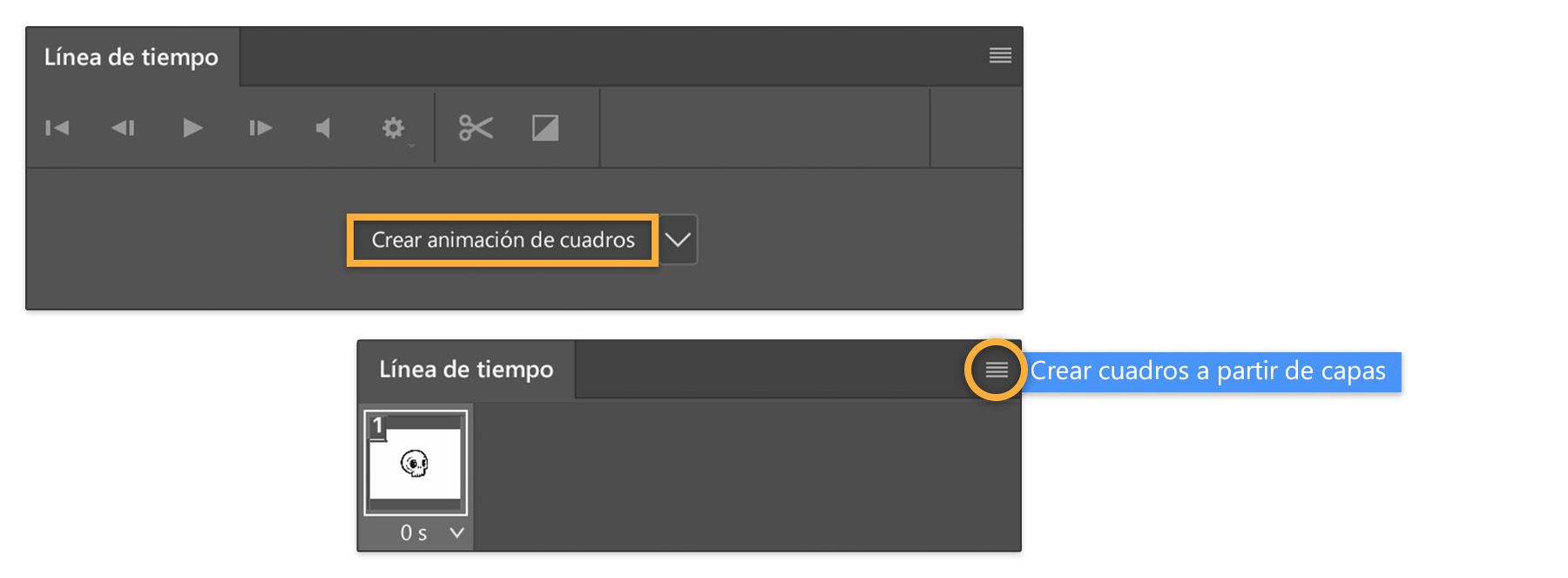
Lista para animar sus bocetos, Kendall abrió la Línea de tiempo (Ventana > Línea de tiempo), seleccionó Crear animación de cuadros en el menú desplegable y, por último, Crear cuadros a partir de capas en el menú emergente. Si has utilizado la Línea de tiempo antes, podría tener cuadros vacíos por defecto. Si pasa esto, haz clic en el primer cuadro y mantén pulsada la tecla Mayús mientras seleccionas el último. Selecciona Eliminar cuadros en el menú emergente. Y luego Crear cuadros a partir de capas.
3
Dale ritmo a tu animación
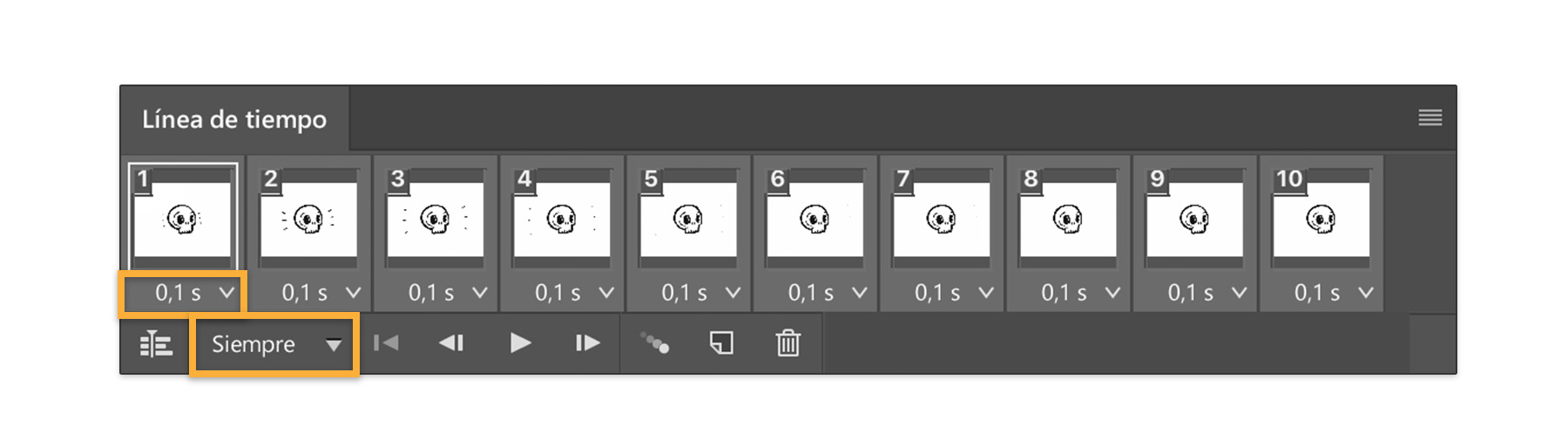
Para dar a cada cuadro la misma duración, Kendall hizo clic en el primer cuadro de la línea de tiempo y luego en el último mientras mantenía pulsada la tecla Mayús. Puedes hacer clic en la flecha hacia abajo en un cuadro y establecer el intervalo en 0,1 segundos; esto actualizará todos los cuadros seleccionados. A continuación, Kendall escogió Infinito del menú desplegable de debajo de la Línea de tiempo para crear un bucle de animación continuo. Puedes previsualizar la duración de tu animación haciendo clic en Reproducir.
4
Exporta a GIF
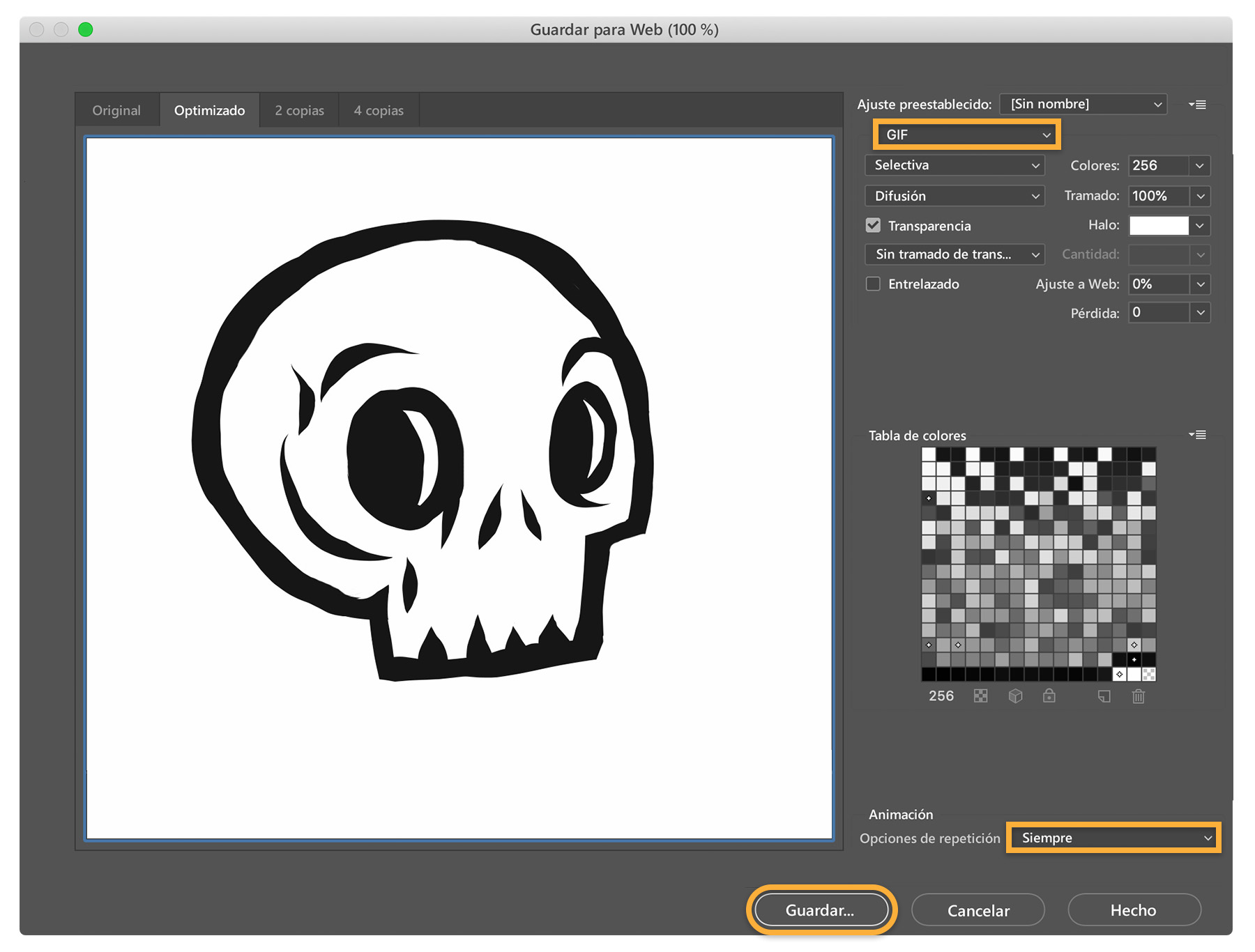
Selecciona Archivo > Exportar > Guardar para Web (heredado). Escoge GIF como formato de exportación e Infinito en Opciones de repetición.
Comparte el gif animado
Crea tu propio gif y compártelo en tu red social favorita o con amigos. Deja que la creatividad fluya.

Nota: Los archivos de proyecto incluidos en este tutorial son solo para fines prácticos.
You can control how Adobe websites use cookies and similar technologies by making choices below. But note that if you disable cookies and similar technologies entirely, Adobe websites may not function properly.
Cookies are small text files stored by your web browser when you use websites. There are also other technologies that can be used for similar purposes like HTML5 Local Storage and local shared objects, web beacons, and embedded scripts. These technologies help us do things like remembering you and your preferences when you return to our sites, measure how you use the website, conduct market research, and gather information about the ads you see and interact with.
You can make choices in the menu below about what cookies and other technologies you want us to use on Adobe sites when you visit them from this browser. You can always change those choices later by clicking on the Cookie Preferences link at the bottom of the page.
If enabled:
We can improve your experience by tailoring the site and the content to things we think might be of interest
We can better keep track of your preferences — like what language you prefer to use
We will better understand your likely interests so we can provide you more relevant Adobe ads and content on non-Adobe websites and in non-Adobe apps
It will help us improve the performance of our website and those of our partners who use the Adobe Experience Cloud
If disabled:
We won’t be able to remember you from session to session so the experience may not be tailored to your interests
You’ll still have access to the content of the site but certain features that depend on cookies may not function
You’ll still see ads, they just may not be as relevant to you
General information
You can control how Adobe websites use cookies and similar technologies by making choices below. But note that if you disable cookies and similar technologies entirely, Adobe websites may not function properly.
Cookies are small text files stored by your web browser when you use websites. There are also other technologies that can be used for similar purposes like HTML5 Local Storage, web beacons, and embedded scripts. These technologies help us do things like remembering you and your preferences when you return to our sites, measure how you use the website, conduct market research, and gather information about the ads you see and interact with.
You can make choices in the menu below about what cookies and other technologies you want us to use on Adobe sites when you visit them from this browser. You can always change those choices later by clicking on the Cookie Preferences link at the bottom of the page.
If enabled:
We can improve your experience by tailoring the site and the content to things we think might be of interest
We can better keep track of your preferences — like what language you prefer to use
We will better understand your likely interests so we can provide you more relevant Adobe ads and content on non-Adobe websites and in non-Adobe apps
It will help us improve the performance of our website and those of our partners who use the Adobe Experience Cloud
If disabled:
We won’t be able to remember you from session to session so the experience may not be tailored to your interests
We’ll still count your use of our site and services
You’ll still have access to the content of the site but certain features that depend on cookies may not function
You’ll still see ads, they just may not be as relevant to you
Operate the site and core servicesOperate site and measure engagement
Always active
These cookies are required, and they are used to enable the site and related services core functionality. Without them the site could not operate, so they cannot be disabled.
These cookies enable the site and related services’ core functionality and collect statistics about user engagement, such as counting active use to help us understand trends. These cookies cannot be disabled.
Measure performance
These cookies are used to analyze site usage to measure and improve performance. Without them Adobe cannot know what content is most valued and how often unique visitors return to the site, making it hard to improve information we offer to you.
These cookies are used to analyze site usage to measure and improve performance. Without them Adobe cannot know what content is most valued, making it hard to improve information we offer to you.
Extend functionality
These cookies are used to enhance the functionality of Adobe sites such as remembering your settings and preferences to deliver a personalized experience; for example, your username, your repeated visits, preferred language, your country, or any other saved preference.
Personalize advertising
These cookies are used to enable Adobe and our partners to serve ads more relevant to your interests. Without them you will still see ads, but they might not be as relevant to you.
Personalize advertising
These cookies are used to enable Adobe and our partners to serve ads more relevant to your interests. Without them you will still see ads, but they might not be as relevant to you.