
Prøv disse veiledningene med Photoshop
Rediger bilder for å skape nye bilder og grafikk.
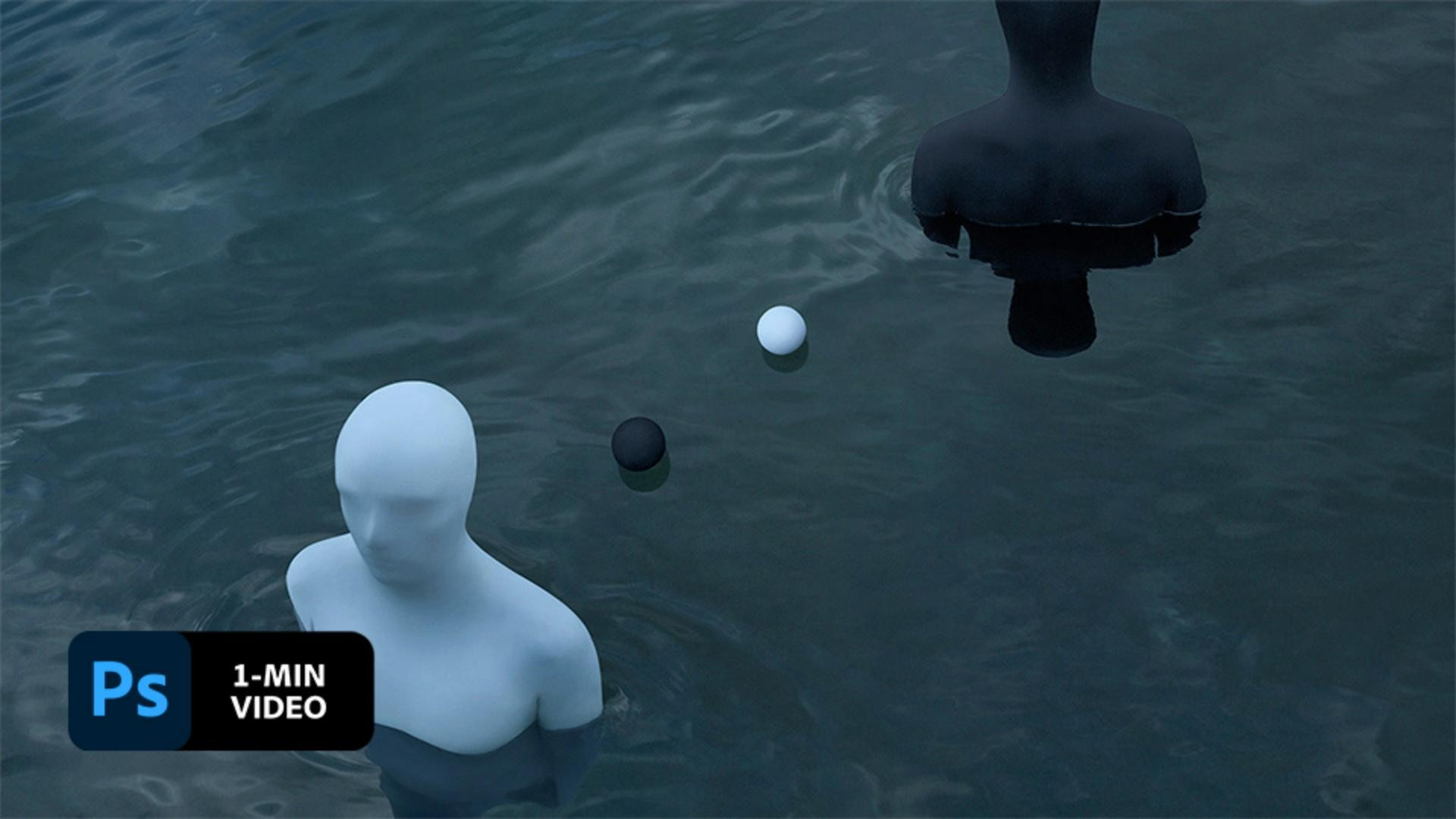
Removing minor blemishes and imperfections from your photos can have a major impact. See how visual artist Gabriel Isak retouches an image in Adobe Photoshop.
Isak selected the Healing Brush and brushed over the seams, zipper, and wrinkles in his photo. Each time you move to a new area, reset the source point for the brush using option-click (or alt-click).

The Content-Aware Move tool, nested under the Healing Brush, allowed Isak to easily move objects around. He made sure that Mode was set to Move in the Options bar, drew a selection around the white ball, and dragged the object to its new position.

Isak noticed small imperfections around the white figure and used the Spot Healing Brush to remove them.

With a few simple adjustments, you can turn an almost-perfect photo into a perfect one.

Note: Project files included with this tutorial are for practice purposes only.
With Adobe Stock, you have access to more than 100 million high-quality, royalty-free images including photos, graphics, videos, and templates to jump-start your creative projects. Try Adobe Stock and get 10 free images.