| 1 |
If the Navigation panel is not already open, select Window > Navigation.
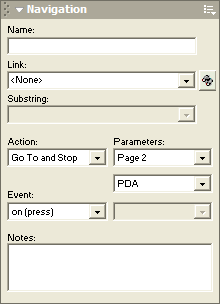 |
| 2 |
Click the Event pop-up menu and select On (Over). |
|
In the resulting Flash movie, the handheld organizer will now respond to the mouse pointer when it moves over the screen. |
|
Next, create a Flash action to display the imported SWF movie on page 3. |
| 3 |
In the Tools panel, select the Pointer tool. |
| 4 |
Click the screen object on page 2 to select it. |
| 5 |
Click the Action pop-up menu and select Go To and Stop. |
|
An action proton appears at the lower right corner of the screen object. |
| 6 |
Click the Parameters pop-up menu and select Page 3. |
|
A blue link line extends from the screen object to page 3. |
| 7 |
Click the Event pop-up menu and select On (Release). |
|
In the resulting Flash movie, page 2 will appear when you position the mouse over the handheld organizer's screen. When you click on the screen, page 3 will appear and display an animation. |
 |
|




