How to convert HEIC to PNG.
HEIC and PNG are two common image file types used for different purposes. HEIC files are often created on Apple devices, while PNG files are widely supported across different platforms. This makes them ideal for incorporating into your PDF documents.

If you need to convert HEIC to PNG, this guide explains why, when it makes sense, and how to do it using Adobe tools and other methods.
Adobe Acrobat offers a wide range of file conversion tools. Explore the online tools today.
What is an HEIC file?
An HEIC file is an image format used primarily by Apple devices. HEIC stands for High Efficiency Image Container and was introduced to store high-quality images while using less storage space than older formats like JPEG.
HEIC files are usually created when taking photos on iPhones and iPads running modern versions of iOS. They support advanced features like multiple images in a single file, transparency, and image sequences, making them more efficient for mobile photography.
However, HEIC files aren’t always compatible with non-Apple platforms or older software. This can lead users to need to change HEIC to PNG when they require more compatibility or easier sharing.
What is a PNG file?
PNG stands for Portable Network Graphic and is a widely used image format known for its quality and flexibility. PNG files support lossless compression, meaning the image quality isn’t reduced when the file is saved.
PNG is especially popular with designers and marketers because it supports transparent backgrounds, making it ideal for logos, graphics, and digital assets. PNG files are also compatible across virtually all devices, browsers, and operating systems.
Because of this broad compatibility, users often convert from HEIC to PNG when they’re preparing images for websites, presentations, documents, or professional design work.
What are the benefits of converting from HEIC to PNG?
Converting from .HEIC to .PNG can make your images easier to use, share, and edit. While HEIC files are very efficient, PNG files have more advantages in many everyday workflows.
As a result, many users choose to convert HEIC to PNG for free when they’re working outside of Apple ecosystems due to the increased benefits.
The key benefits include:
- Better compatibility: PNG files open easily in Windows, Android, and most software without the need for additional plugins
- Design-friendly format: PNG supports transparency, making it ideal for logos and digital graphics
- Simpler sharing: PNG files are easier to upload, email, and embed across different platforms
- Consistent quality: PNG uses lossless compression which preserves image detail and quality
- Professional workflows: Designers often prefer PNG over HEIC for editing and publishing.
Different ways to convert from HEIC to PNG.
There are several ways to convert HEIC to PNG, depending on your device, the number of files you’re working with, and whether you need to preserve the image quality or metadata.
HEIC is a modern, efficient format that’s designed to save storage space. But converting to PNG can improve the image’s compatibility and make it easier to edit, share, insert into a PDF or reuse across different platforms.
Convert your file formats with Adobe.
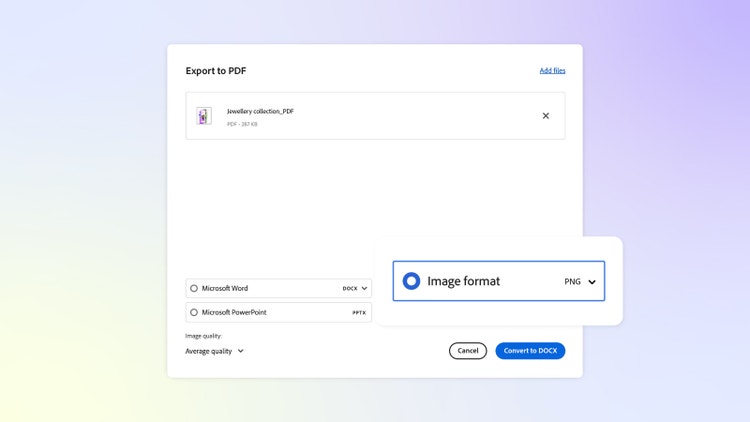
One way to convert your HEIC files to PNG for free online is using Adobe Acrobat. Just follow these steps:
- Convert your HEIC file into a PDF using an online HEIC to PDF converter tool.
- Next, use the free PDF converter on Acrobat online to convert your PDF to a PNG file.
- Finally, download your PNG image file and share.
Adobe Acrobat also supports further PNG-based workflows, including tools that let you convert PNG files into PDFs for sharing or archiving.
If you use Adobe creative tools like Photoshop, you can also convert HEIC images by opening the file and saving it as a PNG. This approach is particularly useful for designers and professionals who want full control over their image quality.
As well as single-file conversion, desktop tools like Photoshop support batch processing, so you can convert multiple HEIC files to PNG in one workflow. This can be helpful when working with large image libraries. These methods also tend to preserve important image metadata, such as colour profiles and camera information.
Convert files on a Mac.
Mac users can also convert HEIC images without installing additional software. Built-in tools like Preview make it easy to turn HEIC into PNG while keeping the image quality intact.
Typical steps include:
- Open the HEIC file in Preview
- Select File > Export
- Choose PNG as the format
- Save the converted image.
This method is quick, reliable, and useful when you want to retain the clarity or transparency of your images to use in designs and documents.
FAQs.
What’s the easiest way to convert HEIC to PNG?
The easiest method depends on your device. Mac users can export HEIC files as PNGs using Preview, while others may prefer design software or free online tools to convert HEIC to PNG quickly.
What programs open HEIC files?
HEIC files open natively on Apple devices. On Windows, you may need additional codecs or image software. Converting HEIC into PNG means you have more compatibility across programs.
Can Windows convert HEIC to PNG?
Yes, Windows users can open HEIC files with supported apps or third-party tools, then save them as a PNG. Many people change HEIC to PNG to avoid any compatibility issues.
More useful resources.
Useful PDF tools.
Learn more about the features, tools and benefits offered by Adobe Acrobat.