MKV vs MP4: what’s the difference and how do you convert?
MKV and MP4 are two different types of video file container formats. MP4 tends to be the one that’s more commonly used, so you might be more familiar with this file type. However, MKV also has its benefits.
In this guide, we’ll delve into the key features of each file type and explore how to convert your MKV files to MP4. We’ll also look at when it’s best to use each format, and things to consider when embedding videos into PDFs, presentations and other interactive documents.
What is an MKV file?
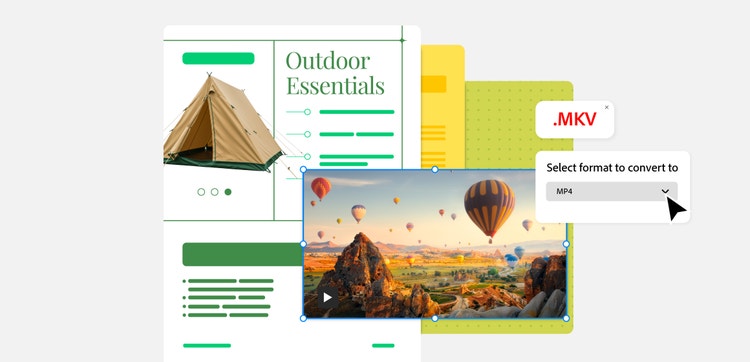
MKV stands for Matroska Video. It’s an all-in-one video player format that packs video, audio, subtitles, chapters and metadata into a single file. It can also contain different individual file formats within it.
MKV files offer flexibility when it comes to video projects as they support a wide variety of codecs, such as high definition and lossless formats. This makes them a popular option for film and TV streaming, for example.
They’re also good for archiving and complex media projects. But their advanced features can make them incompatible with certain players.
What is an MP4 file?
MP4 stands for MPEG-4 Part 14. It’s a commonly used digital format developed by the Moving Picture Experts Group.
Like an MKV file, MP4 containers can store video, audio, subtitles, and still images in a single, compact file. The compression is efficient, as it keeps video sizes small, without compromising quality.
MP4 files support popular codecs such as H.264 and H.265, meaning they’re highly compatible with a wide range of devices, operating systems and web browsers. They are also good for streaming, sharing, embedding into webpages, presentations and even PDFs.
What are the key differences between MKV and MP4 files?
The key difference between MKV and MP4 files is their flexibility and compatibility. MKV supports multiple layers, such as subtitles and advanced features, whereas MP4 is more about efficient compression and easier shareability.
File size.
MKV files are generally much larger because they place more emphasis on retaining the original quality. They can include many layers, such as audio tracks and subtitles, all in one container.
MP4s are smaller and more efficient. This makes them more ideal to stream and embed in documents as they can be compressed and support more codec types.
Compatibility.
MP4s are more compatible across a wider variety of devices, platforms and media players as they don’t need extra software for playback.
MKVs support more advanced features, but need certain players or conversion tools, which makes them more limited across devices.
Metadata.
MKV offers more advanced support for metadata, including tags, chapters and detailed track information. This can help users organise and simplify larger, more complex media file types.
MP4s also store metadata, but the approach is much more simplistic and standardised, with a greater focus on ease of use over depth and customisation.
Subtitles.
MKVs are great for subtitles, offering various subtitle formats and language tracks on one file. MP4s can support subtitles, but there are fewer options and they’re generally more limited.
If subtitles are a major element of the media, it’s preferable to choose MKV instead of MP4.
When to use an MKV vs MP4 file.
When comparing MP4 vs MKV file types, each one is better suited to certain situations:
- MP4s are generally better for everyday document use. Since they’re more compatible with a variety of devices and platforms, it’s easier to publish them online, post them on social media or embed them into interactive documents. As they’re smaller in size, they don’t take up as much space – making sharing even simpler.
- MKVs are generally better for storage and source media. If you’re looking to use different audio tracks, subtitles or chapters, MKVs may be better than MP4s. But unlike MP4s, you might need to convert and trim these files if you want to embed them into PDFs as they’re not as compatible.
How to convert an MKV file to MP4.
To convert an MKV file to MP4, you’ll want to use an online conversion tool or VLC Media Player. This involves loading your MKV files, selecting MP4 as the preferred output format and choosing the relevant settings.
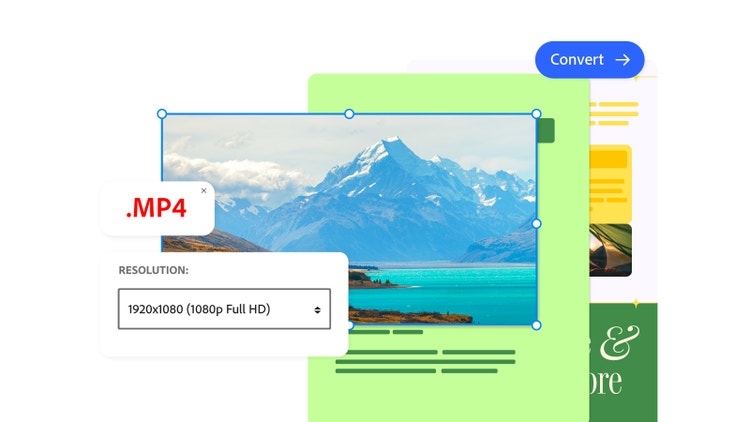
For example, when converting from MKV to MP4, you might want to select a specific aspect ratio or resolution. Once you’ve selected your settings, you can action the process and transform the MKV file into an MP4.
Should I use an MKV or MP4 file in my PDFs?
In most cases, you should use MP4 files in your PDFs because they’re easier to embed. They’re smaller, and more compatible on different devices, web browsers and PDF viewers. This means a smoother performance if you embed them into interactive PDFs.
If your video is in MKV or another file format, you might be able to convert your video to MP4 using a trusted online convertor tool or the VLC Media Player. Then you can edit your video on Adobe Express – ready to embed into your Acrobat PDF.
FAQs.
Which is better quality – MKV or MP4?
Quality depends on a few different factors, such as file size and compression. For example, MP4 file containers mostly use lossy compression, while MKV file formats support both lossy and lossless compression. The type of compression used and the number of times you compress your data can impact the quality of your file.
You could test which approach works best with each file format. After you’re done converting, test the new file. Then, check to see if it’s worked properly and if the quality is good enough.
How do I open an MKV file?
To open an MKV file, you’ll need to use a media player that supports it, such as VLC Media Player. Before choosing where to play the files, check which player supports them and make sure you have that set up on your system.
Do you lose quality when converting MKV to MP4?
You might lose some of the original video quality when converting an MKV file to MP4. This is usually due to compression or re-encoding. Before converting, you may want to check the codecs of your MKV files to see if they are compatible with the MP4 file format. That way, you’ll have a better idea if the quality will be impacted.
More useful resources.
Useful PDF tools.
Looking to enhance your PDF documents? Make the most of more tools and resources on Adobe Acrobat today. Try Adobe Acrobat for yourself.