If you’re an office worker, a business owner or anyone who uses a PC or laptop for work, it can really help to know how to save Outlook emails as PDFs. Not only can this skill help cut out unnecessary admin, but it can also improve the quality of your work.
To discover how to save Outlook emails as a PDF, read our handy guide.
Saving Outlook emails as PDF docs can be done in three quick and easy steps.
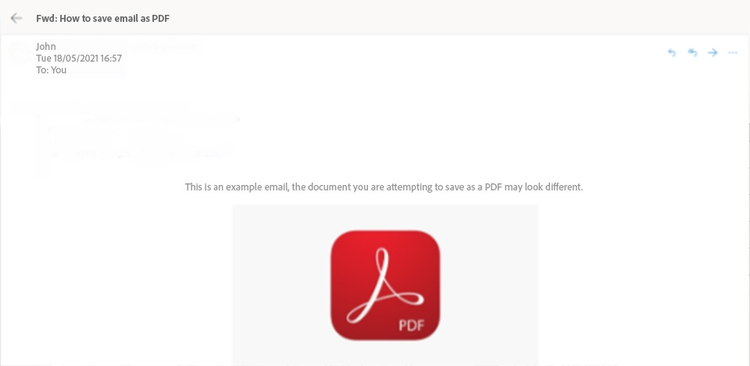
Find your email. In your inbox, open the email that you wish to save as a PDF.
Select Print. Press control + P on windows or command + P on Mac to print.
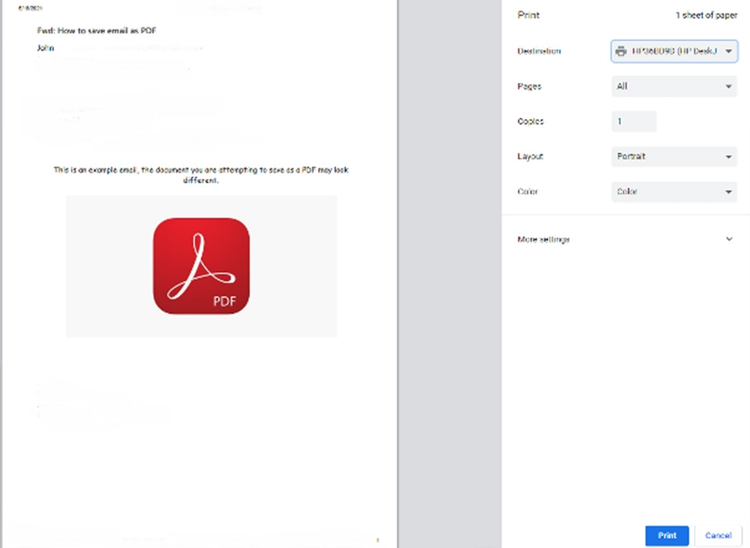
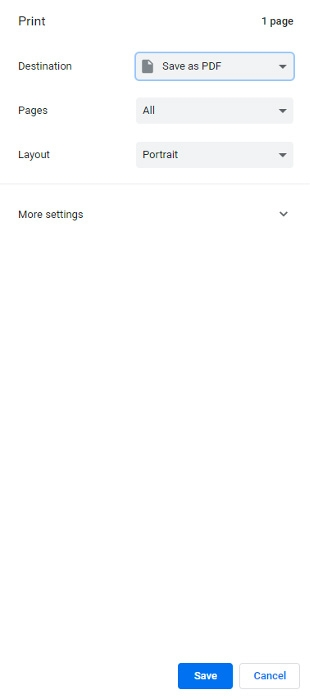
Finish up. When the print menu pops up, change the destination of the document in the Printer drop-down on the left-hand side from your local printer to Print as PDF. If you’re opening your email on a browser, the drop-down may be on the right-hand side. Finally, hit the blue Save or Print icon to save the email to your PC or laptop...
In Detail: How to Save Outlook Emails as PDF Documents.
Learn how to export an Outlook email as a PDF with our complete step by step guide.
1. Open up your inbox in outlook.com. Navigate to the email that you would like to save as a PDF by left-clicking it.
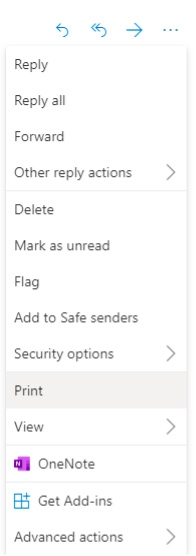
2. Open the email, press control + P on Windows or Mac and press command + P to be taken directly to the Print Menu (5). Alternatively, click the three dots in the top left corner if you’re in outlook on a web browser.
3. A drop-down menu will then appear with a range of options to choose from if you click the three dots; left click Print.
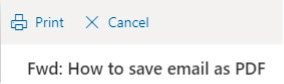
4. Select the Print icon in the top left-hand corner of the drop-down menu.
5. Clicking this will bring up the Printing Menu. You will notice a drop-down menu with the name of any connected printers.
6. Left-click this drop-down menu and change the destination from your local printer to the Save as PDF option. Then, click print.
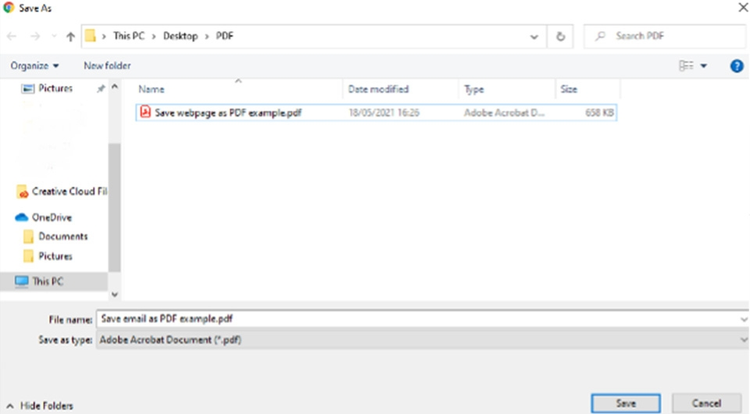
7. This will open a dialogue box on your computer, as shown below, allowing you to select the location of the new PDF and rename it. Select Adobe Acrobat Document (*.pdf) from the Save as type drop-down menu if it is not already selected.
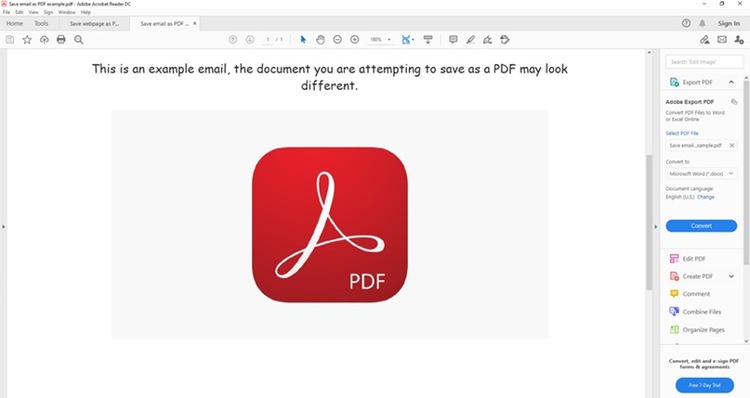
8. Click Save, locate the new document on your computer and open it with Adobe Acrobat to check that it has saved correctly.
Benefits of Converting an Outlook Email to a PDF.
Here are three benefits to saving Outlook emails to PDFs.
Organisation. It’s easier to store and file important information between yourself and clients. No longer will you have to search through archived conversations or accidentally delete vital emails.
Professionalism. Adobe Acrobat allows you to view PDF documents and edit them. After converting emails to PDFs, you will be able to combine them with other documents, make amendments to them, annotate them and even sign them. If you are corresponding with clients, well-presented, edited PDF documents will give a sense of professionalism.
Continual accessibility. Now that you know how to download emails from Outlook as PDF documents, you can store them on your PC or laptop and even on your mobile device. Simply email them to your smartphone or tablet and download them or transfer them via a wired connection. This will mean that anywhere you are, you can always access your important documentation - even without a Wi-Fi or network connection.
Outlook Emails to PDF: FAQs.
If you have further queries not covered in our handy guide, take a look at some of our most frequently asked questions.
Can I download emails in PDF format on other platforms?
Almost every email provider has the facilities to allow users to download emails as PDF. The specific steps may vary from one provider to another, but the same principles apply. Find out how to save emails in Gmail with our handy guide.
Can I download multiple emails in PDF format?
You can download multiple emails as PDF - however, you will have to download each email individually. Once you have downloaded all of the emails that you want into PDF format, you can then merge them together into one PDF using Adobe Acrobat.
Can I download Outlook emails on Mac?
The steps are identical between Windows and Mac. Just follow the advice in the steps and you will be able to download your email as a PDF easily.
Related Acrobat content.
Try our other tips and guides to make the most of Acrobat.
PDFs are a great way for your business to share information – for example menus, price lists, and reports. Displaying these on your Facebook Business page is an effective way of engaging with customers using social media.