PDF files can get corrupted for a variety of reasons. The file may have not downloaded properly, a hard-drive may have reached its storage capacity or there could have been a problem transferring from one device to another.
If the issue is from a download, try downloading the file again to see if this fixes the issue.
If there’s still a problem, discover how to repair a damaged or corrupted PDF in our handy guide.
Check out this quick guide to repairing a damaged or corrupted PDF:
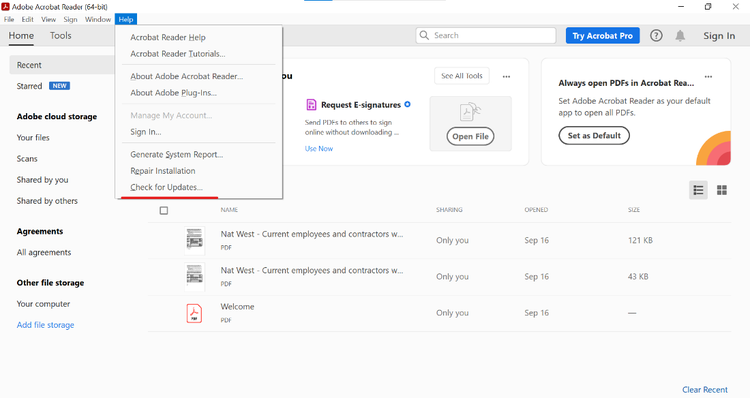
UpdateAdobe Acrobat Reader. One of the reasons a PDF might not display properly is because your Adobe Acrobat Reader isn’t up to date. Launch the app and go to Help > Check for updates.
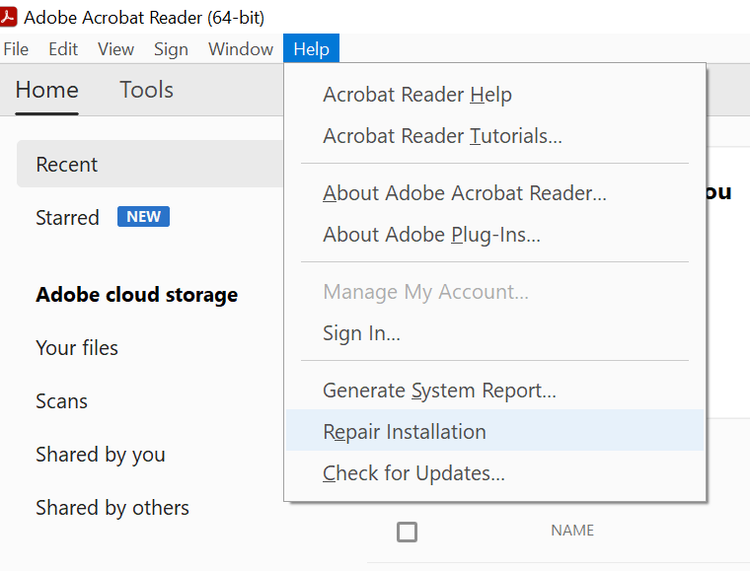
Repair installation. If the PDF still doesn’t work after updating Acrobat Reader, go to Help > Repair installation.
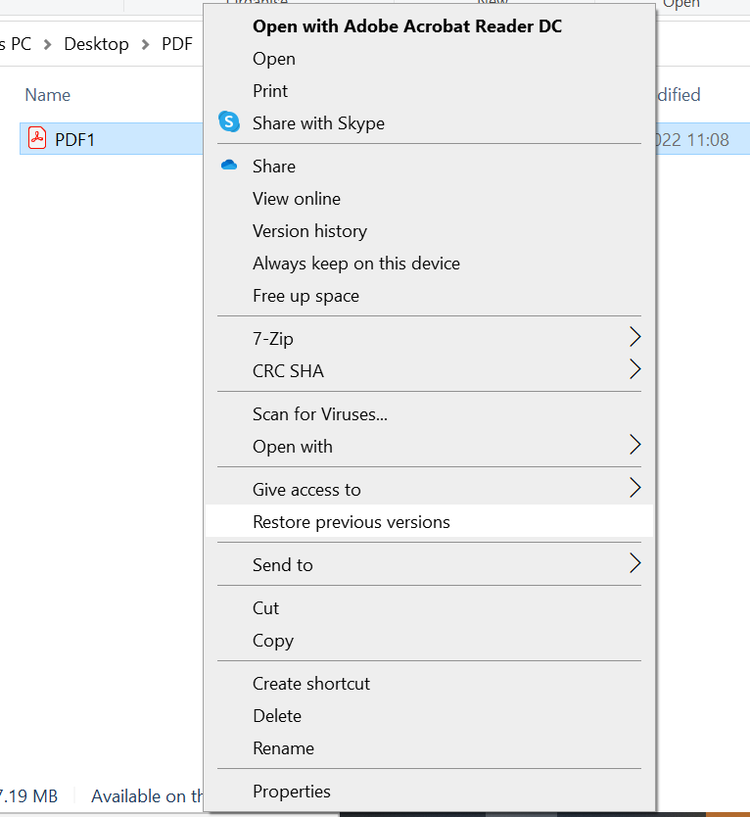
Restore previous version. Another method to repairing a damaged PDF is restoring it to a previous version. Head to the location where the PDF is saved, right click the file and select Restore previous versions.
Convert the PDF. if you are still having no luck with repairing a damaged PDF, you can extract the information from within, then save it into a Word document. From here you reformat the information and resave as a PDF.
In Detail: PDF Repair Step by Step.
You can repair a corrupted PDF using Adobe Acrobat Reader. Find out the full process here
1. The issue may simply be that your Adobe Acrobat Reader software is not up to date. Launch Adobe Acrobat reader and go to Help > Check for updates. If any updates are available, install them and then try re-opening your PDF on the app.
2. The files Adobe requires to run may have become corrupted. In which case, go to Help > Repair installation. If you still have no luck when opening your PDF after this has been resolved, you can still repair a corrupt PDF file online for free by uninstalling Reader, then installing the latest version.
3. If the file worked prior to becoming corrupted, you may be able to restore an older version of the document on Adobe. Find your PDF in your files, right click and select Restore previous versions. This will bring up a list of the previously saved versions that are backed up. You can select a file to open and restore, which will bring up a previous, uncorrupted version.
4. If you don’t have an older version to use, you may be able to convert the PDF to another file type or extract the information. You can easily convert a PDF to a Word document. This might not be the most effective way to repair a PDF, but it will ensure that any important information can be recovered.
Benefits of Repairing a Corrupted PDF?
There are many benefits when it comes to PDF repair.
Recover information. Using a PDF repair tool ensures you can recover important documents and data.
Sharing files. PDFs can be opened on a variety of apps on different operating systems, so PDF repair is vital if you have documents you need to share with others.
Helps update software. The first step of PDF repair is checking for updates to your Adobe Acrobat Reader. Having the most up to date version of the app will help to make it easier for the service to open and read PDFs, without the need to use a PDF repair tool again.
We’re continually improving and adding features to Adobe Acrobat. And with an Adobe Acrobat subscription, you’ll always get the newest features the moment they’re released.
PDF Repair: FAQs.
Want to learn more? These are the most common questions Adobe users ask about PDF repair.
If a PDF file won’t open on Adobe Acrobat, first, ensure that you have the latest version of Acrobat installed. From here, disable protected mode at startup – you can do this by heading to Edit > Preferences > Security (enhanced). On that final screen, head to sandbox protections and untick Enable protected mode at startup.
If the PDF isn’t opening in your email, it could be an issue with the PDF reader, or the file could be corrupted. To try and fix the issue, consider updating the PDF reader (if it’s not already on the latest update) or try fixing the PDF if it is corrupted. Consider saving the file first before opening it.
You can repair a corrupted PDF using Adobe Acrobat Reader. If updating the reader doesn’t work, click Help > Repair installation. If this still doesn’t fix the problem, you can try uninstalling Reader, and installing the latest version. If there was a version that worked prior to the recent attempt to open it, you can restore it by finding the PDF in your files, right-clicking and selecting Restoreprevious versions.
You may be able to recover content from a corrupted PDF using Adobe Acrobat Reader or online tools, depending on the severity of the issue. Results can vary, and not all files can be fully restored.
There are a few ways you can prevent PDF files from getting corrupted, including:
• Ensuring software is regularly updated to the latest version
• Checking that files download completely before closing or shutting down
• Avoid using any special characters in the file name
• Regularly checking files for and preventing viruses using virus protection software
There are some limitations to repairing a corrupted PDF, depending on the severity of the corruption. The file could encounter data loss, where text, images and formatting become lost or distorted. The file could also have broken links and other damage that can’t be repaired.
If it isn’t possible to repair a PDF, there are other file formats you can use. One option is to use Adobe Acrobat to extract the text and add it to a Word document (.docx). For the web, you could use HTML and EPUB for longer documents such as books. For images, you can use PNG/JPEG.
If a PDF repair fails, there are a few things you can do. You can either try different PDF editing tools, redownload the file, or try to convert it to a different file format. Alternatively, you can also try to restore it from a previous backup save.
Yes, you can sometimes recover specific parts of a corrupted PDF. You can convert a corrupted PDF to a Word document to retrieve text. You may also be able to use a PDF image extractor or use the Snapshot tool in Adobe Acrobat to copy an image.
Some common signs that a PDF might be corrupted include:
• Seeing an error message such as “Could not open file"
PDFs are a great way for your business to share information – for example menus, price lists, and reports. Displaying these on your Facebook Business page is an effective way of engaging with customers using social media.
You can control how Adobe websites use cookies and similar technologies by making choices below. But note that if you disable cookies and similar technologies entirely, Adobe websites may not function properly.
Cookies are small text files stored by your web browser when you use websites. There are also other technologies that can be used for similar purposes like HTML5 Local Storage and local shared objects, web beacons, and embedded scripts. These technologies help us do things like remembering you and your preferences when you return to our sites, measure how you use the website, conduct market research, and gather information about the ads you see and interact with.
You can make choices in the menu below about what cookies and other technologies you want us to use on Adobe sites when you visit them from this browser. You can always change those choices later by clicking on the Cookie Preferences link at the bottom of the page.
If enabled:
We can improve your experience by tailoring the site and the content to things we think might be of interest
We can better keep track of your preferences — like what language you prefer to use
We will better understand your likely interests so we can provide you more relevant Adobe ads and content on non-Adobe websites and in non-Adobe apps
It will help us improve the performance of our website and those of our partners who use the Adobe Experience Cloud
If disabled:
We won’t be able to remember you from session to session so the experience may not be tailored to your interests
You’ll still have access to the content of the site but certain features that depend on cookies may not function
You’ll still see ads, they just may not be as relevant to you
General information
You can control how Adobe websites use cookies and similar technologies by making choices below. But note that if you disable cookies and similar technologies entirely, Adobe websites may not function properly.
Cookies are small text files stored by your web browser when you use websites. There are also other technologies that can be used for similar purposes like HTML5 Local Storage, web beacons, and embedded scripts. These technologies help us do things like remembering you and your preferences when you return to our sites, measure how you use the website, conduct market research, and gather information about the ads you see and interact with.
You can make choices in the menu below about what cookies and other technologies you want us to use on Adobe sites when you visit them from this browser. You can always change those choices later by clicking on the Cookie Preferences link at the bottom of the page.
If enabled:
We can improve your experience by tailoring the site and the content to things we think might be of interest
We can better keep track of your preferences — like what language you prefer to use
We will better understand your likely interests so we can provide you more relevant Adobe ads and content on non-Adobe websites and in non-Adobe apps
It will help us improve the performance of our website and those of our partners who use the Adobe Experience Cloud
If disabled:
We won’t be able to remember you from session to session so the experience may not be tailored to your interests
We’ll still count your use of our site and services
You’ll still have access to the content of the site but certain features that depend on cookies may not function
You’ll still see ads, they just may not be as relevant to you
Operate the site and core servicesOperate site and measure engagement
Always active
These cookies are required, and they are used to enable the site and related services core functionality. Without them the site could not operate, so they cannot be disabled.
These cookies enable the site and related services’ core functionality and collect statistics about user engagement, such as counting active use to help us understand trends. These cookies cannot be disabled.
Measure performance
These cookies are used to analyze site usage to measure and improve performance. Without them Adobe cannot know what content is most valued and how often unique visitors return to the site, making it hard to improve information we offer to you.
These cookies are used to analyze site usage to measure and improve performance. Without them Adobe cannot know what content is most valued, making it hard to improve information we offer to you.
Extend functionality
These cookies are used to enhance the functionality of Adobe sites such as remembering your settings and preferences to deliver a personalized experience; for example, your username, your repeated visits, preferred language, your country, or any other saved preference.
Personalize advertising
These cookies are used to enable Adobe and our partners to serve ads more relevant to your interests. Without them you will still see ads, but they might not be as relevant to you.