
1. Open your photo in Guided mode.
Select Basics and click Add Text. Then click the Text on a Shape icon.


Add text to photos? Easy! Check out a few tricks to add unique, stlylised text to your images.
Choose from a variety of preset shapes & create a memorable look in no time.
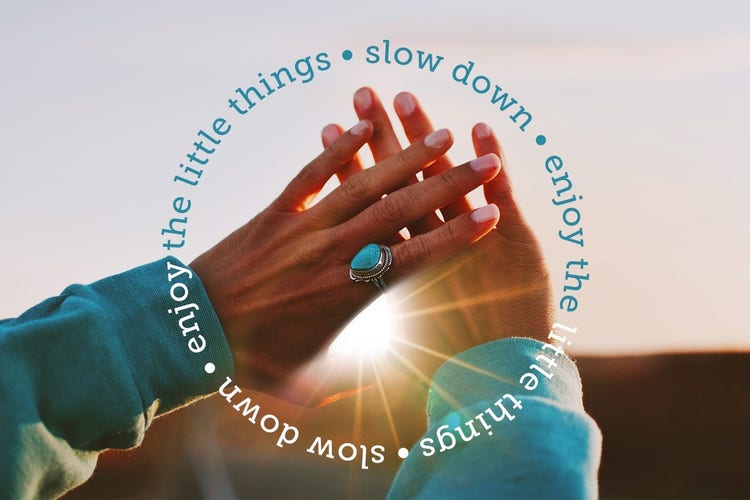
Select Basics and click Add Text. Then click the Text on a Shape icon.

There are several preset shapes in the Tool Options menu on the bottom. Select a shape and drag the cursor to create the shape.

Hover over the shape until the cursor icon changes to depict text mode. Click where you want to add text and start typing.
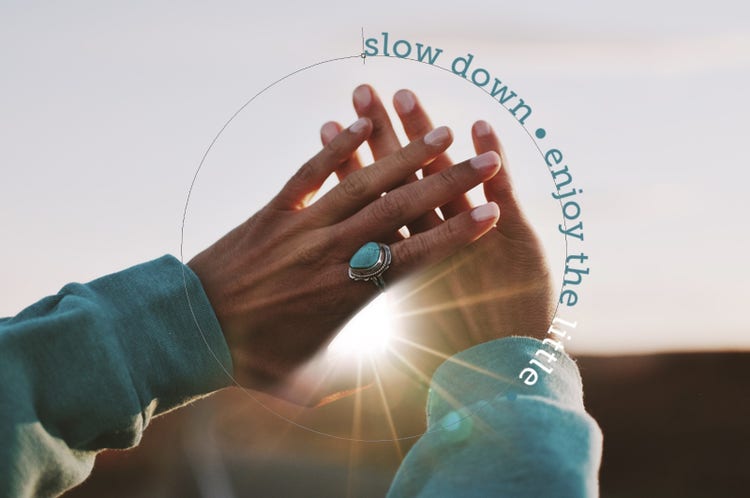
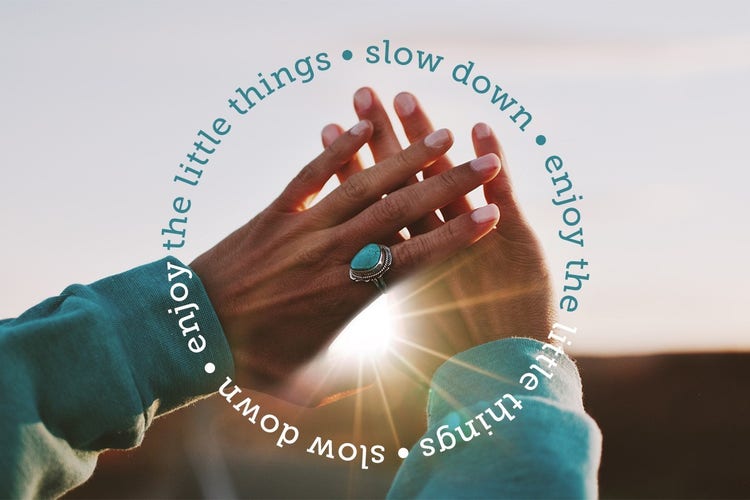
You can change the colour and font on all or part of your text using the Tool Options menu.

Click the Type Tool. Type the text you would like to warp.

Click the Warp icon.

Select from a variety of preset options in the Style menu.
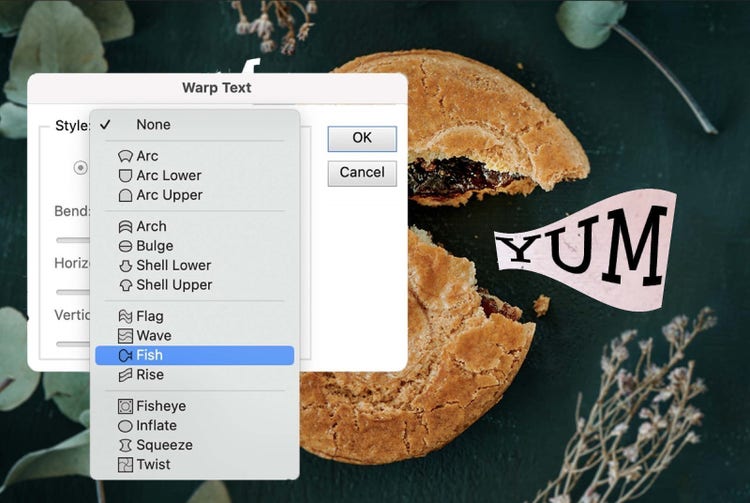
Adjust the sliders to bend your text horizontally or vertically.
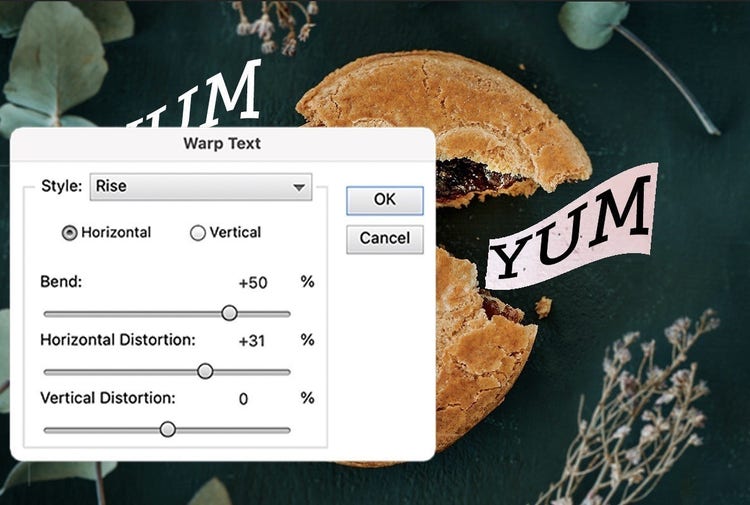
Add personality to your text in seconds.




Photoshop Elements 2027 is smart photo editing software designed for anyone who wants to make every photo incredible. Whether you're touching up snapshots or creating something totally new, it’s got you covered with:

Photo editing made simple. 3-year term licence. Learn more.
£86.99incl. VAT
Save big on the photo and video editing bundle. 3-year term licence. Learn more.

£130.49incl. VAT





Based on your location, we think you may prefer the United States website, where you'll get regional content, offerings, and pricing.


