PHOTOSHOP FEATURES
How to adjust skin tones in Adobe Photoshop.
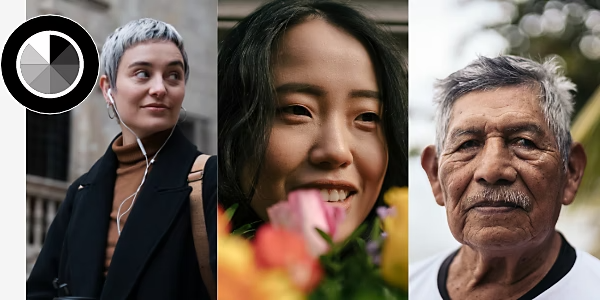
Fix colour casts and match skin tone colour across photos.


PHOTOSHOP FEATURES
Fix colour casts and match skin tone colour across photos.
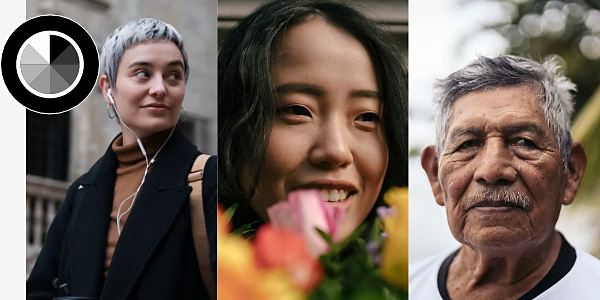
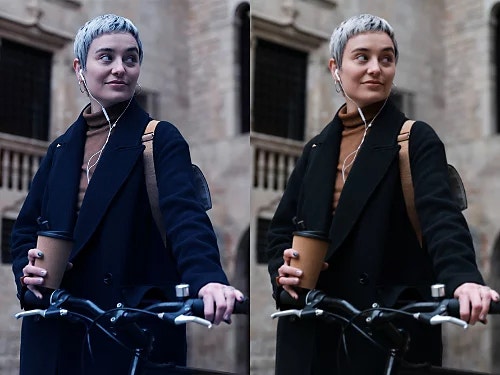
Colour casts or colour contamination can happen when coloured light bouncing off of other objects distorts the colour of your subject’s face. Yellow or blue casts can also happen based on the type of lighting used to create your photo.
To see if your image has a colour cast, find an area that should be neutral like a white or grey wall and see if it actually looks neutral in your image. If it doesn’t, making manual adjustments to white balance will not only fix this but it will also help correct all of the colours in a photo, including the skin tones.
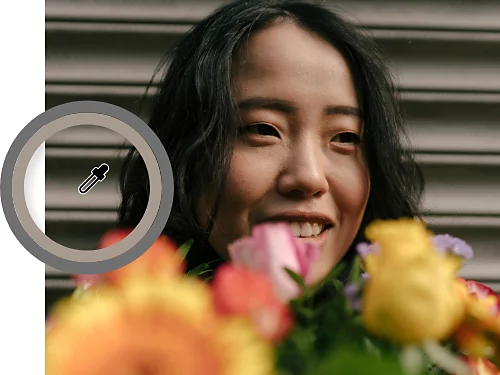
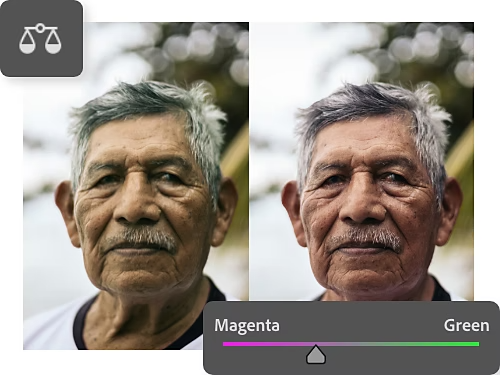
If you still notice some colour contamination you want to counteract, even after fixing your white balance, use the Colour Balance sliders. Choose Layer › New Adjustment Layer › Colour Balance. Adjust the sliders to balance the hues in your photo.
First adjust red and yellow colours. All skin contains some red and yellow tones, regardless of the subject. Next, for some darker skin tones, you may also need to adjust the blue tones.
You can apply edits to the whole image, but if your image contains coloured elements in the background that you don’t want altered, create a layer mask over the person in your image. The Select Subject tool is a quick way to select just the subject so you can make selective colour adjustments to those pixels only.
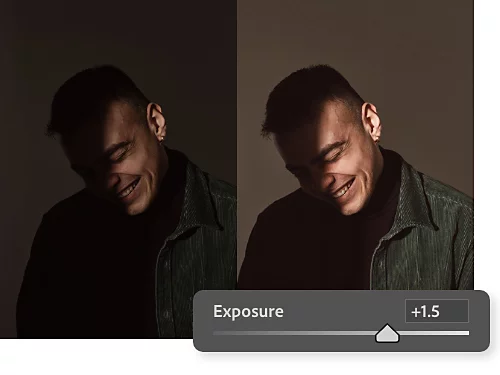
Under the Camera Raw Filter drop-down labelled Basic, use the sliders to tweak things like white balance, exposure, shadows and colour saturation. These edits will affect your entire image, including skin tones.
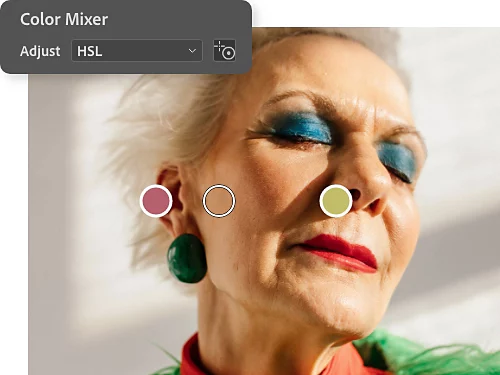
Open the Colour Mixer drop-down to change the hue, saturation and luminance of individual colours. To target the colours in a skin tone, choose the Targeted Adjustment tool to the right of the drop-down and click and drag directly on the face of your subject.
Replicating a skin tone across multiple photos is a little more advanced, but if you take it one step at a time, you can get an exact skin tone match. Follow the steps below or watch this video tutorial from Photoshop expert Jesus Ramirez.
Take your skills to the next level with expert advice on how to play with colour and light.
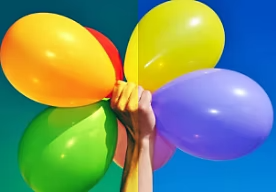
Learn how to use the Hue/Saturation adjustment tools to get a more accurate colour temperature in your photo or create a specific mood.
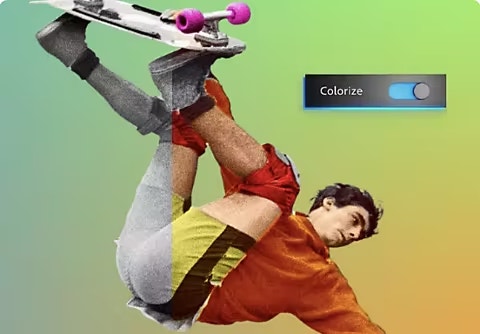
Use the Colourise tool to automatically add colour to a photo. Then fine-tune your adjustments with sliders.

Get the light just right during your photoshoot so you can spend less time photo editing.

Take high-contrast photos that balance bright light and deep shadows.
Annual, billed monthly
£21.98/moincl. VAT
Get Photoshop on desktop and iPad as part of Creative Cloud.
Get 20+ Creative Cloud apps, including Photoshop on desktop and iPad.
Annual, billed monthly
£16.24/moincl. VAT
Save over
Industry-leading creative apps with simple licence management.
Based on your location, we think you may prefer the United States website, where you'll get regional content, offerings, and pricing.