


Adobe Photoshop
Create gorgeous images, rich graphics, and incredible art.

Work smarter and faster with the industry-standard tools pros depend on. Start with a single app or get 20+ creative apps with the Adobe Creative Cloud Pro plan.
Create any multimedia project from start to finish with powerful apps for photo, design, video, and more, all in one place. Get time-saving tools for any project and seamlessly transition between apps.
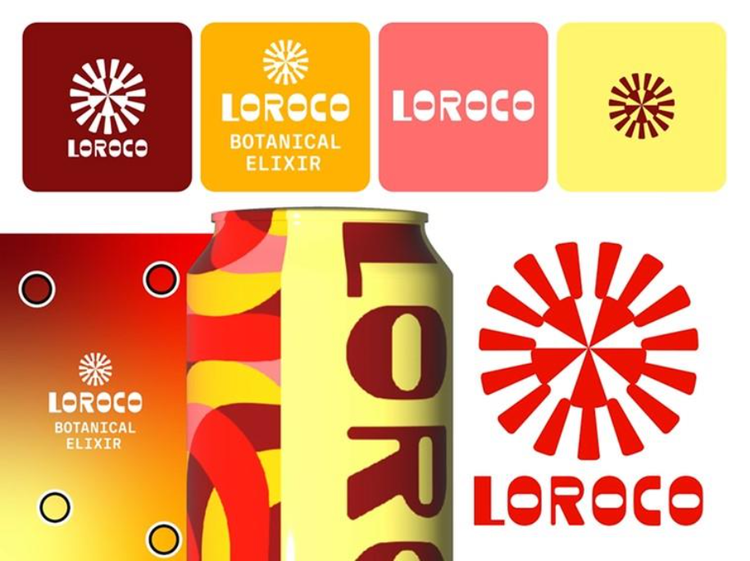
From solo creators to global businesses, design runs on Adobe Creative Cloud. Collaborate easily and deliver perfectly polished designs with technology used and respected around the world.
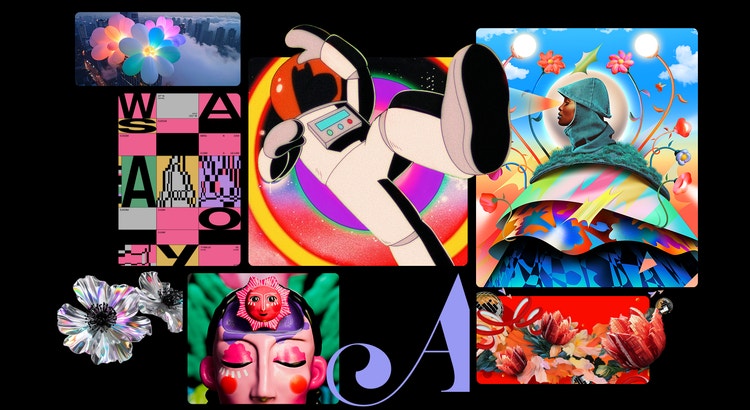
Turn a sketch into a work of art. Make a movie while you wait in line. Design a logo for your business or your life. There’s no end to what you can do with Adobe Creative Cloud apps.

Make precise edits in Adobe Photoshop. Apply bold presets in Adobe Lightroom. Get everything you need for fine-tuning and fast transformations.
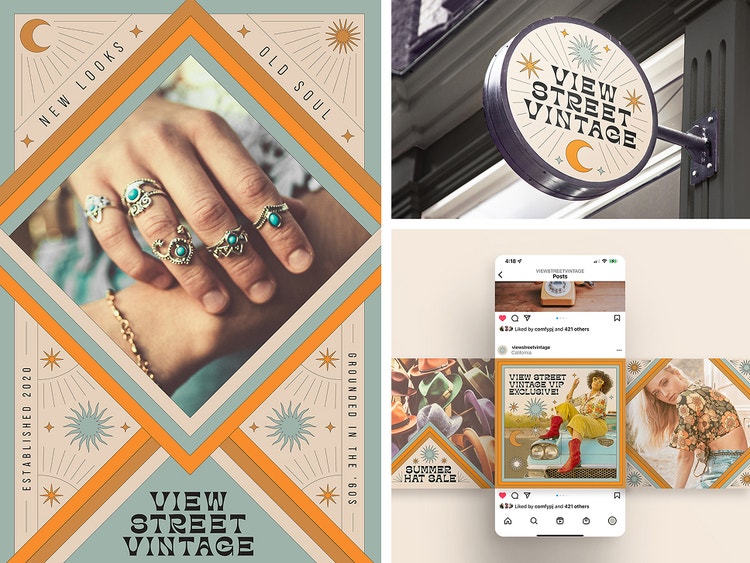
Create infinitely scalable vector artwork in Adobe Illustrator, bold layouts with Adobe InDesign, and paint with lifelike brushes in Adobe Photoshop.

Edit and trim video in Adobe Premiere, create motion graphics with Adobe After Effects, and create, mix, and design sound effects in Adobe Audition.
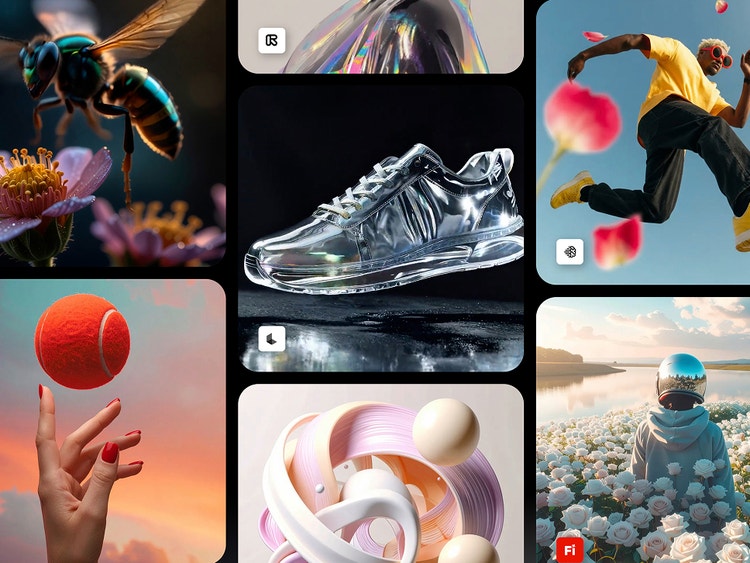
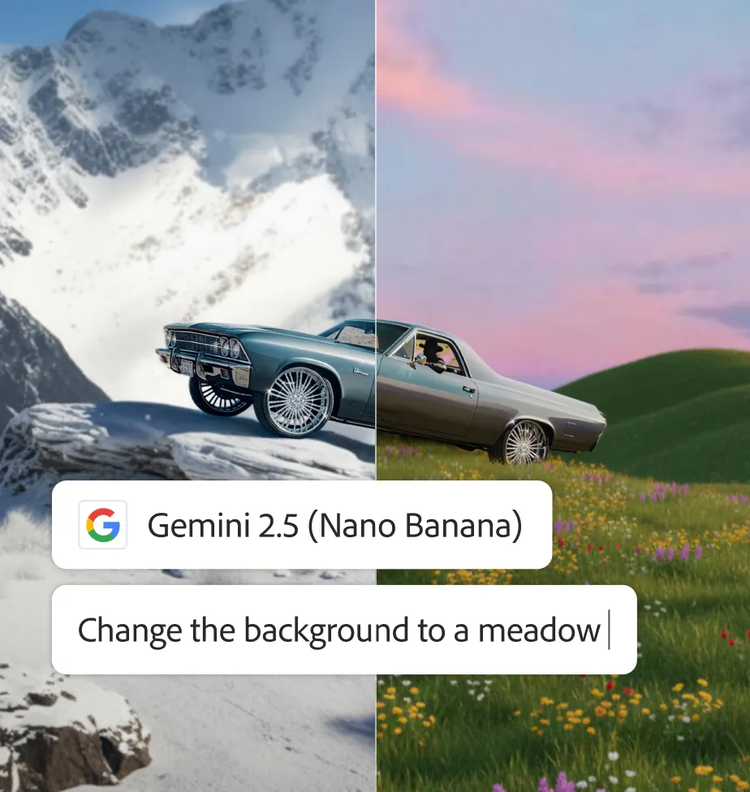
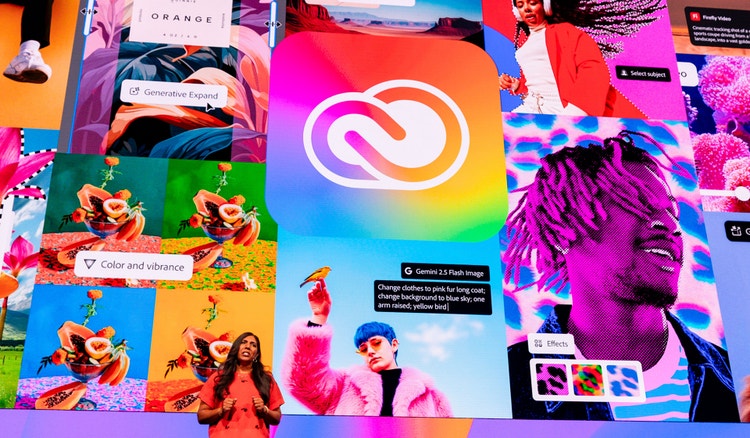
Create incredible images, video, and audio with Adobe Firefly creative AI and top third-party models. Built to supercharge your workflow.
Create gorgeous images, rich graphics, and incredible art.

Create beautiful designs, icons, and more — then use them anyplace at any size.

Create, edit, sign, and manage your PDFs — quickly, easily, anywhere.

Use everyday language to create extraordinary results with generative AI.

Create everything from social clips to feature films with the leading video editor.

Quickly and easily make standout content from thousands of beautiful templates.
Create gorgeous images, rich graphics, and incredible art.

Edit photos from anywhere you are with easy ways to adjust exposure, color, and more.

Edit and organize all your photos on desktop.

Quickly edit, collage, and retouch photos so they stand out on social and everywhere else.
Create gorgeous images, rich graphics, and incredible art.
Create beautiful designs, icons, and more — then use them anyplace at any size.

Design catalogs, eBooks, white papers, digital magazines, and interactive PDFs.
Use everyday language to create extraordinary results with generative AI.
Quickly and easily make standout content from thousands of beautiful templates.
Create everything from social clips to feature films with the leading video editor.

Easily add titles, transitions, and more to your movies with the visual effects and motion graphics app the pros use.

Create, mix, and add sound effects to your movies, social posts, and podcasts.

Design animations for cartoons, banners, games, and the web.

Use your expressions and movements to bring your characters to life in real time.

Easily encode audio and video in whatever format you need.
Membership perks include tutorials, fonts, templates, and more.

Find every app you need for photo, design, video, and more. No app-switching or plugins required.

Find the perfect type for any project with Adobe Fonts. No need to buy fonts or manage licenses.

Meet any deadline with Adobe Stock. Get free images, video, and more to complete your project.

Create and edit media of all kinds with Adobe Firefly and top AI models, built into Adobe apps.

Use libraries to gather and share assets. Link them to your files to edit once and update everywhere.

Explore tutorials for all levels with Adobe Learn, and watch and learn from the pros with Adobe Live.
Start with just one app or save big with Adobe Creative Cloud Pro.
Starting at
US$22.99/moAnnual, billed monthly
A single app of your choice
25 monthly generative credits for standard and premium AI features
Fonts, tutorials, templates, and more
100GB cloud storage
Get your choice of one Creative Cloud app.
Create gorgeous images, rich graphics, professional video, and so much more
20+ apps for photo, design, and video
Unlimited access to standard creative AI image and vector features like Text to Image and Generative Fill
4,000 monthly generative credits for premium creative AI video and audio features like Text to Video.
Access to industry-leading AI models from Adobe, Google, OpenAI, and more
Unlimited access to Firefly Boards for exploring ideas and developing storyboards
Access to non-Adobe Generative AI models in Firefly
Adobe Express Premium, Frame.io for Creative Cloud, tutorials, fonts, templates, and 100 GB of cloud storage
Join over 7 million Creative Cloud Pro subscribers worldwide. Save 50% for the first 3 months on 20+ apps plus Adobe Firefly creative AI. Pay US$34.99/mo for the first 3 months and US$69.99/mo after that. New subscribers only.
20+ photo, graphic design, and video apps
Unlimited access to standard creative AI image and vector features like Text to Image and Generative Fill
4,000 monthly generative credits for premium creative AI video and audio features like Text to Video
Access to industry-leading AI models from Adobe, Google, OpenAI, and more
Unlimited access to Firefly Boards for exploring ideas and developing storyboards
Access to non-Adobe generative AI models in Firefly
Adobe Express Premium, Frame.io for Creative Cloud, tutorials, fonts, templates, and 100GB of cloud storage
Save 71% on 20+ apps and Adobe Firefly creative AI for images, video, and audio. Pay US$19.99/mo the first year and US$39.99/mo after that.
Starting at
US$37.99/moper licenseAnnual, billed monthly
A single app of your choice
The premium version of Adobe Express
Fonts, images, tutorials, and more
1TB cloud storage
25+ monthly generative credits
Centralized administration tools
Unlimited job posts on Adobe Talent
24x7 technical support
Integration with popular apps like Slack, Microsoft Teams, and more
creative-cloud-libraries for sharing creative assets across apps and devices
Your choice of one Creative Cloud app, plus exclusive business features.
US$99.99/moper licenseAnnual, billed monthly
Create gorgeous images, rich graphics, professional video, and so much more
20+ apps for photo, design, and video
Unlimited access to standard creative AI image and vector features like Text to Image and Generative Fill
4,000 monthly generative credits for premium creative AI video and audio features like Text to Video
Access to industry-leading AI models from Adobe, Google, OpenAI, and more
Unlimited access to Firefly Boards for exploring ideas and developing storyboards
Access to non-Adobe Generative AI models in Firefly
Adobe Express Premium, Frame.io for Creative Cloud, tutorials, fonts, templates, and 100 GB of cloud storage
20+ apps, including Photoshop, plus Firefly creative AI for images, video, and audio, and exclusive business features. See what's included