


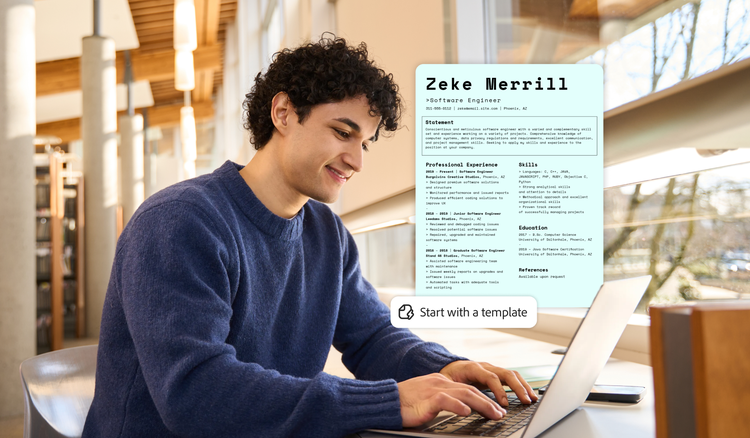
Staring at a blank page makes job hunting harder than it needs to be. The fastest path to a standout application is a proven structure and a tailored template. Whether you are building your first resume or changing fields, learn how to choose the right format and highlight your strengths to catch a recruiter’s eye.
Why a template is useful.
The fastest route to a professional, application-ready resume is to choose a standard format and fill in a structured template.
The most effective resumes have an easily scannable layout that immediately highlights your qualifications. This is critical because your application has to stand out fast. Adobe’s June 2024 research survey shows that hiring professionals spend an average of only 8.48 minutes reviewing a resume, and just 15% say they read a resume thoroughly on their first pass.
(If you already have an existing resume that needs a refresh, you can easily modernize an old resume without starting over.)
Decide the format, then the template.
Before you start browsing designed layouts, choose the resume structure that best matches your career stage and experience:
- Chronological resume. List your work history in reverse chronological order, with your current or most recent job at the top. Most recruiters prefer this format because it highlights steady career growth in a related field.
- Functional resume. This resume format emphasizes relevant skills and core competencies. It’s a good choice if you’re changing careers, have employment gaps, or if you are entering the workforce for the first time.
- Combination resume. Merge a strong skills summary at the top of your resume with a detailed, reverse-chronological employment history below. This format works best if you are an experienced professional with a diverse range of technical abilities to highlight.
The 2-version resume format strategy.
If you want to maximize your reach during your job search, you can create two versions of your resume:
- The application version. A clean, plain layout optimized for online application portals and applicant tracking systems (ATS).
- The networking version. A graphic-designed, visually polished layout used for direct email outreach, in-person networking, and interviews.
Types of resume templates.
Once you have chosen the format that makes the most sense for your situation, use a free resume template builder to find a template that matches your industry and goals. Templates are fully customizable in a live web editor.
Simple and basic templates.
Basic resume templates are clean and easy for ATS to parse. They have single-column layouts and clear section headings. These templates are ideal if you are looking for an entry-level job, don’t have much work experience, or plan to submit high volumes of applications online.
Professional templates.
Professional resume templates follow a classic chronological structure. They use conservative typography choices and orderly headers. These templates work well if you are applying to traditional corporate jobs in industries like finance, law, healthcare, and higher education.
Modern templates.
Modern resume templates have bold typography, sleek accent colors, and clean lines. They sit between simple and professional templates, appealing to both ATS software and human hiring managers. These templates suit tech, marketing, and business operations roles best.
Creative templates.
Creative resume templates lean into visuals and heavy graphic design accents. They aren’t the right fit for many industries, but they can be a great option if you are searching for design, media, or other portfolio-driven roles. If you choose a creative template, keep it for direct networking, and use a simple, basic resume as your primary online application file. ATS platforms struggle to parse creative resumes.
ATS-friendly templates.
ATS-friendly resume templates remove complex formatting elements — like multi-column splits, background graphics, embedded tables, and text boxes — that cause automated software to misread your data. Use our checklist to review resume ATS formatting mistakes and make sure your resume doesn’t get lost in the scramble.
How to fill in a resume template.
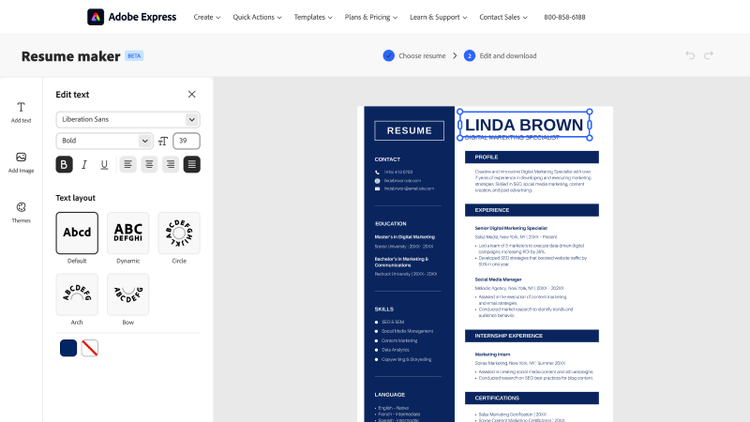
Open your Adobe Express resume template in the web editor and fill in each section. With resumes, less is more. Share only the best, most relevant information, and cut anything that feels like fluff or filler — always use clear, concise language.
Contact information.
Place your first and last name at the top of your resume. Include your city and state, your phone number, a professional email address, and a link to your LinkedIn profile or a digital portfolio. Avoid personal information such as your full street address, and don’t include a photo unless it’s required.
Professional summary.
Write a strong two- to three-sentence summary that shows off your experience, core skills, and professional value. Avoid objective statements like, “Looking for a challenging role…” or “Ready to take on a new position in…” Instead, think about how you would want someone to describe you to your future manager.
Work experience.
Use bullet points to detail your work experience. Focus on achievements over job duties. When in doubt, use the X-Y-Z formula popularized by Laszlo Bock, Google’s former Senior Vice President of People Operations: accomplished X, as measured by Y, by doing Z. For example:
- Basic bullet: Managed customer support tickets.
- Quantified XYZ bullet: Resolved at least 50 technical support tickets daily (X), reducing average customer wait times by 32% (Y) by implementing a new ticketing workflow (Z).
Skills, education, and optional sections.
List relevant hard and soft skills in a clean, bulleted list. Hard skills are technical skills that are required to do a job, like a forklift certification or knowing JavaScript. Soft skills are interpersonal and behavioral skills that show you can work well with others, like good communication, collaboration, and adaptability.
Don’t share personal details like your age or relationship status. Additionally, avoid using the phrase “References available upon request.” The person reading your resume will assume that you will provide references if they request them.
How to format your resume file.
Stick to the following recommended formatting standards to make sure your digital resume file renders correctly across systems and screens:
- Margins. Maintain 0.5- to 1-inch margins on all sides.
- Font size and style. Apply standard fonts like Arial, Calibri, Helvetica, and Times New Roman. Use 10–12 pt font for body copy and 14–16 pt font for section headings.
- Page length. Keep resumes to one page for entry- and mid-level roles. Use two pages only if you have extensive leadership experience.
- File type. Export your document as a text-based PDF. The same 2024 Adobe resume survey shows that three in four hiring professionals prefer PDF format for applicant files. If your document doesn’t support PDF exports, use a free tool like Adobe Acrobat to convert a file to PDF in your browser. However, if a job posting specifically requests a DOCX upload, you can export your template in that format, too.
Get started with your resume today with Adobe Acrobat.
Frequently asked questions
Unless the job posting explicitly states not to include a cover letter, submitting one along with your resume is common practice. A strong cover letter explains why you are interested in the role, highlights two or three relevant achievements, and ends with a clear call to action without repeating your entire resume.
A resume should be one page. Two pages are acceptable if you have 10 or more years of career experience.
Starting with a resume template lets you focus on writing strong content instead of worrying about formatting. A pre-designed template handles the formatting for you. You can rest easy knowing that margins, spacing, and typography are balanced and professional.
In the United States, photos are discouraged because they can promote hiring bias and may confuse applicant tracking systems (ATS), which cannot parse images and may misread your application. However, a photo may be appropriate in industries like performing or on-camera roles where physical appearance is part of the job and may be required as part of the application.
Your resume should reflect the position you are applying for. If you send the same resume everywhere, recruiters and ATS keyword matching will see it as generic. Keep one master version, and update the summary and the first few bullet points of your job experience to match the language in the job post. Tailoring a resume to a specific job position takes only 10 minutes once you’ve built a base.
You may also like
title
Pick the right template for your resume.
cardImageAltText
A man working on a laptop to create a resume from a template.
cardImage
Tags
caas:content-type/article,caas:products/acrobat,caas:topic/job-search,topic/resume-ai

