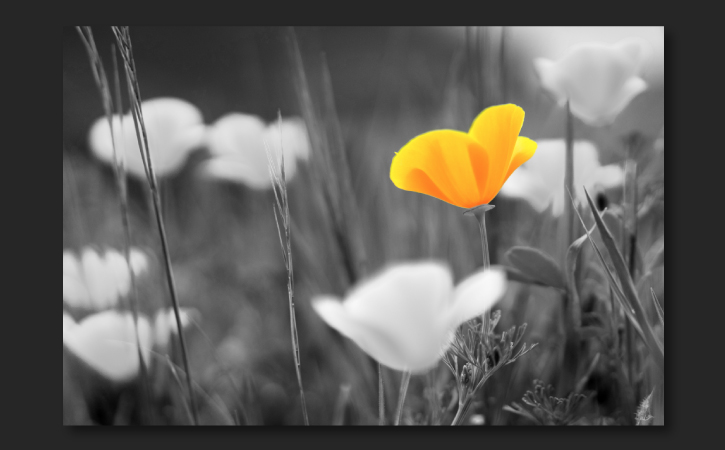
Erfahre, wie du mit Photoshop ein Foto in Schwarz-Weiß konvertierst. Bringe dann Farbe in bestimmte Bildbereiche zurück, um interessante Akzente zu setzen.
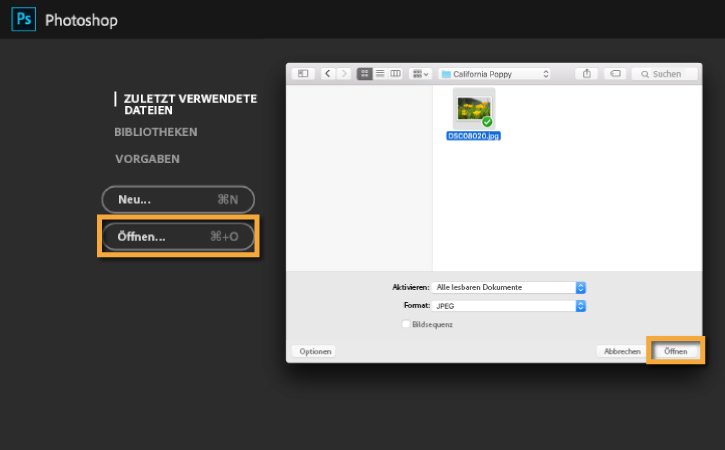
Lade die Beispieldatei herunter, oder verwende ein eigenes Farbfoto. Klicke in Photoshop auf dem Startbildschirm auf Öffnen
, oder wähle Datei > Öffnen. Navigiere dann zum gewünschten Foto, und klicke auf Öffnen.
2
Eine Einstellungsebene für Schwarz-Weiß hinzufügen.
Klicke auf das Bedienfeld Korrekturen, oder wähle Fenster > Korrekturen, um das Bedienfeld „Korrekturen“ zu öffnen. Klicke im Bedienfeld „Korrekturen“ auf das Symbol für Schwarz-Weiß-Anpassungen.
Daraufhin wird im Bedienfeld „Ebenen“ eine neue Einstellungsebene namens „Schwarzweiß“ angezeigt, die das Foto auf der darunterliegenden Ebene in ein Schwarz-Weiß-Bild umwandelt.
Zur Feinabstimmung der Schwarz-Weiß-Anpassung muss die Einstellungsebene im Bedienfeld „Ebenen“ ausgewählt sein. Klicke im Bedienfeld „Eigenschaften“ (Fenster > Eigenschaften) auf Auto. In diesem Beispiel werden dadurch alle Bereiche aufgehellt, die im Originalfoto gelb waren, während Bereiche mit anderen Farben abgedunkelt werden, sodass der Kontrast in der Schwarz-Weiß-Version erhöht wird.
Optional:
Mit den einzelnen Farbreglern kannst du die Helligkeit der entsprechenden Bereiche in der Schwarz-Weiß-Version ändern. Wenn du beispielsweise den Regler Gelbtöne nach rechts verschiebst, werden die Blumen und das Gras noch heller.
Grundlagen zu Ebenenmasken.
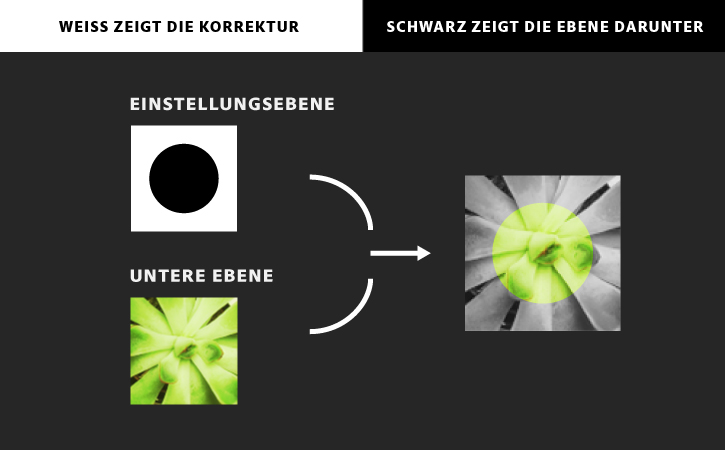
Das weiße Rechteck in der Einstellungsebene „Schwarzweiß“ im Bedienfeld „Ebenen“ ist eine Ebenenmaske, mit der du steuern kannst, auf welche Bildbereiche die Schwarz-Weiß-Anpassung angewendet wird.
Die Korrekturen sind in allen weißen Bereichen der Ebenenmaske sichtbar. Für schwarze Bereiche der Maske gelten sie nicht, sodass dort die ursprüngliche Farbe zu erkennen ist. In den nächsten Schritten fügst du Schwarz zur Ebenenmaske hinzu, um die Farben in bestimmten Bildbereichen wiederherzustellen.
3
Pinseleinstellungen festlegen.
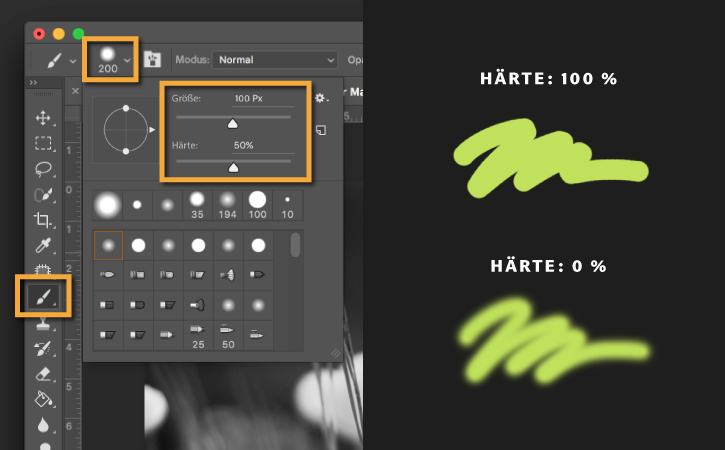
Wähle auf der Werkzeugleiste den Pinsel aus. Öffne den Pinselwähler auf der Optionsleiste. Ändere die Größe und die Härte
der Pinselspitze. Die gewählten Werte können je nach Foto variieren. Wähle für dieses Foto eine Größe von 100 Px und eine Härte von 50 %.
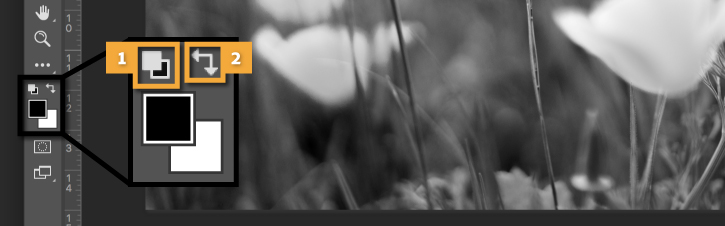
Lege mithilfe der Farbfelder unten auf der Werkzeugleiste Schwarz als Farbe zum Malen fest. Klicke dazu auf das kleine Symbol für Standardfarben. Klicke dann auf den Doppelpfeil, um Schwarz als Vordergrundfarbe einzustellen.
4
Farbe in einem bestimmten Bildbereich wiederherstellen.
Stelle im Bedienfeld „Ebenen“ sicher, dass die weiße Miniatur der Ebenenmaske auf der Einstellungsebene „Schwarzweiß“ ausgewählt ist. Der weiße Rand um diese Miniatur herum weist darauf hin, dass die Maske ausgewählt ist.

Male mit dem Pinsel über die Bildbereiche, die wieder farbig dargestellt werden sollen. Dabei malst du nicht tatsächlich auf das Foto, sondern wendest die Farbe Schwarz auf die Ebenenmaske an. Dadurch werden die Anpassungen ausgeblendet, sodass die ursprünglichen Farben erkennbar werden.
Hinweis: Um die Ansicht zu vergrößern, drücke Befehl+Plus unter macOS bzw. Strg+Plus unter Windows. Um die Ansicht zu verkleinern, drücke Befehl+Minus unter macOS bzw. Strg+Minus unter Windows.
5
Tipps zum Malen.
Du kannst die Größe der Pinselspitze beim Malen ändern. Drücke die Ö-Taste, um die Pinselspitze zu verkleinern. Drücke die #-Taste, um die Pinselspitze zu vergrößern.
Wenn du über einen farbigen Bereich malst, der in Schwarz-Weiß dargestellt werden soll, wechsle mit der Taste X von Schwarz zu Weiß. Male dann erneut über diesen Bereich. Nun malst du mit Weiß auf der Ebenenmaske, sodass die Schwarz-Weiß-Anpassungen wieder gelten.
Du kannst über mehrere Bildbereiche malen, um Farben wiederherzustellen. Oder reduziere die Deckkraft des Pinsels auf der Optionsleiste, um in bestimmten Bereichen einen getönten Look zu erzeugen.
Dein Foto speichern und verwenden.
Wenn du fertig bist, wähle Datei > Speichern, um dasFoto zu speichern .
Durch Umwandeln in Schwarz-Weiß und Hinzufügen von kreativen Farbnuancen verleihst du Fotos einen einzigartigen Look.
You can control how Adobe websites use cookies and similar technologies by making choices below. But note that if you disable cookies and similar technologies entirely, Adobe websites may not function properly.
Cookies are small text files stored by your web browser when you use websites. There are also other technologies that can be used for similar purposes like HTML5 Local Storage and local shared objects, web beacons, and embedded scripts. These technologies help us do things like remembering you and your preferences when you return to our sites, measure how you use the website, conduct market research, and gather information about the ads you see and interact with.
You can make choices in the menu below about what cookies and other technologies you want us to use on Adobe sites when you visit them from this browser. You can always change those choices later by clicking on the Cookie Preferences link at the bottom of the page.
If enabled:
We can improve your experience by tailoring the site and the content to things we think might be of interest
We can better keep track of your preferences — like what language you prefer to use
We will better understand your likely interests so we can provide you more relevant Adobe ads and content on non-Adobe websites and in non-Adobe apps
It will help us improve the performance of our website and those of our partners who use the Adobe Experience Cloud
If disabled:
We won’t be able to remember you from session to session so the experience may not be tailored to your interests
You’ll still have access to the content of the site but certain features that depend on cookies may not function
You’ll still see ads, they just may not be as relevant to you
General information
You can control how Adobe websites use cookies and similar technologies by making choices below. But note that if you disable cookies and similar technologies entirely, Adobe websites may not function properly.
Cookies are small text files stored by your web browser when you use websites. There are also other technologies that can be used for similar purposes like HTML5 Local Storage, web beacons, and embedded scripts. These technologies help us do things like remembering you and your preferences when you return to our sites, measure how you use the website, conduct market research, and gather information about the ads you see and interact with.
You can make choices in the menu below about what cookies and other technologies you want us to use on Adobe sites when you visit them from this browser. You can always change those choices later by clicking on the Cookie Preferences link at the bottom of the page.
If enabled:
We can improve your experience by tailoring the site and the content to things we think might be of interest
We can better keep track of your preferences — like what language you prefer to use
We will better understand your likely interests so we can provide you more relevant Adobe ads and content on non-Adobe websites and in non-Adobe apps
It will help us improve the performance of our website and those of our partners who use the Adobe Experience Cloud
If disabled:
We won’t be able to remember you from session to session so the experience may not be tailored to your interests
We’ll still count your use of our site and services
You’ll still have access to the content of the site but certain features that depend on cookies may not function
You’ll still see ads, they just may not be as relevant to you
Operate the site and core servicesOperate site and measure engagement
Always active
These cookies are required, and they are used to enable the site and related services core functionality. Without them the site could not operate, so they cannot be disabled.
These cookies enable the site and related services’ core functionality and collect statistics about user engagement, such as counting active use to help us understand trends. These cookies cannot be disabled.
Measure performance
These cookies are used to analyze site usage to measure and improve performance. Without them Adobe cannot know what content is most valued and how often unique visitors return to the site, making it hard to improve information we offer to you.
These cookies are used to analyze site usage to measure and improve performance. Without them Adobe cannot know what content is most valued, making it hard to improve information we offer to you.
Extend functionality
These cookies are used to enhance the functionality of Adobe sites such as remembering your settings and preferences to deliver a personalized experience; for example, your username, your repeated visits, preferred language, your country, or any other saved preference.
Personalize advertising
These cookies are used to enable Adobe and our partners to serve ads more relevant to your interests. Without them you will still see ads, but they might not be as relevant to you.
Personalize advertising
These cookies are used to enable Adobe and our partners to serve ads more relevant to your interests. Without them you will still see ads, but they might not be as relevant to you.