https://main--cc--adobecom.aem.live/cc-shared/assets/img/firefly.svg Adobe Firefly

Graffiti generator: Create graffiti art online
Transform your ideas into vibrant street-style art with Firefly. Customise quickly and easily and use anywhere.
- image
- video
- Describe a subject, an action, a place, a mood or a style.
- Adobe Generative AI Terms
- https://main--cc--adobecom.aem.live/creativecloud/animation/testdoc/unity/generate.svg Generate
- Describe the image you want to generate
- Prompt
- Tip
- ff_campaign=embed_generate_acom&promoid=QYL4NNL8&mv=other
- Unable to process the request
- Please describe what you want to generate.
- Prompt exceeds the max length of 750 characters


Choose your graffiti generation tools.
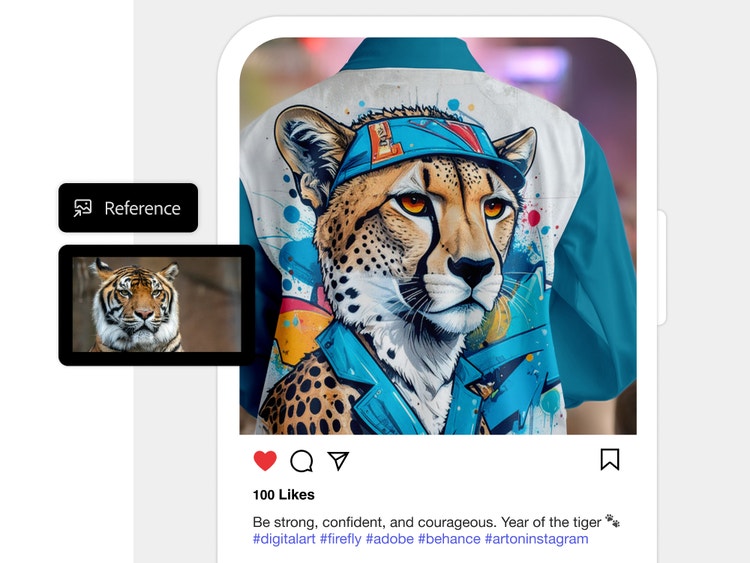
With Text to Image generative AI and your text prompt, you can turn a word or phrase into graffiti art in whatever style you choose. Or start with a reference image and use Image to Image to match its style.
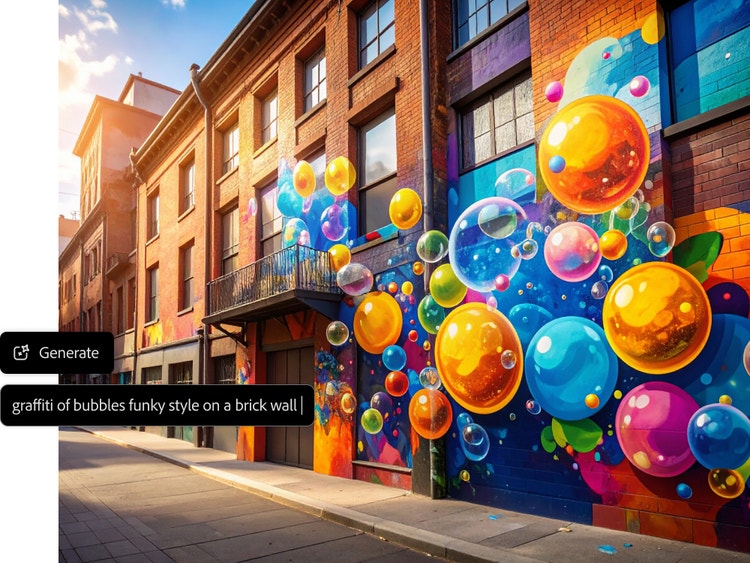
Create with a fast and easy-to-use graffiti generator.
Add a text prompt or image and quickly generate several graffiti art options. Try new prompt variations to see different results.
Customise your graffiti art.
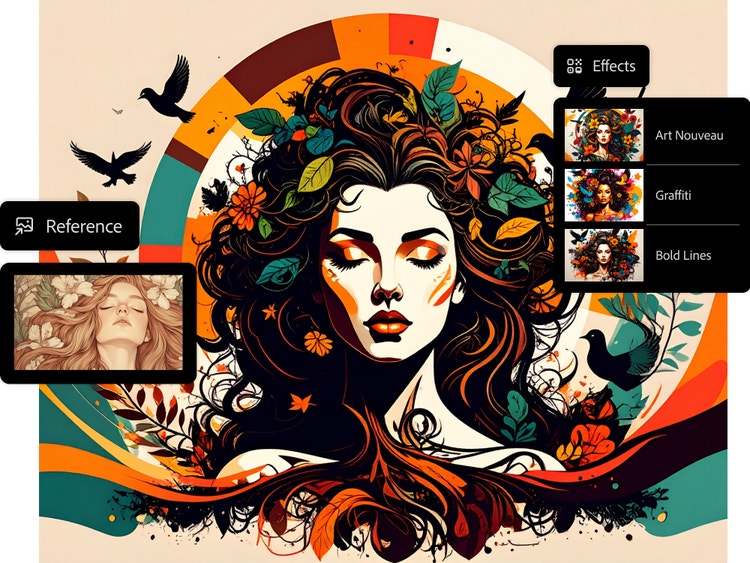
Choose colour and tone. Experiment with effects, art movements, techniques, materials and more.
Take your graffiti art anywhere.
Download your favourite images and share them on social media or use them to add bold imagery to posters, presentations and reports.
How to generate graffiti designs with Firefly.
With Firefly as your AI graffiti generator, you can create your own graffiti images in a few quick steps.
- Log in to Adobe Firefly.
Go to the Image section of the web app and select Text to Image. - Write a text prompt.
Type a description of what you want to see in the prompt field. Start with 5 words or more, including the word “graffiti.” More descriptive words produce better results. - Optional: Upload a reference image.
Add a reference image to guide the structure and composition of your graffiti art. Go to the panel on the left and select Upload Image in the Reference section. - Generate your image.
Click Generate and watch as the Firefly-powered results quickly appear. - Refine, edit and regenerate.
Edit your newly generated images further in Adobe Express and turn them into eye-catching social posts, videos, flyers and more.
Start generating graffiti designs.
Explore endless possibilities with the AI graffiti generator free in Firefly. Try now
Remix content from the community.
Discover Firefly prompts to remix and submit your own images to the gallery.
Discover even more features.
AI image generator AI video generator AI character generator Image to image Sketch to image AI art generator AI graphic design generator
Questions? We have answers.
How does the graffiti generator work?
Can I customise the graffiti art?
What type of content can I create with this tool?
Is the AI graffiti generator free to use?
Can I use the graffiti art I generate commercially?
Do I need any design skills to use this tool?
Can I download my graffiti art?
Yes, you can download your graffiti art created with Firefly. There are several methods to save and manage your generated images:
- Downloading images locally
- Saving to Creative Cloud Libraries
- Additional options:
- Copy image
- Save to favourites
- Copy link to image
Can I save and edit my designs later?
Yes, you can save and edit your Adobe Firefly Text to Image designs later, including in Adobe Photoshop and other Creative Cloud applications.
Saving your Firefly designs
To ensure you can access and edit your designs later:
- Save to Creative Cloud Libraries: After generating your image in Firefly, click the Share button and select Save to library. Choose an existing library or create a new one. This method allows you to access your image across different devices and applications, including Photoshop.
- Favourite the image: Click the star icon on the image to save it to your favourites. This saves the image along with the prompt, styles and reference images used, enabling you to regenerate or iterate on the design later. Note that favourites are accessible only from the same browser and device.
- Download the image: Click the download button to save the image locally on your device. Keep in mind that this method does not save the prompt or styles, so you won't be able to regenerate the exact image later.
Editing your designs later
Open in Photoshop: Once your image is saved to Creative Cloud, open Photoshop and access the library where the image is stored. You can then open the image in Photoshop for further editing.
Use Generative Fill: In Firefly, select your image and click the Edit icon. Choose Generative Fill to add new content, replace the background or remove unwanted parts of the image. Note that once an image is edited using Generative Fill, you cannot return to the original Text to Image generator with the same settings.