
1. Descarga elarchivo de práctica y abre “animated-gradient.psd” en Photoshop.
2. Selecciona la capa llamada “Degradado” en el panel de capas y haz clic en el icono del ojo
para hacer visible la capa. Haz lo mismo con la cama llamada “Color de relleno 1”.
Crea un degradado
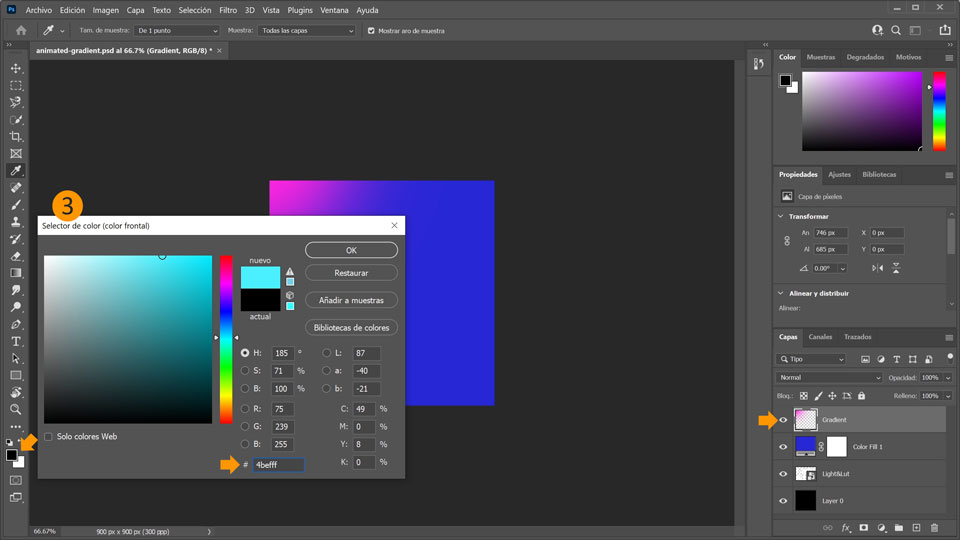
3. Teniendo seleccionada la capa Degradado, selecciona la herramienta Pincel (B) y establece el color del pincel en cian (# 4befff).
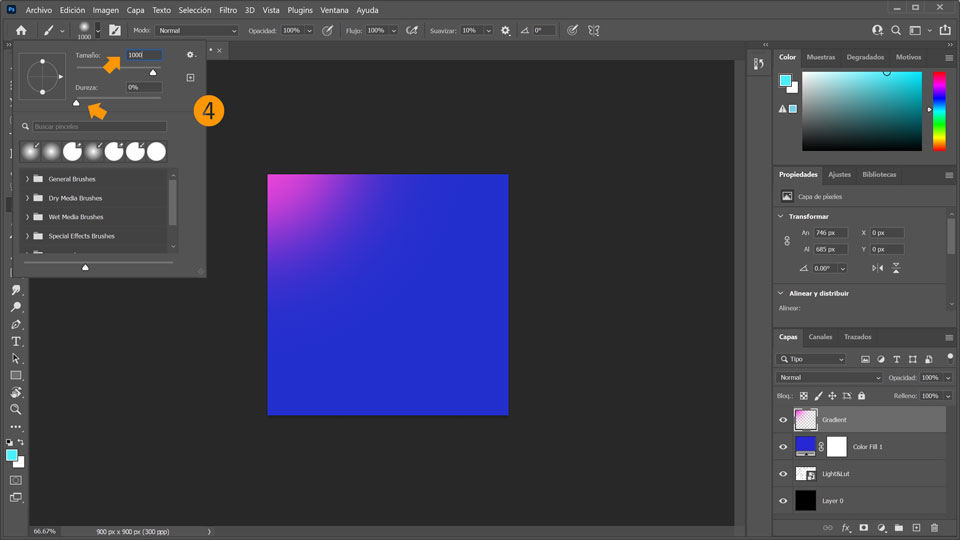
4. Haz clic en el selector de valor del Pincel
para configurar el grosor del pincel. Establece el valor de tamaño en 1000 px. Y asegúrate de haber seleccionado un cepillo suave > establece la dureza en 0 %.
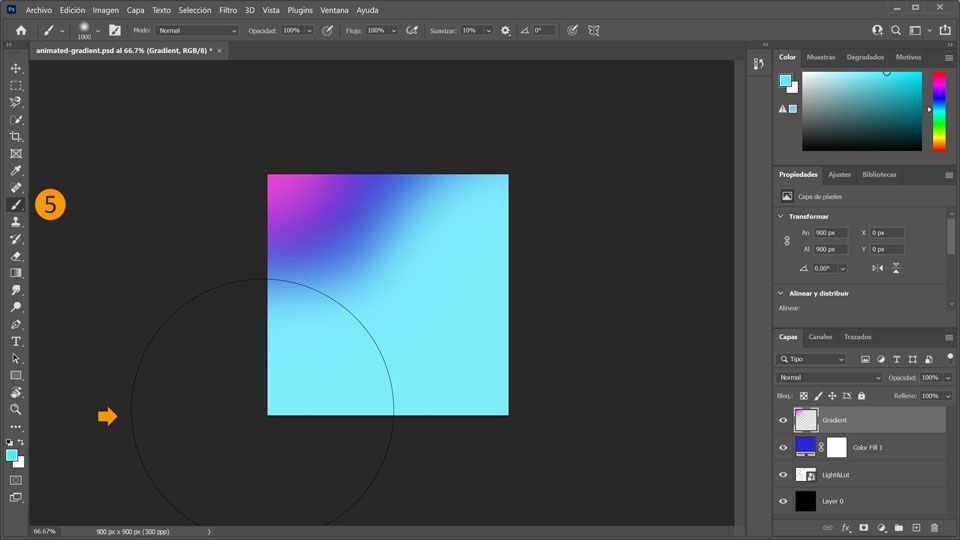
5. Pasa el pincel con color cian alrededor del rosa haciendo clic en el pincel (se verá un gran círculo) en la parte inferior izquierda y haz un movimiento semicircular hacia la parte superior derecha.
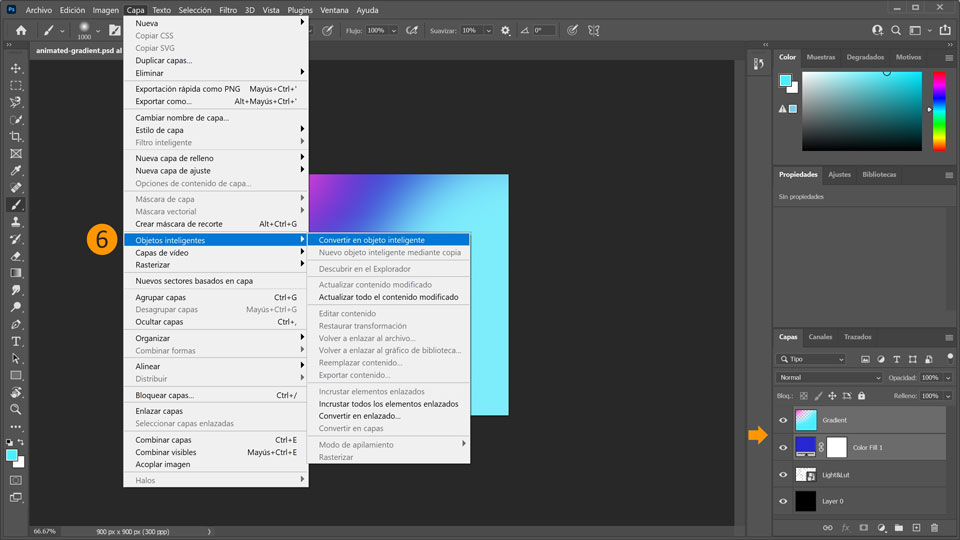
6. Mantén pulsada la tecla Mayús y haz clic en la capa Degradado y en la capa Azul. Con ambas capas seleccionadas, selecciona Capa > Objetos inteligentes > Convertir a objeto inteligente. Ahora ambas capas están combinadas en la capa Degradado.
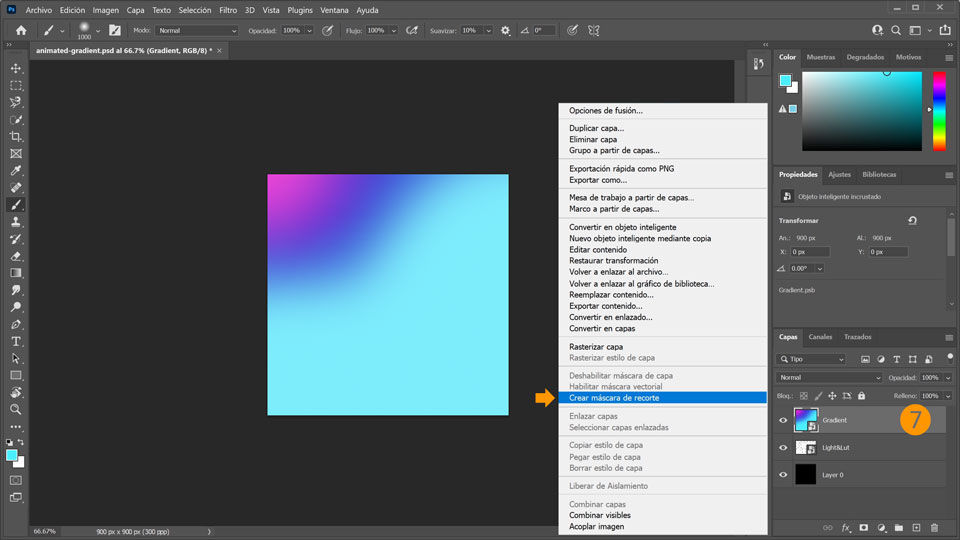
7. Haz clic con el botón derecho en la capa Degradado y selecciona Crear máscara de recorte para vincular el degradado al texto. Ahora el degradado está dentro del texto “Light&Lut”.
Anima el degradado
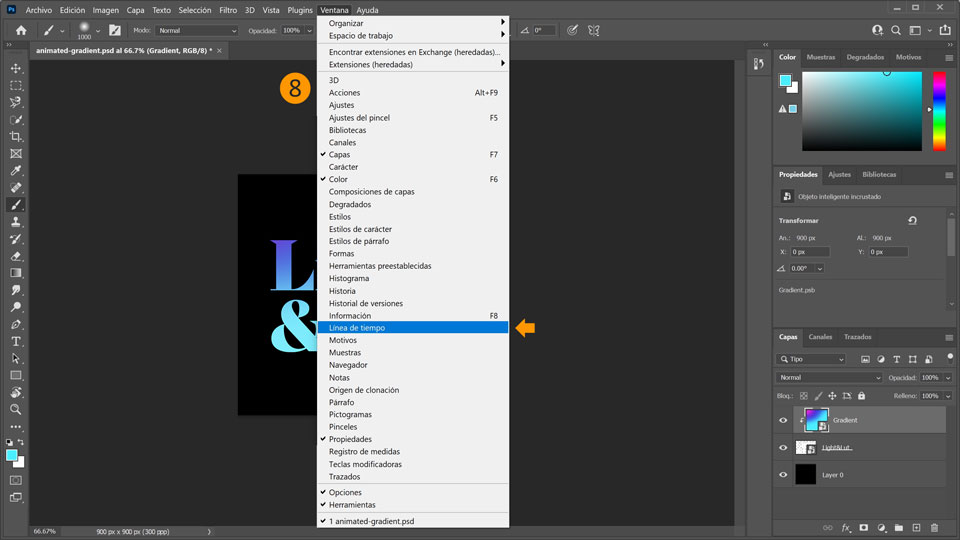
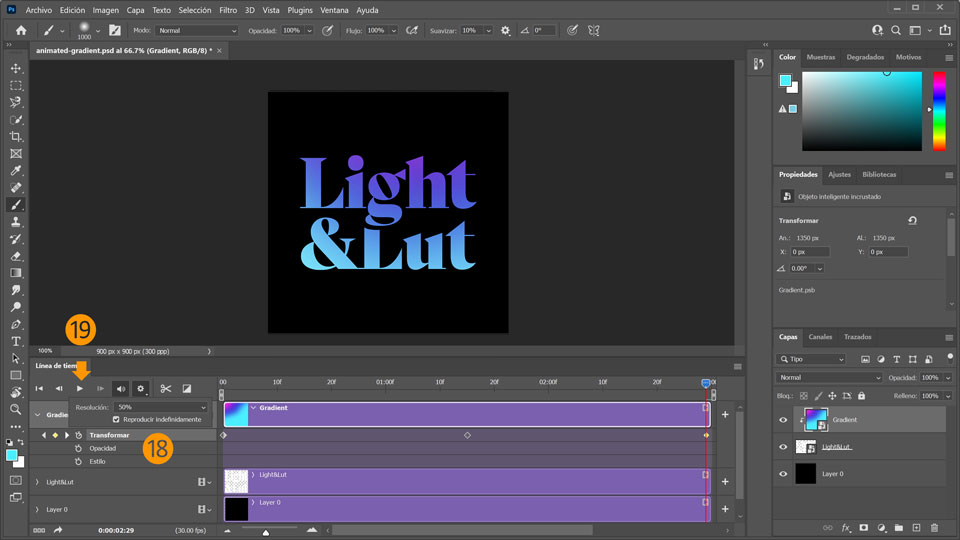
8. Abre la ventana Línea de tiempo con la que crear animaciones en una línea de tiempo seleccionando Ventana > Línea de tiempo.
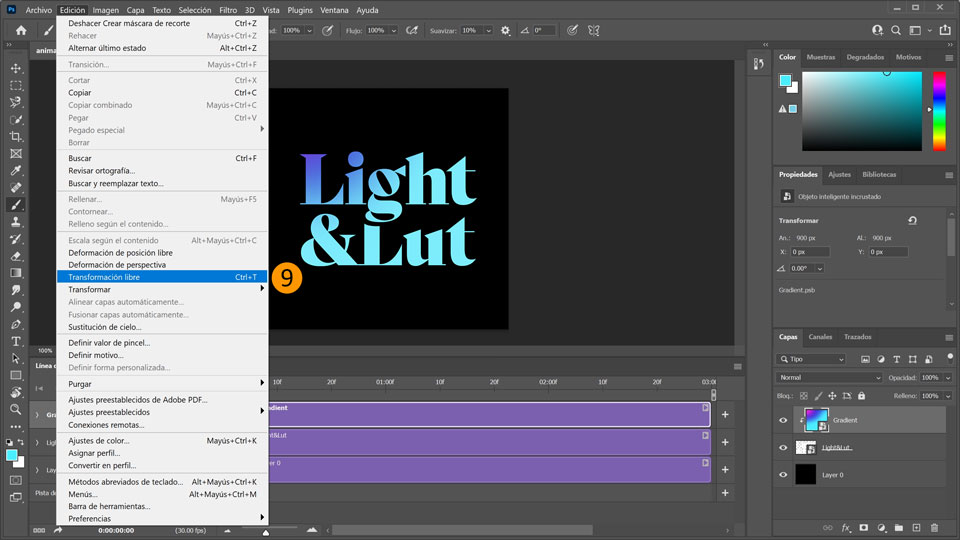
9. Teniendo seleccionada la capa Degradado, ve a Edición > Transformación libre para abrir Transformación libre. También puedes usar Control+T (Windows) o Comando+T (macOS).
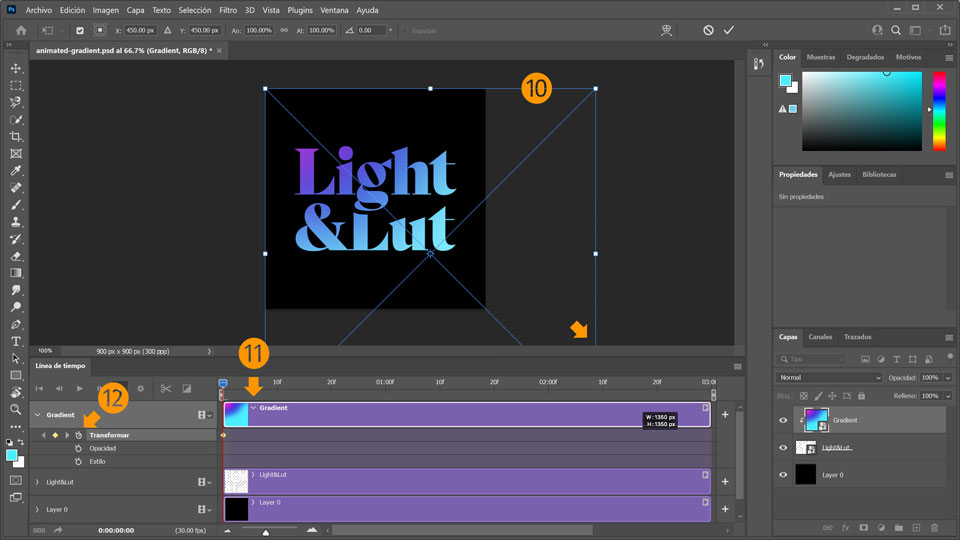
10. Amplía el degradado. Pulse Intro/Retroceso para confirmar los cambios.
11. Haz clic en la flecha pequeña desplegable en Degradado en la ventana Línea de tiempo > se abre la capa y aparecen tres cronómetros.
12. Asegúrate que el cabezal de reproducción de la línea de tiempo esté establecido en la marca 00. Haz clic en el cronómetro de la propiedad Transformar para crear un fotograma clave de Transformar. El fotograma clave ahora aparece como un cuadrado amarillo (rombo).
13. Para crear una animación, se debe realizar una transformación en esa capa más adelante. Para ello: Avanza el cabezal de reproducción en la línea de tiempo hasta un punto entre 01:00 y 02:00. Añade un nuevo fotograma clave haciendo clic en el cuadrado (rombo) junto al cronómetro de transformación.
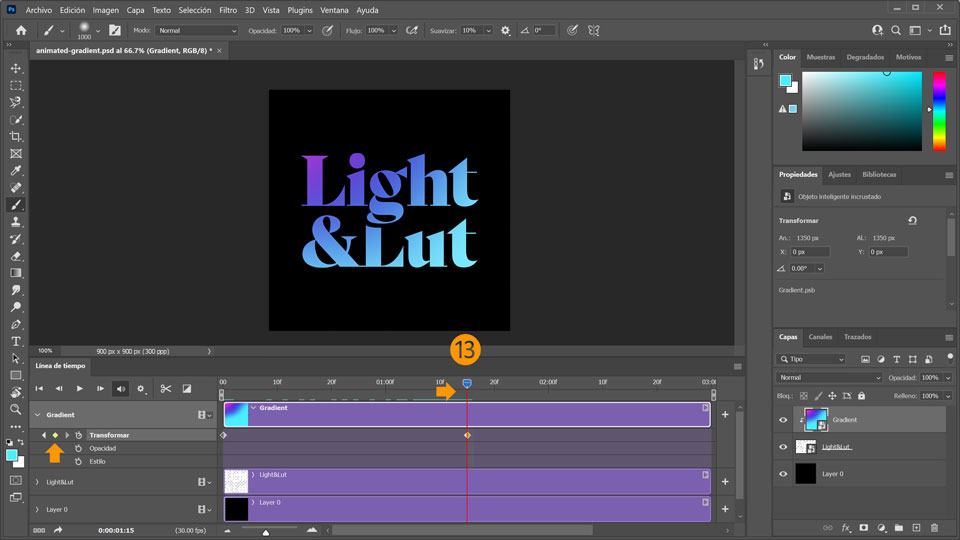
14. Ahora mueve el ratón junto al degradado. Cuando el ratón se convierte en un cursor con dos flechas
, gira el degradado unos 45 grados y mueve el degradado un poco hacia arriba. Asegúrate de que el degradado cubra el texto en todo momento. Pulsa Intro/Retroceso para confirmar la transformación.
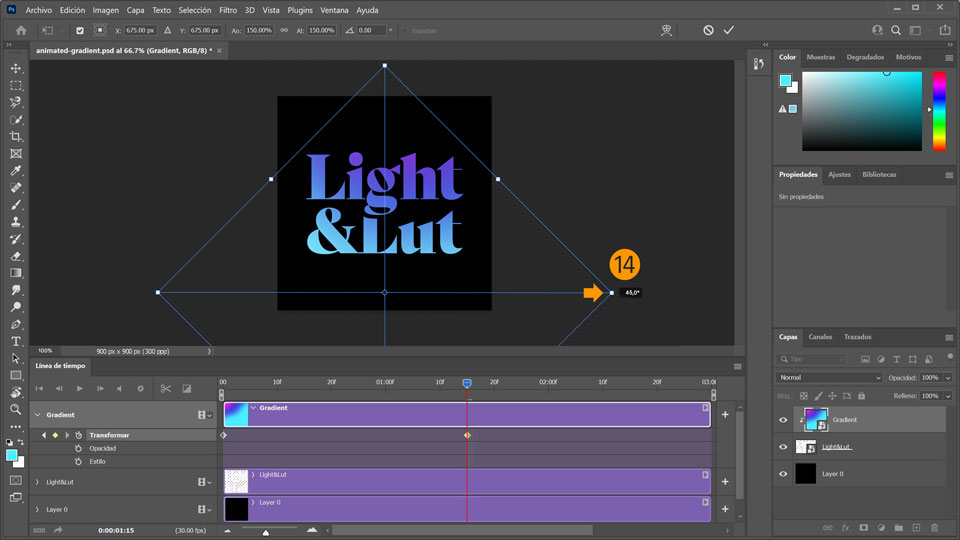
15. Mueve el cabezal de reproducción hasta la marca 03:00. Ese es el final de la animación; crea el tercer y último fotograma clave haciendo clic de nuevo en el cuadrado (rombo) junto al cronómetro de transformación.
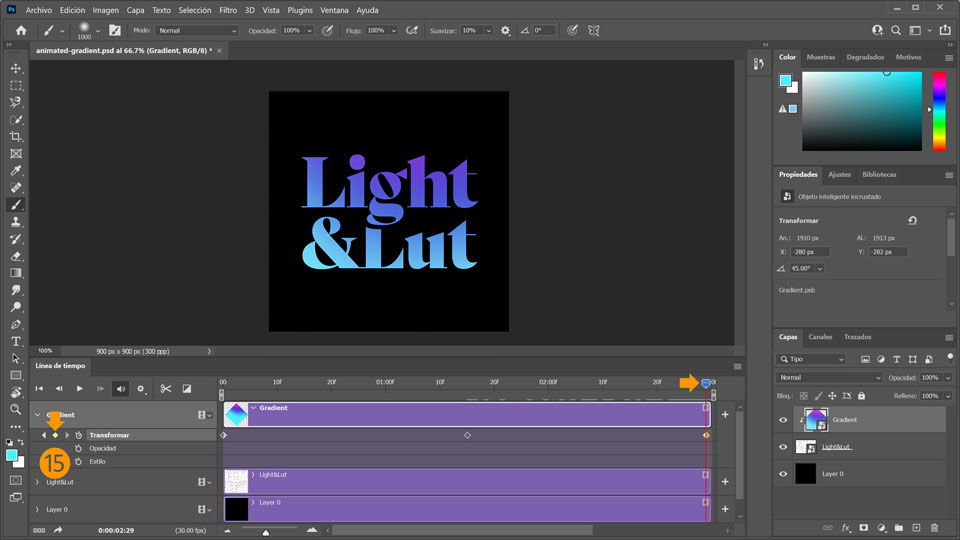
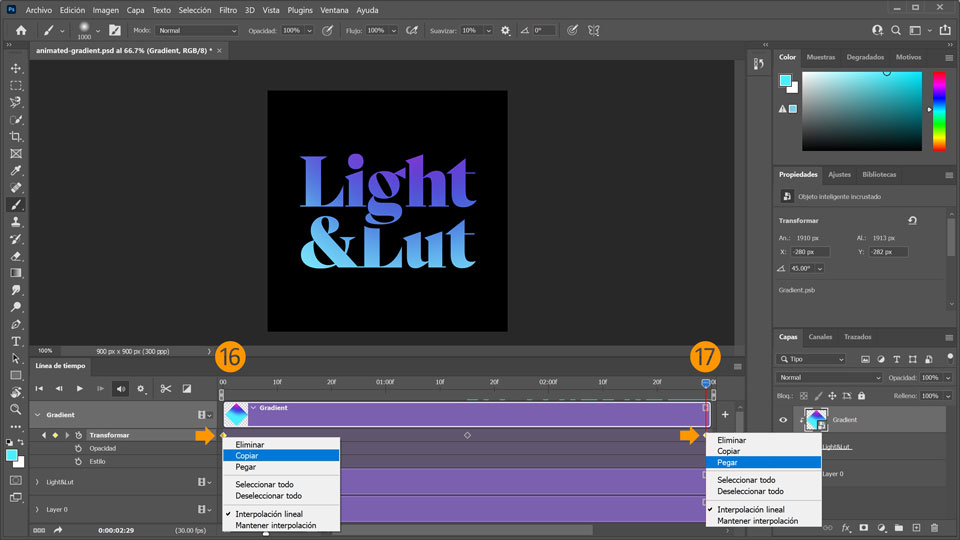
16. Ahora haz doble clic en el primer fotograma clave y elige Copiar.
17. A continuación, haz clic con el botón derecho en el último fotograma clave en la posición 03:00 y elige Pegar.
Como el primer y el último fotogramas clave coinciden en apariencia, obtendrás una animación en bucle perfecta.
18. Por último, haz clic en el icono del engranaje en el panel del
menú de la línea de tiempo y asegúrate de que la marca de verificación esté establecida en Reproducir indefinidamente para crear un efecto de bucle.
19. Haz clic en Reproducir en las opciones de reproducción para probar la animación.
¡Ya está! Ahora te toca a ti crear un degradado animado con Photoshop. Descarga los activos o utiliza los tuyos propios y comparte la animación en Facebook, Twitter e Instagram con #MadewithPhotoshop para obtener comentarios y conectar con otras mentes creativas.
Behance:https://www.behance.net/live Únete a nuestras retransmisiones en directo con profesionales y proyectos de verdad en tiempo real, y encuentra inspiración.

22 de julio de 2022
Prueba estos tutoriales con Photoshop
Edita fotos para crear nuevas imágenes y gráficos.
You can control how Adobe websites use cookies and similar technologies by making choices below. But note that if you disable cookies and similar technologies entirely, Adobe websites may not function properly.
Cookies are small text files stored by your web browser when you use websites. There are also other technologies that can be used for similar purposes like HTML5 Local Storage and local shared objects, web beacons, and embedded scripts. These technologies help us do things like remembering you and your preferences when you return to our sites, measure how you use the website, conduct market research, and gather information about the ads you see and interact with.
You can make choices in the menu below about what cookies and other technologies you want us to use on Adobe sites when you visit them from this browser. You can always change those choices later by clicking on the Cookie Preferences link at the bottom of the page.
If enabled:
We can improve your experience by tailoring the site and the content to things we think might be of interest
We can better keep track of your preferences — like what language you prefer to use
We will better understand your likely interests so we can provide you more relevant Adobe ads and content on non-Adobe websites and in non-Adobe apps
It will help us improve the performance of our website and those of our partners who use the Adobe Experience Cloud
If disabled:
We won’t be able to remember you from session to session so the experience may not be tailored to your interests
You’ll still have access to the content of the site but certain features that depend on cookies may not function
You’ll still see ads, they just may not be as relevant to you
General information
You can control how Adobe websites use cookies and similar technologies by making choices below. But note that if you disable cookies and similar technologies entirely, Adobe websites may not function properly.
Cookies are small text files stored by your web browser when you use websites. There are also other technologies that can be used for similar purposes like HTML5 Local Storage, web beacons, and embedded scripts. These technologies help us do things like remembering you and your preferences when you return to our sites, measure how you use the website, conduct market research, and gather information about the ads you see and interact with.
You can make choices in the menu below about what cookies and other technologies you want us to use on Adobe sites when you visit them from this browser. You can always change those choices later by clicking on the Cookie Preferences link at the bottom of the page.
If enabled:
We can improve your experience by tailoring the site and the content to things we think might be of interest
We can better keep track of your preferences — like what language you prefer to use
We will better understand your likely interests so we can provide you more relevant Adobe ads and content on non-Adobe websites and in non-Adobe apps
It will help us improve the performance of our website and those of our partners who use the Adobe Experience Cloud
If disabled:
We won’t be able to remember you from session to session so the experience may not be tailored to your interests
We’ll still count your use of our site and services
You’ll still have access to the content of the site but certain features that depend on cookies may not function
You’ll still see ads, they just may not be as relevant to you
Operate the site and core servicesOperate site and measure engagement
Always active
These cookies are required, and they are used to enable the site and related services core functionality. Without them the site could not operate, so they cannot be disabled.
These cookies enable the site and related services’ core functionality and collect statistics about user engagement, such as counting active use to help us understand trends. These cookies cannot be disabled.
Measure performance
These cookies are used to analyze site usage to measure and improve performance. Without them Adobe cannot know what content is most valued and how often unique visitors return to the site, making it hard to improve information we offer to you.
These cookies are used to analyze site usage to measure and improve performance. Without them Adobe cannot know what content is most valued, making it hard to improve information we offer to you.
Extend functionality
These cookies are used to enhance the functionality of Adobe sites such as remembering your settings and preferences to deliver a personalized experience; for example, your username, your repeated visits, preferred language, your country, or any other saved preference.
Personalize advertising
These cookies are used to enable Adobe and our partners to serve ads more relevant to your interests. Without them you will still see ads, but they might not be as relevant to you.
Personalize advertising
These cookies are used to enable Adobe and our partners to serve ads more relevant to your interests. Without them you will still see ads, but they might not be as relevant to you.