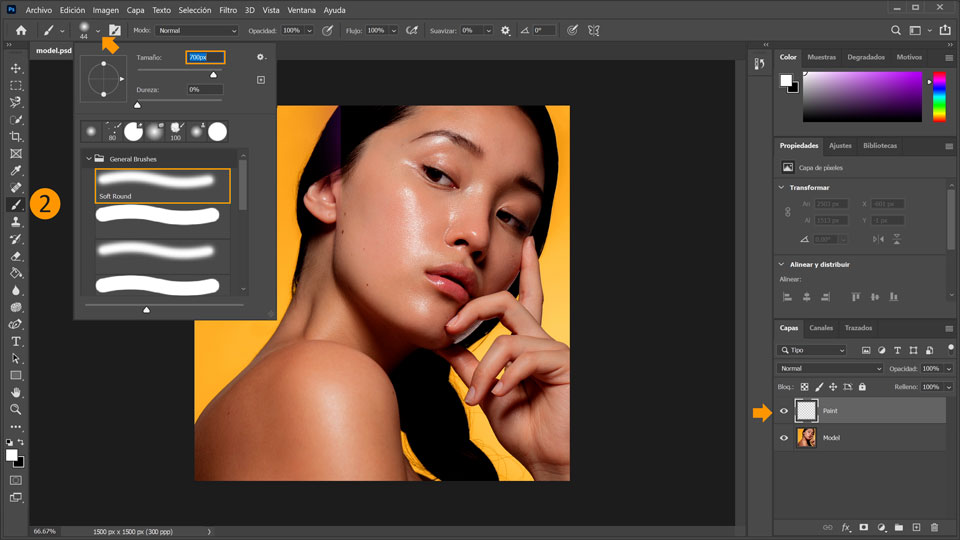
2. Con la capa “Paint” seleccionada, elige la herramienta Pincel (B). Haz clic en la flechita de la barra superior para ajustar los parámetros del pincel. Selecciona una punta suave redondeada y ajusta el tamaño en 700 px.
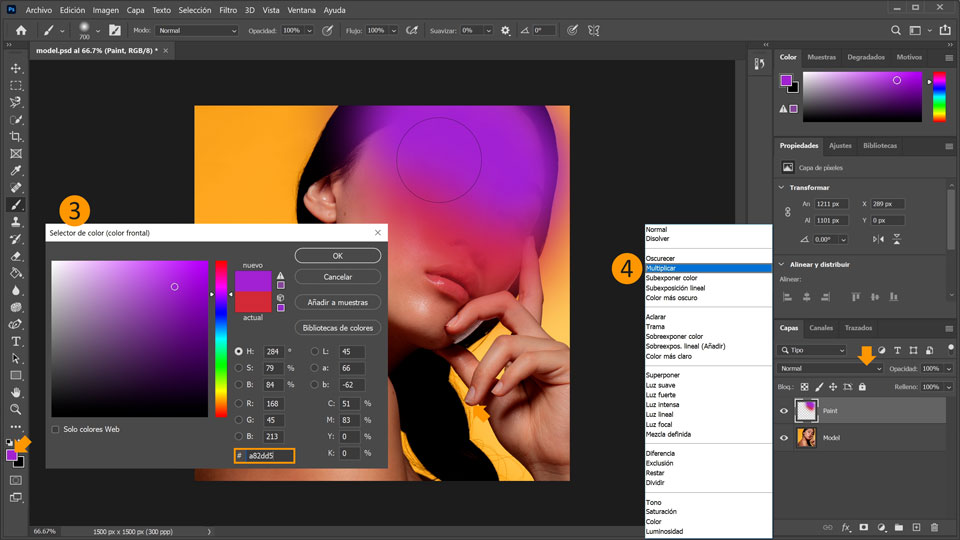
3. Elige un color rojo (#e7193b) y pinta por encima de los ojos de la modelo. Después, selecciona un color púrpura (#a82dd5) y pinta por encima de las cejas y la frente de la modelo.
4. Define la capa Modo de fusión con el valor
Multiplicar para que la pintura se “funda” con la piel.
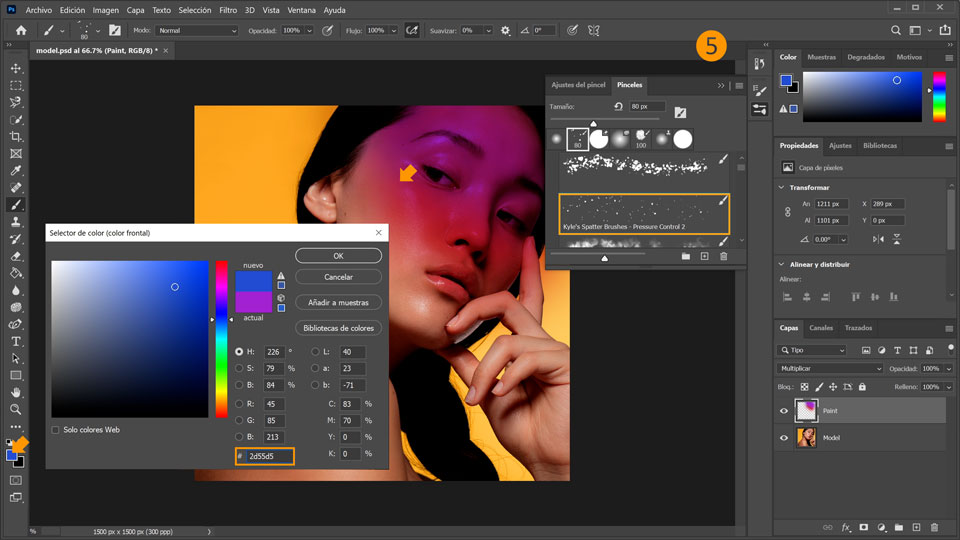
5. Ahora, selecciona un color azul (#2d55d5), accede a Ventana > Pinceles para abrir el panel Pinceles y selecciona Kyle’s Spatter Brushes – Pressure Control 2 en la carpeta Brushes Special Effects para pintar un patrón de purpurina por las mejillas y la nariz de la modelo.
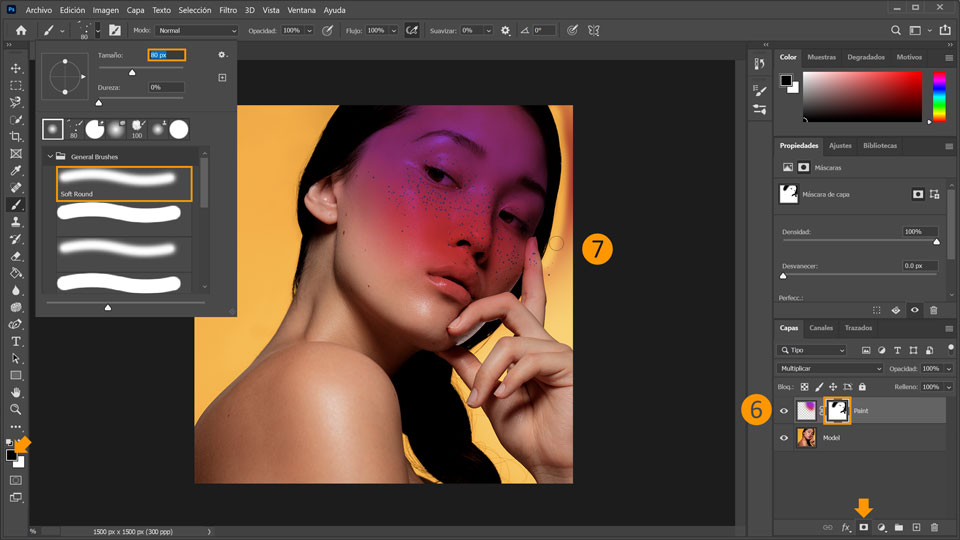
6. Sin salir de la capa “Paint”, haz clic en Añadir máscara de capa en la parte inferior del panel Capas. Aparecerá una miniatura de la capa de máscara junto a la miniatura de la capa.
7. Con la herramienta Pincel seleccionada, configura el pincel con una punta suave y redondeada, define el tamaño en 80 px y procura que el color frontal sea negro. Ahora, pinta por encima de los ojos, el pelo y los dedos sobre la máscara para que se asome la imagen original. Si es preciso, elige un pincel más pequeño para trabajar con una mayor precisión.
Consejo: El negro de una máscara oculta la capa que contiene la máscara, de modo que puedes ver qué hay debajo de esa capa. Si cambias el color frontal a blanco, puedes pintar para revelar contenido que hayas ocultado anteriormente con negro en la máscara de la capa.
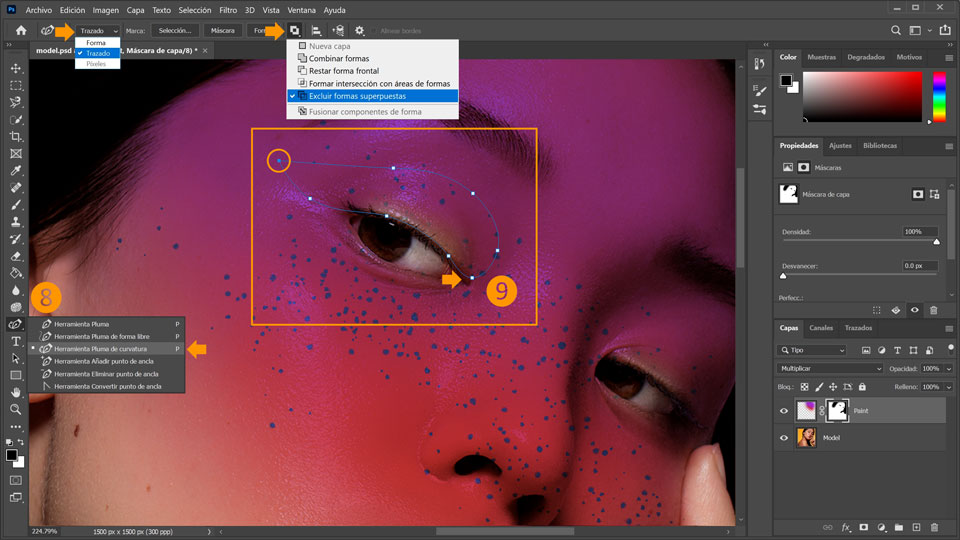
8. A continuación, crea una sombra de ojos elegante. Para ello, selecciona la herramienta Pluma de curvatura y define el modo con el valor Trazado y, la operación de trazado, con el valor Excluir formas superpuestas.
9. Haz clic a lo largo de la línea superior del ojo para añadir puntos con el fin de crear un trazado curvado. Haz clic en el punto original para cerrar el trazado. Para crear una esquina puntiaguda en el lado izquierdo del objeto, haz doble clic en el recuadrito.
10. Una vez definido el trazado, ve a la barra superior y elige Hacer selección. Se abrirá la ventana Hacer selección. En ella, define el valor Radio de desvanecimiento con el valor 4 y haz clic en OK.
11. Procura que la miniatura de la máscara siga seleccionada en la capa Paint. Acto seguido, pinta con un pincel negro dentro de la selección. Deja el lado derecho suave para que la fusión sea más fluida.
¡Ya está! Ahora te toca a ti crear un maquillaje de supermodelo con Photoshop. Descárgate los activos o utiliza los tuyos propios, y comparte el resultado en Facebook, Twitter e Instagram con #MadewithPhotoshop para obtener comentarios y conectar con otras mentes creativas.
Behance:https://www.behance.net/live Únete a nuestras retransmisiones en directo con profesionales y proyectos de verdad en tiempo real, y encuentra inspiración.

22 de julio de 2022
Prueba estos tutoriales con Photoshop
Edita fotos para crear nuevas imágenes y gráficos.
You can control how Adobe websites use cookies and similar technologies by making choices below. But note that if you disable cookies and similar technologies entirely, Adobe websites may not function properly.
Cookies are small text files stored by your web browser when you use websites. There are also other technologies that can be used for similar purposes like HTML5 Local Storage and local shared objects, web beacons, and embedded scripts. These technologies help us do things like remembering you and your preferences when you return to our sites, measure how you use the website, conduct market research, and gather information about the ads you see and interact with.
You can make choices in the menu below about what cookies and other technologies you want us to use on Adobe sites when you visit them from this browser. You can always change those choices later by clicking on the Cookie Preferences link at the bottom of the page.
If enabled:
We can improve your experience by tailoring the site and the content to things we think might be of interest
We can better keep track of your preferences — like what language you prefer to use
We will better understand your likely interests so we can provide you more relevant Adobe ads and content on non-Adobe websites and in non-Adobe apps
It will help us improve the performance of our website and those of our partners who use the Adobe Experience Cloud
If disabled:
We won’t be able to remember you from session to session so the experience may not be tailored to your interests
You’ll still have access to the content of the site but certain features that depend on cookies may not function
You’ll still see ads, they just may not be as relevant to you
General information
You can control how Adobe websites use cookies and similar technologies by making choices below. But note that if you disable cookies and similar technologies entirely, Adobe websites may not function properly.
Cookies are small text files stored by your web browser when you use websites. There are also other technologies that can be used for similar purposes like HTML5 Local Storage, web beacons, and embedded scripts. These technologies help us do things like remembering you and your preferences when you return to our sites, measure how you use the website, conduct market research, and gather information about the ads you see and interact with.
You can make choices in the menu below about what cookies and other technologies you want us to use on Adobe sites when you visit them from this browser. You can always change those choices later by clicking on the Cookie Preferences link at the bottom of the page.
If enabled:
We can improve your experience by tailoring the site and the content to things we think might be of interest
We can better keep track of your preferences — like what language you prefer to use
We will better understand your likely interests so we can provide you more relevant Adobe ads and content on non-Adobe websites and in non-Adobe apps
It will help us improve the performance of our website and those of our partners who use the Adobe Experience Cloud
If disabled:
We won’t be able to remember you from session to session so the experience may not be tailored to your interests
We’ll still count your use of our site and services
You’ll still have access to the content of the site but certain features that depend on cookies may not function
You’ll still see ads, they just may not be as relevant to you
Operate the site and core servicesOperate site and measure engagement
Always active
These cookies are required, and they are used to enable the site and related services core functionality. Without them the site could not operate, so they cannot be disabled.
These cookies enable the site and related services’ core functionality and collect statistics about user engagement, such as counting active use to help us understand trends. These cookies cannot be disabled.
Measure performance
These cookies are used to analyze site usage to measure and improve performance. Without them Adobe cannot know what content is most valued and how often unique visitors return to the site, making it hard to improve information we offer to you.
These cookies are used to analyze site usage to measure and improve performance. Without them Adobe cannot know what content is most valued, making it hard to improve information we offer to you.
Extend functionality
These cookies are used to enhance the functionality of Adobe sites such as remembering your settings and preferences to deliver a personalized experience; for example, your username, your repeated visits, preferred language, your country, or any other saved preference.
Personalize advertising
These cookies are used to enable Adobe and our partners to serve ads more relevant to your interests. Without them you will still see ads, but they might not be as relevant to you.
Personalize advertising
These cookies are used to enable Adobe and our partners to serve ads more relevant to your interests. Without them you will still see ads, but they might not be as relevant to you.