




PNG vs. SVG for QR codes: How to choose the best file format.
Learn the difference between PNG and SVG QR codes, how each format works, and how to choose the best file type for high-quality, reliable scanning.
QR codes have quietly become one of the most versatile tools in modern design. You’ll see them on posters, packaging, menus, tickets, storefronts, emails — practically anywhere someone wants to bridge offline and online experiences.
But if you’ve never created one for your business, school project, or event, you’ve probably hit the same surprising question: what’s the best file format for a QR code?
At first glance, it seems like a small detail. But choosing the right QR code format, especially when deciding between PNG vs. SVG for QR code designs, can make a real difference in clarity, scalability, printing quality, and how well it can be scanned.
In this guide, we’ll break everything down in a clear, practical way. You’ll learn what separates PNG and SVG, when to use each one, how QR code format types work (including Wi-Fi, SMS, and email QR codes), and how to generate high-quality QR codes using Adobe Express.
Think of this as your all-in-one reference whenever you need a scannable code that looks sharp, no matter where it appears.
So, let’s start with the foundation: what actually makes a QR code work in the first place.
What makes a QR code scannable? The basics behind the format.
Before comparing file formats, it helps to understand what’s going on behind the scenes. Unlike a photograph or a regular graphic, a QR code isn’t purely visual. It’s a structured pattern of square modules arranged in a grid.
When your phone’s camera scans it, the device interprets the pattern and decodes the data, whether that’s a URL, Wi-Fi credentials, an email address, or other supported formats.
Scan reliability may vary depending on device camera quality, lighting conditions, and viewing distance.
Here are the elements that matter most for scan reliability:
1. Contrast and clarity.
A QR code needs a strong contrast between the foreground and background. Dark foreground (aka the QR code) on a light background is the usual standard, but inverted colors (light foreground with dark background) might still work as long as the contrast remains high enough. If you’re planning to use inverted colors, make sure to test your code’s scannability.
According to the Nielsen Norman Group, while most cameras on newer phones or tablets can scan inverted QR code colors, not all scanning technology, particularly those used in physical locations with varying lighting conditions, might be capable of scanning such codes.
2. Quiet zone.
This is the blank space around the code. It helps the scanner identify boundaries so it can detect the pattern correctly. According to QR Code Kit, the ideal size for a quiet zone should be at least four times the width of one module (the black square).
3. Module sharpness.
If individual squares blur together, scanning becomes difficult. This is why your QR code format matters, especially when resizing or printing.
4. Error correction.
QR codes use built-in error correction: Low (L), Medium (M), Quartile (Q), or High (H) levels to remain scannable even when they’re partially obscured, damaged, or printed at small sizes. Razorpay suggests that if you’re expecting your codes to see some wear and tear, then it’s best to go with a higher error correction level so it stays scannable.
These fundamentals stay the same no matter the design or use case, but the file type you choose can support or weaken these fundamentals depending on how you plan to use the code.
PNG vs. SVG for QR codes: What’s the actual difference?
When you generate a QR code, two of the most common export options you’ll see are PNG and SVG. Both work, but they excel in different ways.
Here’s a simple breakdown:
● PNG = raster image (made of pixels)
● SVG = vector graphic (mathematically drawn shapes)
Because QR codes are essentially geometric patterns, their crisp edges and clean squares lend themselves particularly well to vector formats. But PNG has its place too, especially on digital platforms.
Let’s look at each one more closely.
What is a PNG QR code?
A PNG (Portable Network Graphics) QR code is a pixel-based image. PNG is a widely supported image format, making it extremely convenient for digital use.
Advantages of PNG QR codes.
● Ideal for digital platforms. Social media, email newsletters, websites, and presentations almost always support PNG.
● No loss of detail at original size. PNG is lossless, so the code remains crisp if you don’t resize it dramatically.
● Transparency support. You can export a PNG with a transparent background if your design requires it.
Disadvantages of PNG QR codes.
● Does not scale infinitely. If you enlarge a PNG too much, the edges may soften or pixelate.
● Less suitable for large-format printing. Posters, signage, banners, and packaging typically require clean, vector-level sharpness.
● File size increases at higher resolution. A high-quality QR code PNG for print needs more pixels, which means a bigger file.
When to use PNG.
Choose a PNG when you need a quick, digital-first QR code, one that’s going in a presentation slide, email signature, small web graphic, or app UI.
What is an SVG QR code?
SVG stands for Scalable Vector Graphics. Instead of storing the QR code as pixels, it stores instructions for drawing shapes like “draw a square here, draw a square there.” This makes the image vastly scalable. Try zooming into a Word document. Those letters stay crisp even at 500% because modern fonts use vector-style outlines.
Advantages of SVG QR codes.
● Scales cleanly to any size. Whether you shrink it for a business card or enlarge it for a poster, it stays sharp. That’s because SVGs are resolution-independent and don’t lose their quality.
● Lightweight file size. Despite their scalability, SVG files can be surprisingly small.
● Easy to edit in vector-based tools. Designers can adjust colors, add branding, or integrate QR codes into layouts without losing clarity. This comes in handy, especially if you need to make regular changes to your QR code.
Disadvantages of SVG QR codes.
● Not supported on all platforms. Some websites, apps, and social tools don’t offer support for SVG, especially older browsers that might not load SVG images properly.
● Can be overkill for purely digital assets. If you only need a tiny QR code on a webpage, a PNG might be simpler.
When to use SVG.
SVG is your best option when you need a code with topnotch quality for print or design work, like posters, brochures, product packaging, event signage, or anywhere that requires scaling.
Best file format for QR code: How to decide between PNG and SVG.
The best file format may vary depending on your use case, output method, and distribution channel.
Here’s the short version:
● Digital use –> PNG
● Print or scalable design –> SVG
But let’s go a bit deeper by looking at practical scenarios.
If you’re making marketing materials:
For flyers, brochures, point-of-sale displays, or event signage, an SVG QR code gives you the most reliable clarity at any size. Shapes stay crisp even at high resolution, which helps maintain scanning accuracy.
If you’re designing for packaging:
Packaging may require resizing, repositioning, or overlaying the QR code onto artwork. An SVG format adapts seamlessly to these needs and keeps production files clean.
If you’re sending QR codes through email:
PNG works well here because you’re embedding it at a fixed size within the message.
If your code will appear on social media graphics:
Most social platforms compress images. PNG resists compression better than JPEG and preserves clarity at common display sizes.
If your QR code must match a specific brand style:
SVG makes it easier to adjust shapes, colors, and visual components without losing edge quality.
If you want the most universally accepted file type:
PNG is widely compatible across nearly every modern digital platform.
Understanding QR code format types: More than just URLs.
QR codes can do much more than open a website. When you generate one, you’re actually choosing a QR code format type, each with its own data structure.
Here are the most commonly used types:
1. Website URL.
The most widely recognized type. Scanning opens a landing page or website and loads the linked site.
2. QR code Wi-Fi format.
A Wi-Fi QR code stores network information such as SSID, encryption type, and password. When scanned, it prompts the device to join the network without manually typing login details. Best uses for this format type include:
● Event venues
● Cafés
● Offices
● Shared spaces like hotels with guest networks
Format considerations: PNG works for digital screens, but SVG is recommended if printed on signage.
3. QR code email format.
An email QR code automatically opens the user’s default email app with a pre-filled recipient address. You can optionally include a subject line or placeholder message. Best uses for this type include:
● Customer support
● Feedback forms
● Advertising materials
● Artist or portfolio contact information
● Digital business cards
Format considerations: PNG is sufficient unless the code appears in large printed promotional materials, where the code can appear blurry.
4. QR code SMS format.
An SMS QR code triggers the device’s messaging app with a pre-filled number and optional message text. You can use this format for quick responses at in-person events, opt-in programs, or local services and community notices.
They also work great in catalogs, notice boards, answer keys, or tracking credentials, basically channels where you want to convey plain text that can still be accessed even without an internet connection.
Format considerations: For posters or other printed materials, SVG ensures crisp scanning from a distance.
5. QR code for plain text, phone numbers, or vCards.
These formats give users a contactless way to save or exchange contacts or view notes. With a vCard QR code, you can link your name and contact details, which comes in handy for growing your network.
Common mistakes to avoid when choosing a QR code format.
Even with the right file type, certain pitfalls can reduce scannability. Here are the most common (and easily avoidable) issues:
Exporting at too low a resolution.
PNG formats require enough pixels to remain sharp, especially for print.
Over-stylizing the QR code.
Adding logos, illustrations, color, or even animation effects can look great, but make sure that the contrast remains high and that essential patterns stay intact.
Cropping the quiet zone.
Never trim off the white space surrounding the code, as this helps separate the QR code from all your other design elements.
Placing the QR code on a textured or overly busy background.
Even a perfectly exported file can become harder to scan if the background interferes.
Stretching or squashing the QR code.
Maintain the square aspect ratio to preserve the grid pattern.
A simple framework to help you choose the best file format for a QR code.
Still unsure about which file format to use for your next project? Use this quick checklist:
Choose PNG if:
● Your QR code will live in digital-only spaces
● You’re adding it to a quick graphic, presentation, or email
● You don’t need to resize the file beyond its original dimensions
Choose SVG if:
● The QR code will be printed
● You need to resize the code
● You need a high-quality QR code format for projects requiring responsive design
● You’re creating materials that may require scaling
Design tips for better, more scannable QR codes.
Even the best file format won’t save a QR code that’s designed without intention. Here are practical tips to help your QR codes look good and function reliably.
Keep contrast high.
A QR code with a good-sized white space (the quiet zone) set against a dark background will stand out, making it easier to spot and scan.
Test scan before publishing.
Try scanning it with different devices and in different lighting conditions to check the code’s functionality.
Avoid overly intricate backgrounds.
Place your QR code on a clean area of your design to avoid interference. This applies to the QR code itself as well. When designing a QR code and the materials where it will live (posters, flyers, etc.), think about how the code will be used and where it will be printed or placed.
For example, if you’re adding a QR code to a business card, apply negative space so your overall design doesn’t look cluttered and to keep your code easily scannable.
Be mindful of size.
Anything smaller than 0.8–1 inch (about 2–2.5 cm) may be difficult to scan, depending on the use case. When deciding on the size, also consider the scanning distance. Accessibility specialists TetraLogical reported that various guides recommend following a 10:1 ratio, where the furthest scanning distance for a 10 cm x 10 cm QR code would be 100 cm.
Use clear calls to action.
Let users know what happens after they scan (“What’s in it for me?”). For example, something simple like “Scan to see the menu” lets users know what they can expect (the purpose or benefit) or where the link will lead them.
FoodNavigator USA reported that per Appetite Creative’s Connected Packaging survey, well-placed QR codes with strong CTAs can achieve improved scan rates by 7% to 8%.
Creating PNG or SVG QR codes in Adobe Express.
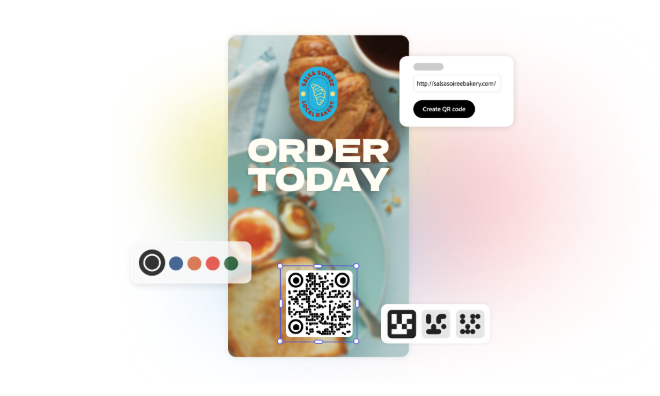
Adobe Express makes it simple to generate high-quality QR codes, whether you’re creating a poster, flyer, business card, or social media graphic. You can design layouts from scratch or start with a template, then just add your QR code directly to the canvas.
Because Adobe Express supports both PNG and SVG, you’re free to choose the format that works best for your needs. To get started making your own QR codes:
Step 1: Launch Adobe Express or visit https://new.express.adobe.com/. You could also launch the free QR code generator, add your link, and click Generate QR code. This will take you to the editor, where you can customize your code.
Step 2: Select Generate QR code under Quick editing tools.
Step 3: Enter or paste your URL.
Step 4: Customize the look of your QR code. You can tweak the color and style (dots, marker border, and marker center).
Step 5: Choose the right file format for your project: PNG (best for images), JPG, or SVG.
From there, you can download your QR code or select Open in editor to incorporate your code into a blank canvas or pick a template (menu, poster, invitation, business card) that includes your QR code.
Step 6: Test and finalize. Scan the exported file using your device to verify that everything works as expected.
Note: If you’re choosing SVG, you can only download the file. You can’t launch the Adobe Express editor, unlike when you’re using PNG or JPG.
Choosing the right QR code format doesn’t have to be complicated.
At the end of the day, the best file format for QR code designs comes down to one main question: Where will your audience scan it?
● If your code lives mostly online or in fixed-size digital areas, PNG is the convenient, reliable choice.
● If you’re printing anything, from packaging to posters to event signage, SVG gives you the clean, scalable quality you need.
With Adobe Express, you don’t have to worry about choosing the “wrong” option. You can create, customize, and download QR codes in both formats, then switch based on your project needs.
Whether you’re designing for a brand launch, school campaign, café menu, or social media promotion, this guide should help you feel more confident in choosing the right QR code type every time.
Ready to craft clear, high-quality QR codes for your marketing, events, or branding? Open Adobe Express to start creating today.
