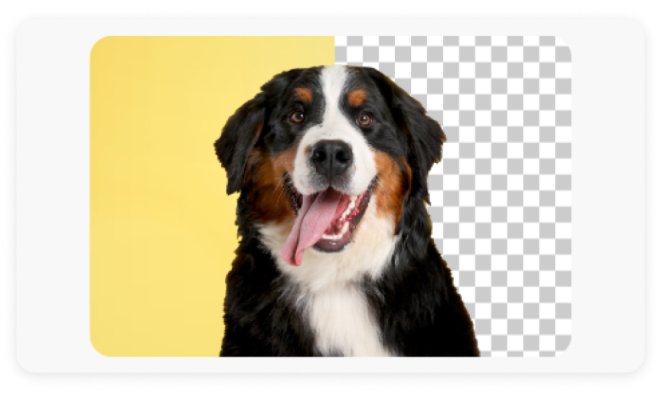




How to remove backgrounds on your phone (iOS and Android guide).

Remove backgrounds from your iPhone or Android device. This step-by-step guide covers tips for clean edits and how to perfect background removal with Adobe Express.

Start designing now

Easy all-in-one editor
One-click edits from any device
Fast creation with generative AI
Thousands of professionally designed templates
toc-title
Table of contents:
toc-aria-label
table of contents links
content-1
Why you’d want to remove a background in the first place.
content-1-short
content-2
How background removal works on mobile.
content-2-short
content-3
How to remove a background on iPhone (step-by-step guide).
content-3-short
content-4
How to remove a background on Android (step-by-step guide).
content-4-short
content-5
What makes a great image for background removal.
content-5-short
content-6
Advanced tips for cleaner, more professional results.
content-6-short
content-7
Common mistakes (and how to fix them).
content-7-short
content-8
Creative ways to use your background-free photos.
content-8-short
content-9
A quick recap to turn your photo into a finished design.
content-9-short

Around 4.69 billion people all over the world actively use a smartphone, according to data from DemandSage. Smartphones are used for everyday activities, from messaging, banking, and researching to more complex functions like designing and editing images. Research by Gitnux highlights how 48% of users prefer to edit on their smartphones, while over 65% of professional photographers have embraced editing on their smartphones for minor edits and client showcases.

Background removal is a big part of editing a design, especially since it’s widely used in projects that require multiple elements. For example, brands may need to remove cluttered backdrops for their product shots, or professionals might need to create polished profile pictures for their LinkedIn accounts.

Whatever the case, today’s smartphones and mobile devices are powerful enough to handle precise editing. AI-powered background removal tools, like Adobe Express, make the process seamless, fast, and professional.

This guide will walk you through how to easily remove backgrounds using your iPhone and Android devices, troubleshoot any issues, and refine results.

Note: Background removal features and steps may vary depending on your device model, operating system version, and region.

Why you’d want to remove a background in the first place.

Imagine you took a photo of a product on your messy desk with cables, papers, maybe even a half-eaten snack in the background. Background removal removes the clutter and places the focus on what you want. Here are some of the most common reasons people remove photo backgrounds and why you might want to try it, too:

In online shopping or social media, people don’t get to hold or inspect items physically, and they only rely on photos. A clean photo builds trust, shows details clearly, and makes the product easier to imagine in real life. For creators and sellers, good visuals can spell the difference between a like, a click, or a sale.

Before we jump into how to remove backgrounds on iPhone or Android, let’s first understand how the process actually works.

How background removal works on mobile.

Understanding how to remove backgrounds on a phone starts with knowing how image segmentation works. Modern phone apps don’t just guess what part of a photo is the subject and what part is the background. Instead, they rely on machine learning and image segmentation, or AI that’s trained to recognize shapes, edges, and patterns in images.

Since each picture is really just a grid of thousands or millions of tiny dots called pixels, the AI examines those pixels. It looks at their colors, brightness, grouping, and arrangement to decide which cluster of the pixels represents the subject and which cluster represents the background. Once it knows which is which, it draws a mask around the subject. Everything outside that mask can be removed (erased or replaced) while the subject remains intact.

There are two main ways background removal happens on mobile:

For most everyday uses (product photos, social media posts, quick edits), automated AI removal is fast and reliable. For tricky images, like where your subject blends into the background, or there are lots of fine details like hair, shadows, or transparent areas, manual masking might still be needed for perfection.

How to remove a background on iPhone (step-by-step guide).

Using built-in tools (iOS 16 and later).

On supported iPhone models running iOS 16 or later, Apple’s built-in tools let you isolate subjects from the background directly in the Photos app and supported system apps.

Apple’s built-in feature, called Visual Look Up, uses the same machine-learning technology behind Live Text and Portrait mode to identify the main subject and isolate it automatically.

  1. Open the Photos app on your iPhone.
  2. Find the image you want to edit.
  3. Press and hold the main subject until a glowing outline appears.
  4. When the Copy or Share option appears, tap it.

You can then copy the cut-out or save it with a transparent background to reuse in other apps.

Using Adobe Express on iPhone.

If you want more control or plan to combine your photo with text, shapes, or a new background, Adobe Express offers a one-tap Remove Background feature that works beautifully on iPhone.

  1. Open or download the Adobe Express app from the App Store.
  2. Upload your photo from Camera Roll or take a new one.
  3. Tap Remove Background.
  4. Wait a few seconds for Adobe Express to automatically detect and remove the background.
  5. You can either download the image as a transparent PNG or keep editing. On Adobe Express, you can add text, a gradient backdrop, or a frame.

Because Adobe Express uses trained AI segmentation, it preserves fine edges like hair or fabric texture better than manual erasing.

How to remove a background on Android (step-by-step guide).

Android phones have also stepped up with their own built-in AI editing tools.

Using Android photo tools.

Depending on your device, the tool might be called Magic Eraser (Google Pixel series) or Object Eraser (Samsung Galaxy phones). Both rely on AI to identify and remove background distractions or full backdrops.

Google Pixel series.

These features are available on supported Pixel devices and may differ depending on model and software version.

  1. Open Google Photos.
  2. Tap the photo you want to edit.
  3. Select Edit, head to Tools, then tap Magic Eraser.
  4. Highlight unwanted background areas with your finger and watch them disappear automatically.

Samsung Galaxy phones.

Feature availability may vary depending on the Galaxy model and One UI version.

  1. Open your Gallery app and select a photo.
  2. Tap Edit and then the object eraser icon.
  3. Draw over the background or tap objects you want gone.
  4. Tap Erase. The AI removes them instantly, and you can repeat the steps to clear up multiple areas.

Both methods work best with clear, well-lit images where the subject stands out from the background.

Using Adobe Express on Android.

Adobe Express features may vary by device and app version.
For more control and consistent results across devices, Adobe Express offers a one-tap background remover designed to deliver reliable results on Android.

Here’s how:

  1. Open the Adobe Express app on your Android device.
  2. Upload your image from Gallery or Files.
  3. Tap Remove Background.
  4. Let the AI detect and remove the background automatically.
  5. Download the image with a transparent background or continue editing in Express.

Further editing your design is easy with Adobe Express. You can add elements like gradients and frames or adjust image settings to refine your result.

What makes a great image for background removal.

Even the best AI tools work their magic more easily when you start with a good photo. A few small tweaks before you upload can make a big difference in how clean your cutout looks. Think of it as helping the AI see your subject clearly.

Good lighting.

Natural daylight is your best friend. Soft, even light (like from a window) helps your phone or Adobe Express detect edges without harsh shadows. Avoid mixing light sources since it can confuse color detection.

Simple backgrounds.

The fewer distractions behind your subject, the better the AI performs. A clean wall, table, or neutral backdrop lets the system separate the person or object easily. Busy patterns or cluttered rooms can cause the tool to miss small details.

Enough contrast between the subject and background.

If your subject blends in with the background (for example, your subject is wearing a white shirt against a white wall), the app might struggle to find the edges. Whenever possible, create contrast. A darker backdrop behind light-colored items (or vice versa) helps the AI outline the subject accurately.

Avoid motion blur.

AI segmentation depends on clear edges and defined shapes. If your subject is moving or the camera shakes, those details can blur and confuse the algorithm. Take a steady shot or use your phone’s timer to keep things crisp.

Advanced tips for cleaner, more professional results.

Removing a background is only half the job, and polishing the final image is what makes your design look truly professional. Doing these small refinements can take your cutouts from “almost there” to studio-quality.

Refine edges manually.

Even with powerful AI, fine edges like hair, fur, or transparent fabric can look a little jagged up close. After using background removal in Adobe Express, zoom in on your subject and use the Erase tool to tidy the outline. This gives you a more natural look, especially around complex details.

Match lighting for realism.

When you add a new background, your subject and backdrop need to speak the same lighting language. If your original photo was shot under warm light but the background is cool-toned, the result can look mismatched. Adjust brightness, contrast, and temperature in Adobe Express to align tones.

Use subtle shadows to ground your subject.

A simple drop shadow can instantly make a cutout feel like it belongs in its environment. In Adobe Express, you can add a faint shadow behind your subject and lower the opacity until it looks soft and natural. This trick adds dimension and realism, especially for product shots or portraits.

Keep edits consistent.

If you’re editing multiple product photos or a full content series, you need to make sure they all look like they’re connected. Apply the same brightness, color balance, and shadow settings across all images. Adobe Express lets you duplicate projects or reuse templates, which helps maintain a uniform look across your catalog, brand assets, or social grid.

Edit photos in Adobe Express. Explore filters, color adjustments, and design tools to polish your images after background removal.

Common mistakes (and how to fix them).

Uneven edges or halo outlines.

Sometimes the AI leaves a faint border around your subject, especially if the original image had low contrast. To fix this, open the file in Adobe Express and use the Erase tool or re-export the image after slightly increasing contrast before background removal.

Wrong file type.

If your saved image suddenly has a white or colored box where the background should be, you probably exported it as a JPG. JPGs don’t support transparency, so always remember to export as a PNG when you need a clear or layered background.

Overexposed subjects.

AI models can struggle with very bright or overexposed areas where parts of the image lose detail. If your subject looks washed out or fused with the background, lower your exposure or highlights in-camera (or in the editor) before background removal.

Missing fine details (like hair or accessories).

If smaller features disappear after background removal, it usually means the AI couldn’t detect them clearly. Try using Enhance or auto-adjust in Adobe Express before removing the background to improve the contrast and color separation.

Creative ways to use your background-free photos.

Once you’ve removed your background, the fun really begins. Background-free images are like digital stickers because you can place them on anything to create polished visuals in minutes. Here are a few creative ideas to try with your new designs.

If you want to keep exploring, create stunning visuals in Adobe Express and see how your background-free photos can evolve into social posts, marketing assets, or even custom merch designs.

A quick recap to turn your photo into a finished design.

Before wrapping up, here’s a quick cheat sheet for removing and refining backgrounds right from your phone:

  1. Capture your photo in good light. Good lighting makes it easier for AI to detect edges and separate your subject from the background.
  2. Remove the background with Adobe Express. Upload your photo, tap Remove Background, and let the AI automatically remove clutter around your subject.
  3. Refine the details. Zoom in to clean up edges, adjust brightness or warmth, and add shadows.
  4. Add personal elements. Swap in a new background, add text or stickers, or use templates to turn your image into a design-ready asset.
  5. Export and share. Save as PNG for transparent backgrounds or JPG for quick uploads, and you’re ready to post, print, or publish.

With a few taps, you’ve turned an everyday photo into a professional-quality visual ready for social media, e-commerce, or personal projects.

Simplify your mobile edits with Adobe Express.

Not long ago, removing a background meant sitting at a computer, layering masks, and zooming in pixel by pixel. Now, with Adobe Express, you can do it right from your phone without needing to use extra tools or go through complicated steps.

Whether you’re editing product photos for your online shop, creating scroll-stopping content for social media, or cleaning up portraits for a professional portfolio, Adobe Express helps you do it fast, cleanly, and with professional-level precision.

You don’t need to be a designer. Just upload your image, tap Remove Background, and watch the AI do the heavy lifting. Then, customize your result with new colors, backgrounds, or text to make it uniquely yours. Try the Adobe Express Remove Background Tool and turn every photo into a ready-to-use design in seconds.

You might also like...

View all