
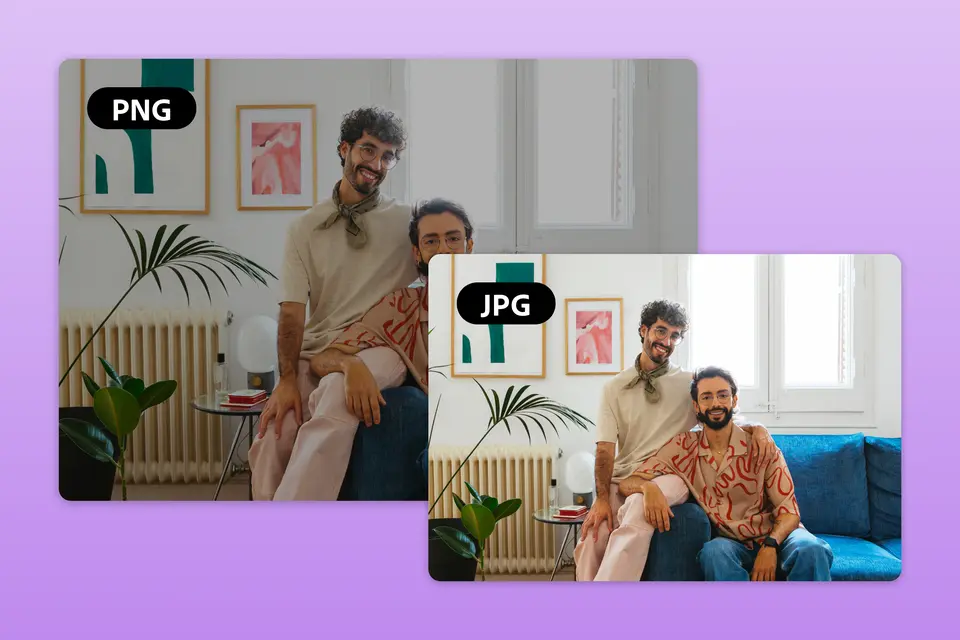
How to convert PNG to JPG in Adobe Express
Choosing the right image format is important to retain quality and efficiency in designs from digital performance to print materials. Ultimately having smaller files sizes makes it easier to share images online, and this is why JPG files tend to be the default method.
PNG files have lossless compression so that no image detail or quality is lost, even after compression. The tradeoff for superior color depth that’s great for high-quality prints is the larger file size. A JPG, on the other hand, has smaller file sizes with a small decrease in quality that works great for photos and web images. So, what exactly are these formats? Which is better and why? And how do you convert a PNG file into a JPG in Adobe Express?
Overview
What are PNG files and JPGs?
PNG files (short for Portable Network Graphics) is a type of image file format. It’s commonly used in web design (especially for logos and icons), screenshots, digital artwork, and images that need transparent backgrounds. PNG files retain all image detail and quality, even after compression, which makes them perfect for images that need to stay sharp and clear. Ultimately, they're great for images with text, sharp lines, or detailed graphics, like screenshots, illustrations, and UI elements.
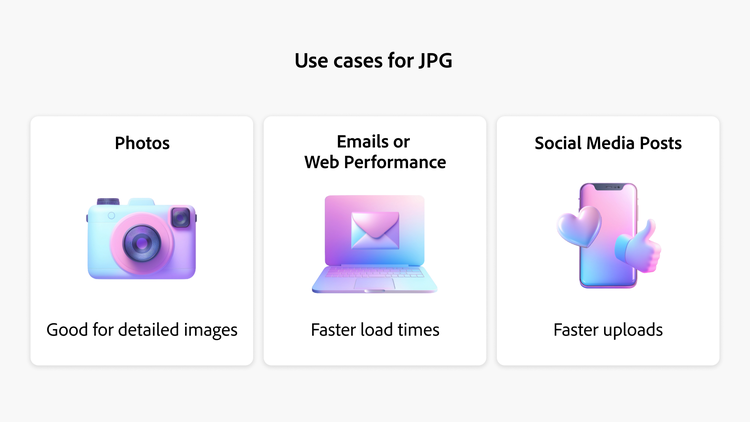
JPGs, on the other hand, are best for photos and web images. JPG or JPEG is short for Joint Photographic Experts Group, which is the committee that created the format. Social media, email, and web use like online product listings, email newsletters, and digital photography are typical uses for JPGs because of their smaller file size, speed as well as compatibility with devices, browsers, and software, matters.
PNG files versus JPG
There are several reasons to convert your PNG file to a JPG. Since JPG files are a smaller file size, they’re ideal for websites, emails, and social media where fast loading is important. It’s better for photographs with gradients and complex colors, especially for portraits, landscapes, and lifestyle shots. JPG is more universally supported across platforms, apps, and devices. JPGs are usually more efficient, so if your image doesn’t require a transparent background, stick with a JPG.
When to convert PNG to JPG?
Essentially, converting PNGs to JPGs saves significant disk space.
Basically, use PNG when quality and transparency matter, and JPG when file size and speed are more important than perfect quality.
How PNG conversion works in Adobe Express
When you want to convert a PNG to JPG, try Adobe Express. It’s free to use, even without an Adobe account.
Follow these steps:
- Go to the Adobe Express PNG to JPG Converter
- Upload your PNG file
- It automatically converts the PNG file to JPG format.
- Download the JPG to your device. Or you can continue to edit your image in AE with built-in tools like text, filters, and other design elements.
FAQs
1. Why would I want to convert a PNG to a JPG?
PNGs are great for preserving image quality and transparency, but they can be large in file size. JPGs use compression to reduce file size, making them ideal for use cases where faster loading and smaller storage are important (think: web use, email attachments, and social media.
2. Will converting a PNG to JPG reduce image quality?
Yes, JPGs use lossy compression, which means some image data is discarded to reduce file size. This can result in a slight loss of sharpness or detail, especially in images with text or sharp edges. However, for most photographs and casual use, the quality loss is minimal and often unnoticeable.
3. What tools can I use to convert PNG to JPG?
Adobe Express is a free, and easy way to convert PNG files to JPG. Just follow these steps:
- Go to the Adobe Express PNG to JPG Converter
- Upload your PNG file
- It automatically converts the PNG file to JPG format.
- Download the JPG to your device. Or you can continue to edit your image in AE with built-in tools like text, filters, and other design elements.