
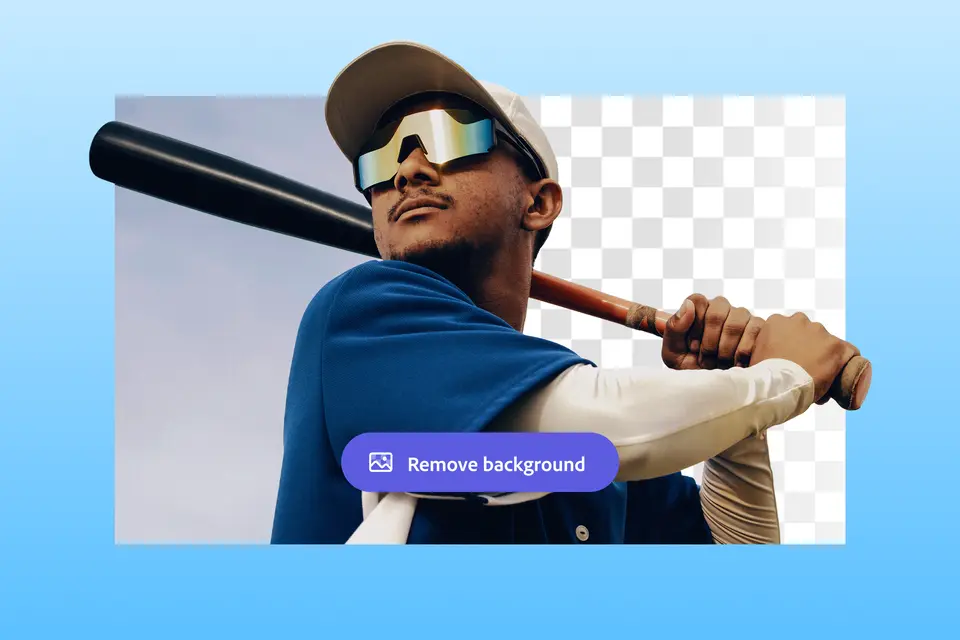
Remove backgrounds quickly and easily in Adobe Express

Maybe you’re a social media manager looking to create fun collages or memes across Instagram, TikTok, and LinkedIn. Maybe you’re a designer tasked with layering images, adding effects, or combining elements for eye-catching compositions. Maybe you’re a marketer who needs to make sure your product or logo pop and the brand look is consistent throughout.

Whatever your role, being able to easily and quickly remove backgrounds is a game-changer. Adobe Express makes it effortless to remove background — it’s perfect for social media posts, product shots, profile pictures, and more.

Overview

Levels
1

Why remove backgrounds?

A few reasons why removing backgrounds is so helpful range from being able to create visual consistency to faster content creation and more. Removing backgrounds helps to:

5 steps to remove background in Adobe Express

Adobe Express makes it super simple to remove backgrounds from images, thanks to AI. You can essentially remove a background in just one click. Once the background is removed, the sky is the limit.

1. Open Adobe Express

Visit Adobe Express Background Remover and click “Upload your photo.” You can drag and drop or browse your files.

2. Upload your image

For best results, use a png file or jpg image with a clear subject and minimal overlapping elements. It’s important to use high-resolution images with clear edges.

3. Remove background

Adobe Express uses AI to instantly remove the background. Your subject is automatically isolated, so you don’t have to manually select it.

4. Edit further

Try the Erase tool in the Editor to manually refine cutouts. Or add new backgrounds, text, graphics, or animations to customize your design.

5. Download

Download your image as a transparent PNG or continue editing in Adobe Express.

Why Adobe Express?

Adobe Express offers:

Whether you're a designer, marketer, or small business owner, Adobe Express helps you create standout content in minutes.

FAQs

1. How do I remove a background from an image in Adobe Express?

You can remove a background by uploading your image to Adobe Express, selecting the image, and using the Remove Background tool found in the editing panel. The tool automatically detects and removes the background in seconds.

2. Can I fine-tune the background removal after it's applied?

Yes, after removing the background, you can use refine edge tools, eraser, or restore brush to clean up any areas that were missed or over-removed.

Once the background is removed, you can also add a new background, such as a solid color, gradient, or another image. Adobe Express offers a wide range of templates and design assets to customize your final look.

3. What file types are supported for background removal?

Adobe Express supports common image formats like JPEG, PNG, and GIF. For best results, use high-resolution images with clear subject-background separation.

Try Adobe Express today