



The complete guide to image file formats (and when to use JPG, PNG, and SVG).
Learn when to use JPG, PNG, SVG, and modern formats like WebP or AVIF so your visuals stay sharp, fast, and optimized across every platform.
Modern-day content is highly visual, with video and static content leading as the most popular forms of content consumed. Data from Gitnux points out how visual content is 40 times more likely to be shared on social media platforms compared to other types of content. The same research also says that high-quality visuals make you 94% more likely to be remembered.
These numbers underscore the importance of creating and using high-quality visuals, a big part of which is choosing the correct image file format. From high-resolution prints to ultra-sharp smartphones and lightning-fast web pages, the image file format you choose matters more than ever.
Choosing the wrong format can mean a slow-loading webpage, a blurry logo on a high-DPI screen, or a printed graphic that looks flat instead of flawless. By understanding when to use formats like JPG, PNG, or SVG (and even emerging ones like WebP or AVIF), creators working in Adobe Express can ensure visuals look crisp, load quickly, and maintain consistency across mediums.
In this guide, we’ll explore what makes each major format unique, compare JPG, PNG, and SVG side-by-side, offer real-world use-case walkthroughs, and show you how to export effectively in Adobe Express.
Understanding the basics: what makes each format unique?
Before you can decide which image format to use, it helps to understand how each one actually stores and displays your visuals. Every file type (whether JPG, PNG, or SVG) handles color, compression, and detail differently.
What is a JPG (or JPEG)?
The JPG is the shortened form of Joint Photographic Experts Group, and it’s named after the committee that standardized the file format in 1986. It’s often interchanged with JPEGs, which is another name for this file format with a few minor changes. The JPG format uses lossy compression, which means that some image data is discarded during the process in order to reduce file size. JPGs can handle up to 16 million different colors in an image.
According to Adobe’s official guidance, “JPGs contain less data than PNGs”, which means they’re smaller in size. That makes JPGs a smart choice for photographic content where fine detail-preservation is less critical than efficient delivery. However, because JPG compression discards data, repeatedly editing and saving a JPG can lead to visual degradation, making it less suited for workflows where repeated edits are needed.
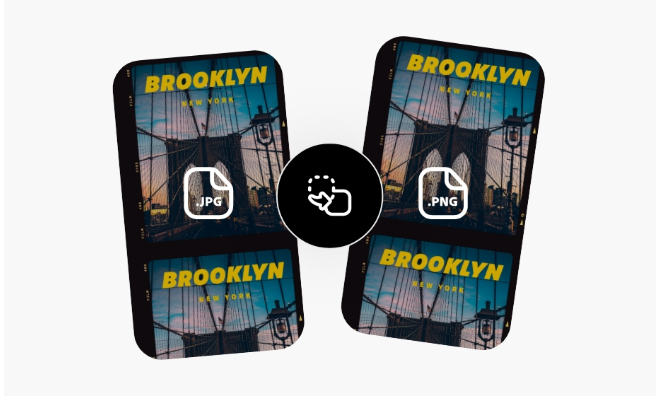
The difference between JPG and JPEG.
What is a PNG?
By contrast, PNG (Portable Network Graphics) is a lossless raster format supporting transparent backgrounds and sharp detail. Because it retains full image fidelity, PNGs are ideal for design elements such as logos, icons, screenshots, and graphics containing text or flat colors.
PNG files can also have parts that are see-through (like a sticker background), which is called transparency. That means you can place a PNG on top of another image, and it’ll blend in perfectly without showing a white box around it.
What is an SVG?
SVG (Scalable Vector Graphics) moves away from pixel-based images and instead uses shapes, lines, and commands written in XML. This means no matter how much you zoom in or how many times you change the size, the image stays crisp and clear. There will be no blur or blocky pixels. The World Wide Web Consortium (W3C) describes SVG as “graphics which can be rendered optimally on all sizes of device.”
Unlike JPG or PNG, which build images from millions of little squares, SVG describes curves, lines, and fill shapes. So, scaling an SVG up is like printing a clean blueprint because it stays sharp.
JPG vs. PNG vs. SVG: Their core differences at a glance.
Compression and file size.
When you export an image, how big the file becomes (and how it behaves on screen or in print) depends largely on how the format handles compression and scalability.
- Lossy compression (used by JPG/JPEG) reduces file size by permanently discarding some image data. The result is smaller files, but the output could have potentially visible artifacts if over-compressed.
- Lossless compression (used by PNG) shrinks file size without losing any original image information. This keeps quality high, but file sizes tend to be larger.
- Vector scalability (used by SVG) isn’t about pixels at all because it uses mathematical paths and shapes, so the file scales infinitely without quality loss.
Quality and detail retention.
Quality and clarity are often the first things you notice when comparing formats.
- With JPG: Because it discards some image data each time you save, you’ll eventually see compression artifacts. These might look like blurry edges, blocky patterns in smooth colors, or “ringing” around contrast edges. These effects become more obvious as you reduce the quality or keep re-editing the file.
- With PNG: Because it uses lossless compression, it retains clean edges, sharp lines, and text clarity even after multiple edits and saves. This format is ideal for graphics, UI elements, and screenshots.
- With SVG: Because it’s vector-based, it remains infinitely sharp. No matter how large you scale it for print or how small for mobile, the shapes are redrawn cleanly at each size. This makes it ideal for logos, icons, and any design element that must look perfect at any size.
If you put this into practice, say you're designing a hero banner or print poster, and you export a JPG, but later zoom in or scale it up. In that case, you might see blurring or pixelation. If you use a PNG or SVG for the same design (assuming the content supports it), the clarity will come out better, which often means a more professional end result.
Transparency and background handling.
Part of choosing a format is not just how it looks, but where it appears. This also includes knowing whether the background needs to show through or if it’s not a major part of the design.
PNG supports full alpha-channel transparency. You can save graphics where the background is invisible (or semi-transparent), then place them over any other background (color, image, or gradient) and they’ll blend seamlessly.
JPG, on the other hand, does not support transparency. If you export a JPG from a design editor with no background, the transparent parts will be flattened into a solid color (often white). JPG is best when you have a solid background already and don’t need transparency features.
SVG supports transparency and layering via CSS or within the vector definitions. Because the shapes are defined in XML, you can have transparent fills, translucent gradients, or even vector-based animations. This makes SVG highly flexible for web and design use cases where the graphic must layer over dynamic backgrounds.
If you’re designing in Adobe Express and you know your graphic will be placed over different backgrounds (for example, a logo for both light and dark mode), then PNG (with transparency) or SVG is typically the smarter choice over JPG.
Use case summary table for each file format.
When to use each format (with real-world examples).
When to use JPG.
Ideal for: photography, blogs, social media, and e-commerce listings.
JPG’s lossy compression makes it work well for high-resolution images where realism matters, but you need fast load times. For example, a fashion blogger optimizing outfit photos can use “Save for Web” at 70 to 80% quality, maintaining crisp visuals while cutting file size dramatically.
When to use PNG.
Ideal for: logos, banners, UI graphics, screenshots, and transparent assets.
PNG preserves sharp edges and transparency, which is helpful for digital interfaces. Designers typically choose PNG-8 for simple graphics (limited colors, smaller size) and PNG-24 for detailed visuals with millions of colors. For instance, an app designer may export transparent icons as PNG-24 to keep clean edges across dark and light themes.
When to use SVG.
Ideal for: logos, icons, vector illustrations, and responsive charts.
SVGs are infinitely scalable and lightweight because they’re code-based rather than pixel-based. That makes them invaluable for responsive websites and high-DPI screens. Because SVGs render sharply at every resolution, they’re the go-to format for modern web interfaces, data visualizations, and branding systems designed for multiple screen types.
Beyond the basics: Modern image formats in 2026.
As digital media continues to evolve, new image formats are stepping in to meet the demands of high-resolution displays, faster load times, and more efficient storage. While formats like JPG, PNG, and SVG still serve many creators well, formats such as WebP, AVIF, and HEIF (HEIC) are better for some workflows.
WebP and AVIF.
WebP and AVIF are raster image formats designed to outperform older standards like JPG and PNG in compression and fidelity. According to the image-format benchmarking dataset from Cloudinary, WebP yielded a 25% to 35% smaller file size compared to unoptimized JPEG at comparable visual quality, and AVIF offered an additional 10% to 15% savings over WebP.
RAW files for photographers.
RAW files capture nearly all the sensor data from a camera (many formats: .CR2, .NEF, .ARW, etc.). They aren’t intended for direct sharing on the web or in print, because they retain enormous amounts of metadata and require post-processing. So, typically, when you book a photoshoot with a photographer, their workflow would look something like this:
Shoot photos in RAW -> Edit the RAW files in Lightroom -> Export edited photos to JPG/PNG/SVG for sharing and distribution
When your final deliverable is a JPEG or PNG anyway, think of the RAW stage as internal production that gives you a lot of flexibility for color correction and re-editing (minus the loss of quality). Choose your export format based on how the final asset will be used.
HEIF or HEIC for mobile devices.
The High Efficiency Image File Format (HEIF), often seen as HEIC when used on Apple devices, was adopted by Apple beginning with iOS 11 in 2017. This format provides better compression for images compared to JPG because it preserves quality while saving more space.
However, there are some considerations when it comes to compatibility. While HEIF/HEIC works seamlessly within the Apple ecosystem (iOS, macOS), sharing HEIC files to non-Apple devices may result in automatic conversion or compatibility issues.
How to optimize and export in Adobe Express
Exporting your visuals correctly ensures they look just as good outside Adobe Express as they do inside your workspace. Adobe Express gives you precise control over format, resolution, and transparency settings, so here’s how to optimize each major export type.
Exporting your design in JPG
JPG works best for photos, social posts, and other projects where you want smaller file sizes and quick uploads without losing too much quality.
Steps:
- In your Adobe Express workspace, click the Download button in the upper-right corner.
- Select JPG as your file type.
- Adjust your Image Quality using the slider. Lower values compress the file more (reducing size but slightly softening detail), while higher values preserve sharpness for print or large screens.
- If needed, resize your design by entering new pixel dimensions under Resize.
- Click Download to save your optimized image.
InDesign documents can also be easily exported to Adobe Express for design work for a more seamless workflow.
Exporting in PNG (with transparency)
PNG is ideal for designs that require a transparent background, such as logos, overlays, or UI elements. If you plan to use the design across multiple backgrounds (like a light and dark theme), saving it with transparency helps your element blend more seamlessly across any design.
- Click Download in the top menu.
- Choose PNG as your format.
- If your design has a solid background, use Remove Background to make it transparent before exporting.
- Check the Transparent Background option in your export settings.
- Download your file, and it’s now ready to be layered on any image or background color.
Exporting SVG files (for designers and developers)
- Select your finished design and click Download.
- Choose SVG as your format.
- If you plan to embed it in a website, you can open the file in a text editor to access and customize the SVG’s XML code. There, you adjust fill colors, stroke widths, or animation properties.
- To refine or expand the design, open the same SVG in Adobe Illustrator, where it remains fully editable.
SVG is your go-to for logos, icons, and scalable graphics that need to look sharp on any device or resolution. It’s also your best option for projects that might move between Adobe Express and design tools like Illustrator.
Let purpose guide your format choice and design with Adobe Express.
The best file format for you depends on what you’re using it for. At the end of each day, it boils down to the purpose of your design. Each format shines in its own way:
- JPG delivers lightweight photography for fast-loading pages.
- PNG ensures crisp, transparent visuals for design and branding.
- SVG keeps icons and illustrations pixel-perfect at any scale.
- And with modern formats like WebP, AVIF, and HEIF, creators now have even smarter ways to balance quality and speed.
Adobe Express simplifies this entire process by letting you design, export, and optimize in any format without needing complex settings or separate tools. Start designing or exporting your next project in Adobe Express and choose the format that makes your creativity shine.