



Make images black and white with free filters.
Turn images into stunning black and white photos with Adobe Express. Edit photos for free with our desktop and mobile app.
1. Select image.
Upload your own images or choose from thousands of free Adobe Stock photos in Adobe Express to start editing.

2. Add a black and white filter.
Click on your photo then tap on Filter effects. Select the Grayscale option and watch your image transform to black and white or try out other filters like Duotone.

3. Continue editing.
Instantly download your black and white image to your device or keep editing. Share it across your social channels or print it out.
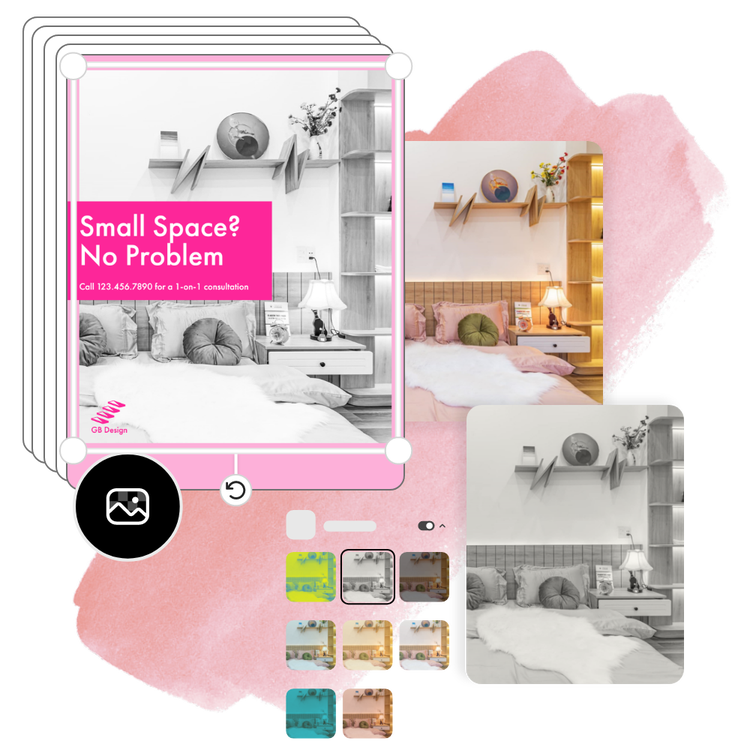
Make stunning edits with the black and white converter.
Tap or click on your image to open the Edit Image menu. Explore the Effects option to find dozens of photo filters. Use the Grayscale filter to instantly convert your image to black and white.
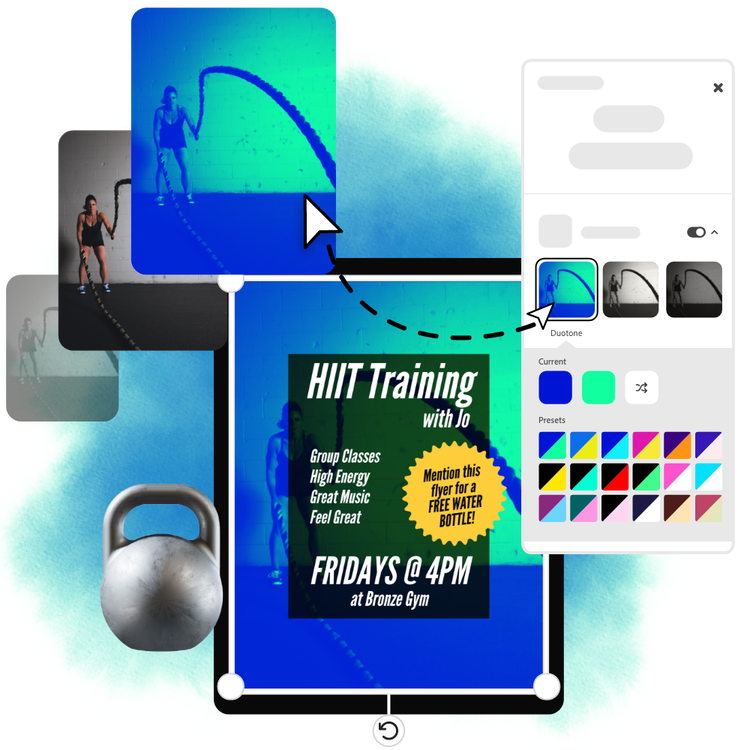
Customize with the Duotone filter.
The Duotone filter takes two colors and turns them into a filter for your image. Make a custom black and white filter by selecting the perfect hues from the color picker.
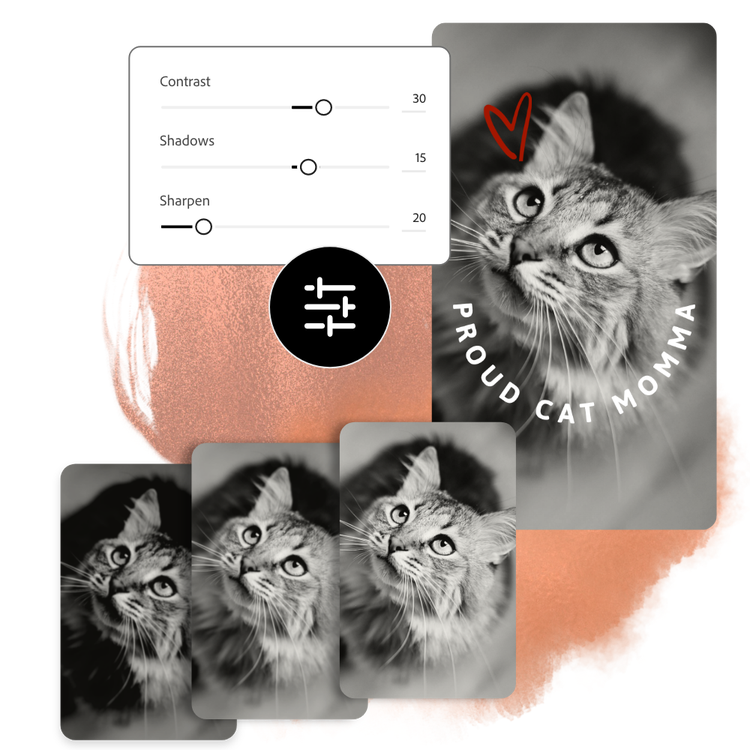
Edit your image to perfection.
Open the Adjustments menu to further personalize your black and white image. Increase the Contrast for a bold aesthetic. Lighten up an image using the Shadows and Brightness sliders. Use Sharpen to bring a blurry photo into focus. There are endless ways to customize your photos with our image effects.
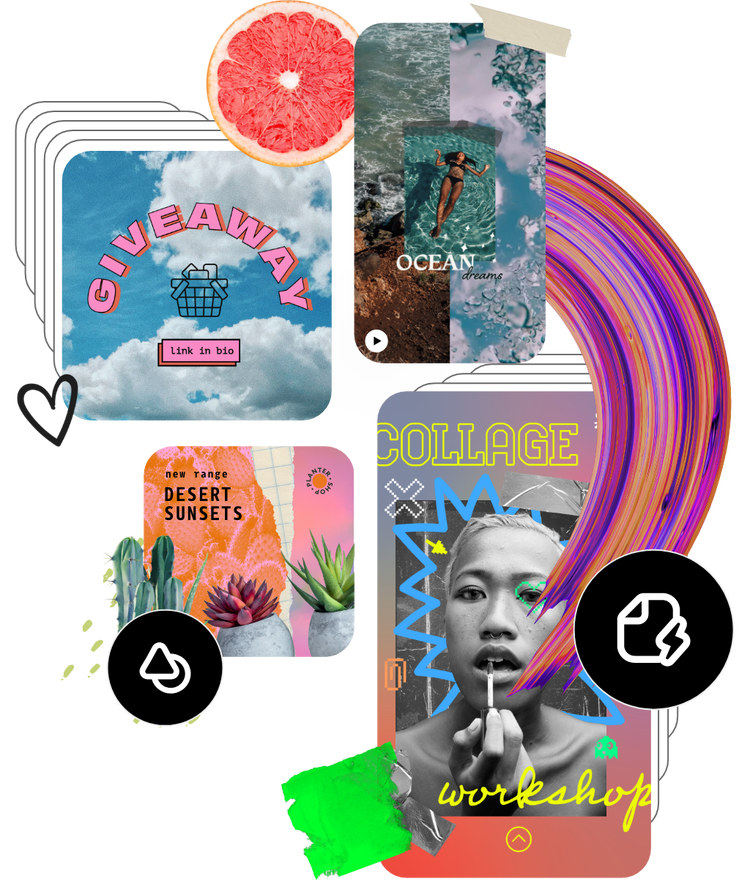
Tons of free templates, video, and audio assets to start from.
Turn your newly edited image into a stunning flyer, social post, album cover, profile photo, and unlimited other designs. Explore our template library to get started. Then, add other pre-loaded design assets, fonts, icons, or GIFs to personalize your image. There are endless creative opportunities to elevate your designs.
Frequently asked questions.
Can I make photo black and white on my phone?
Absolutely. Download and launch the free Adobe Express app on your mobile device and instantly add black and white filters to your images so you can make standout content wherever you go.
Can I create custom black and white filter with Adobe Express?
Yes, there are lots of ways to customize your image with a black and white effect. You can start with different filters, including Grayscale or Duotone and adjust the settings to give the exact black and white effect you want. You can also use the Adjustments menu to make precise black and white edits.
Does the size or quality change after making the photo black and white?
The size and quality should remain the same, unless you resize your image while editing it, or choose a canvas size that is larger or smaller than your original image. If you wish to maintain the same size of your image from the start, select the option to Start from your photo.
How do I reverse the black and white filter?
Adobe Express saves all your projects in the app so you can easily reverse edits or duplicate a project and customize it further.
Can I get Adobe Express for free? If so, what’s included?
Yes, Adobe Express has a free plan that includes core features like photo editing tools and effects and thousands of free templates. Learn more about our plans and pricing.

