Trim YouTube videos for free.
Easily trim YouTube videos from your browser with Adobe Express on your side. Shorten videos to feature the best moments of your content for free, no video editing experience needed.
Trim YouTube videos for free.
Easily trim YouTube videos from your browser with Adobe Express on your side. Shorten videos to feature the best moments of your content for free, no video editing experience needed.
Drag and drop a video
or browse to upload.
File size can be up to 1GB
By uploading your image or video, you agree to the Adobe Terms of use and Privacy Policy
Trim YouTube videos for free.
File size can be up to 1GB
By uploading your image or video, you agree to the Adobe Terms of use and Privacy Policy
How to trim a YouTube video.

1. Upload.
Upload your YouTube video from your device. Videos may be up to an hour long.

2. Trim YouTube video.
Select an aspect ratio or select freeform for a custom size. Use the handles to make adjustments.

3. Continue editing.
Instantly download your newly trimmed down YouTube video or keep editing in Adobe Express.
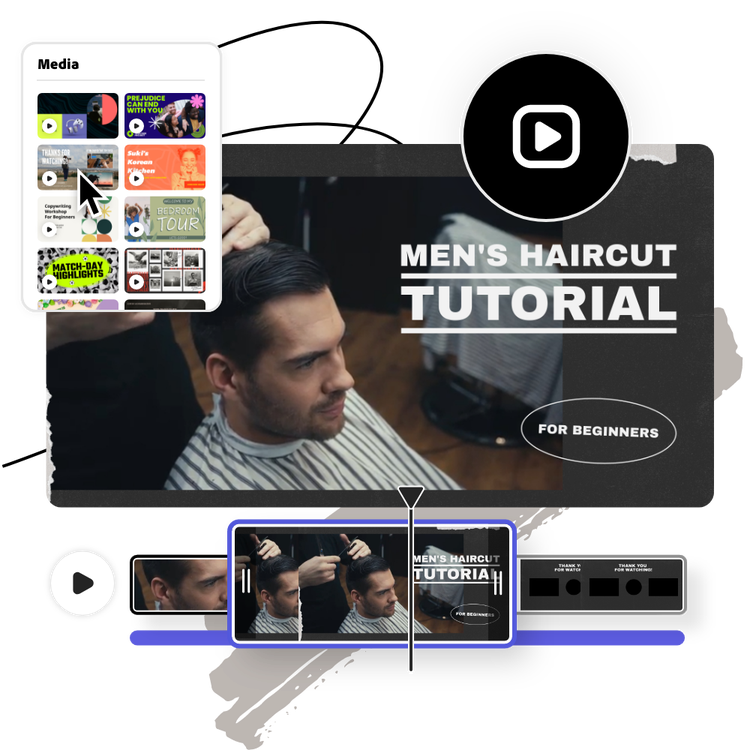
Easily shorten long YouTube videos and add sound.
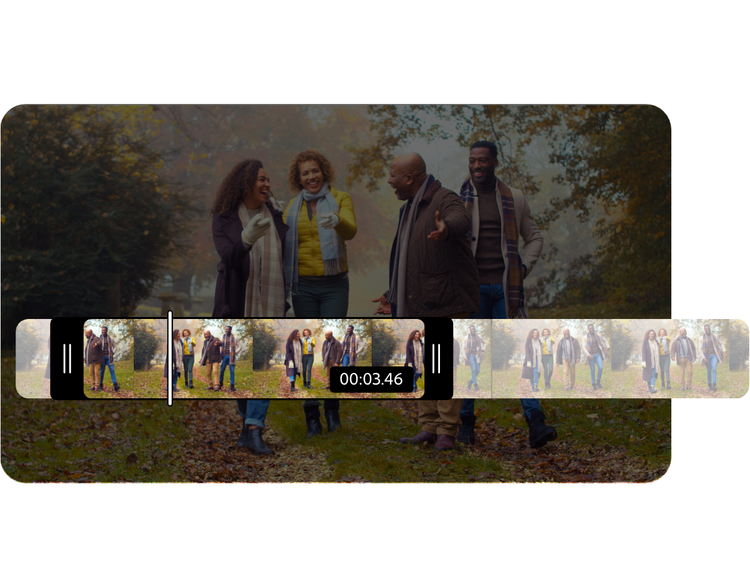
Dive into the key moments with the video trimming tool. Use the handlebars to adjust your parameters or enter the specific start and end times to cut down to the exact part you're seeking. With Adobe Express, you can feature highlights from your YouTube videos in bite-sized clips. Top it all off with a royalty-free Adobe Stock soundtrack to give your video an official sound.
Change the aspect ratio.
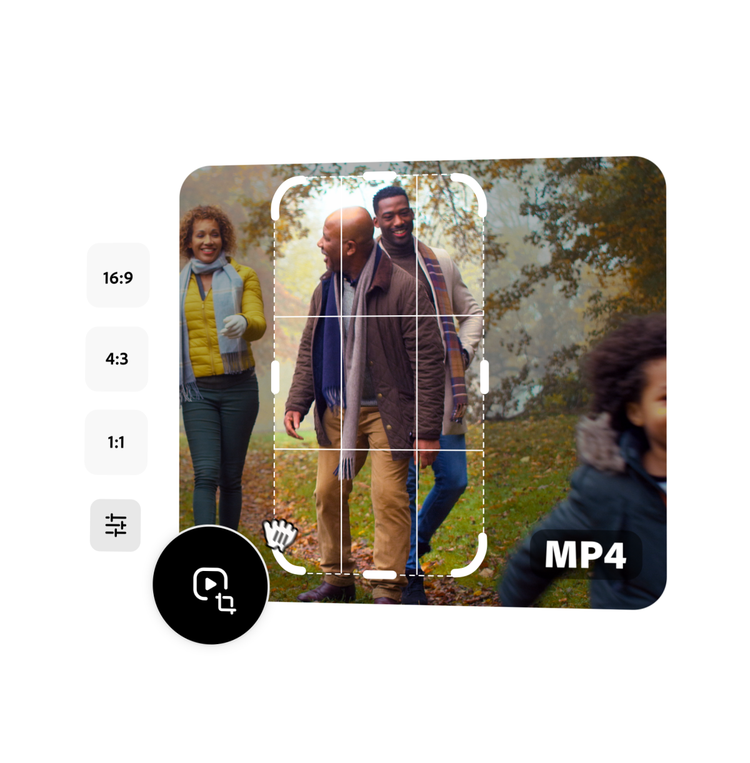
Easily trim your YouTube video using the social media presets to share as a TikTok, Reel, or YouTube Shorts video. You can also select from landscape, portrait, or square sizes, then drag your video to fit the new format. Best of all, you can crop your video from your iPhone, Android, or desktop.
Mute the audio in your video clip.
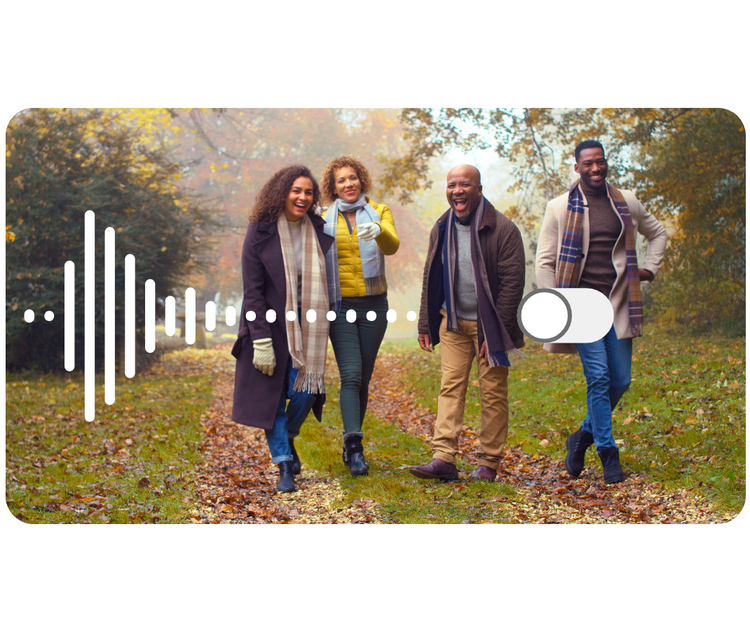
Remove the audio from your newly trimmed YouTube clip with the Mute option. Swap it out with royalty-free Adobe Stock music to switch up the mood of your video. Choose from a various genres, from sad and moody to upbeat jazz. Or, generate your own soundtrack using the AI music generator. Type in a simple prompt of the style and vibe of music you’re looking for and watch as your new audio clip is generated.
Trim YouTube videos to share anywhere.
Capture and keep the attention of your viewers with the perfect video length for each social channel. Feature highlights as short snippets to share across other social platforms to ring in an even wider audience. When you’re done editing your video, download and share it anywhere. Or schedule and publish your newly trimmed YouTube video with the quick and easy built-in Content Scheduler.