AI video background remover.
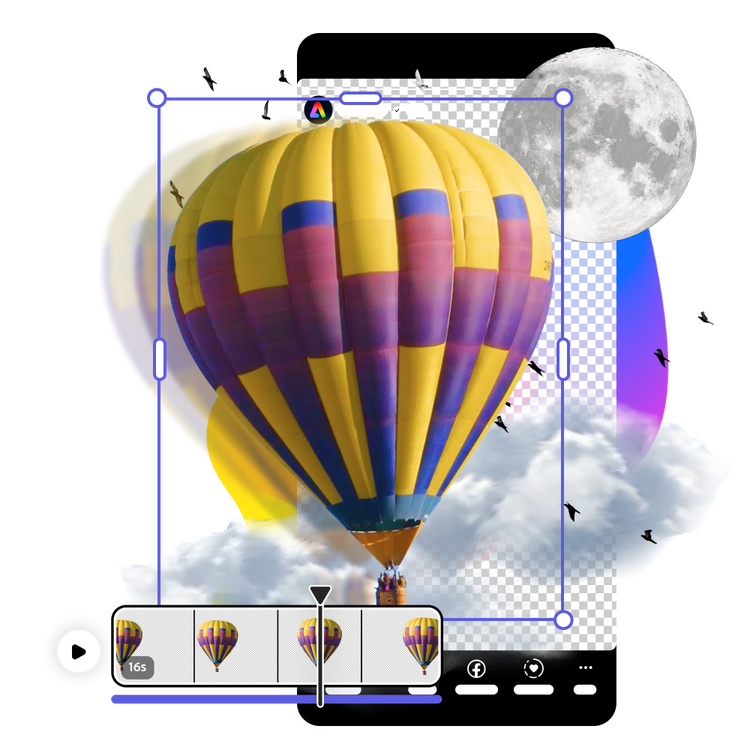
Easily remove and replace the background of any footage with the video background remover from Adobe Express, the quick and easy create-anything app.

How to remove background with the AI video background remover.

1. Select.
Launch Adobe Express and upload a video from your device or select an Adobe Stock video.

2. Remove.
Select the AI video background remover at the left of the menu to remove the background from your footage.

3. Continue editing.
Download your new footage to save, share, or keep editing in Adobe Express.

Do more with the AI video background remover.
Enjoy effortless video background removal with an Adobe Express Premium plan, no complicated video editing needed. It’s as easy as uploading your video to the AI background remover and watching the background disappear from your video in seconds. Swap in a new background from Adobe Stock or upload your own to make it 100% yours. It’s easy to create standout video content with Adobe Express on your side.
Elevate social posts with the AI video background remover.
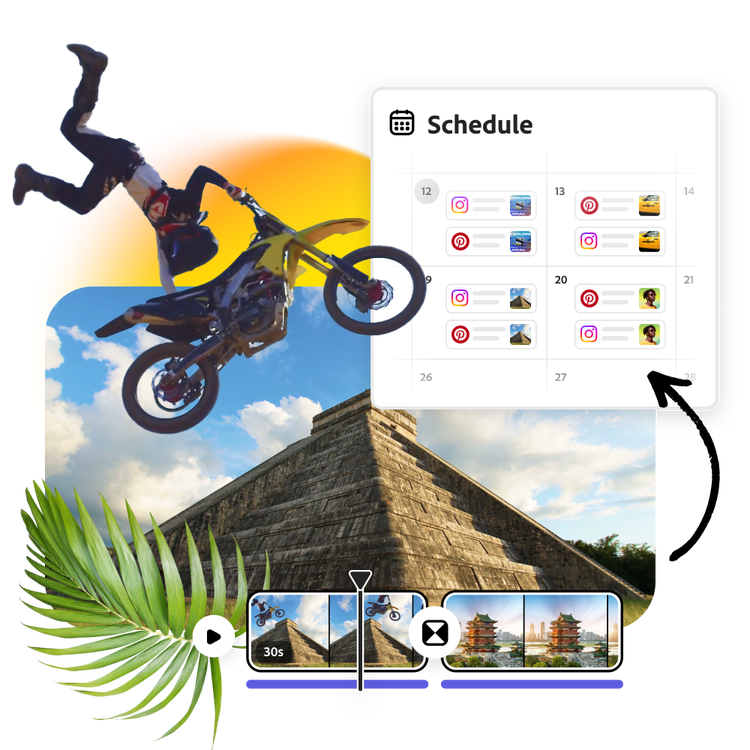
Edit your background-free video in new and exciting ways. Turn it into an engaging social media post by layering unique backgrounds and graphics. Add a standout call-to-action using the Text Effect generator available within the editor. Or use the AI video background remover on multiple videos and combine them for a collage-style, animated look.
Download your background-free video.
Removing the background from a video is easier than ever. Just upload your video into the AI video background remover, and your video will be ready to download within minutes as an MP4 file. Or, schedule and publish it later across all your social media accounts using the built-in Content Scheduler.
Stand out with Adobe Express.
Adobe Express is the quick and easy create-anything app to make impactful social posts, images, videos, flyers, presentations, documents, and more. Create one-of-a-kind content fast, regardless of skill level, with powerful generative AI, easy-to-use editing tools, thousands of customizable templates, and Adobe Stock design assets at your side.


Extraordinary videos start with the AI video background remover.
No video editing experience is needed to erase an unwanted background from a video frame with the AI video background remover. It’s as simple as uploading the video and watching the background disappear. Get more out of your videos by removing the background instantly. Then, mix and match tons of Adobe Stock design assets and soundtracks to make something that looks and feels completely new.