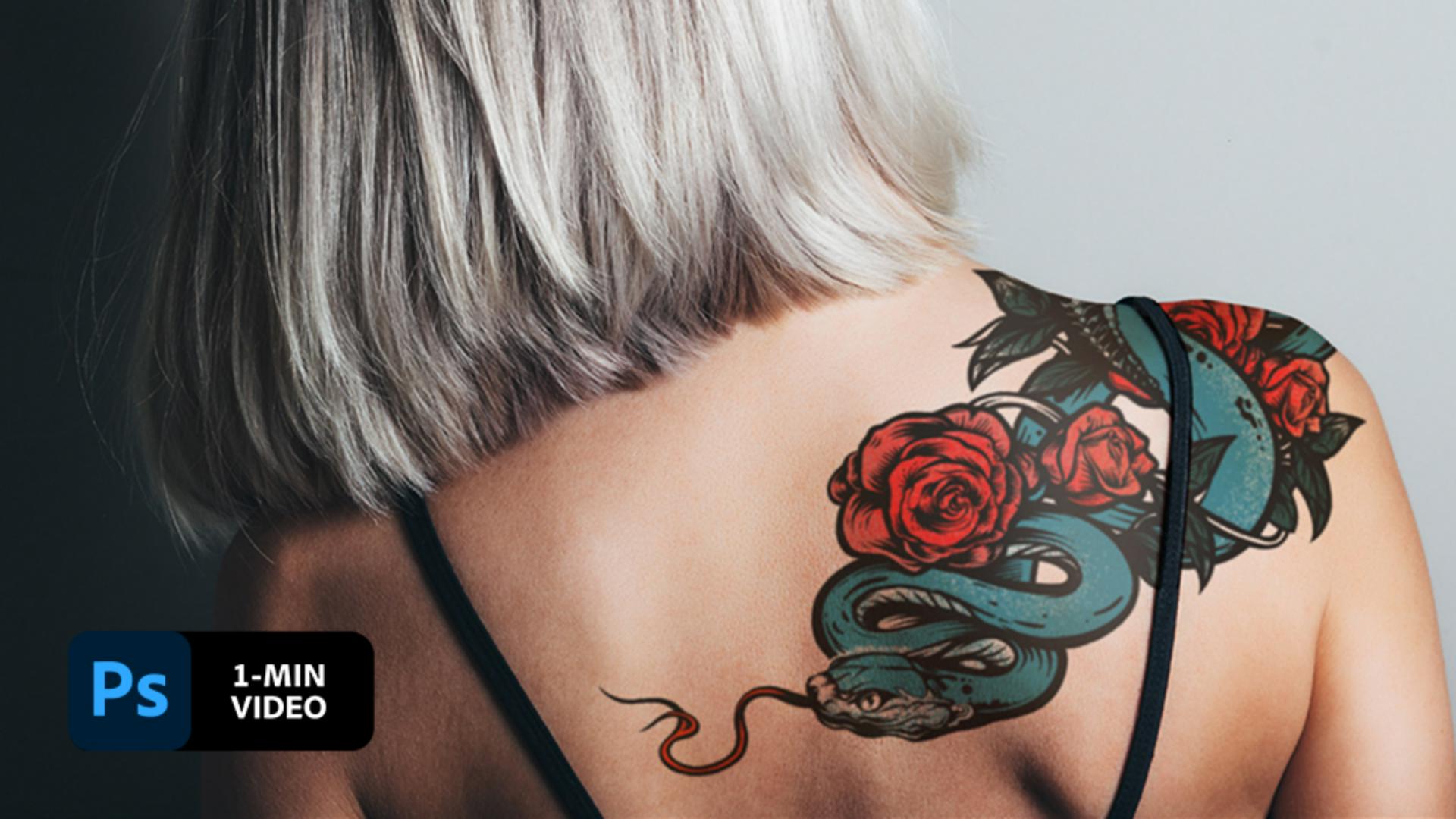
Créer une composition intégrant un tatouage dans Adobe Photoshop
Si les tatouages existent depuis des siècles et durent toute une vie, les goûts et les modes en la matière changent régulièrement. Avant de prendre rendez-vous chez le tatoueur, découvrez comment la graphiste Erica Larson utilise Adobe Photoshop pour appliquer un tatouage virtuel en quelques étapes simples.
Erica Larson est graphiste, designer et directrice de création adjointe de l’équipe Adobe Studio. Depuis qu’elle a rejoint Adobe, elle s’est découvert une passion pour l’illustration, le bénévolat et l’enseignement. Ses travaux préférés sont ceux qui mêlent les trois.
Ce fichier d’exemple contient des images Adobe Stock que vous pouvez utiliser pour mettre en pratique les méthodes abordées dans ce tutoriel. Si vous souhaitez utiliser ce fichier d’exemple en dehors de ce tutoriel, il vous suffit d’acheter une licence sur Adobe Stock. Consultez le fichier ReadMe figurant dans le dossier pour connaître les conditions régissant l’utilisation de ce fichier d’exemple.
Transcription non disponible
1 Préparer l’image
Pour commencer, ouvrez la photo du mannequin dans Photoshop, puis placez l’illustration du tatouage où vous le souhaitez. Dans le panneau Calques, Erica Larson a défini le mode de fusion du calque du tatouage sur Produit, et réduit l’opacité pour que le tatouage se fonde sur l’épaule du modèle.
2 Nettoyer
Erica Larson a ensuite ajouté un masque de fusion sur le tatouage. Une fois ce masque sélectionné, elle a utilisé l’outil Pinceau et appliqué du noir sur les parties du tatouage qui dépassaient de l’épaule afin de les masquer.
3
Créer un éclairage réaliste
Pour créer un effet d’éclairage réaliste sur le tatouage, Erica Larson a réglé l’opacité du pinceau sur 10 % et appliqué du noir sur la partie de l’image à faire ressortir.
4 Adapter l’image
Le plaquage du tatouage sur la peau du modèle est une étape essentielle. Pour commencer, rompez le lien entre l’image du tatouage et son masque. Ensuite, cliquez sur la vignette du tatouage pour pouvoir modifier l’image indépendamment de son masque. Pour finir, choisissez Édition > Transformation > Déformation, puis faites glisser la grille et les poignées pour déformer le tatouage comme souhaité.
5 Fusionner
Pour que le tatouage semble aussi proche de la peau que possible, Erica Larson a sélectionné le calque du tatouage, puis choisi Filtre > Flou > Flou gaussien. Elle a ensuite ajusté le rayon pour créer un flou subtil.
Nouvelles compétences, nouveaux tatouages ?
Testez différents designs de tatouage comme Erica Larson pour vérifier leur aspect sur vos clients ou sur vous-même sans aiguille.
Remarque : les fichiers de projet inclus dans ce tutoriel sont fournis uniquement à des fins d’entraînement.
You can control how Adobe websites use cookies and similar technologies by making choices below. But note that if you disable cookies and similar technologies entirely, Adobe websites may not function properly.
Cookies are small text files stored by your web browser when you use websites. There are also other technologies that can be used for similar purposes like HTML5 Local Storage and local shared objects, web beacons, and embedded scripts. These technologies help us do things like remembering you and your preferences when you return to our sites, measure how you use the website, conduct market research, and gather information about the ads you see and interact with.
You can make choices in the menu below about what cookies and other technologies you want us to use on Adobe sites when you visit them from this browser. You can always change those choices later by clicking on the Cookie Preferences link at the bottom of the page.
If enabled:
We can improve your experience by tailoring the site and the content to things we think might be of interest
We can better keep track of your preferences — like what language you prefer to use
We will better understand your likely interests so we can provide you more relevant Adobe ads and content on non-Adobe websites and in non-Adobe apps
It will help us improve the performance of our website and those of our partners who use the Adobe Experience Cloud
If disabled:
We won’t be able to remember you from session to session so the experience may not be tailored to your interests
You’ll still have access to the content of the site but certain features that depend on cookies may not function
You’ll still see ads, they just may not be as relevant to you
General information
You can control how Adobe websites use cookies and similar technologies by making choices below. But note that if you disable cookies and similar technologies entirely, Adobe websites may not function properly.
Cookies are small text files stored by your web browser when you use websites. There are also other technologies that can be used for similar purposes like HTML5 Local Storage, web beacons, and embedded scripts. These technologies help us do things like remembering you and your preferences when you return to our sites, measure how you use the website, conduct market research, and gather information about the ads you see and interact with.
You can make choices in the menu below about what cookies and other technologies you want us to use on Adobe sites when you visit them from this browser. You can always change those choices later by clicking on the Cookie Preferences link at the bottom of the page.
If enabled:
We can improve your experience by tailoring the site and the content to things we think might be of interest
We can better keep track of your preferences — like what language you prefer to use
We will better understand your likely interests so we can provide you more relevant Adobe ads and content on non-Adobe websites and in non-Adobe apps
It will help us improve the performance of our website and those of our partners who use the Adobe Experience Cloud
If disabled:
We won’t be able to remember you from session to session so the experience may not be tailored to your interests
We’ll still count your use of our site and services
You’ll still have access to the content of the site but certain features that depend on cookies may not function
You’ll still see ads, they just may not be as relevant to you
Operate the site and core servicesOperate site and measure engagement
Always active
These cookies are required, and they are used to enable the site and related services core functionality. Without them the site could not operate, so they cannot be disabled.
These cookies enable the site and related services’ core functionality and collect statistics about user engagement, such as counting active use to help us understand trends. These cookies cannot be disabled.
Measure performance
These cookies are used to analyze site usage to measure and improve performance. Without them Adobe cannot know what content is most valued and how often unique visitors return to the site, making it hard to improve information we offer to you.
These cookies are used to analyze site usage to measure and improve performance. Without them Adobe cannot know what content is most valued, making it hard to improve information we offer to you.
Extend functionality
These cookies are used to enhance the functionality of Adobe sites such as remembering your settings and preferences to deliver a personalized experience; for example, your username, your repeated visits, preferred language, your country, or any other saved preference.
Personalize advertising
These cookies are used to enable Adobe and our partners to serve ads more relevant to your interests. Without them you will still see ads, but they might not be as relevant to you.
Personalize advertising
These cookies are used to enable Adobe and our partners to serve ads more relevant to your interests. Without them you will still see ads, but they might not be as relevant to you.