#1e1e1e

Photography

Understanding Gaussian blur: What it is and how to use it.

Gaussian blur is a powerful effect used to soften images in photo editing. Learn how it works, when to apply it during image processing in Adobe Creative Cloud, and even how to pronounce 'Gaussian'.

Explore Photoshop

https://main--cc--adobecom.aem.page/cc-shared/fragments/modals/videos/photography/discover/gaussian-blur#video | Gaussian blur | :play-circle:

What is Gaussian blur?

Gaussian blur is an image processing technique that softens and smooths photos by using a mathematical function called a Gaussian (“gow-see-an”) function, named after mathematician Carl Friedrich Gauss.

It is a type of low-pass filter that works by reducing the contrast between neighbouring pixels, minimising extreme variations and making edges and details appear less sharp. This creates a smoother, more natural-looking image.

Photographer Kenton Waltz describes it as “like laying a translucent material like vellum on top of the image” — “it softens everything out.”

How Gaussian blur works in image processing.

Photos can contain a lot of visual noise such as a random variation in brightness or hue among pixels. Gaussian blur helps reduce that noise by smoothing out these variations.

It does this by applying a mathematical formula to each pixel, based on its position in both horizontal (x) and vertical (y) directions. This creates a blurring effect where each pixel’s new value becomes a weighted average of the pixels around it, with nearby pixels having more influence than those farther away.

The amount of blur depends on the blur radius you set. A small radius makes a subtle change, while a larger one creates a stronger, hazier effect.

In simple terms, a Gaussian blur effect softens an image by blending pixels together, reducing sharp edges and random detail for a smoother, more natural look.

Gaussian blur vs normal blur.

A normal blur averages all nearby pixels equally, while Gaussian blur uses a weighted average, giving more importance to pixels closer to the centre. Because of this, normal blur can make images look flat or blocky, while Gaussian blur produces a smoother, more natural effect with softer edges and gradual transitions.

When to use Gaussian blur.

Gaussian blur is commonly used in photography and design to reduce noise, soften backgrounds, or direct the viewer’s attention to a specific subject. By blurring parts of an image, you can enhance clarity, isolate focal points, or conceal distracting or sensitive details.

Kitchen utensils on counter with a Gaussian blur background
Motorcyclist riding on road with Gaussian blur

Here are common use cases for Gaussian blur:

  • Reduce image noise: In low-light photos where digital noise is prominent, Gaussian blur can help smooth out grainy textures and create a cleaner look.
  • Improve text readability: A blurred background behind text improves contrast and readability, especially in social media graphics, banners, or website headers.
  • Guide the viewer’s eye: In product photography or portraiture, applying Gaussian blur selectively to background areas draws attention to the sharp, focused subject. For example, in a landscape photo with bright edges on palm fronds, a soft blur can tone down those highlights and reduce visual distractions.
  • Hide personal or protected details: Use Gaussian blur to obscure elements like license plates, faces, or brand logos when privacy or anonymity is important.
  • Correct chromatic aberration: At high-contrast edges (like tree branches against a sky), a light Gaussian blur can reduce colour fringing and smooth harsh outlines.

Photographer Andres Gonzalez also highlights its creative potential. In one project, he applied a Gaussian blur to a duplicate layer in Photoshop, then erased portions to selectively restore sharpness: “It created this foggy, frosted look,” he explains.

How to add Gaussian blur in Photoshop.

1. Open your image in Adobe Photoshop.

2. In the Layers panel, select the layer you want to blur. For more control, you can duplicate the layer first so the original stays untouched.

3. Go to the top menu and click: Filter > Blur > Gaussian Blur

4. A preview window will appear with a Radius slider. Drag the slider left or right to adjust how strong the blur appears. A lower value gives a subtle effect; a higher value creates a stronger blur.

5. Click OK to apply the blur.

How to restore sharpness after blurring.

Applying Gaussian blur softens an image, but greater blur intensity naturally reduces sharpness and edge clarity. If too much blur is applied, you may lose definition along edges, like a border between palm leaves and a bright sky.

To restore sharpness after blurring:

  • Reduce the blur radius
    The blur radius, measured in pixels, controls how many neighboring pixels are averaged together. Lowering the radius decreases the strength of the blur and preserves more edge detail.
  • Use edge detection tools
    Apply tools like Photoshop’s Refine Edge to bring back sharp transitions between objects. These tools allow you to fine-tune the radius, contrast, and feathering of edges to maintain clarity while retaining a softened look.
  • Use layer masking or selective editing
    For more control, duplicate the blurred layer and erase or mask areas where sharpness is needed. This method blends sharp and soft areas for a natural result.

By adjusting the blur parameters and using edge refinement techniques, you can regain image clarity without sacrificing the smooth aesthetic that Gaussian blur provides.

How to remove Gaussian blur in Photoshop.

If you copy an image or layer with unwanted Gaussian blur, if the blur is too strong, or if you simply no longer want the image blurred, you can remove the effect to restore sharpness or continue editing.

1. Check if the blur was applied as a Smart Filter.

In the Layers panel, look for “Gaussian Blur” listed under the layer. If you see it, it is a Smart Filter.

2. To remove the blur:

Right-click on “Gaussian Blur” and select Delete Smart Filter.

Alternatively, click the eye icon next to it to hide the blur without removing it.

3. If the blur was not added as a Smart Filter:

Press Ctrl + Z (Windows) or Cmd + Z (Mac) to undo it if it was added recently.

4. To step back further:

Open the History panel (Window > History) and click on a step before the blur was applied.

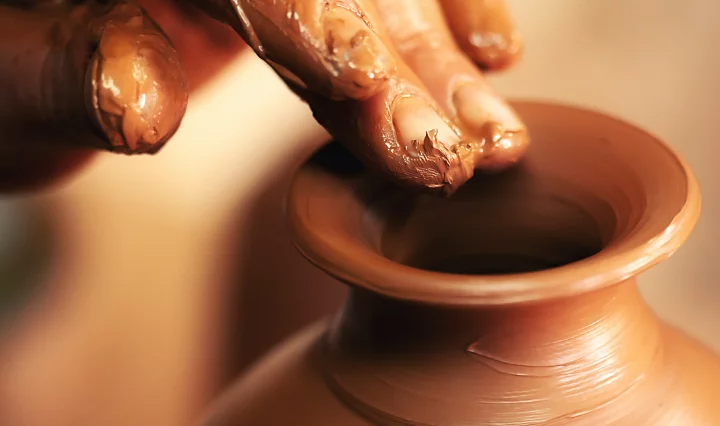
Close-up of making pottery with a Gaussian blur to the background

How to apply Gaussian blur in Illustrator.

Gaussian blur in Illustrator is a quick way to soften edges, add glow effects, or create depth in vector artwork.

1. Open your file in Adobe Illustrator and select the object you want to blur.

2. Go to the top menu and click: Effect > Blur > Gaussian Blur

3. In the dialog box that appears, adjust the Radius slider to control the strength of the blur. A higher value creates a stronger blur.

4. Click OK to apply the blur.

How to apply Gaussian blur in {{premiere}}.

In {{premiere}}, Gaussian blur is commonly used to soften footage, hide sensitive details, or create depth by blurring parts of a video frame.

1. Import your clip into {{premiere}} and drag it onto the timeline.

2. Open the Effects panel and click: Video Effects > Blur & Sharpen > Gaussian Blur

3. Drag the Gaussian Blur effect onto the clip in the timeline.

4. Select the clip, then go to the Effect Controls panel.

5. Under Gaussian Blur, adjust the Blurriness value to control the strength of the blur.

To blur only part of the video, click Create Ellipse Mask or Create Free Draw Bezier Mask, then adjust and feather the mask as needed.

Gaussian blur and other Photoshop blur tools.

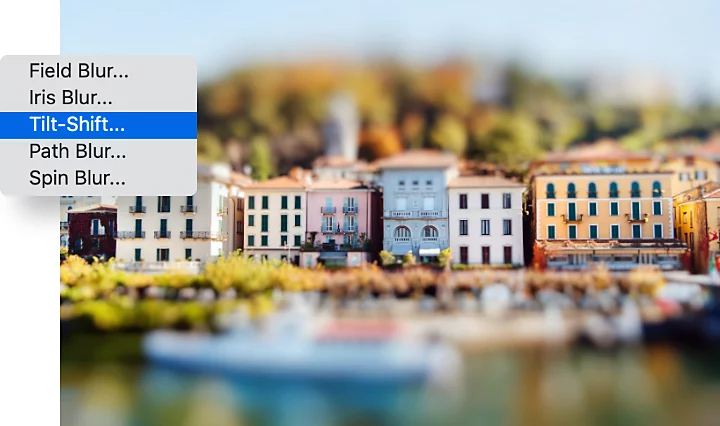
Gaussian blur is one of the most versatile tools for softening edges and creating natural-looking edits, but it is just one option among many. Photoshop’s Blur Gallery also includes effects like lens blur, iris blur, and motion blur, each designed for different creative results, from adjusting depth of field to highlighting a focal point or adding a sense of movement. You can even restore noise in blurred areas to keep surfaces from appearing overly smooth. By combining these tools thoughtfully, you can control focus, enhance details, and bring more depth and style to your images.

Tilt-shift applied to an image of buildings on the waterfront

Frequently asked questions.

Can I adjust Gaussian blur after applying it in Photoshop?
Yes, if you apply the blur as a Smart Filter (by converting your layer to a Smart Object first), you can double-click the filter to reopen and adjust the blur settings at any time.
How do I apply Gaussian blur to just the background in Photoshop?
You can apply Gaussian blur by using the Select Subject or Select and Mask tools to isolate your subject, then invert the selection and apply Gaussian Blur to the background. This is a common technique for creating a shallow depth-of-field effect.
Can I apply Gaussian blur in Lightroom?
Lightroom does not have a dedicated Gaussian Blur filter like Photoshop, but you can achieve a similar effect using the Radial Gradient, Linear Gradient, or Brush tools with the Clarity, Texture, and Sharpness sliders set to negative values. For more precise blur adjustments, Photoshop offers additional flexibility.

https://main--cc--adobecom.aem.page/cc-shared/fragments/seo-articles/do-more-lightroom-color-blade

https://main--cc--adobecom.aem.page/in/cc-shared/fragments/creativity-for-all/default