

Adobe Firefly
The next evolution of creative AI is here for all your ideas, with image, video, audio and vector tools.


Creating content takes time and resources. Whether it’s recording a podcast, hosting a webinar, or producing a tutorial, hours of work go into a single video. Instead of letting that effort sit idle, repurposing allows you to get multiple pieces of content from one source.
Repurposing video content increases visibility, improves engagement, and saves both time and money. Short videos cater to audiences who scroll quickly on platforms like Instagram, TikTok, or LinkedIn, ensuring your content is seen even by viewers who won’t watch the full-length version. Moreover, repurposing reinforces your brand message across platforms without constantly creating new content from scratch.
Turning a webinar, podcast, or tutorial into engaging short-form clips isn’t random — it follows a clear system. When you approach it strategically, you’ll save time, maintain quality, and consistently produce content that performs well across platforms.
Here is a practical, easy-to-follow framework that shows you how to repurpose video content efficiently, from selecting the right segments to publishing optimised shorts.
Before diving into editing, it’s crucial to choose content that works well in short formats. Not all long videos translate great to smaller clips. Start by reviewing your video library and identifying:
Using tools like Adobe Firefly mood board and storyboard generator, you can visually organise content, plan sequences, and identify natural highlights. You can also leverage Adobe Premiere’s Media Intelligence to easily search hours of footage in seconds and save significant time and energy.
Pro Tip: Mark timestamps as you review videos. This saves time later when editing and ensures you don’t miss critical moments.
Once you’ve selected the content, the next step is editing. This means more than simple trimming. You must ensure that each clip must capture attention quickly and deliver value.
Here’s a step-by-step approach:
Example: If a 45-minute webinar has a 5-minute segment on actionable marketing tips, you can cut it into 60-second clips or shorter to create a series, each emphasising a single tip. This allows viewers to consume content quickly and engage more.
Different platforms demand different video structures. A clip that performs well on YouTube Shorts may not work on LinkedIn, so adapting format and style is crucial.
Here’s a quick guideline on what typically works for each platform:
Most social platforms also now prioritise captions because viewers actively look for them. They make content accessible for people who are deaf or hard of hearing, and they’re perfect for users who prefer to scroll and watch on mute. Strong captions also improve retention by reinforcing key points visually. Tools like Adobe Express can auto-generate accurate captions in seconds, helping you save time while ensuring your short videos remain inclusive, engaging, and easy to follow.
Pro Tip: When repurposing, slightly reframe content to fit platform language. A casual phrase may work on TikTok but this needs to be rewritten to sound more professional for LinkedIn.
Once your short clips are edited and formatted, it’s time to make them unmistakably yours. Short-form content moves fast because viewers scroll quickly and attention spans are limited. That’s exactly why consistent branding and clear calls-to-action (CTAs) matter so much. Even if someone only watches 20 seconds of your clip, they should instantly recognise your brand and know what to do next.
Here’s what every repurposed clip should include:
Creating content is just the first step. You also need to track performance to see that your effort to repurpose pays off. performance ensures your efforts pay off. Here are the key metrics you should monitor:
Experiment with different thumbnails, captions, and posting times to maximise engagement. Repurpose top-performing clips across multiple platforms, adjusting format and style to fit each one. Analytics will guide your strategy and help refine future content repurposing efforts.
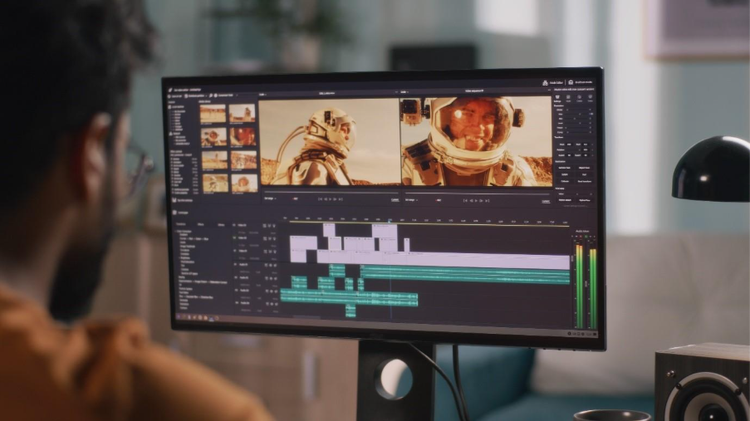
Using Adobe’s ecosystem, you can plan, edit, and enhance your repurposed content all in one place. The AI-powered features reduce repetitive tasks, like formatting for different platforms or generating captions, letting you focus on creating compelling content rather than managing technical details. Here’s how Adobe products can help:
The backbone of professional video editing, Adobe Premiere lets you trim long videos, add transitions, and export in multiple formats. Its AI-powered Auto Reframe feature automatically adjusts your clips for different platforms, ensuring your content looks perfect on Instagram, YouTube Shorts, and LinkedIn.
Adobe After Effects is perfect for adding motion graphics, animated text, and dynamic visual effects. Use it to make clips more visually appealing and interactive, which helps short-form content capture attention faster.
Firefly combines multiple AI capabilities to simplify video creation and content repurposing. Its AI video editor can be used to trim and rearrange clips, add titles, voiceovers, and audio. Meanwhile, the image-to-video generator turns static images or graphics into animated video segments, perfect for quote clips, visual highlights, or social media teasers.
While primarily for graphics, Adobe Express makes it simple to generate captions, subtitles, and branded overlays for your clips. AI-assisted captioning ensures accessibility and boosts engagement for viewers who watch on mute.

Based on your location, we think you may prefer the United States website, where you'll get regional content, offerings, and pricing.

