File must be JPEG, JPG or PNG and up to 40 MB
https://main--cc--adobecom.aem.page/cc-shared/assets/img/upload-white.svg Upload your photo
By uploading your image or video, you agree to the Adobe
Terms of Use and Privacy Policy
File must be JPEG, JPG or PNG and up to 40 MB
https://main--cc--adobecom.aem.page/cc-shared/assets/img/upload-white.svg Upload your photo
By uploading your image or video, you agree to the Adobe
Terms of Use and Privacy Policy
to try it today
File must be JPEG, JPG or PNG and up to 40 MB
https://main--cc--adobecom.aem.page/cc-shared/assets/img/upload-white.svg Upload your photo
By uploading your image or video, you agree to the Adobe
Terms of Use and Privacy Policy
- File size larger than 40MB
- Unable to process the request
- We are unable to process this file type. Please try again.
- Only one file can be uploaded at a time.
- Image exceeds maximum dimensions (8,000 x 8,000 pixels). Please resize and try again.
- promoid=9MZL3Z9B&mv=other
JUMP TO SECTION
The basic Photoshop cutout technique
5 steps to create a cutout photo from complex backgrounds
Photoshop cutout tips and tricks
Meet the 2 tools you need to make cutouts.
Your favourite selection tool and a Layer Mask are all you need to make a pristine cutout photo you can use anywhere. Simply select the object you want to cut out, apply a Layer Mask and presto — you’re done. Learn all the ins and outs of photo cutting below using Photoshop’s powerful photo cutter features.
A cutout is simply a photo with the background removed — just like when you were a kid making collages with scissors, glue and old magazines. With the magic of digital technology, you can easily create simple cutouts of an object on a plain background, like a bowl of strawberries on a white counter. Or, you can make more complex photo cutouts, like a rose bush in a botanical garden — no scissors needed.
Knowing how to cut out an image is a skill you’ll use time and again. When you isolate part of a photo — say, a flower, a car or a person — you can use that cutout in all kinds of creative ways. And, unlike paper cutouts that you can only use once, you can use digital cutouts over and over, whether you’re making a poster, designing a social media post or creating a digital collage.
While you can use tools that instantly remove backgrounds from pictures, learning manual photo cutting in Photoshop can be a big help when you want to control every detail. With options ranging from auto-select to manual masking, Photoshop functions as an expert image cutter, helping your next project look as polished and professional as possible.
What to know about cutouts before you start.
There’s no actual cutting involved in making cutout photos — which is great news if you’ve ever cut off something you shouldn’t have when working with scissors. In Photoshop, you have the freedom to experiment, change your mind and undo. Whether you’re preparing a quick cut photo for a digital collage or a precise cut out image for a professional campaign, these tools adapt to your workflow. Here are the three big things to know about digital cutouts:
Selection tools
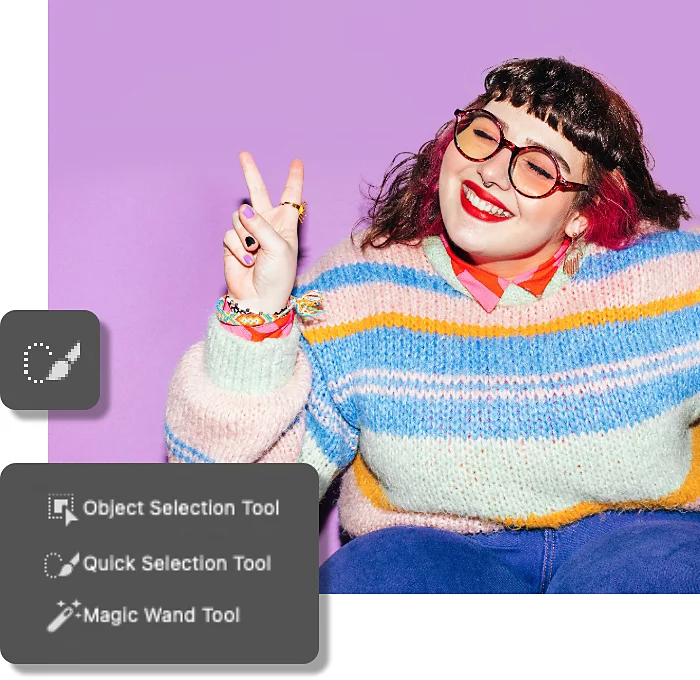
A good cutout starts with a good selection — which simply means drawing a boundary around the object you want to select. Think of your selection like a precision blade that defines the exact area where you’re going to cut. Just choose the best Photoshop selection tool for the job — they all offer different levels of control, with some being faster to use than others. For quick tasks, like removing a plain background from a product image, use the Object Selection or Quick Selection tool. For detailed work, such as separating hair, jewellery or intricate clothing, tools like Lasso or Select Subject offer finer control.
Layer Masks
Layer Masks are what do the “cutting,” though they function more like a piece of paper that blocks out everything beneath it. When you apply a Layer Mask to an image with a selection, you isolate just the part you’ve selected, effectively cutting it out from the background. And, because it’s digital, you can adjust your Layer Mask as much as you need.
Layer Masks rely on the Photoshop brush tool and two colours — black and white — to determine which parts of the image get hidden and which get to stay. Black conceals everything beneath it while white reveals it. Or you can change the opacity of the brush tool to let only some of the image show through, which can be useful when you’re trying to avoid harsh edges.
Whether you’re working on a festival-themed poster or a minimalist product showcase, mastering Layer Masks gives you full control over your cutout photo.
Non-destructive editing
Working with Layer Masks is considered non-destructive editing, which means that you don’t permanently delete any part of your photo. This way, you can change your mind about your cutout at any point. It’s as simple as painting your Layer Mask black or white until you get it just right.
This method is especially useful for creators who need different image versions for platforms like Instagram Reels, YouTube thumbnails, WhatsApp statuses, or print flyers. You can reuse and re-edit your cutout photo without compromising the original, saving both time and effort.
The basic Photoshop cutout technique.
This technique works best on photos of simple objects with defined edges on plain backgrounds, like a studio photograph that uses a single-colour backdrop or even a smartphone image taken against a white or solid-colour floor or wall.
This method is ideal for cutting photos of jewellery, stationery, or food dishes captured at home or in basic setups. It’s a great option for social sellers, designers, or students creating quick projects.
1. Open the image you want to cut out in Photoshop.
Open your file in Photoshop and ensure you’ve selected the exact layer you want to work with in the Layers panel. This helps avoid applying edits to the wrong area while preparing your cut photo.
2. Make your selection.
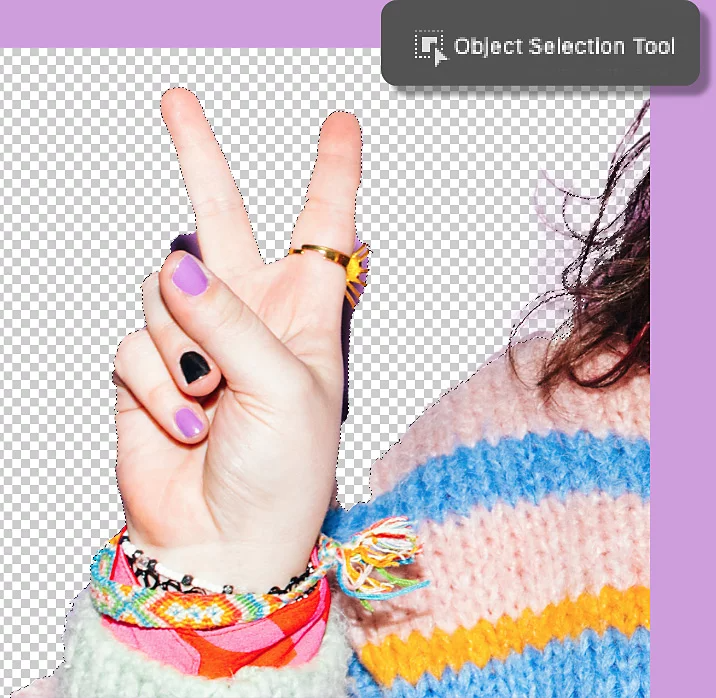
Hover over the item you’d like to cut out with the Object Selection tool or drag the Quick Selection tool across it. Then go to Select > Inverse so that the only thing selected is your background. This reverses the selection and ensures only the background gets removed, resulting in a clean photo cutting effect.
3. Create a Layer Mask.
Click the Layer Mask icon in your Layers panel to make your cutout photo. If you have layers underneath the one you’re working on, make sure that you turn them off to see how your cutout looks.
Remember that you can adjust your Layer Mask at any time by clicking it and painting in black or white.
5 steps to create a cutout photo from complex backgrounds.
While Photoshop offers several advanced methods for photo cutting, this step-by-step guide is a solid starting point for isolating objects from busy or textured backgrounds, whether you're editing travel photos, event shots, or product images with shadows.
1. Open your image in Photoshop.
Start by opening your file in Photoshop. Make sure to select the exact layer you want to work with in the Layers panel to avoid editing the wrong area of your cut photo.
2. Select the object you want to cut out.
Depending on how intricate the shape is, you can use any of the Photoshop selection tools — Object Selection, Quick Selection, Magic Wand or any of the Lasso tools.
This step is crucial in defining a clean cut out image, especially when dealing with complex textures, detailed backgrounds, or layered lighting.
3. Invert your selection.
With your shape selected, go to Select > Inverse so that only the image's background is selected. This highlights the background instead of the subject, making it easier to isolate and remove. It's an essential step in any photo cutting workflow.
4. Click the Select and Mask... button in the toolbar.
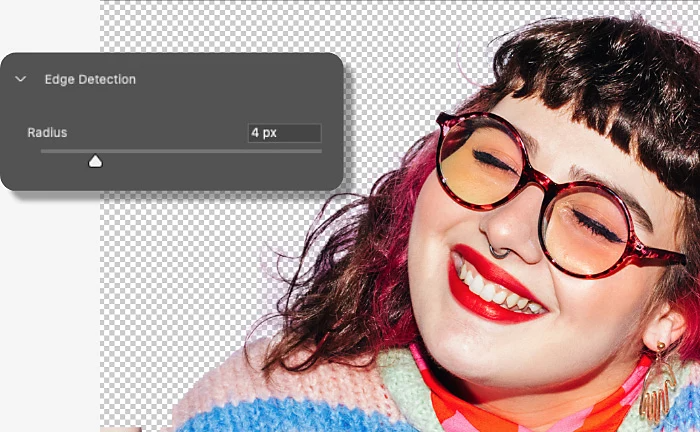
In the Select and Mask... workspace, you can refine your selection to make sure there are no stray pieces of the background. Play with the Radius, Smooth, Feather, Contrast and Shift Edge sliders to perfect all the details. If you need to add or remove parts of your mask, just use the Quick Selection, Refine Edge, Object Selection and other tools on the left side of the panel. This is where Photoshop shines as a professional-grade image cutter, offering pixel-level control.
5. Output your selection as a Layer Mask.
With your selection perfected, simply scroll to the bottom of the Select and Mask... workspace and choose to output it to a Layer Mask. This will apply your selection non-destructively, giving you a reusable, professional-looking cutout photo.
Whether you’re prepping content for an Instagram campaign, a fashion catalogue, or a client presentation, your cut pro result is now ready for reuse or refinement.
Photoshop cutout tips and tricks.
Wispy hair, tight corners and intricate shapes can make photo cutting a challenge — but with Photoshop’s powerful tools, they’re easy to handle. These tips will help you achieve clean, professional-looking cutout photos, whether you’re editing portraits, food shots, or flat lays for social media or e-commerce platforms.
Hair
When you’re working with hair, whether it's for a fashion model, bridal portrait, or a product with tassels, the Refine Edge tool is your friend for a soft, natural-looking cut out image.
How to refine hair cutouts:
- Make your selection and be careful not to select any background pieces, even if there's hair there.
- Click the Select and Mask... button from the toolbar.
- Inside the Select and Mask... workspace, choose the Refine Edge brush from the left-hand side of the panel.
- Brush over any stray hairs around the edges of your subject.
- Return to the Select and Mask properties panel on the right, scroll to the bottom and choose Output to Layer Mask.
Tight corners and angles
Use the Polygonal Lasso tool for geometric subjects made up of straight lines, like a book, frame, signage, package, or a picture frame.
How to use it:
- Click around the shape’s outer edge, placing anchor points at each corner.
- Once you return to your starting point, the selection will close with straight lines.
- Hold down the Shift key after clicking to lock angles to 90 or 180 degrees for perfectly aligned cutout photos.
Intricate or unconnected shapes
You can use any of the Lasso tools and then the Quick Selection tool to cut out complex shapes or even make two separate selections at the same time (for example, if you wanted to cut out just two eyes but not the rest of the face).
Steps for cutting out complex shapes:
- Start with any Lasso Tool (freehand, polygonal, or magnetic) to draw your initial selection.
- Use the Quick Selection Tool (+) to add areas to your selection.
- Use the Quick Selection Tool (–) to subtract areas you don’t want.
- These tools allow you to select even hollow or looped shapes, like cutting a photo of a donut, pretzel or bangle.
This method gives you flexibility in building a selection over multiple regions, making it great for product shots, illustrations, or traditional Indian design elements.
Common mistakes to avoid when cutting out a photo.
Mastering the cutout process in Photoshop requires precision and the right technique. Avoid these common mistakes to ensure your cutout photos look clean, realistic and professional.
1. Using the Eraser Tool instead of Layer Masks:
The Eraser Tool permanently deletes pixels, while Layer Masks allow non-destructive editing. This makes it easier to adjust or refine your cut photo later.
2. Skipping edge refinement:
Hard or jagged edges can make your cutout photo look unnatural. Refining edges using tools like Feather, Smooth or Refine Edge helps create a more realistic result.
3. Ignoring fine details like hair, jewellery or lace:
Delicate areas require careful selection. Overlooking them can leave unwanted background traces or harsh lines around the subject.
4. Saving in the wrong file format:
Exporting your cutout image as a JPEG removes transparency. Use PNG for web or PSD for ongoing editing to retain background-free quality.
5. Relying only on automatic selection tools:
While automatic tools are helpful for quick edits, they often miss precision on complex backgrounds. Manual refinement is key for a polished and accurate photo cut."