https://main--cc--adobecom.aem.live/cc-shared/assets/img/firefly.svg | Adobe Firefly logohttps://main--cc--adobecom.aem.live/cc-shared/assets/img/ff-lockup-f4.svg | Adobe Firefly
AI image upscaler: Enhance your images in Firefly.
Enlarge images instantly with AI — without quality loss.

Or tap here
File must be JPEG(JPG), PNG or WEBP and up to 100 MB.
By uploading your image or video, you agree to the Adobe Terms of Use and Privacy Policy and confirm you are 18 years of age or older.

https://main--cc--adobecom.aem.live/cc-shared/assets/svg/s2-icon-upload-20-n.svg Upload your image
Or tap here
File must be JPEG(JPG), PNG or WEBP and up to 100 MB.
By uploading your image or video, you agree to the Adobe Terms of Use and Privacy Policy and confirm you are 18 years of age or older.

https://main--cc--adobecom.aem.live/cc-shared/assets/svg/s2-icon-upload-20-n.svg Upload your image
Or drag and drop here
File must be JPEG(JPG), PNG or WEBP and up to 100 MB.
By uploading your image or video, you agree to the Adobe Terms of Use and Privacy Policy and confirm you are 18 years of age or older.
- File size larger than 100 MB
- Unable to process the request
- We are unable to process this file type. Please try again.
- Only one file can be uploaded at a time.
- Image is smaller than the minimum dimensions (512 x 512 pixels). Please resize and try again.
https://main--cc--adobecom.aem.live/cc-shared/assets/img/product-icons/svg/firefly-80.svg
Adobe Firefly
https://main--cc--adobecom.aem.live/cc-shared/assets/img/product-icons/svg/firefly-80.svg
Adobe Firefly
The next evolution of creative AI is here for all your ideas, with image, video, audio and vector tools.
Anyone can use the image upscaler.
Creators, marketers and everyday users can sharpen details and refine textures with the AI-powered editing tools in Firefly. Upscale an image by 2x or 4x with a single click.
Upscale customer photos for marketing campaigns.
User-created content can be crucial for a successful marketing campaign. With Generative Upscale, you can make sure that those visuals maintain the polished, professional look of your own content.
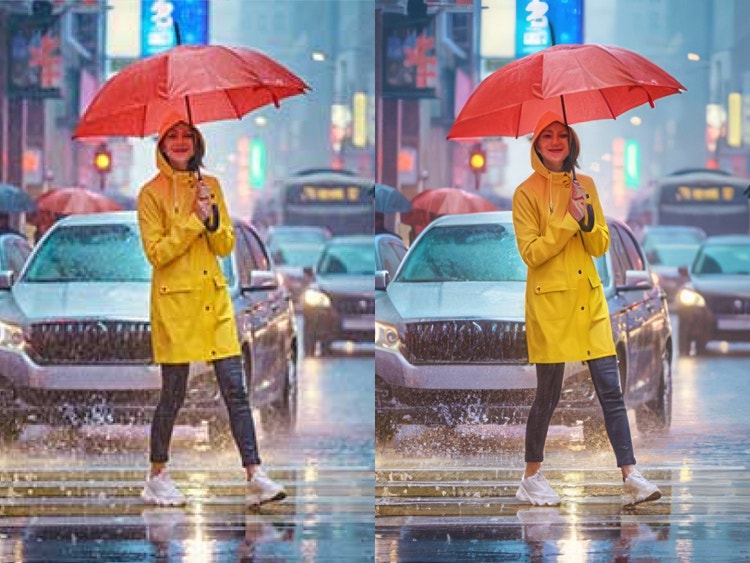

Improve low-res logos or product photos with the image upscaler.
Now you can use low-res email attachments or legacy assets instead of doing a costly redesign or reshoot. Whether you’re working with a partner organisation that hasn’t provided an adequately sized logo or you just can’t track down the high-res image you need, you can still get the clean edges and fine details that meet your design standards.
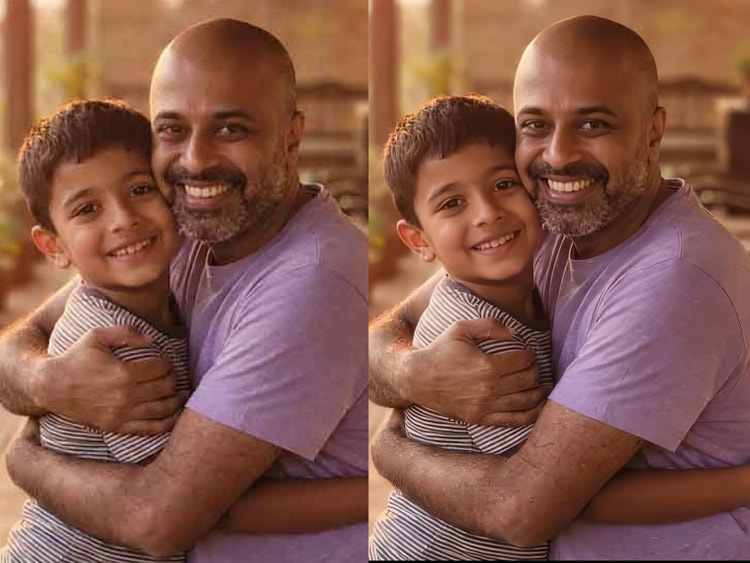
Enhance old photos or scanned images with Generative Upscale.
Breathe new life into old or scanned photos by increasing resolution and sharpening details that were lost over time or in transit. The result is clearer, more usable imagery that’s ready for contemporary creative projects and larger formats.
How to use the image upscaler in the Firefly image editor.
Step 1
Open the Firefly image editor.
Step 2
Select your image.
Step 3
Open the Quick Actions menu.
Step 4
Choose your AI upscaler model and resolution.
Step 5
Click Upscale.
- How to use the image upscaler in the Firefly image editor.
- Steps on how to use image upscaler in Firefly photo editor
- PT5M
- firefly
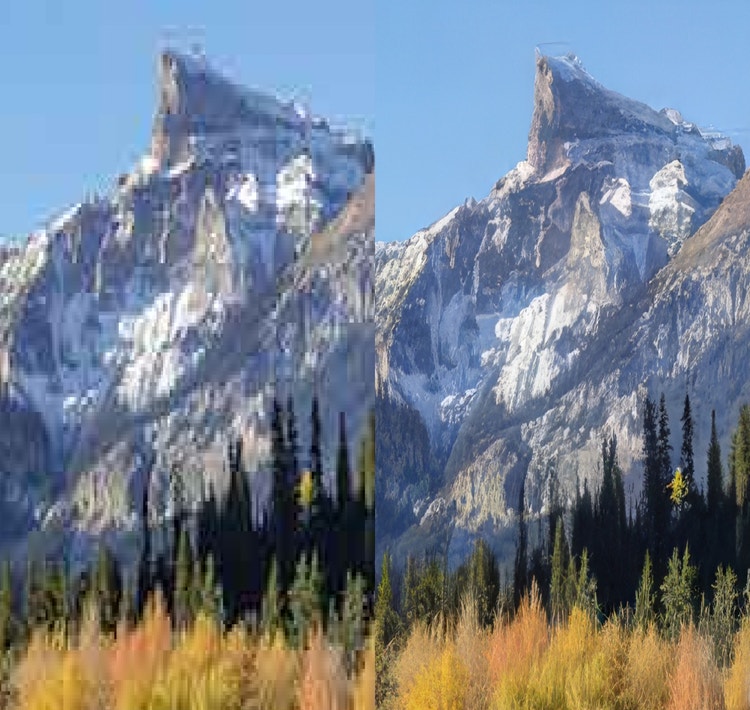
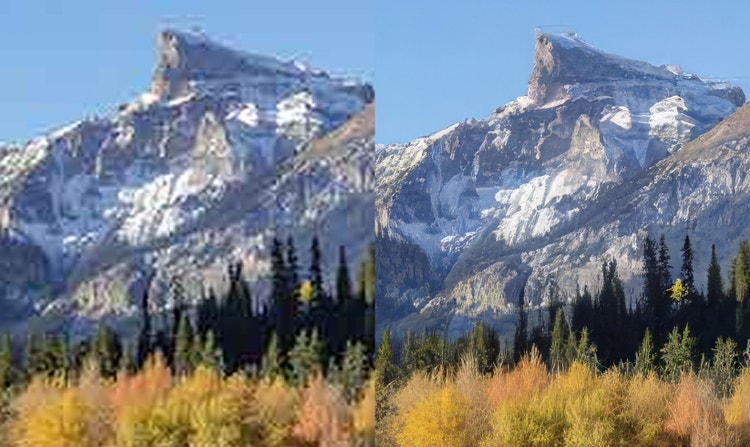
Enhancement that looks natural
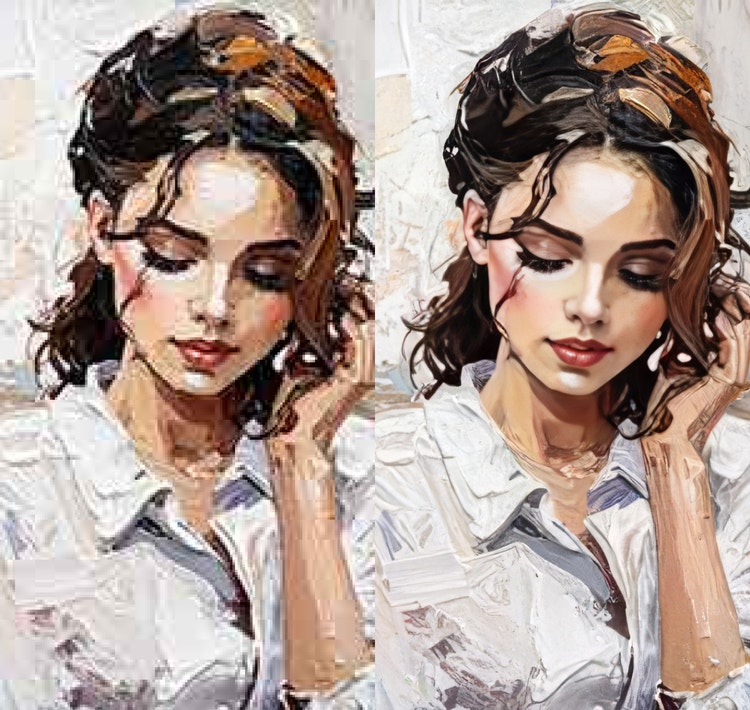
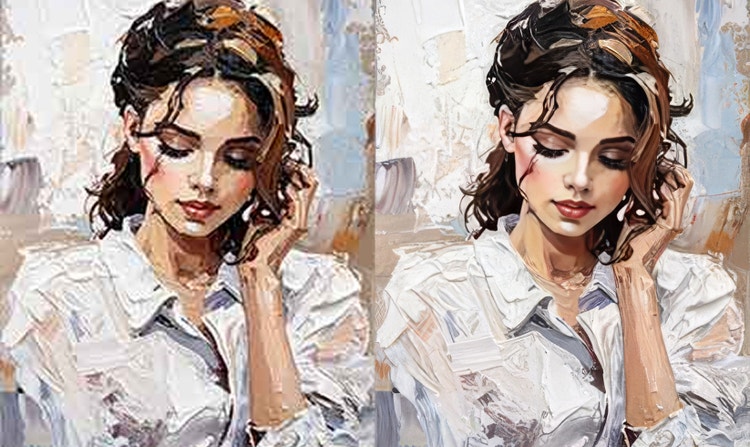
Preservation of the original look while sharpening the details
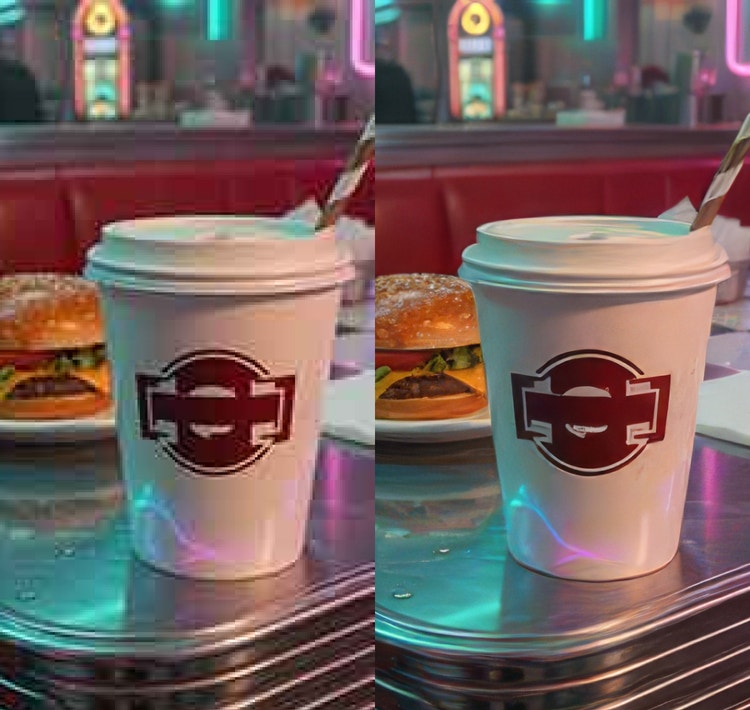
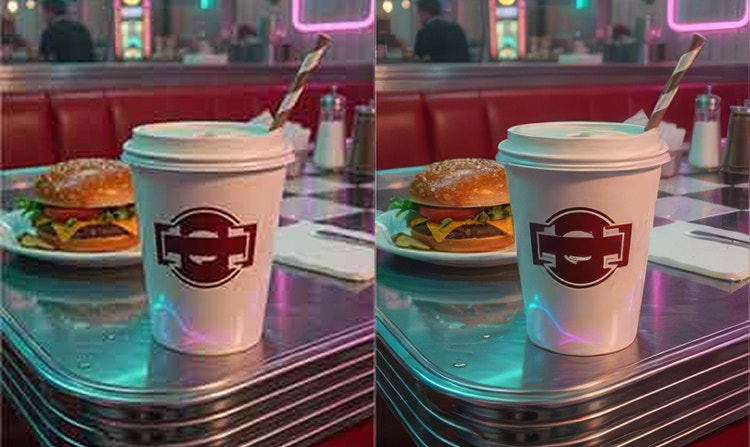
Logos with clean edges
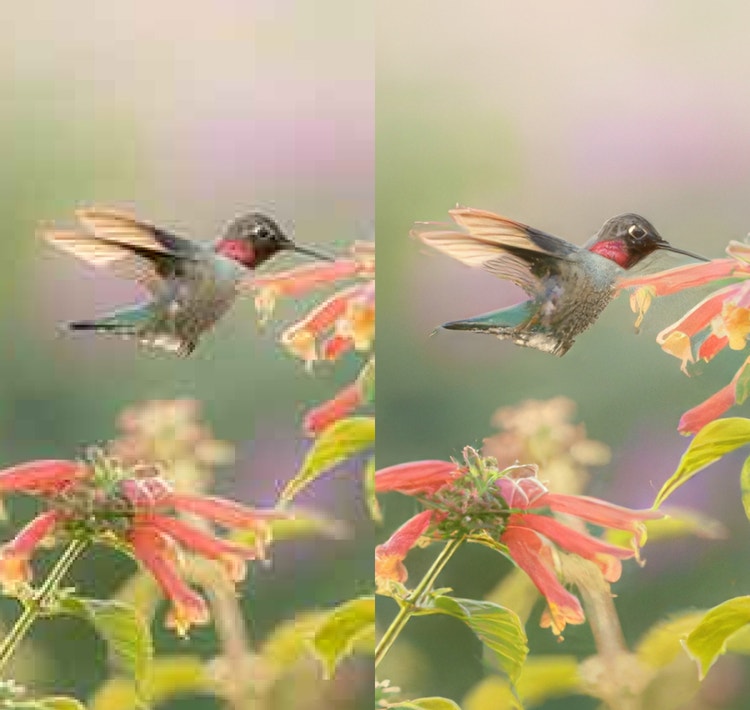
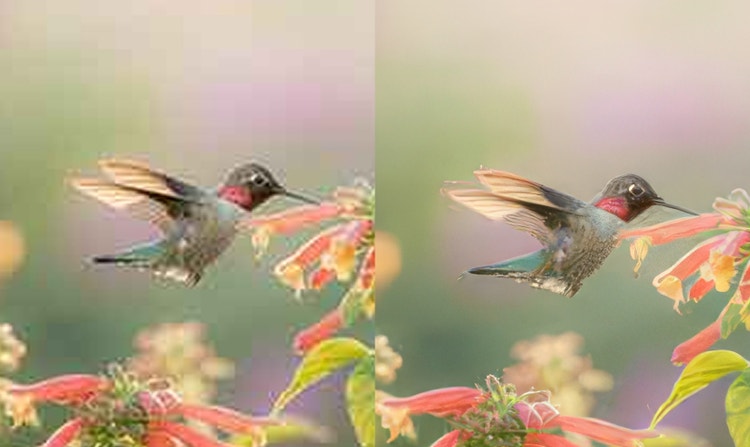
Professional-quality results
See what you can do in Firefly.
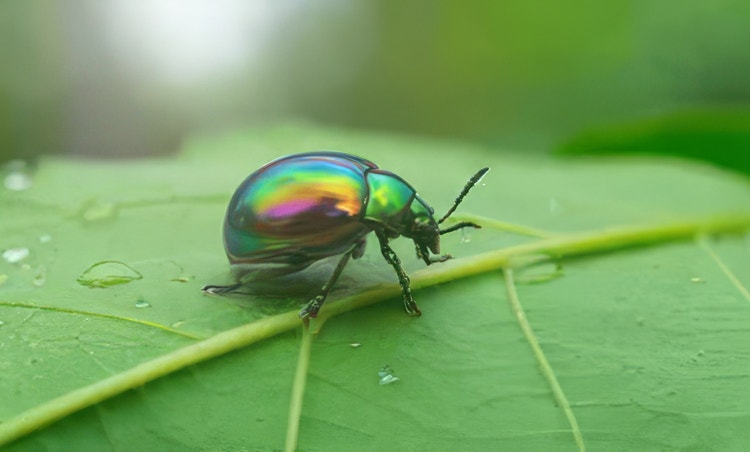




Discover even more features.
Questions? We have answers.
What is image upscaling?
What does image upscaling do?
How can I upscale an image without losing quality?
How to upscale image resolution online?
Is the Adobe Firefly image upscaler free to use?
What is the best AI image upscaler?
Share this page
Explore more Firefly tools.

The benefits of generative AI for creatives
Learn how to use generative AI to boost productivity and discover new possibilities while maintaining creative control.

Generative AI is changing creative work
Generative AI can mimic — but not replace — human intelligence. Learn how it can help you to take your creativity to new places.
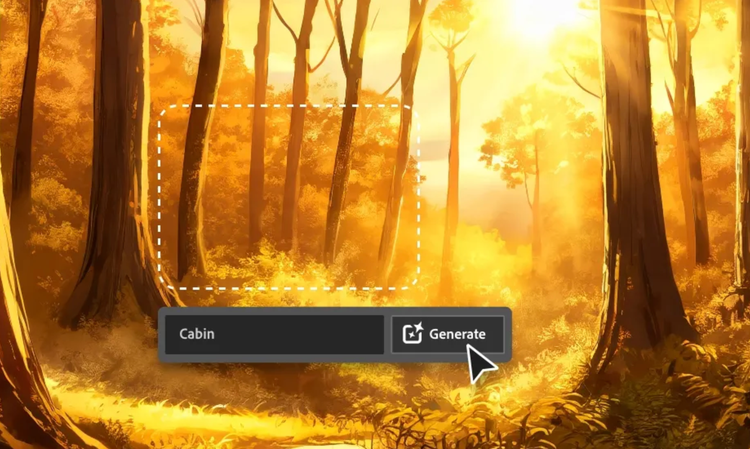
AI for graphic designers
Learn about the AI tools available to graphic designers and how they can help you be more productive and take your work in surprising directions.

AI art prompts for graphic designers
Learn how to write effective prompts for generative AI to get amazing results for graphic design.