PHOTOSHOP FEATURES
How to rotate a layer in Adobe Photoshop.
Learn about the many ways to rotate a single layer in your Photoshop project.


PHOTOSHOP FEATURES
Learn about the many ways to rotate a single layer in your Photoshop project.
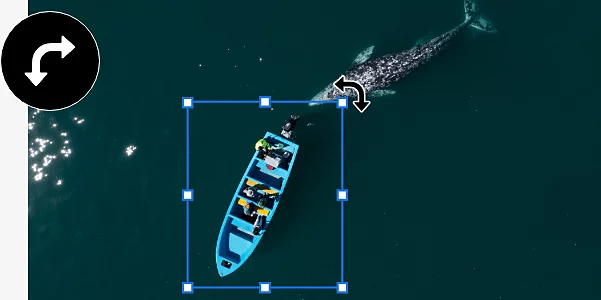
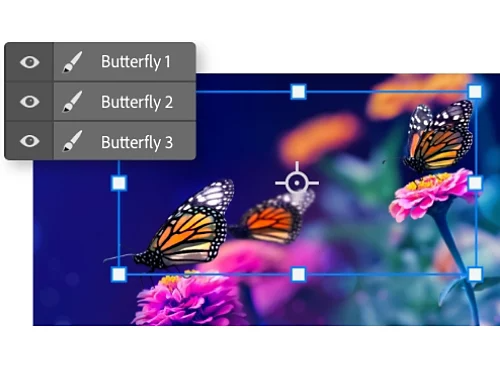
Layers are key to almost everything you do in Photoshop. Every edit you make to an image can be overlaid on top of the image as a new layer. By adding and editing individual layers, you can edit nondestructively — preserving the original image so you can go back to square one at any time.
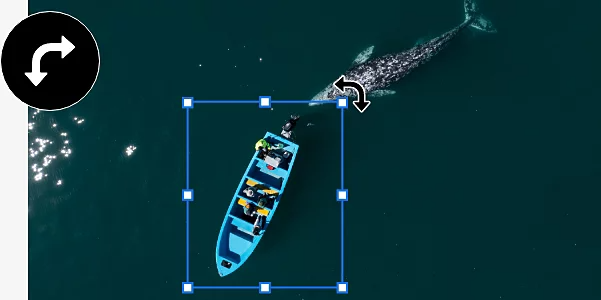
Rotating a layer is simply taking one of the many layers in your project and turning it clockwise or anticlockwise around a fixed point, all without rotating any other part of the image.
There are several ways you can give your image just the tweak it needs by rotating a layer.

If you’ve added a logo as a layer to your work, you can rotate it to make sure the design looks like you want.
Creating a mirror effect? Rotate the layer with the duplicate image to line it up with the original.
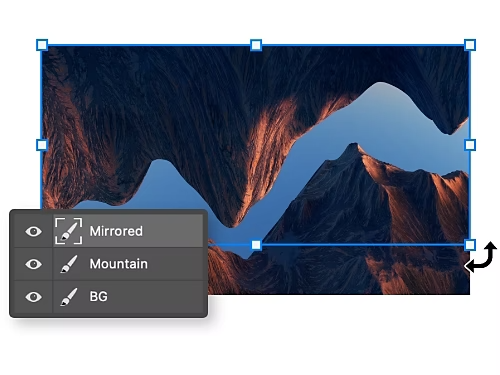
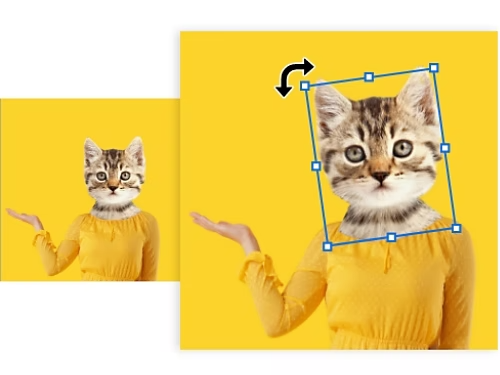
Rotate a single layer of a graphic design to subtly change its appearance.
While photo manipulating a composite, you can alter the angle of an element you’ve added to blend it in with the picture.

There are a few different ways to rotate a layer.
The quickest and easiest method uses the Move tool to get the job done in just three steps.
You can also use the Free Transform tool to rotate your layer. Although it’s a more manual workflow, this method offers more options for turning your layer by a specific number of degrees.
Speed up your workflow and spend less time navigating menus with these tips and best practices.
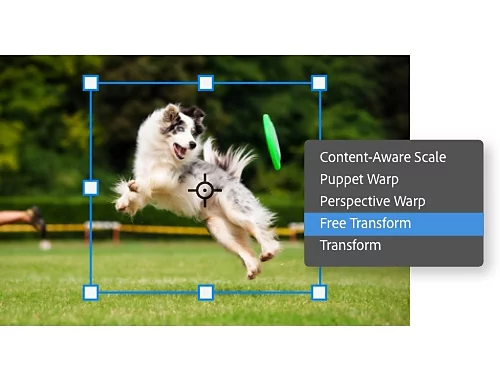
Press Ctrl+T or Command+T on Mac to open the Free Transform menu or right click the layer and select Free Transform from the drop-down menu.
Hold down the Ctrl key and click each layer you want to modify in the Layers panel. When you use the Move or Free Transform tool, they’ll all rotate together.
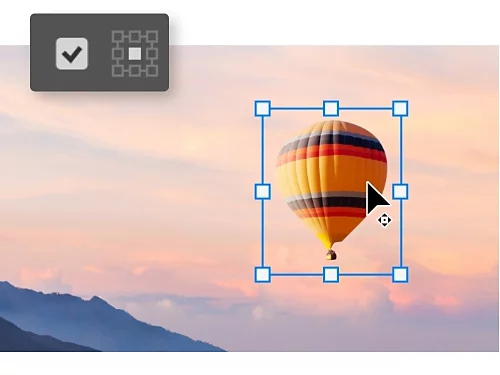
When Show Transform Controls is enabled, you can see the pivot point your layer will rotate on. Click and drag the pivot point to set it anywhere on your canvas.
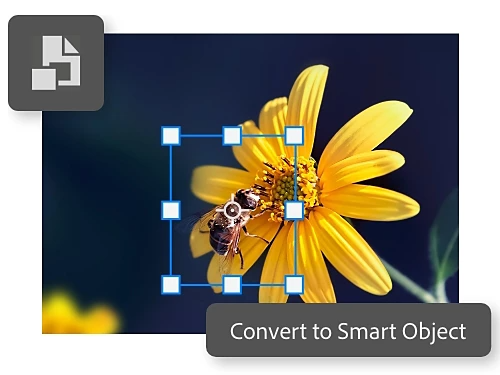
Convert a layer into a Smart Object to protect its pixels when you rotate or resize it. This will preserve image quality through multiple edits.
Explore tutorials to discover what else you can do with Photoshop.

Filters are a quick way to make major changes to the colour and tone of an image.

Learn how to crop, straighten or otherwise alter the size of an image in Photoshop.
Annual, billed monthly
₹733.96/moincl. GST
Get Photoshop on desktop and iPad as part of Creative Cloud.
Annual, billed monthly
₹2,714.00/moincl. GST
Get 20+ Creative Cloud apps, including Photoshop on desktop and iPad.
Annual, billed monthly
Save on 20+ Creative Cloud Pro.
₹9,312.00/moper licenseexcl. GST
Industry-leading creative apps with simple licence management.
Based on your location, we think you may prefer the United States website, where you'll get regional content, offerings, and pricing.



