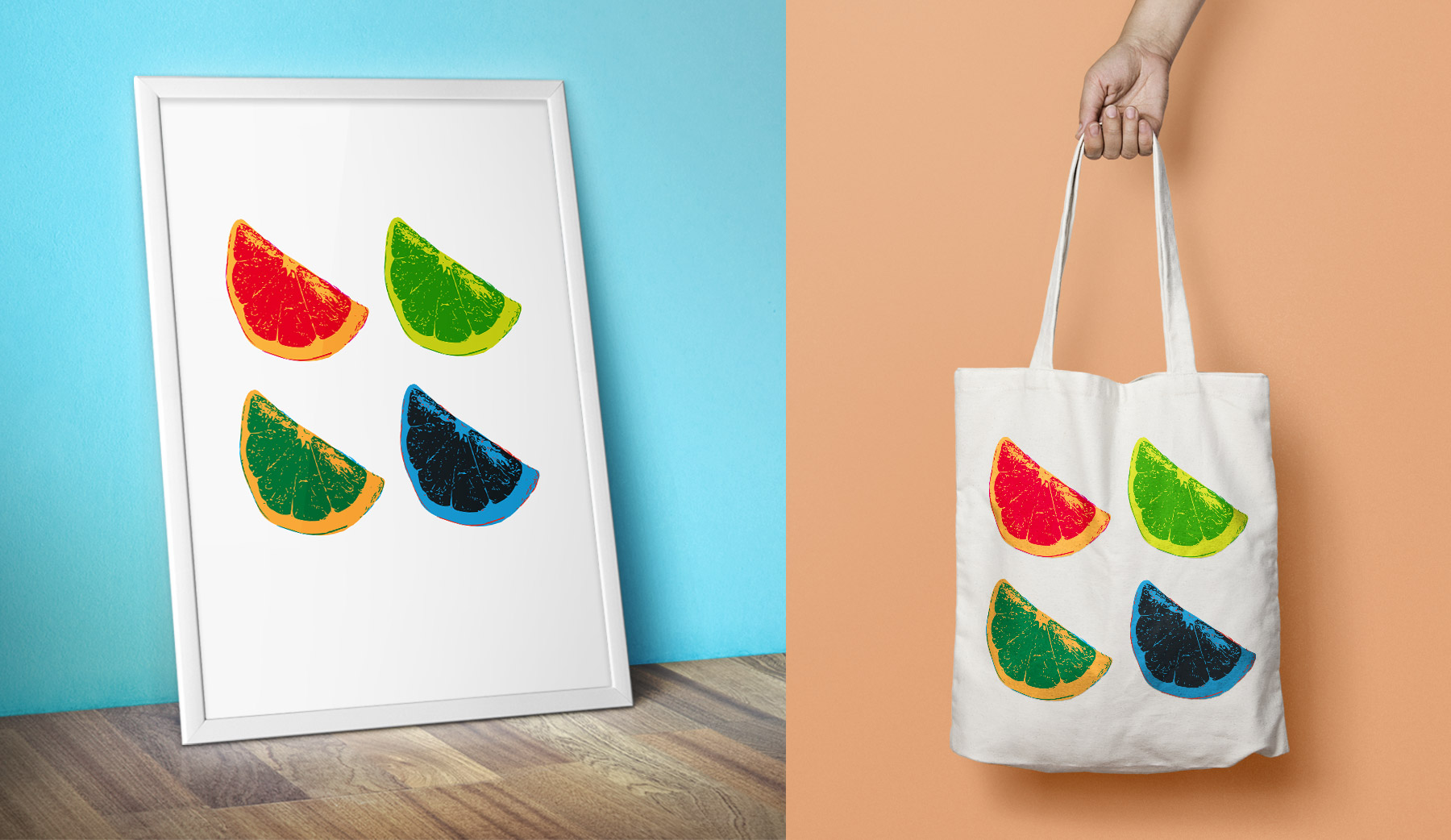
Adobe Creative Cloud 앱을 사용하여 이미지를 디지털화하여 팝아트를 만들어 봅니다. 팝아트 일러스트레이션을 인쇄하여 포스터로 사용하거나 스티커 종이, 전사지 등과 같은 전문 용지 스톡으로 인쇄할 수 있습니다. 또한 일러스트레이션을 저장하여 블로그, 웹 사이트 또는 디지털 프로젝트에 사용할 수 있습니다.
샘플 이미지나 보유한 크리에이티브 에셋을 사용하여 간단한 이 기법을 따라 해 보세요.
1
사용할 이미지 선택
여기에서 사용된 팝아트 디자인을 만들어 보려면 샘플 사진을 다운로드합니다. 그런 다음 휴대폰으로 전송하여 카메라 롤에 저장합니다. Capture에서 이 사진을 기반으로 벡터 아트를 만든 다음 Illustrator에서 팝아트 효과를 추가할 수 있습니다.

2
모양 캡처
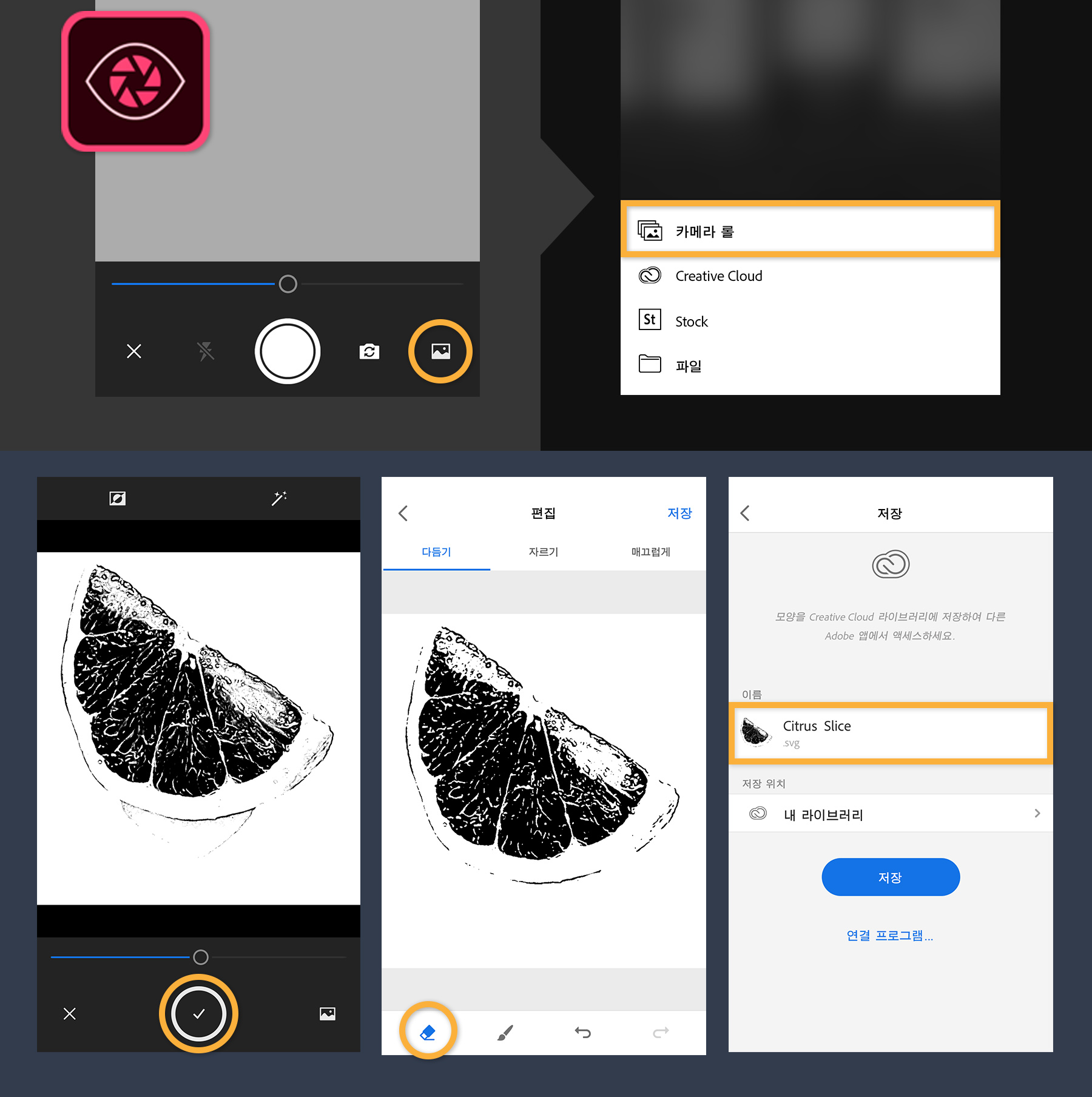
먼저 모바일 디바이스에서 Adobe Capture를 실행합니다.
참고: 이 자습서의 스크린샷은 iPhone의 Capture 실행 화면입니다. 유저 인터페이스는 iPhone, iPad 및 Android 디바이스마다 다를 수 있습니다.
모양을 누른 다음 플러스(+) 아이콘을 누릅니다. 그런 다음 화면 오른쪽 하단에 있는 다음에서 캡처를 누릅니다. 옵션에서 카메라 롤을 선택합니다.
사용하려는 사진을 누르면 이미지를 가져오게 됩니다. 슬라이더를 사용하여 원하는 대로 세부적으로 조정합니다.
캡처 버튼(체크 표시가 있는 원)을 눌러 이미지를 캡처합니다. 이제 모양을 다듬거나 자르고 부드럽게 할 수 있습니다. 손가락으로 모양의 특정 부분을 제거합니다. 모양에 일부를 추가하려면 페인트브러시 아이콘을 눌러 추가 영역을 드래그한 다음 저장을 누릅니다. 저장 화면에서 기본으로 지정된 이름을 눌러 새로운 이름을 입력하여 모양의 이름을 변경합니다. 내 라이브러리에 저장하기 위해 저장을 누릅니다.
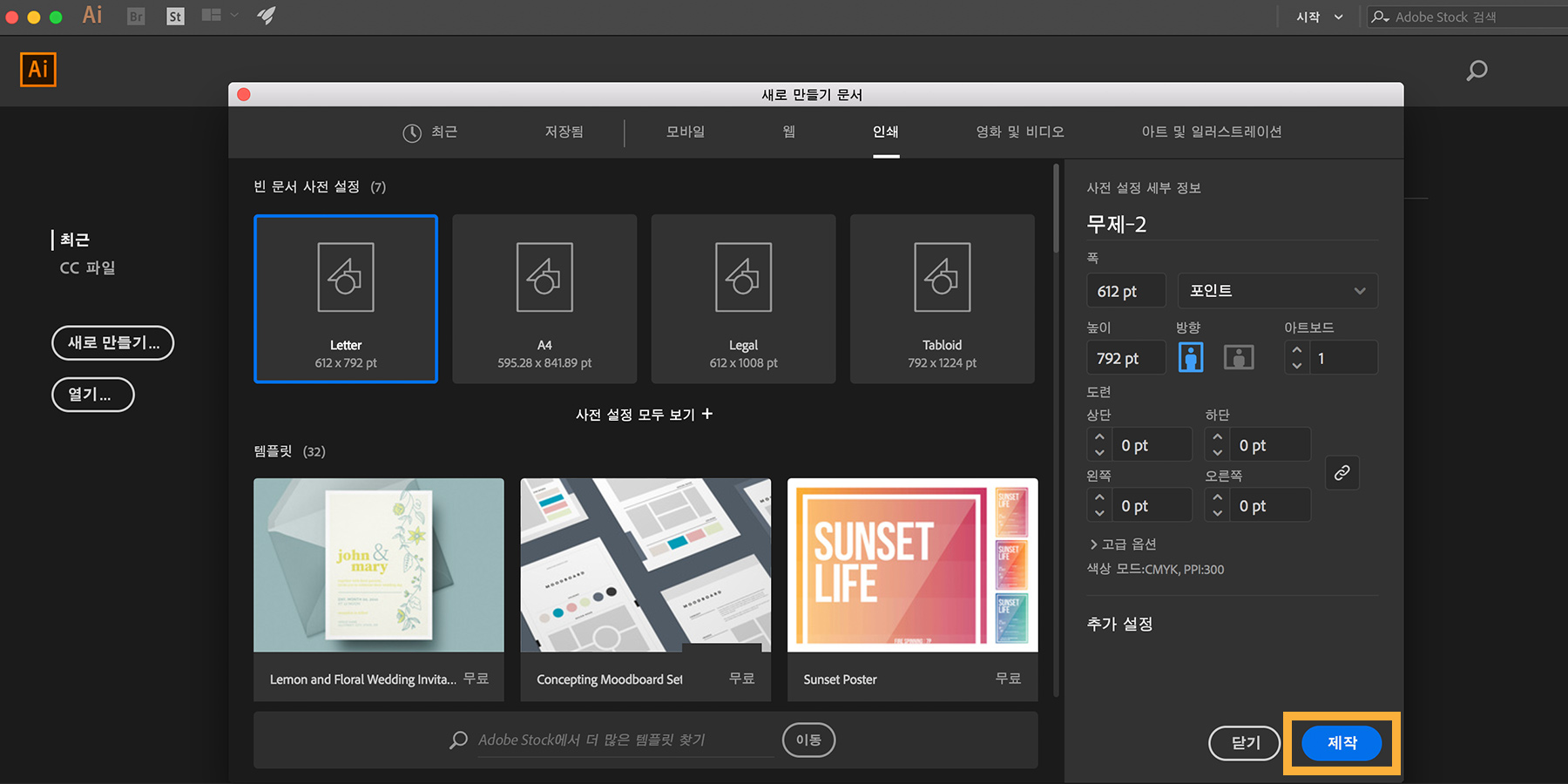
Illustrator를 시작합니다. 시작 화면에서 새로 만들기 버튼을 클릭하거나 파일 > 새로 만들기를 선택합니다. 상단에서 인쇄를 선택한 다음 Letter 사전 설정을 선택한 후 제작을 클릭합니다.
4
Creative Cloud Libraries에서 모양 추가
이 단계에서는 앞서 만든 벡터 모양에 액세스하여 세부적으로 편집해 봅니다.
윈도우 > 라이브러리를 선택하여 Creative Cloud Libraries에 액세스합니다. 내 라이브러리를 선택하고 모양을 대지로 드래그합니다. 한 번 클릭하여 대지에 놓습니다.
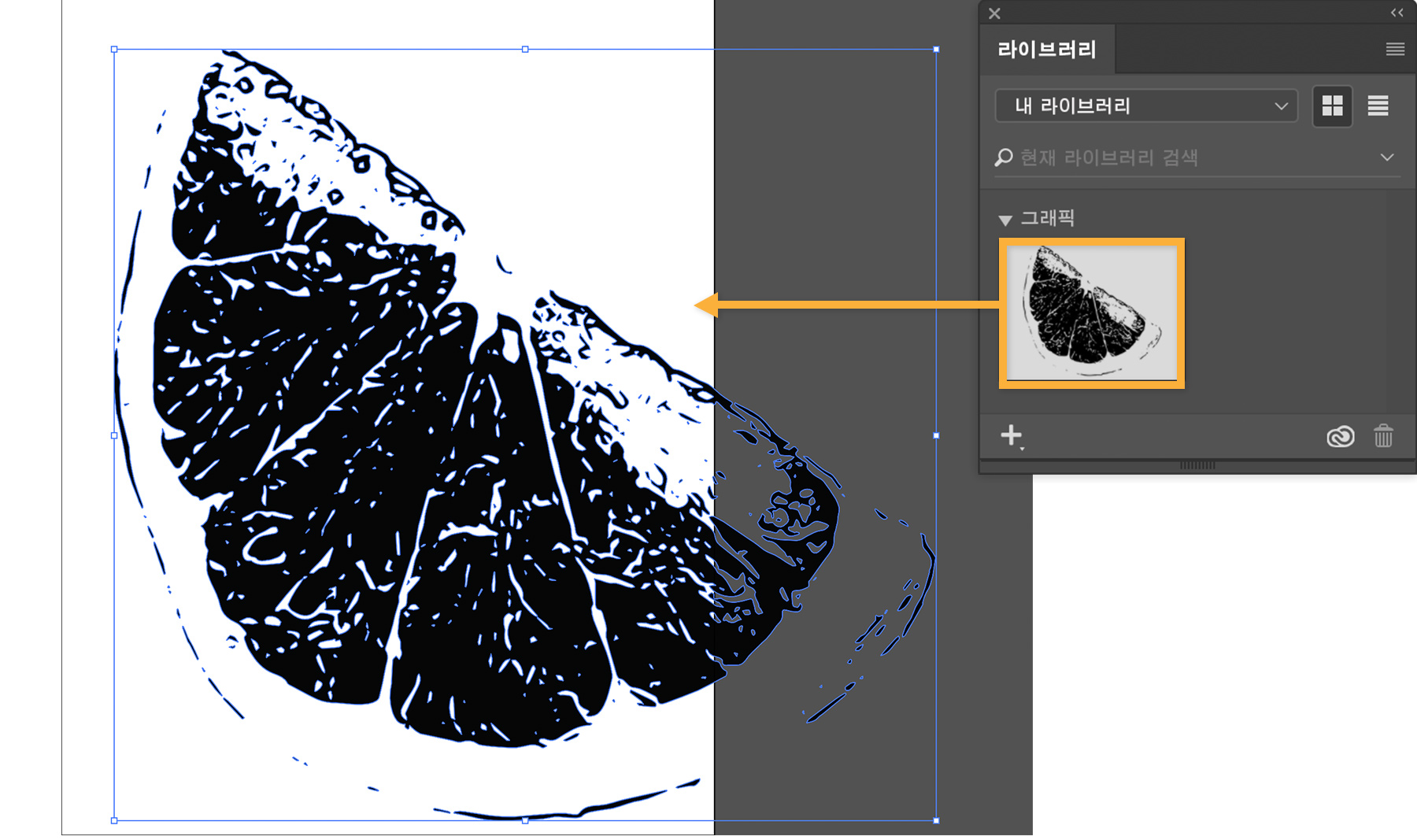
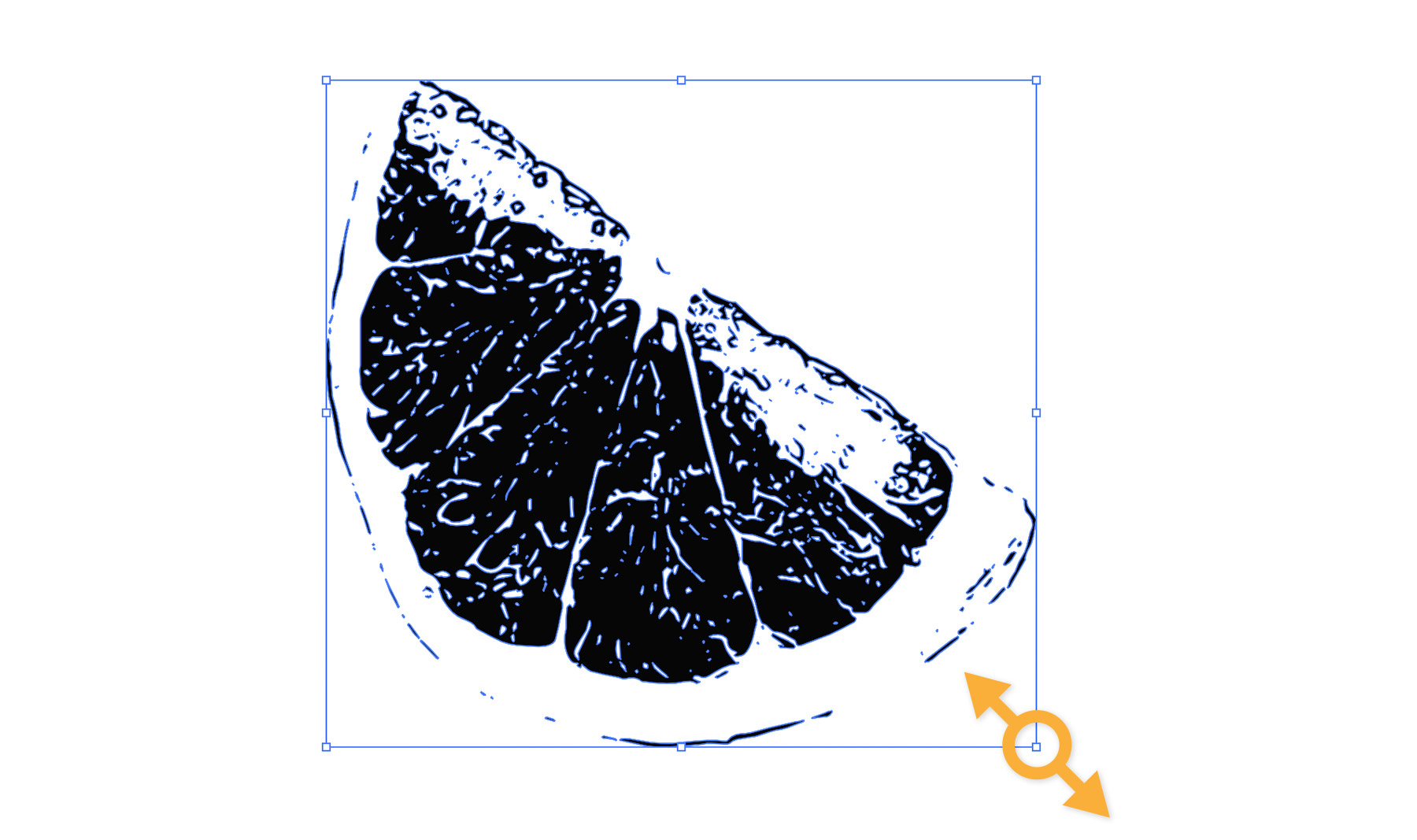
필요한 경우 모양의 크기를 조절합니다. Shift 키를 누른 상태에서 모양의 경계선 상자 모서리를 드래그하여 비율을 조정합니다. 마우스 버튼을 놓고 모양의 가운데를 드래그하여 위치를 조정합니다.
5
모양 다듬기
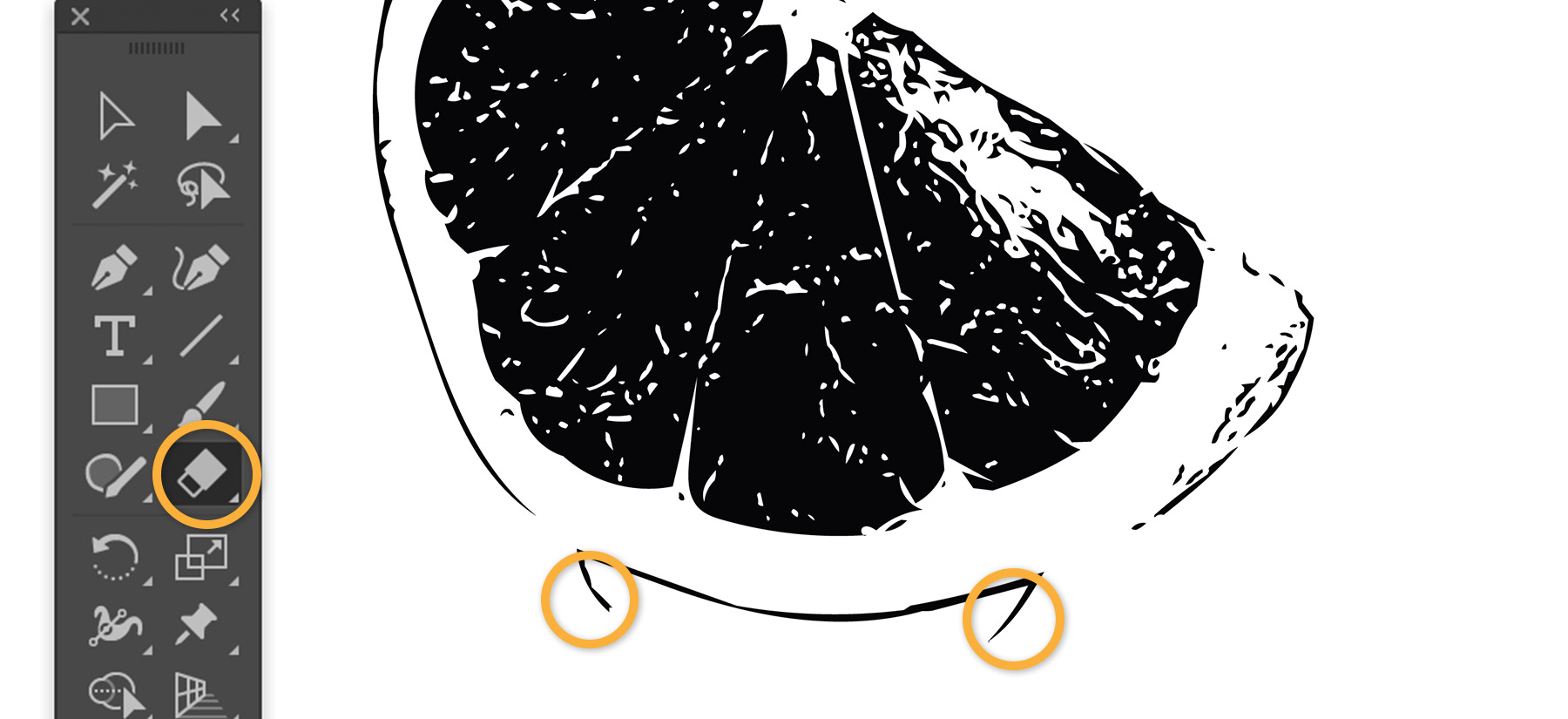
캡처한 모양에서 불필요한 디테일을 간편하게 제거할 수 있습니다. 먼저 대지 위의 아무 곳이나 클릭하여 모양을 선택 해제합니다. 그런 다음 툴 패널에서 지우개 툴을 선택하고 불필요한 부분을 드래그하여 지웁니다.
6
바로 위에 두 번째 모양 칠하기
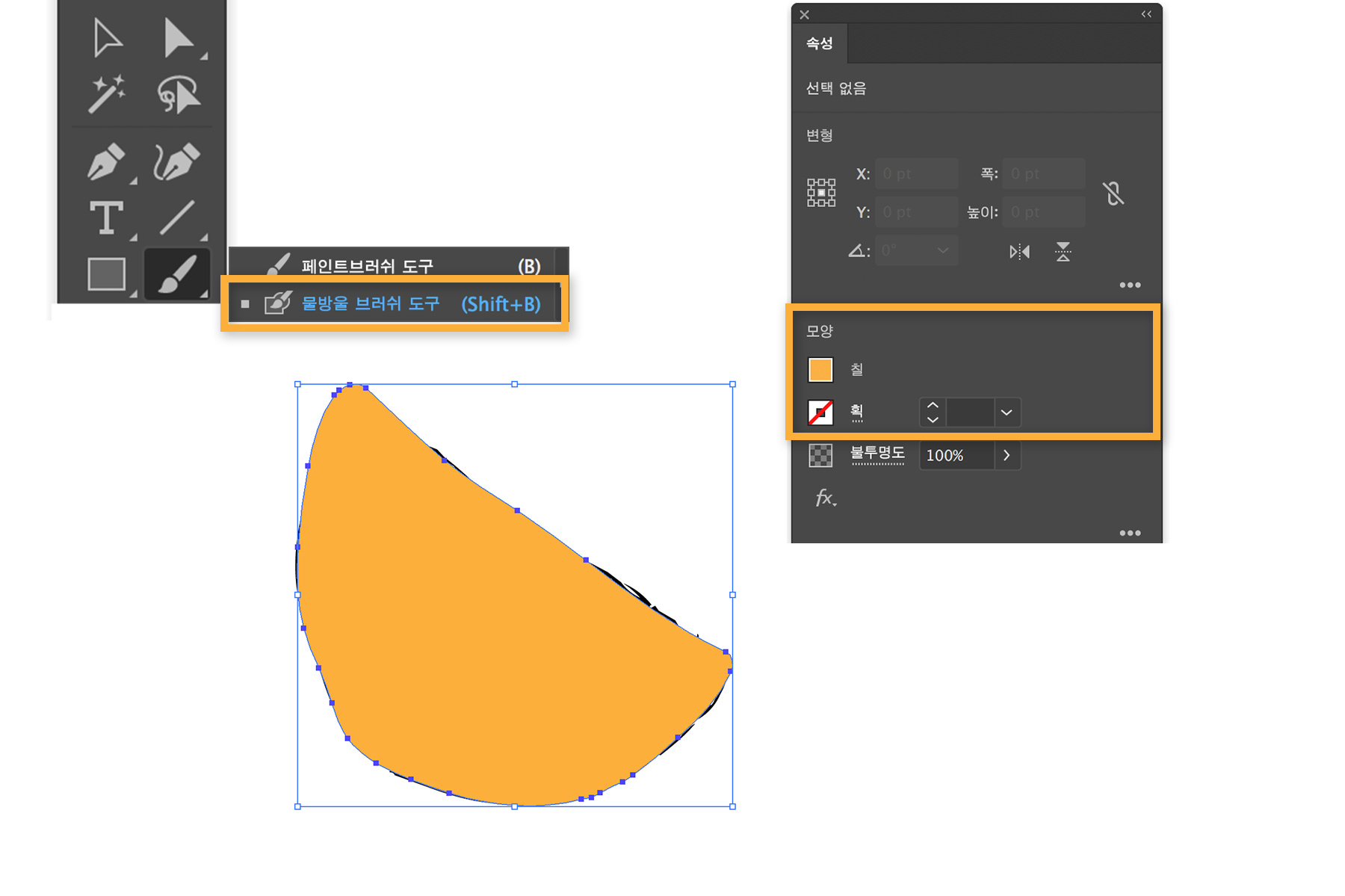
툴 패널에서 페인트브러쉬 툴을 길게 눌러 물방울 브러쉬 툴을 선택합니다.
속성 패널 탭을 클릭하여 확인합니다. (창 > 속성 선택 후) 속성 패널의 모양 섹션에서 칠 아이콘을 클릭하고 견본 패널에서 색상을 선택합니다. 그런 다음 획 아이콘을 클릭하여 선택된 항목이 없는 경우 없음으로 설정합니다.
모양을 따라 천천히 칠합니다.
팁: 칠하는 동안 브러시 크기를 변경하려면 왼쪽 및 오른쪽 대괄호 키를 누릅니다.
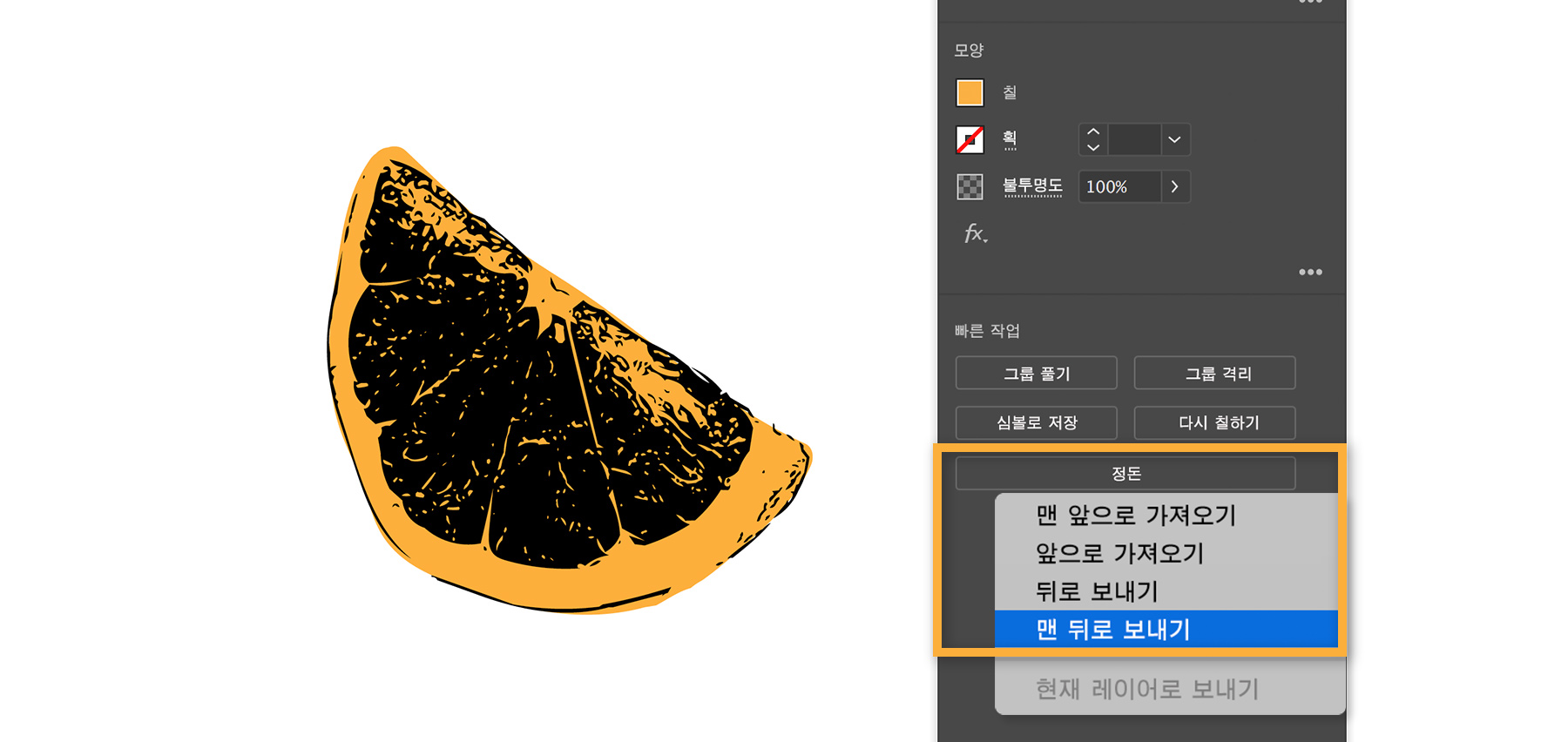
V를 눌러 선택 툴로 전환한 다음 색칠한 모양을 클릭하여 선택합니다. 속성 패널의 빠른 작업에서 정돈을 클릭하고 맨 뒤로 보내기를 선택하여 캡처한 원본 모양 아래에 배치합니다.
7
다양한 색상 적용
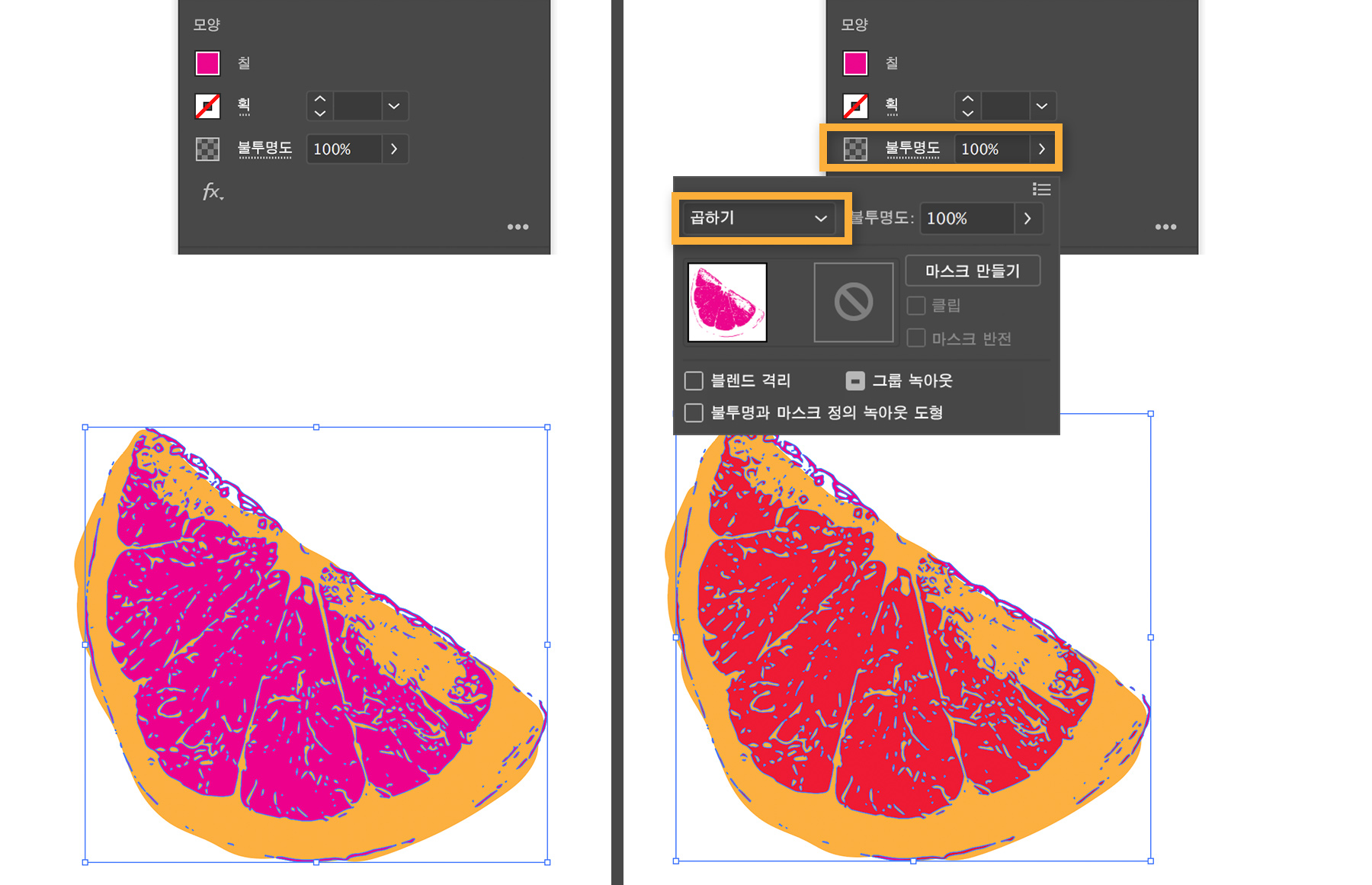
다음으로 캡처한 원본 모양을 클릭하여 선택합니다. 속성 패널에서 칠 아이콘을 클릭하고 대비가 뚜렷한 색상을 선택합니다.
속성 패널에서 불투명도를 클릭하고 특수 혼합 모드를 선택하여 재미있는 색상 효과를 만듭니다. 이 경우 곱하기를 선택하여 투명한 잉크의 색상 혼합을 시뮬레이션한 효과를 만들어 보았습니다. 결과는 선택한 색상 조합에 따라 다릅니다.
8
반복 수행(선택 사항)
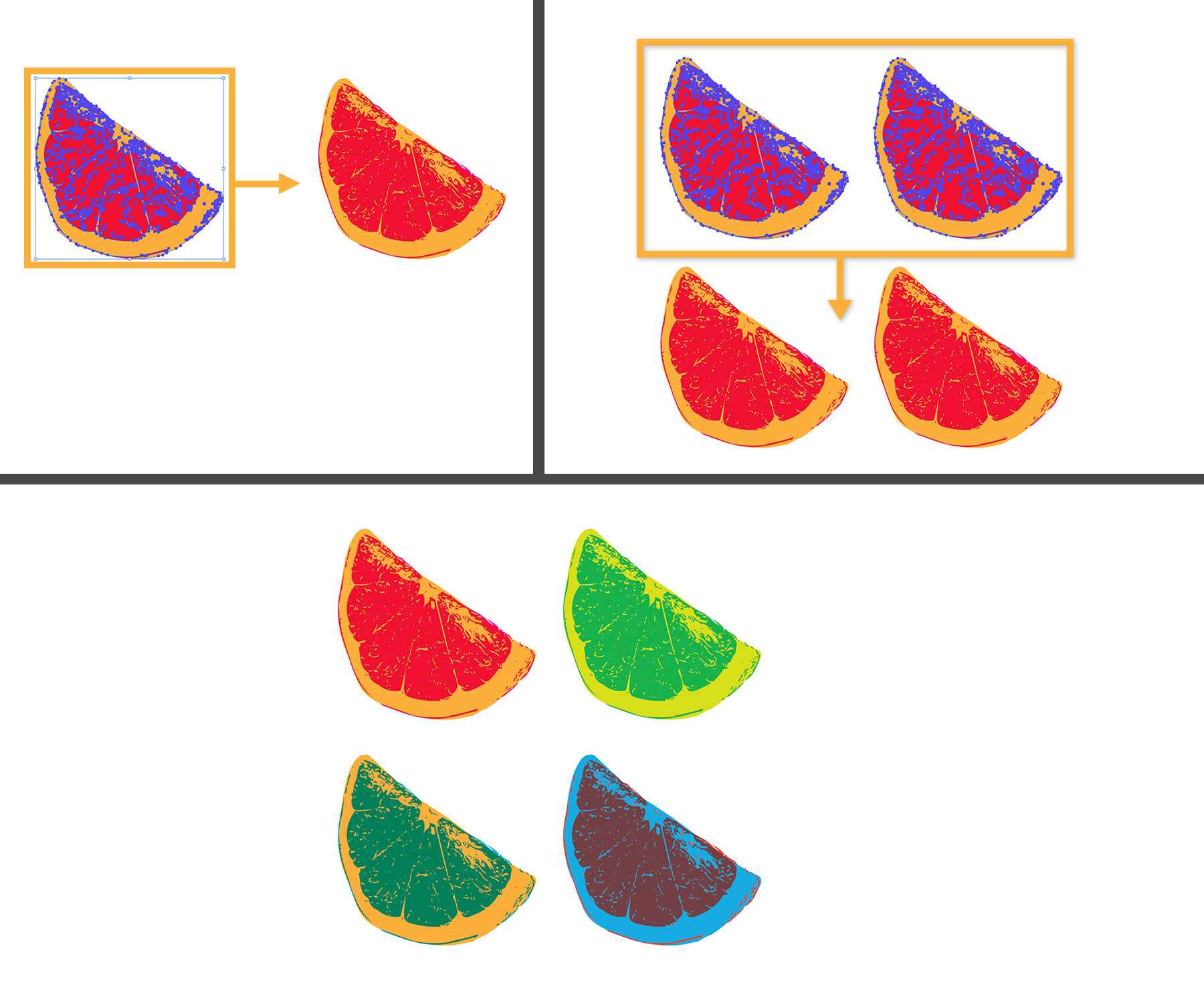
팝아트 디자인을 격자에 배치하여 더욱 향상시켜 봅니다. 모양 주위에 선택 사각형을 그려 두 모양을 모두 선택합니다. Alt+Shift(Windows) 또는 Option+Shift(macOS) 키를 누른 상태에서 직선을 따라 드래그하여 복제합니다. 마우스 버튼을 놓고 가까이에 사본을 배치합니다.
이 단계를 반복하여 동일한 행에 또 다른 사본을 만들거나 전체 행을 선택하고 아래로 드래그하여 복제합니다. 원하는 경우 사본에 색상을 적용합니다.
9
인쇄 또는 온라인에서 공유
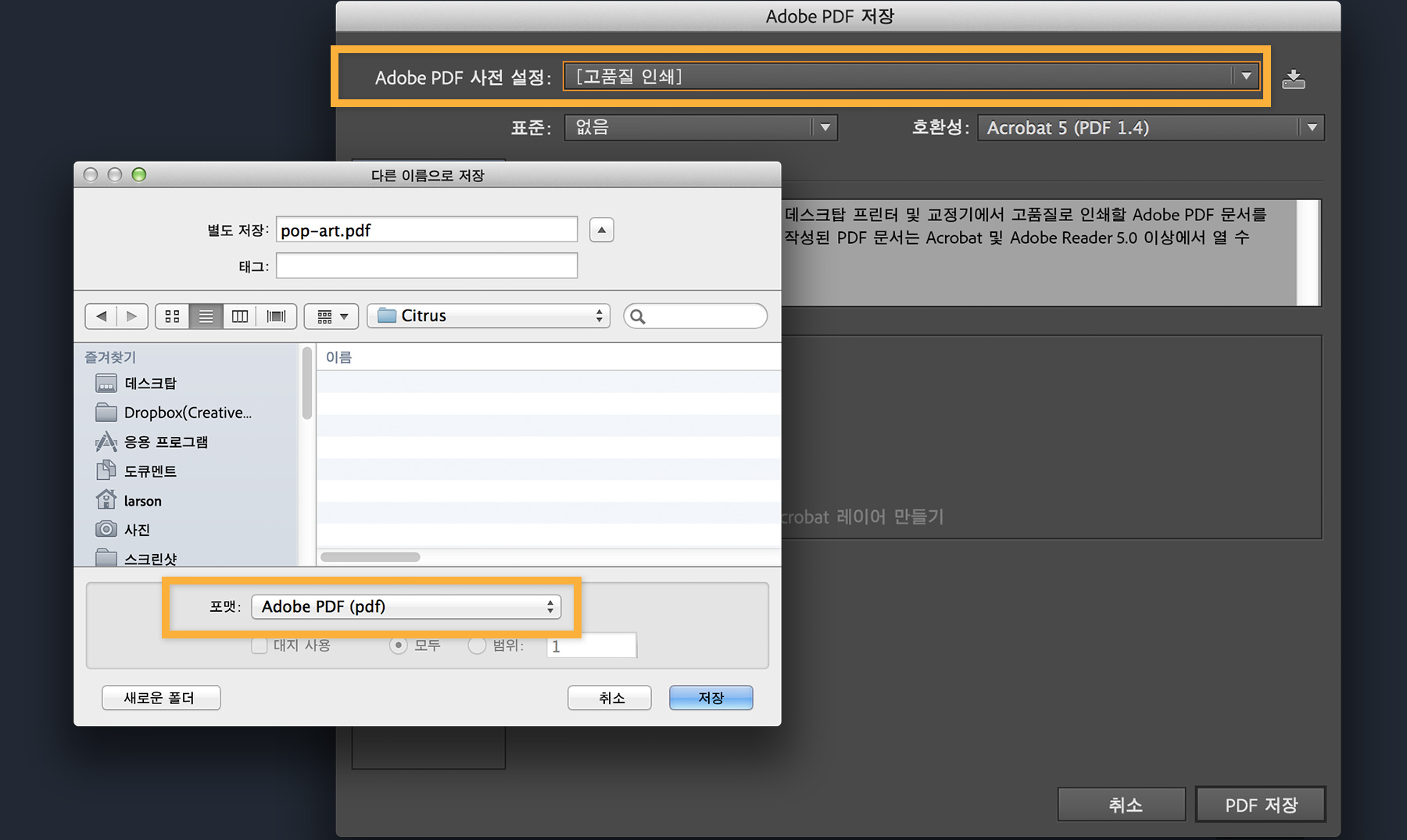
팝아트 일러스트레이션을 저장하여 인쇄하거나 이메일을 통해 전송하려면 PDF 문서로 저장합니다. 파일 > 저장을 선택한 다음 Adobe PDF를 선택합니다. Adobe PDF 사전 설정 메뉴에서 고품질 인쇄 또는 인쇄 업체 권장 설정인 출판 품질을 선택합니다.
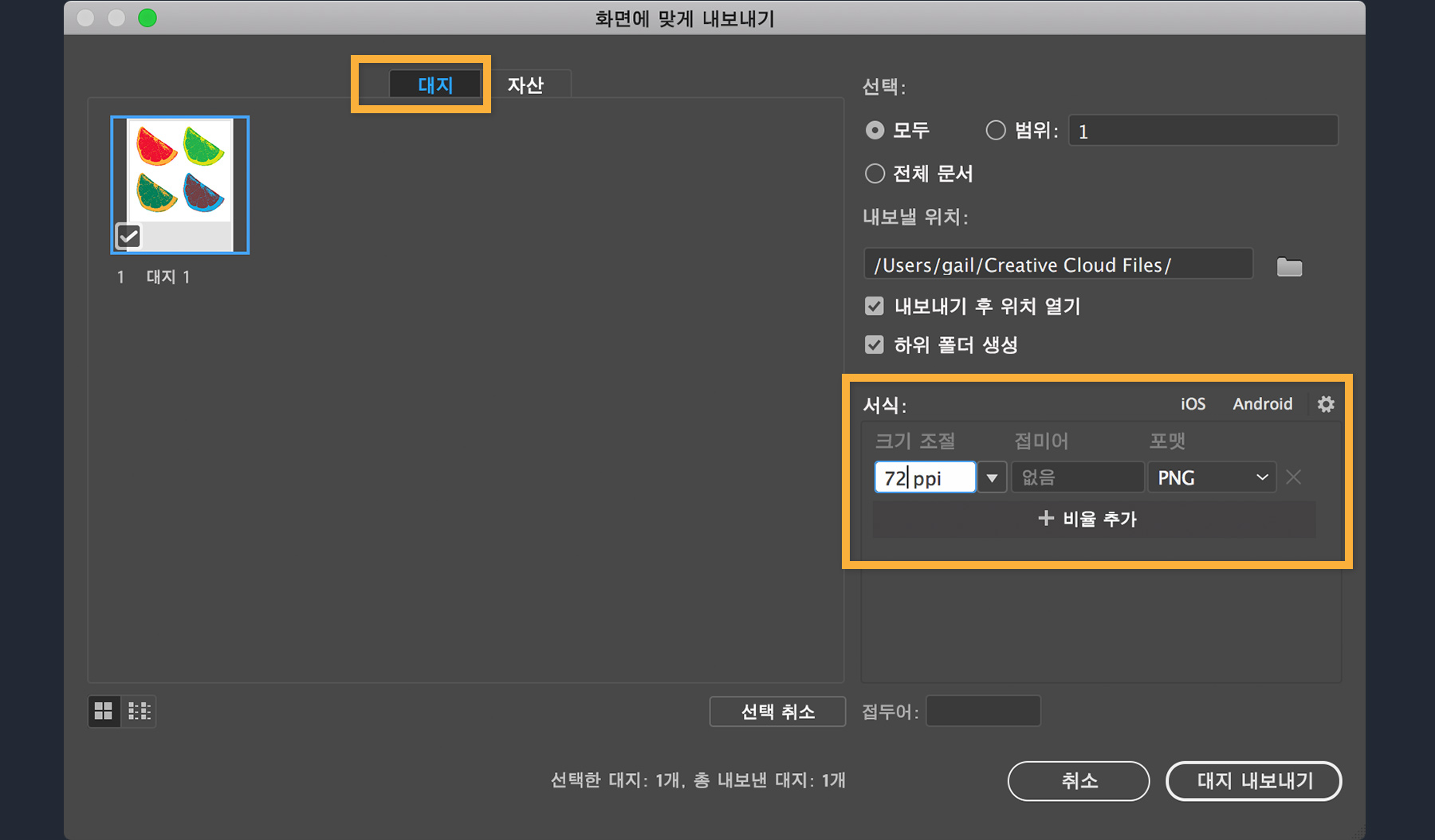
일러스트레이션을 저장하여 화면에서 보려면 파일 > 내보내기 > 화면에 맞게 내보내기를 선택합니다. 화면에 맞게 내보내기 대화 상자에서 대지를 선택하고 파일을 저장할 위치를 선택한 다음 PNG, JPEG 등의 적합한 포맷을 선택합니다. 그런 다음 대지 내보내기를 클릭합니다.
즐거운 시간이 되셨기를 바랍니다. 여러분들이 촬영한 사진으로 직접 연습해 보고 #adobepopart를 통해 디자인을 공유해 주세요.

You can control how Adobe websites use cookies and similar technologies by making choices below. But note that if you disable cookies and similar technologies entirely, Adobe websites may not function properly.
Cookies are small text files stored by your web browser when you use websites. There are also other technologies that can be used for similar purposes like HTML5 Local Storage and local shared objects, web beacons, and embedded scripts. These technologies help us do things like remembering you and your preferences when you return to our sites, measure how you use the website, conduct market research, and gather information about the ads you see and interact with.
You can make choices in the menu below about what cookies and other technologies you want us to use on Adobe sites when you visit them from this browser. You can always change those choices later by clicking on the Cookie Preferences link at the bottom of the page.
If enabled:
We can improve your experience by tailoring the site and the content to things we think might be of interest
We can better keep track of your preferences — like what language you prefer to use
We will better understand your likely interests so we can provide you more relevant Adobe ads and content on non-Adobe websites and in non-Adobe apps
It will help us improve the performance of our website and those of our partners who use the Adobe Experience Cloud
If disabled:
We won’t be able to remember you from session to session so the experience may not be tailored to your interests
You’ll still have access to the content of the site but certain features that depend on cookies may not function
You’ll still see ads, they just may not be as relevant to you
General information
You can control how Adobe websites use cookies and similar technologies by making choices below. But note that if you disable cookies and similar technologies entirely, Adobe websites may not function properly.
Cookies are small text files stored by your web browser when you use websites. There are also other technologies that can be used for similar purposes like HTML5 Local Storage, web beacons, and embedded scripts. These technologies help us do things like remembering you and your preferences when you return to our sites, measure how you use the website, conduct market research, and gather information about the ads you see and interact with.
You can make choices in the menu below about what cookies and other technologies you want us to use on Adobe sites when you visit them from this browser. You can always change those choices later by clicking on the Cookie Preferences link at the bottom of the page.
If enabled:
We can improve your experience by tailoring the site and the content to things we think might be of interest
We can better keep track of your preferences — like what language you prefer to use
We will better understand your likely interests so we can provide you more relevant Adobe ads and content on non-Adobe websites and in non-Adobe apps
It will help us improve the performance of our website and those of our partners who use the Adobe Experience Cloud
If disabled:
We won’t be able to remember you from session to session so the experience may not be tailored to your interests
We’ll still count your use of our site and services
You’ll still have access to the content of the site but certain features that depend on cookies may not function
You’ll still see ads, they just may not be as relevant to you
Operate the site and core servicesOperate site and measure engagement
Always active
These cookies are required, and they are used to enable the site and related services core functionality. Without them the site could not operate, so they cannot be disabled.
These cookies enable the site and related services’ core functionality and collect statistics about user engagement, such as counting active use to help us understand trends. These cookies cannot be disabled.
Measure performance
These cookies are used to analyze site usage to measure and improve performance. Without them Adobe cannot know what content is most valued and how often unique visitors return to the site, making it hard to improve information we offer to you.
These cookies are used to analyze site usage to measure and improve performance. Without them Adobe cannot know what content is most valued, making it hard to improve information we offer to you.
Extend functionality
These cookies are used to enhance the functionality of Adobe sites such as remembering your settings and preferences to deliver a personalized experience; for example, your username, your repeated visits, preferred language, your country, or any other saved preference.
Personalize advertising
These cookies are used to enable Adobe and our partners to serve ads more relevant to your interests. Without them you will still see ads, but they might not be as relevant to you.
Personalize advertising
These cookies are used to enable Adobe and our partners to serve ads more relevant to your interests. Without them you will still see ads, but they might not be as relevant to you.