This sample file contains assets provided by Adobe Stock for your tutorial practice purposes only. Check out the ReadMe file in the folder for the terms of use for this file.Adobe Stock has millions of royalty-free images and videos for your commercial use. You can get 10 images with afree month trial .
1
Download and open the sample file
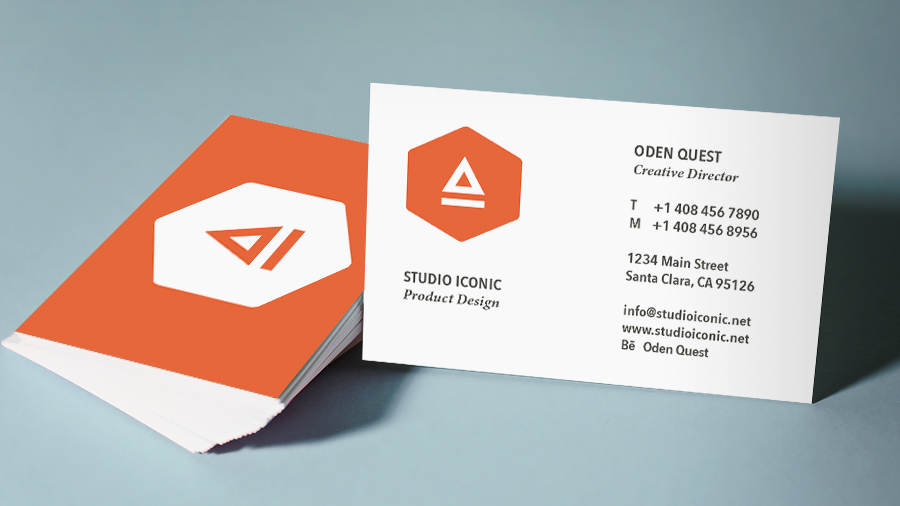
Open the supplied sample file, business-card-design_START.indd. Our sample business card uses standard US dimensions: 3.5 in. x 2 in. For Europe and elsewhere, use 55 mm x 85 mm. With nothing in the document selected, you can see the document settings in the Properties panel on the right.
You’re viewing the front of the business card in Normal mode which lets you see non-printing objects like margins and text frames. Press the W key to switch between Normal and Preview modes — the Preview mode hides the distracting non-printing objects.
Press the W key to return to the Normal mode.
2
Place a logo on the front of the card
Choose File > Place and navigate to the supplied logo-color.ai file. Click Open.
With your cursor loaded with the logo art, click at the intersection of the top and left margins and drag a rectangular frame.
To resize the logo and frame proportionally, with the Selection tool selected in the Toolbar, press Command+Shift (macOS) or Control+Shift (Windows) and drag a corner point.
If you need to move the logo, click the frame with the Selection tool and drag it to the desired position on the page.
3
Replace placeholder text
Select the Type tool in the Toolbar.
Highlight each line of text individually and replace it with your own text. These steps maintain the font, text layout, and text styles.
4
Style your text
Although the text is already formatted, you can customize it by changing various settings in the Character section of the Properties panel.
To format an entire text frame, select the text frame with the Selection tool.
Click the down-facing arrow next to the font name and select a font installed on your computer or click Find More to find and activate an Adobe Font.
To format some text differently, select it with the Type tool and try changing up the look.
Select your name, and then click the All Caps button in the Properties panel. Increase the font size to make it stand out.
Select your title and practice changing the font and font style.
5
Design the back of the card
Now you’ll finish the back of the card. Click the tab for the Pages panel or choose Window > Pages. Double-click the page 2 thumbnail to show it in the document window.
Select the black rectangle with the Selection tool and click the Fill Color box under Appearance in the Properties panel. Select a color swatch — you may have to scroll to see all the colors we provided.
Next, you’ll place another logo using what you learned earlier.
Choose File > Place and navigate to the supplied logo-white.ai file. Click Open.
With the loaded cursor, drag a rectangular frame somewhere on the colored rectangle. Press Command+Shift (macOS) or Control+Shift and drag a corner point on the frame to resize proportionally.
Now, you'll position the logo.
Drag the logo to the center until you see intersecting Smart Guides that help you align your logo precisely.
6
Save your business card
Choose File > Export > Adobe PDF (Print) and click Save.
In the Adobe PDF Preset menu, change the following:
Choose either the High Quality Print or Press Quality options, based on your print provider's recommendations.
Select the Marks and Bleed Marks category and:
Select Crop Marks and Bleed Marks in the Marks section.
Select Use Document Bleed Settings in the Bleed and Slug section.
Click Export to save a print-ready PDF that you can email or upload online.
Note: Since the background runs to the edge of the paper, the sample file is saved with a bleed. The bleed extends the design slightly beyond the page edges so that no white edges show up when the cards are printed and trimmed. SeeHow to set a print bleed to learn more.
You can control how Adobe websites use cookies and similar technologies by making choices below. But note that if you disable cookies and similar technologies entirely, Adobe websites may not function properly.
Cookies are small text files stored by your web browser when you use websites. There are also other technologies that can be used for similar purposes like HTML5 Local Storage and local shared objects, web beacons, and embedded scripts. These technologies help us do things like remembering you and your preferences when you return to our sites, measure how you use the website, conduct market research, and gather information about the ads you see and interact with.
You can make choices in the menu below about what cookies and other technologies you want us to use on Adobe sites when you visit them from this browser. You can always change those choices later by clicking on the Cookie Preferences link at the bottom of the page.
If enabled:
We can improve your experience by tailoring the site and the content to things we think might be of interest
We can better keep track of your preferences — like what language you prefer to use
We will better understand your likely interests so we can provide you more relevant Adobe ads and content on non-Adobe websites and in non-Adobe apps
It will help us improve the performance of our website and those of our partners who use the Adobe Experience Cloud
If disabled:
We won’t be able to remember you from session to session so the experience may not be tailored to your interests
You’ll still have access to the content of the site but certain features that depend on cookies may not function
You’ll still see ads, they just may not be as relevant to you
General information
You can control how Adobe websites use cookies and similar technologies by making choices below. But note that if you disable cookies and similar technologies entirely, Adobe websites may not function properly.
Cookies are small text files stored by your web browser when you use websites. There are also other technologies that can be used for similar purposes like HTML5 Local Storage, web beacons, and embedded scripts. These technologies help us do things like remembering you and your preferences when you return to our sites, measure how you use the website, conduct market research, and gather information about the ads you see and interact with.
You can make choices in the menu below about what cookies and other technologies you want us to use on Adobe sites when you visit them from this browser. You can always change those choices later by clicking on the Cookie Preferences link at the bottom of the page.
If enabled:
We can improve your experience by tailoring the site and the content to things we think might be of interest
We can better keep track of your preferences — like what language you prefer to use
We will better understand your likely interests so we can provide you more relevant Adobe ads and content on non-Adobe websites and in non-Adobe apps
It will help us improve the performance of our website and those of our partners who use the Adobe Experience Cloud
If disabled:
We won’t be able to remember you from session to session so the experience may not be tailored to your interests
We’ll still count your use of our site and services
You’ll still have access to the content of the site but certain features that depend on cookies may not function
You’ll still see ads, they just may not be as relevant to you
Operate the site and core servicesOperate site and measure engagement
Always active
These cookies are required, and they are used to enable the site and related services core functionality. Without them the site could not operate, so they cannot be disabled.
These cookies enable the site and related services’ core functionality and collect statistics about user engagement, such as counting active use to help us understand trends. These cookies cannot be disabled.
Measure performance
These cookies are used to analyze site usage to measure and improve performance. Without them Adobe cannot know what content is most valued and how often unique visitors return to the site, making it hard to improve information we offer to you.
These cookies are used to analyze site usage to measure and improve performance. Without them Adobe cannot know what content is most valued, making it hard to improve information we offer to you.
Extend functionality
These cookies are used to enhance the functionality of Adobe sites such as remembering your settings and preferences to deliver a personalized experience; for example, your username, your repeated visits, preferred language, your country, or any other saved preference.
Personalize advertising
These cookies are used to enable Adobe and our partners to serve ads more relevant to your interests. Without them you will still see ads, but they might not be as relevant to you.
Personalize advertising
These cookies are used to enable Adobe and our partners to serve ads more relevant to your interests. Without them you will still see ads, but they might not be as relevant to you.