Introduction
Hi there!
Have you ever thought about making your first document in InDesign but wondered where to start?
I'm Dave Clayton, and in the following videos, I will show you how easy it can be to get started and create a stunning trifold brochure design.
We'll look at setting up our document, creating a simple layout, then we'll dive into adding some eye-catching content, design elements, and then how to export your brochure for print.
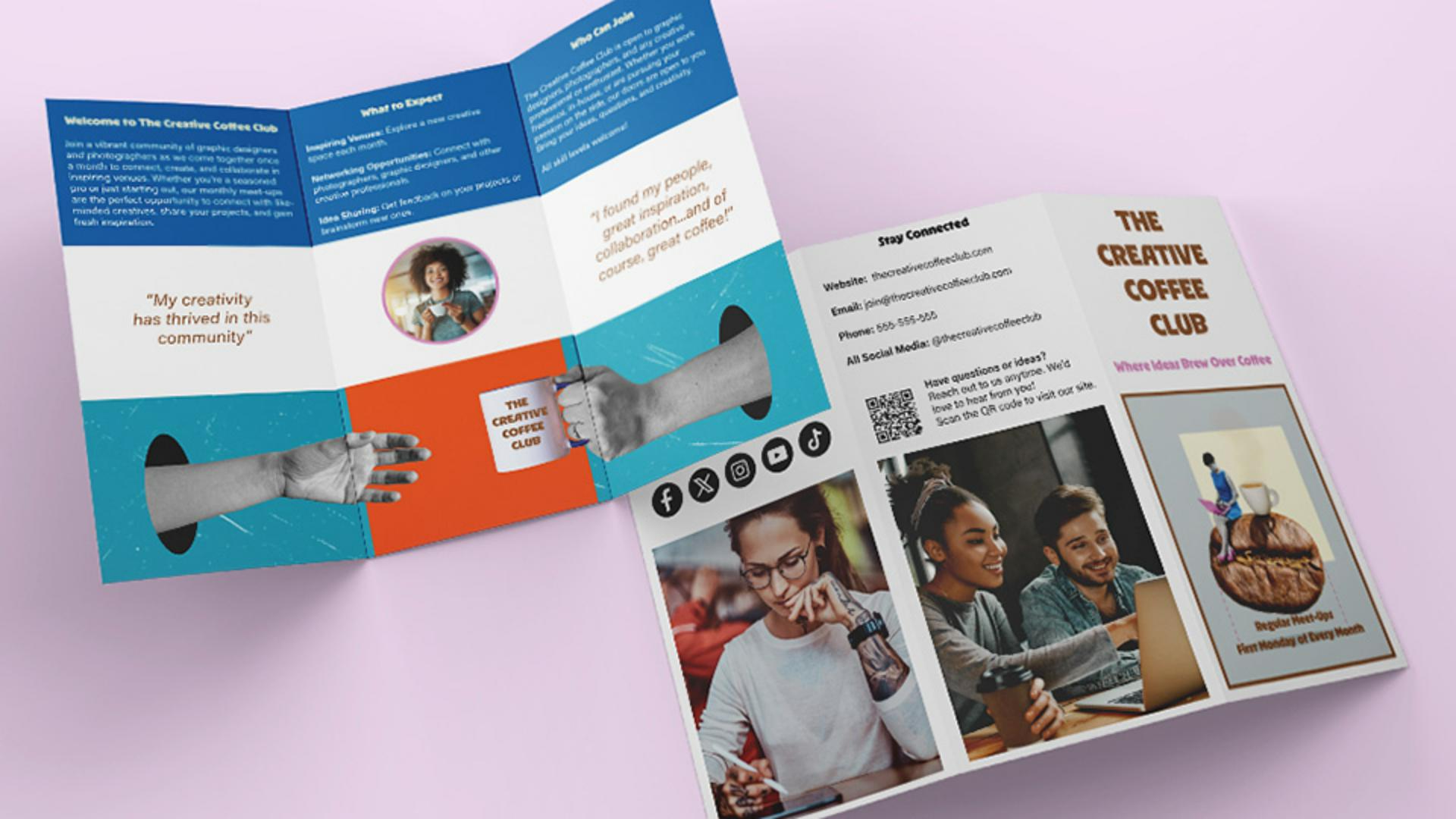
Here's what we're going to be creating over the next three videos.
Pretty cool, right?
It's time to fire up InDesign, and let's get started by setting up our document.
Understanding trifold brochure layout
Setting up your InDesign document correctly from the start is a crucial step in any design or print project.
Before we start, here's how a trifold document works.
We have two pages, and you can see in the photo where each panel is located.
We will be adding content to each panel and across the panels.
Let's set up our document.
Creating a new InDesign document
First, go up to File, and select New, Document... or click on the New file on the home screen if that's what you see when you start InDesign.
Once you've done that, you'll be presented with your New Document dialog panel.
Now we need to set our paper size next.
Since I'm in the UK, I'll be working with A4 size, which means setting the Width to 297 mm and the Height to 210 mm, which is also a Preset in the Print menu, along with some other size options.
If you're in the US, you can follow along using US Letter or Legal size instead.
Just keep in mind that US paper sizes are measured in inches.
For example, Letter size is 11 in x 8.5 in in Landscape.
The setup process is exactly the same, you'll just be working with different dimensions.
We need this document to be in Landscape mode,
Configuring pages, columns, and margins
and we need 2 Pages, one for the front and one for the back of the brochure.
Let's also set up the document spacing.
This time, I'll set the Gutter, which is the gap between columns to 5 mm, which is about 0.2 in.
This keeps the content a little closer to the edges while giving some breathing room.
For now, we need to turn off Facing Pages.
Since this is a trifold, we need to divide the page into three sections.
To do that, we'll set the Columns to 3 and adjust the Margins, which is the space around the edge of the columns, to 10 mm, which is roughly 0.4 in.
This adds a bit more space between the fold lines and matches the Gutter spacing.
We will leave all the other settings for the moment.
Now that everything is set exactly to how you need it, let's have a look at how we can save this for future use.
Saving the document as a preset template
Up here at the top, we can name our document, but next to that is the Save Document Preset icon.
Click this, and we're taken to the Preset menu.
Here, it will ask you to name your preset and also let you make any final setting changes.
Give it something clear, like A4 Trifold Brochure Setup, and click on Save Preset.
From now on, whenever you create a new document, you can find your saved set up under the Saved tab in the New Document window over here.
Just select your preset, click Create, and InDesign will automatically apply all your preferred settings, saving you time and ensuring consistency across projects.
Now that it's all set, we're ready to move on.
That's it for this video.
You've now successfully set up your document for your trifold brochure and saved it as a template.
In the next video, we'll take it up a creative notch by adding content, design elements, and making it visually stunning.
I'll see you there.





