
Ознакомьтесь с этими руководствами к Photoshop
Редактируйте фотографии, чтобы создавать новые изображения и графику.
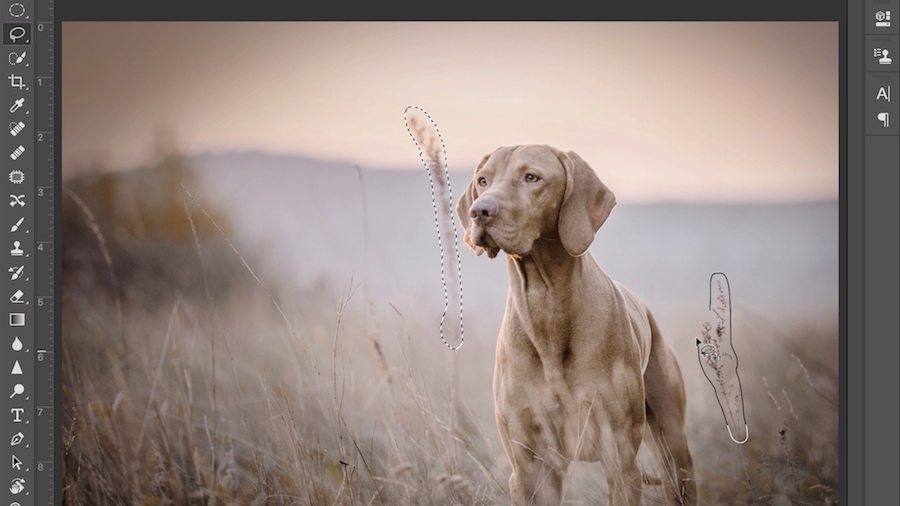
Open up your image in Photoshop and use the Lasso tool to outline the elements you want to remove, leaving room for nearby color and texture to be referenced for blending the fill.
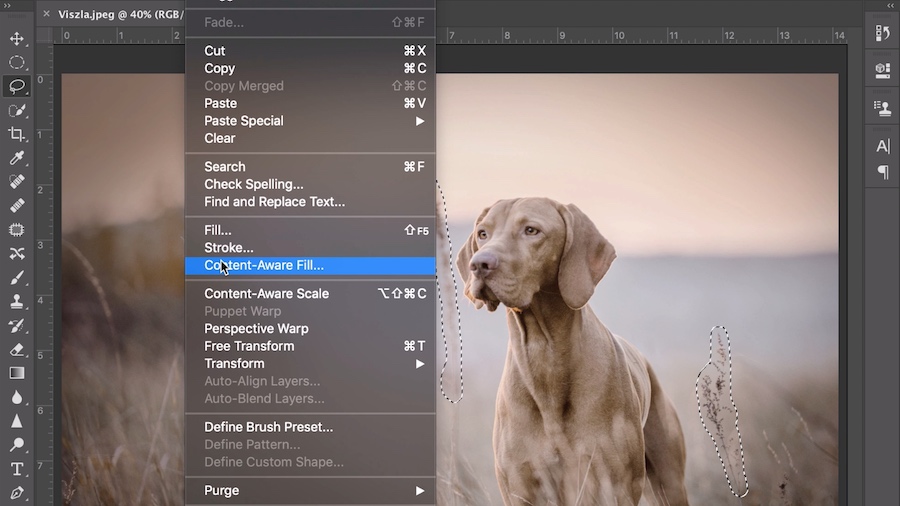
Under Edit, select Content-Aware Fill. Adobe Sensei, our artificial intelligence and machine learning technology, goes to work, analyzing the nearby colors and textures.
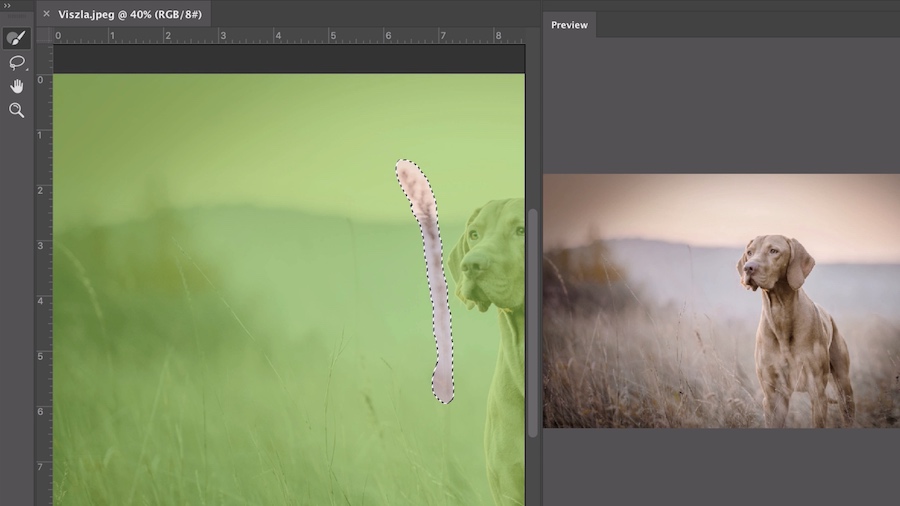
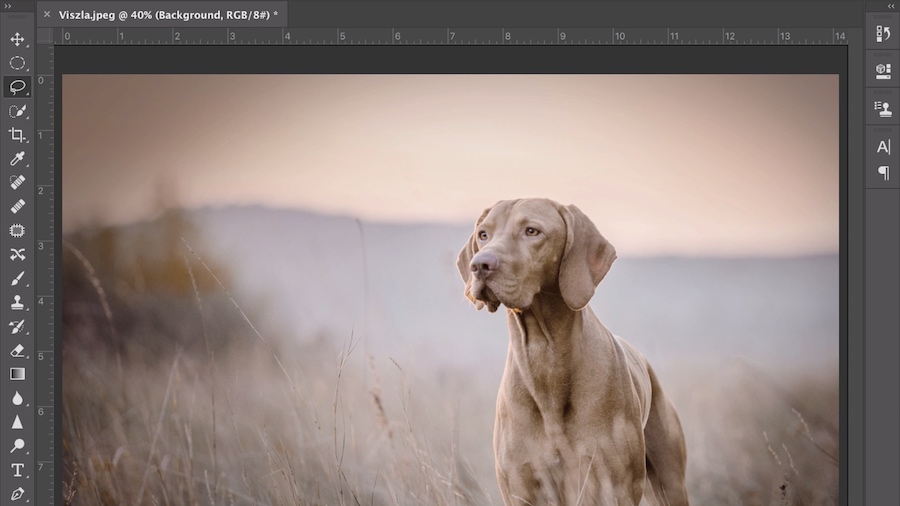
Click OK. The selected area is automatically replaced.
Use the Quick Selection tool and click Select Subject.
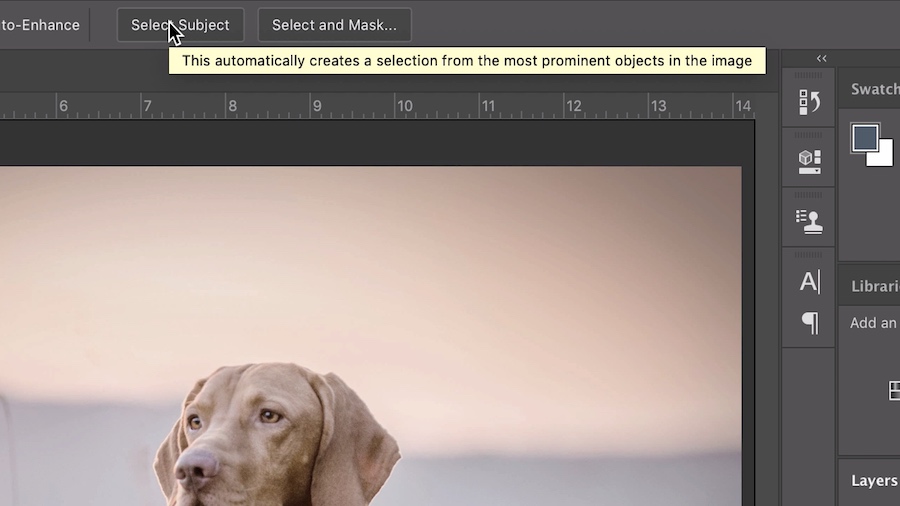
The feature automatically selects the most prominent subject in the image.
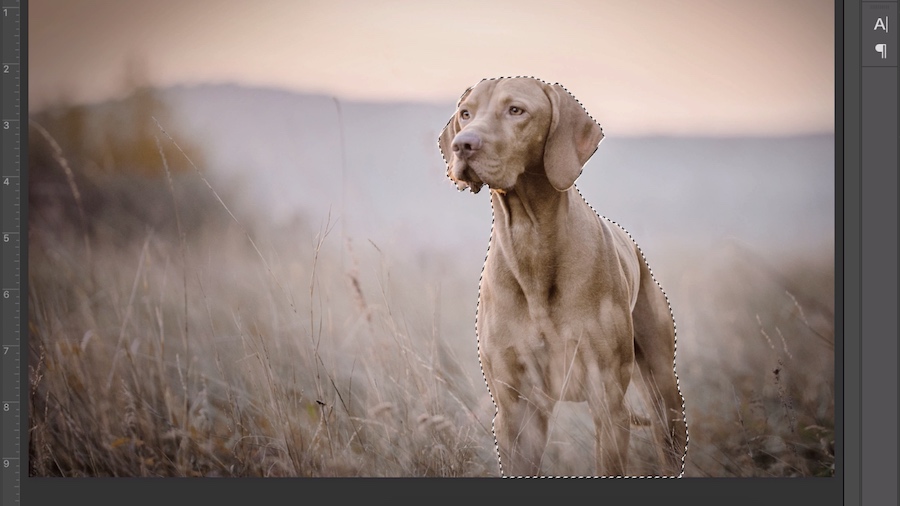
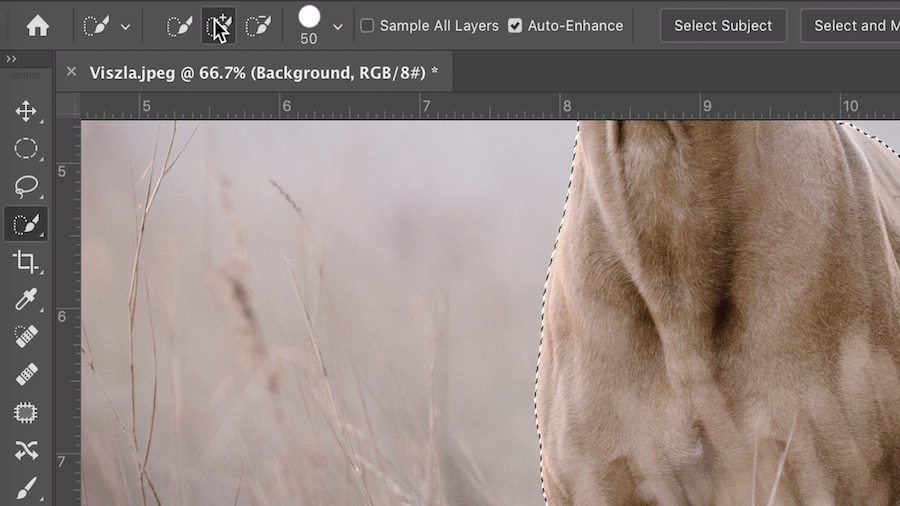
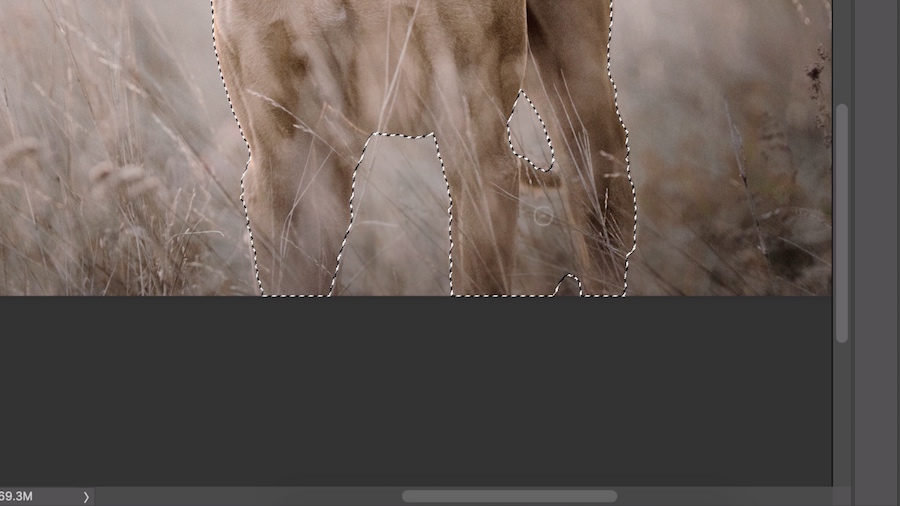
Using the Quick Selection tool, in the Options bar change the Create New Selection option to the Add to Selection option, and refine the selection as needed.
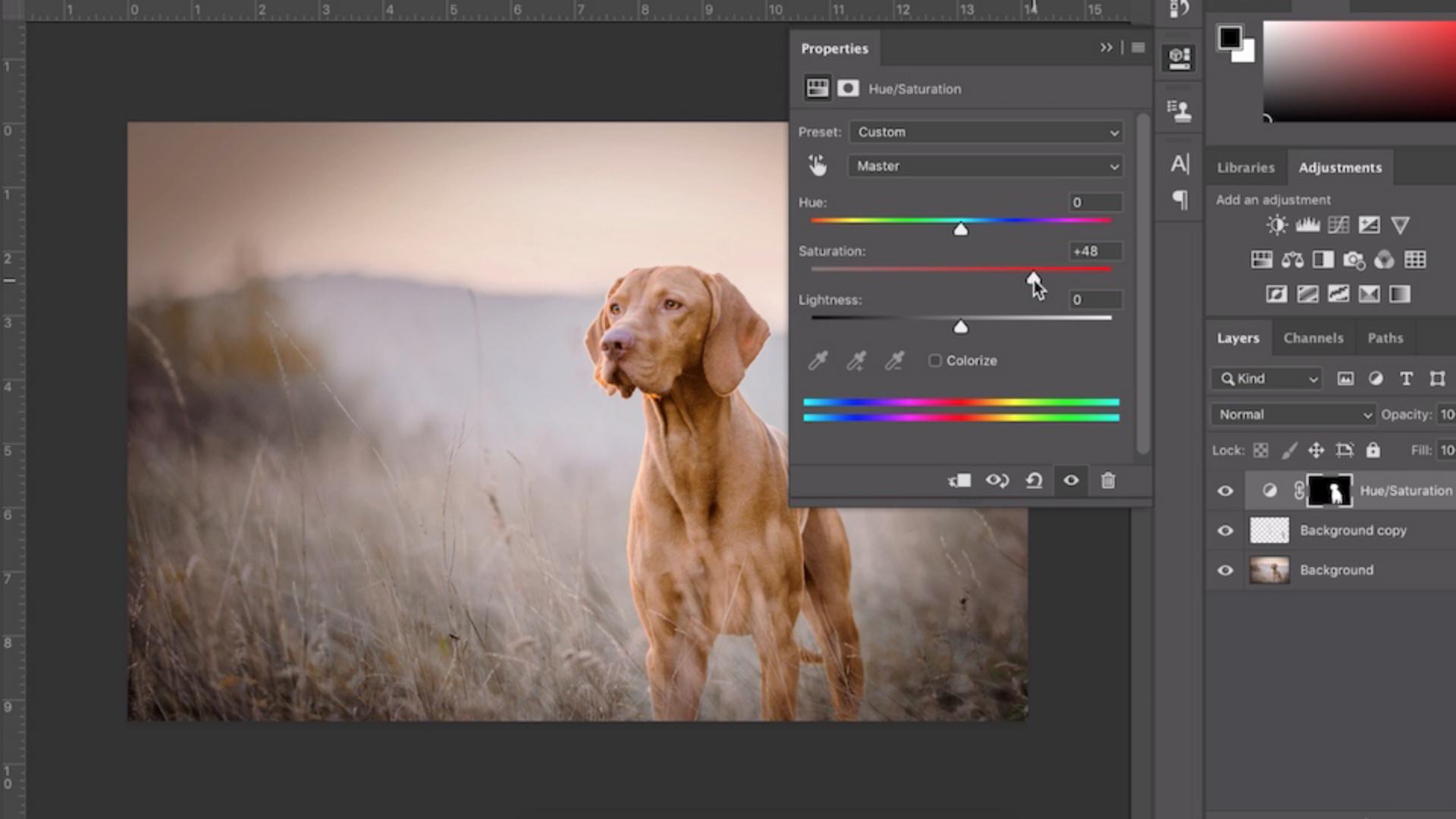
Change various values in the Adjustments panel, such as Hue/Saturation, Brightness/Contrast, Color Balance, and Curves.
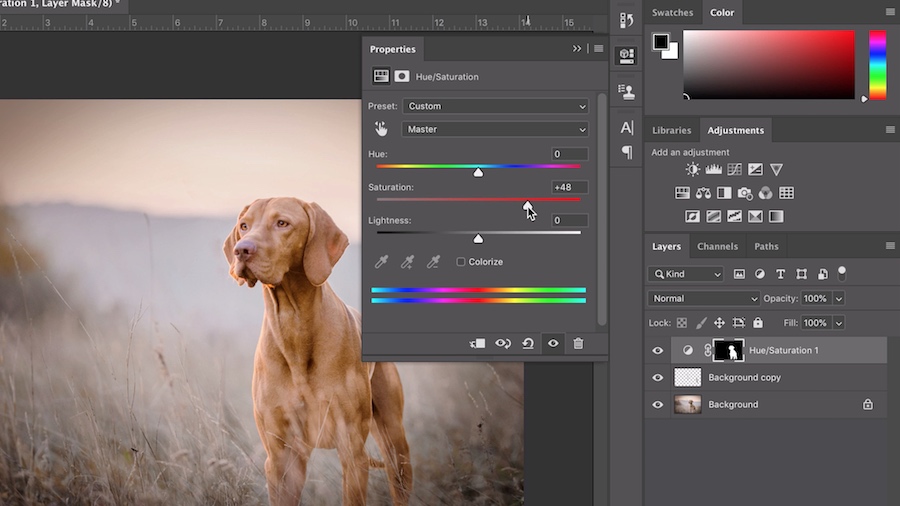
Your presentation photo now has more finesse and impact.