
1. Скачайтематериалы к уроку и откройте файл circular-stretch-effect.psd в Photoshop.
2. Нажмите на значок Создать новый слой, чтобы создать новый пустой слой.
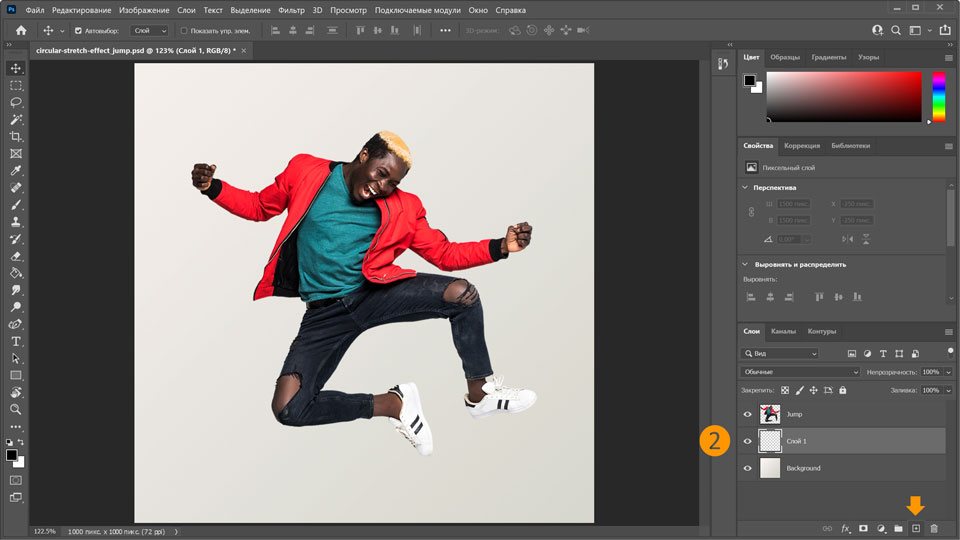
Создание эффекта растягивания пикселей
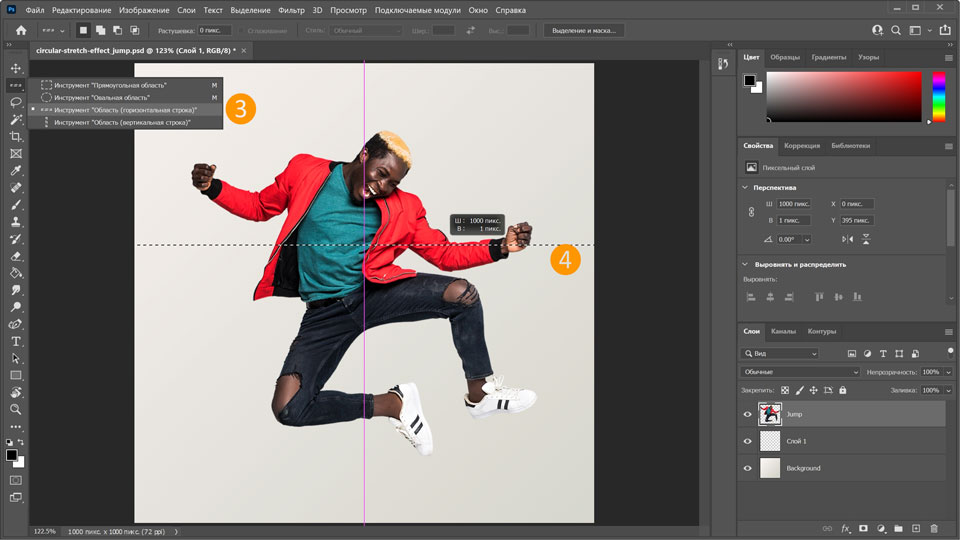
3. Выберите слой Jump, затем нажмите на инструмент Прямоугольная область и, удерживая нажатой кнопку мыши, выберите в контекстном меню инструмент Область (горизонтальная строка).
4. Нажмите на точку на изображении, на котором присутствует большая часть цветов. Выделенная область будет обведена пунктирной линией. Скопируйте выбранную область, выбрав Редактирование > Копировать (комбинация клавиш Ctrl+C в Windows или ⌘+C в macOS).
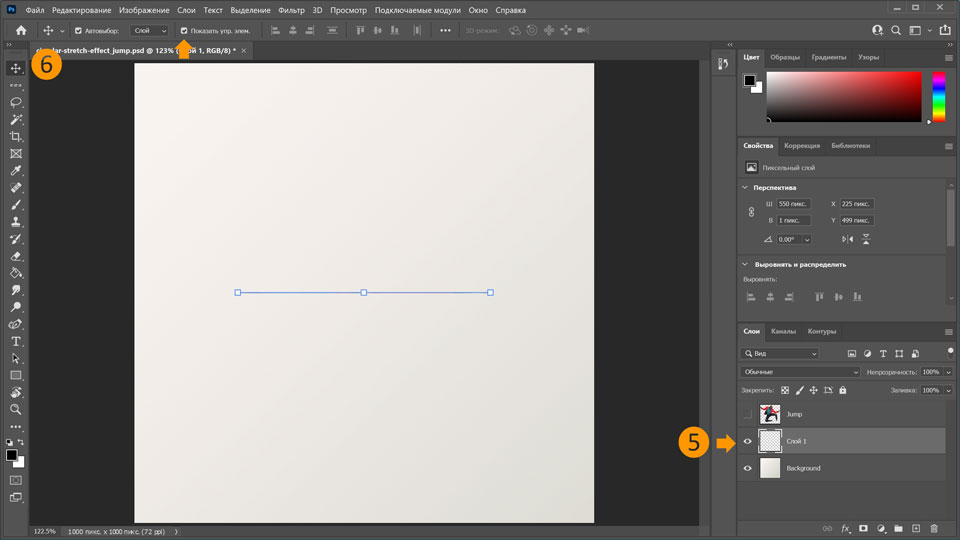
5. Теперь выберите пустой слой, созданный ранее, и вставьте выделенную область, для этого нажмите Редактирование > Вставить (комбинация клавиш Ctrl+V в Windows или ⌘+V в macOS).
6. Чтобы повернуть и растянуть разноцветную линию, выберите инструмент Перемещение и установите флажок Показать элементы управления трансформированием. Появятся три маркера.
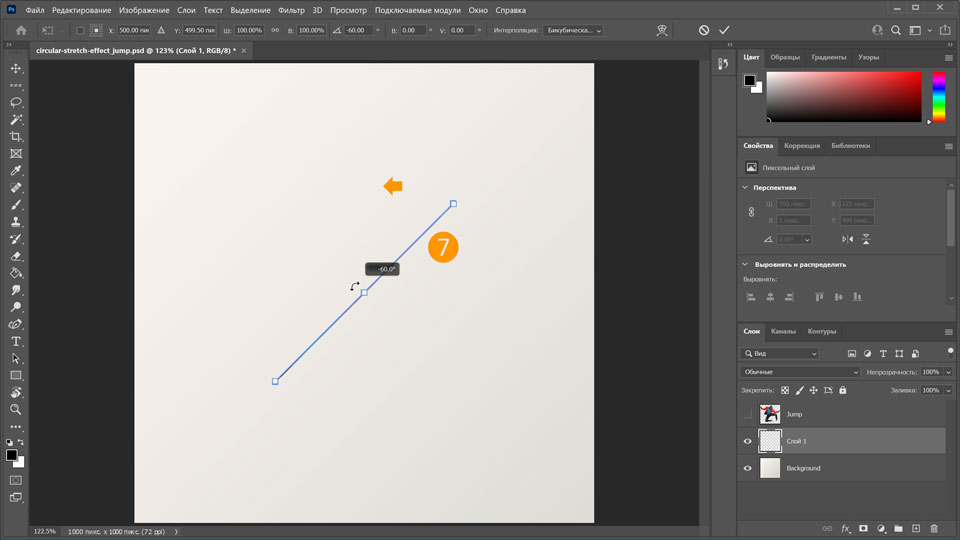
7. Переместите курсор на маркер в середине выделенной области, так чтобы отобразился курсор с двумя стрелками. Теперь, удерживая клавишу Shift
, поверните выделенную область на 90 градусов.
Совет. Если удерживать нажатой клавишу Shift во время поворота, выделенная область поворачивается с шагом 15 градусов, что позволяет точно повернуть ее на 90 градусов.
8. Используйте Shift в Windows или Shift+Option в macOS и перетащите, чтобы растянуть выделенную область по ширине документа влево и вправо.
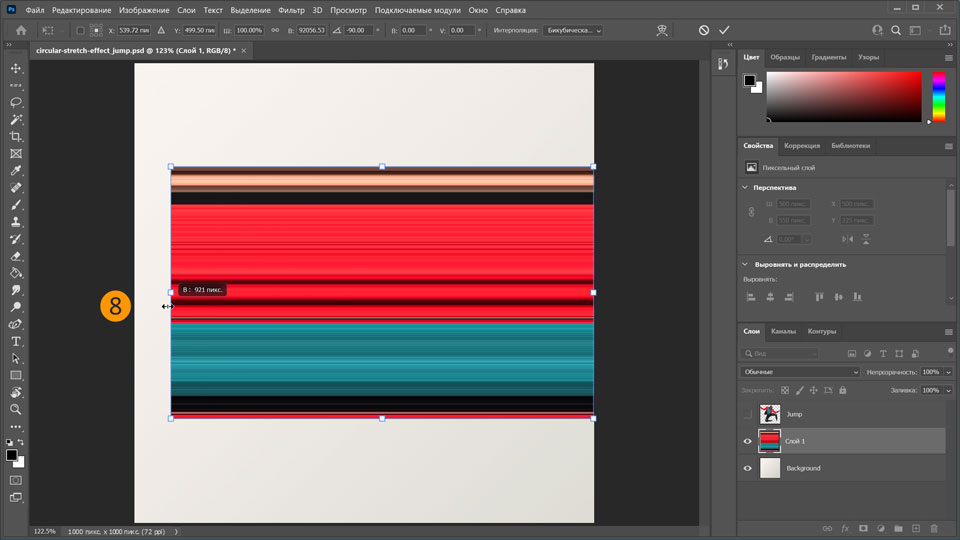
9. Используйте Shift в Windows или Shift+Option в macOS еще раз и перетащите, чтобы немного растянуть выделенную область вверх и вниз.
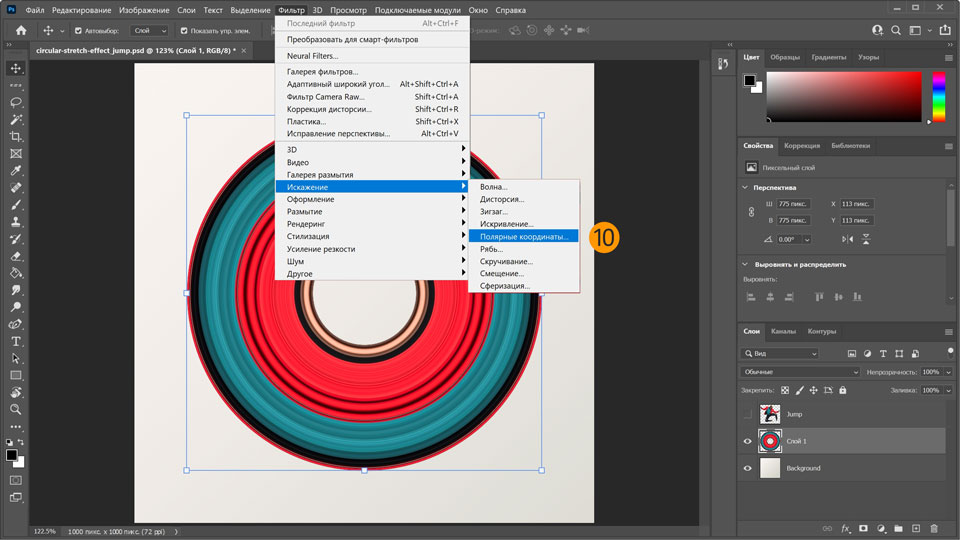
10. В главном меню выберите Фильтр > Искажение > Полярные координаты, чтобы преобразовать горизонтальный эффект растягивания в круговой.
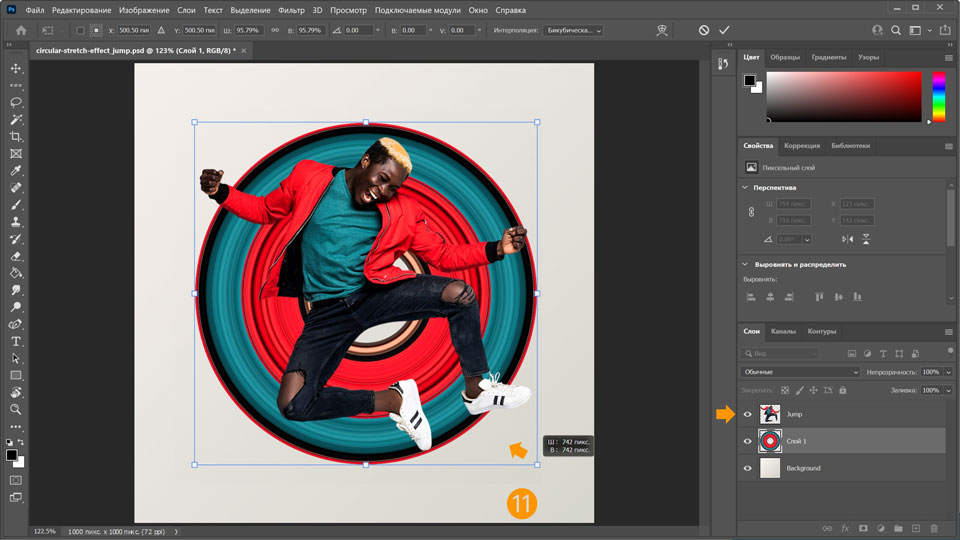
11. Снова сделайте слой Jump
видимым и отрегулируйте размер кругового эффекта растягивания за ним, удерживая нажатой клавишу Alt и перетаскивая маркер.
Частичное скрытие кругового эффекта
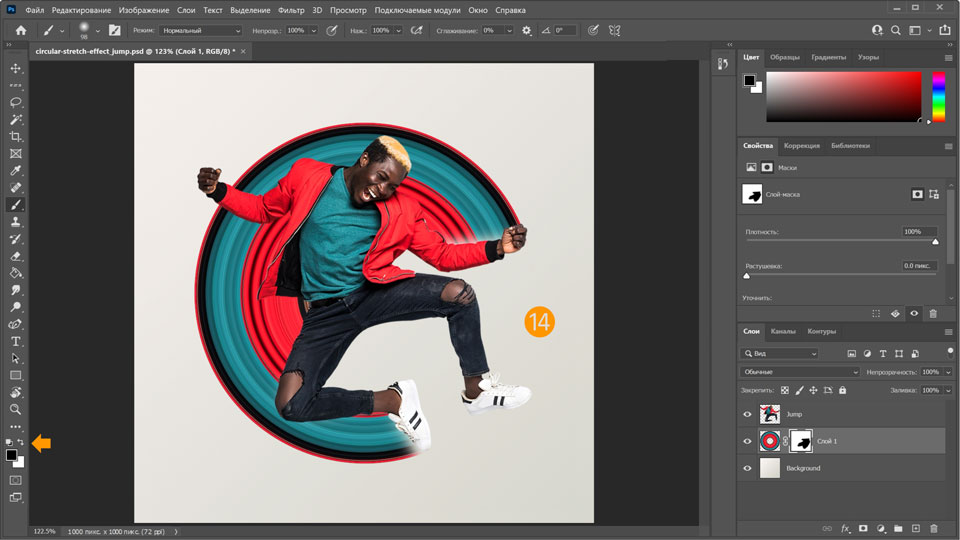
12. Выбрав слой Layer 1, нажмите на значок Добавить слой-маску в нижней части панели слоев.
13. Выберите инструмент Кисть, установите для нее черный цвет и используйте, чтобы скрыть отдельные области кругового эффекта.
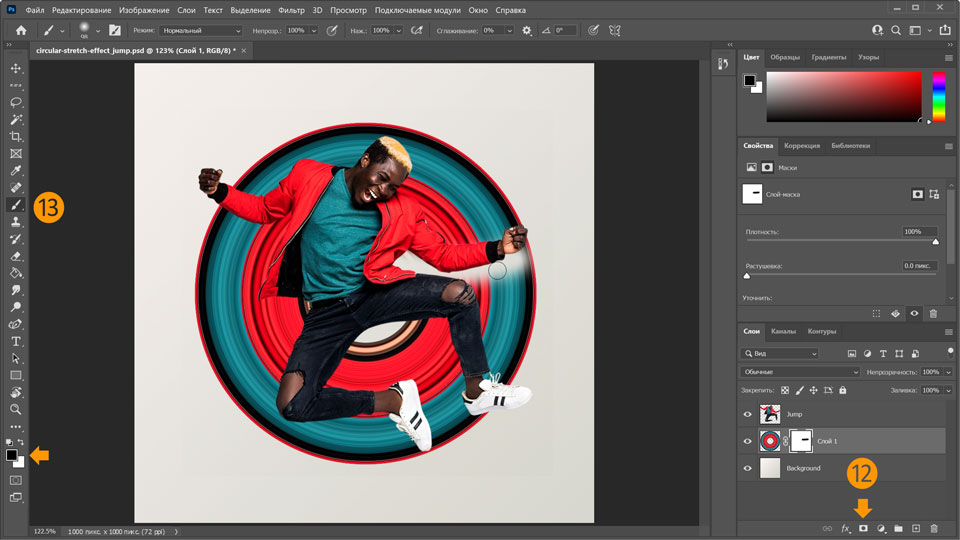
14. Продолжайте рисовать черным цветом на маске, пока не будут скрыты все нежелательные участки кругового эффекта. Если необходимо снова отобразить области кругового эффекта, просто измените цвет переднего плана на белый и перекрасьте.
Вот и всё!
Теперь ваша очередь. Создайте круговой эффект растягивания пикселей в Photoshop. Скачайте наши материалы или используйте собственные. Опубликуйте готовую работу в Facebook, Twitter или Instagram с хештегом #MadewithPhotoshop. Получайте отзывы и общайтесь с другими творческими людьми.
You can control how Adobe websites use cookies and similar technologies by making choices below. But note that if you disable cookies and similar technologies entirely, Adobe websites may not function properly.
Cookies are small text files stored by your web browser when you use websites. There are also other technologies that can be used for similar purposes like HTML5 Local Storage and local shared objects, web beacons, and embedded scripts. These technologies help us do things like remembering you and your preferences when you return to our sites, measure how you use the website, conduct market research, and gather information about the ads you see and interact with.
You can make choices in the menu below about what cookies and other technologies you want us to use on Adobe sites when you visit them from this browser. You can always change those choices later by clicking on the Cookie Preferences link at the bottom of the page.
If enabled:
We can improve your experience by tailoring the site and the content to things we think might be of interest
We can better keep track of your preferences — like what language you prefer to use
We will better understand your likely interests so we can provide you more relevant Adobe ads and content on non-Adobe websites and in non-Adobe apps
It will help us improve the performance of our website and those of our partners who use the Adobe Experience Cloud
If disabled:
We won’t be able to remember you from session to session so the experience may not be tailored to your interests
You’ll still have access to the content of the site but certain features that depend on cookies may not function
You’ll still see ads, they just may not be as relevant to you
General information
You can control how Adobe websites use cookies and similar technologies by making choices below. But note that if you disable cookies and similar technologies entirely, Adobe websites may not function properly.
Cookies are small text files stored by your web browser when you use websites. There are also other technologies that can be used for similar purposes like HTML5 Local Storage, web beacons, and embedded scripts. These technologies help us do things like remembering you and your preferences when you return to our sites, measure how you use the website, conduct market research, and gather information about the ads you see and interact with.
You can make choices in the menu below about what cookies and other technologies you want us to use on Adobe sites when you visit them from this browser. You can always change those choices later by clicking on the Cookie Preferences link at the bottom of the page.
If enabled:
We can improve your experience by tailoring the site and the content to things we think might be of interest
We can better keep track of your preferences — like what language you prefer to use
We will better understand your likely interests so we can provide you more relevant Adobe ads and content on non-Adobe websites and in non-Adobe apps
It will help us improve the performance of our website and those of our partners who use the Adobe Experience Cloud
If disabled:
We won’t be able to remember you from session to session so the experience may not be tailored to your interests
We’ll still count your use of our site and services
You’ll still have access to the content of the site but certain features that depend on cookies may not function
You’ll still see ads, they just may not be as relevant to you
Operate the site and core servicesOperate site and measure engagement
Always active
These cookies are required, and they are used to enable the site and related services core functionality. Without them the site could not operate, so they cannot be disabled.
These cookies enable the site and related services’ core functionality and collect statistics about user engagement, such as counting active use to help us understand trends. These cookies cannot be disabled.
Measure performance
These cookies are used to analyze site usage to measure and improve performance. Without them Adobe cannot know what content is most valued and how often unique visitors return to the site, making it hard to improve information we offer to you.
These cookies are used to analyze site usage to measure and improve performance. Without them Adobe cannot know what content is most valued, making it hard to improve information we offer to you.
Extend functionality
These cookies are used to enhance the functionality of Adobe sites such as remembering your settings and preferences to deliver a personalized experience; for example, your username, your repeated visits, preferred language, your country, or any other saved preference.
Personalize advertising
These cookies are used to enable Adobe and our partners to serve ads more relevant to your interests. Without them you will still see ads, but they might not be as relevant to you.
Personalize advertising
These cookies are used to enable Adobe and our partners to serve ads more relevant to your interests. Without them you will still see ads, but they might not be as relevant to you.