1. Скачайтематериалы к уроку и откройте файл Book mockup.psd в Photoshop.
Совет. Важно, чтобы используемые ресурсы подходили друг к другу. Предоставленный макет страницы приблизительно соответствует размерам макета книги из Adobe Stock.
Вставьте композицию в макет книги
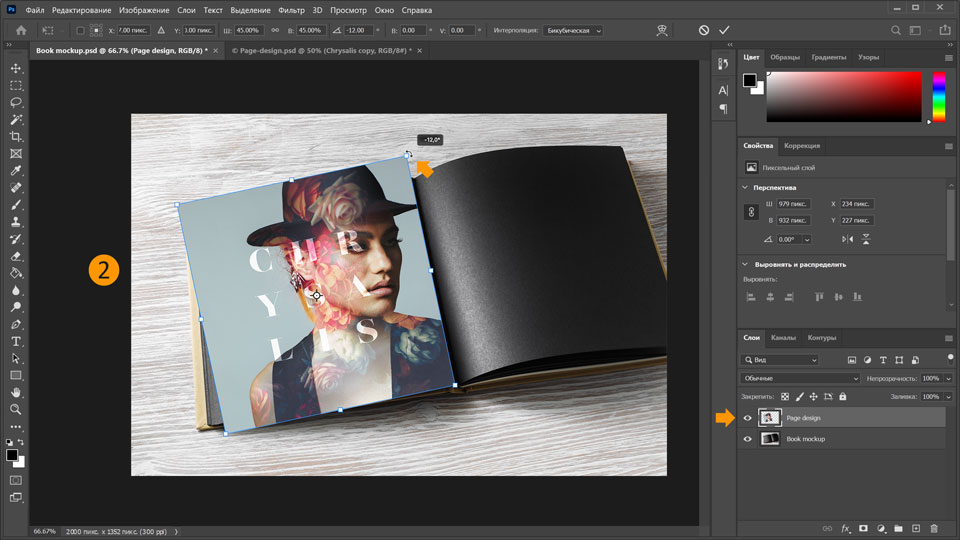
2. Выберите слой Page design и используйте Control + T (Windows) или Command + T (macOS), чтобы открыть инструмент Трансформирование
. Перетащите макет страницы на левую страницу открытой книги и поверните макет страницы примерно на 12 градусов, чтобы он приблизительно соответствовал углу поворота страницы книги.
Совет. Если переместить указатель мыши немного за пределы макета страницы, курсор превратится в концентрическую двустороннюю стрелку, с помощью которой можно вращать объект с помощью движения мыши.
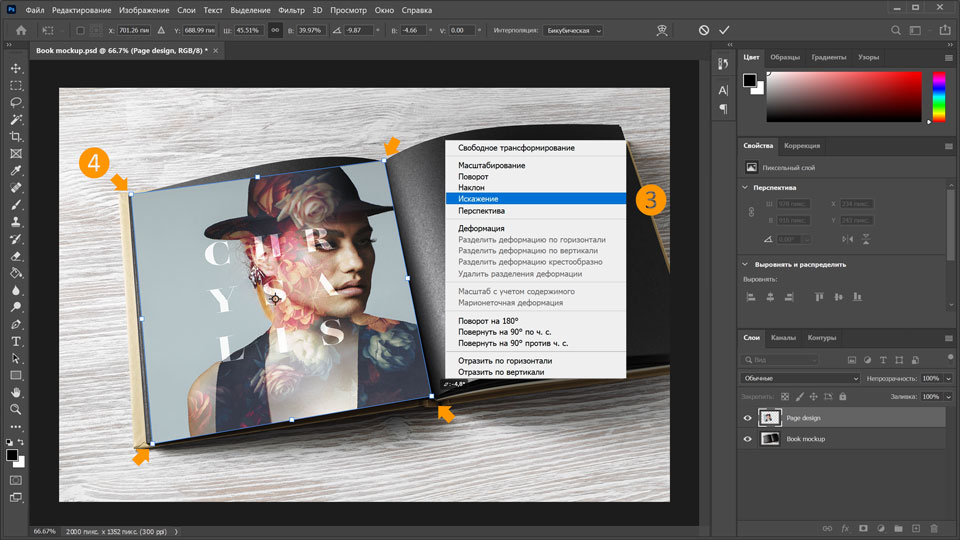
3. Затем трансформируйте макет страницы. Выбрав слой макета, правой кнопкой мыши нажмите на макет страницы и выберите Искажение.
4. Перетащите каждый угол макета страницы, чтобы совместить их с углами левой страницы.
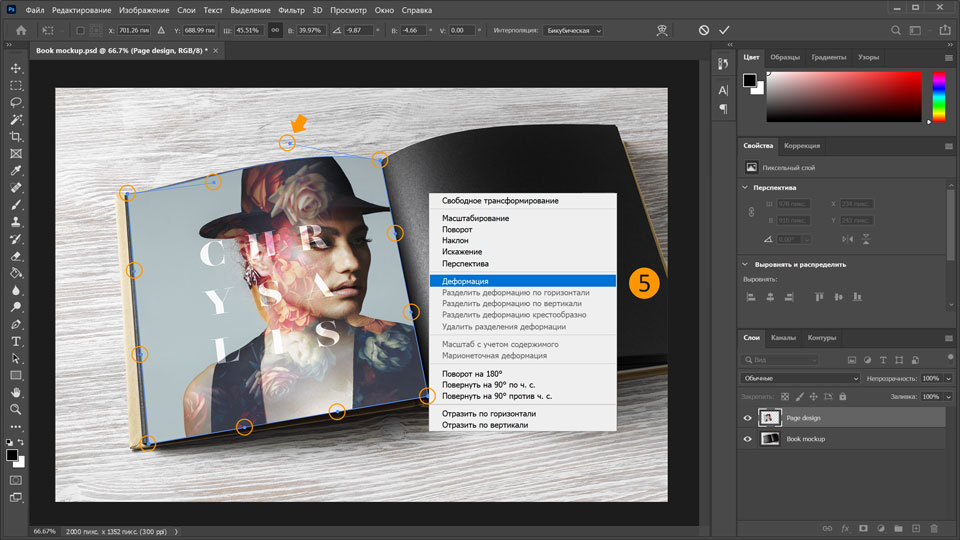
5. Теперь настройте кривые. Правой кнопкой мыши нажмите на макет страницы и выберите Деформация. Появятся 12 точек-маркеров. Настройте каждый маркер, чтобы выровнять края по отношению к краям страницы. По завершении нажмите Enter или Return.
Создайте освещение
6. Чтобы макет выглядел максимально реалистично, необходимо создать освещение. Для этого дважды нажмите на слой макета страницы, чтобы открыть диалоговое окно Стиль слоя. Нажмите на Наложение градиента слева, затем нажмите на Поле градиента и выберите градиент от черного к белому из категории Основные. Также выберите следующие настройки:
a. Режим наложения: Умножение.
b. Непрозрачность: 90%.
c. Угол: −170.
d. Масштаб: 15%.
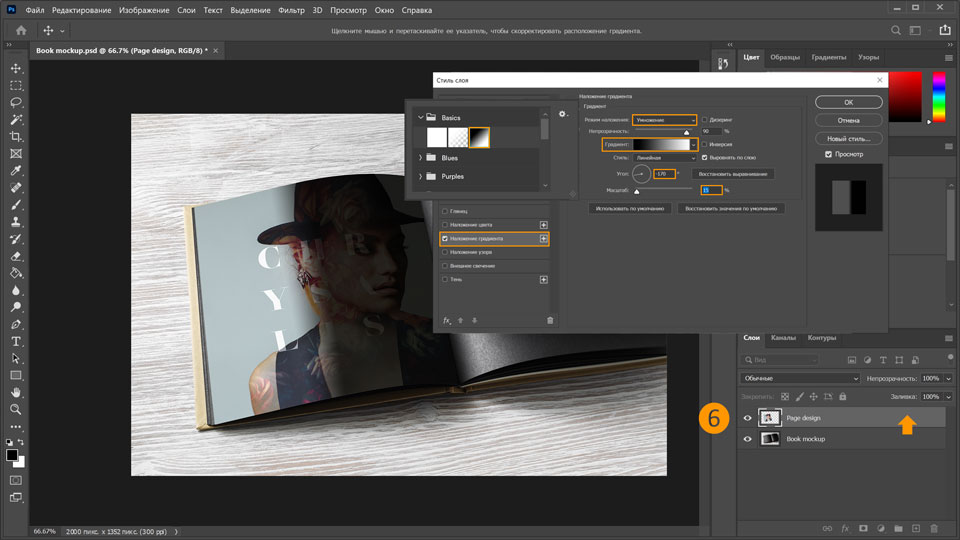
7. Не закрывая диалоговое окно Стиль слоя, используйте инструмент Выделение, чтобы перетащить градиент и разместить его вдоль стыка страницы. Тень на стыке страницы выглядит довольно реалистично.
8. Затем нажмите на значок + рядом с пунктом Наложение градиента, чтобы добавить второй градиент.
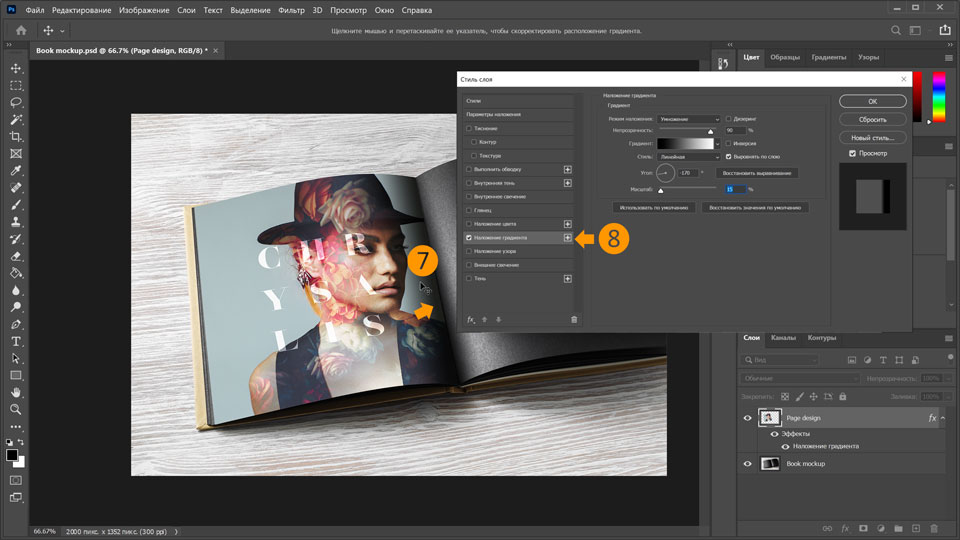
9. Установите непрозрачность 40% и масштаб 30%. Остальное оставьте так, как было установлено ранее. Снова используйте инструмент Выделение, чтобы слегка перетащить градиент влево от стыка страницы.
10. Снова нажмите на значок + рядом с пунктом Наложение градиента, чтобы добавить третье Наложение градиента.
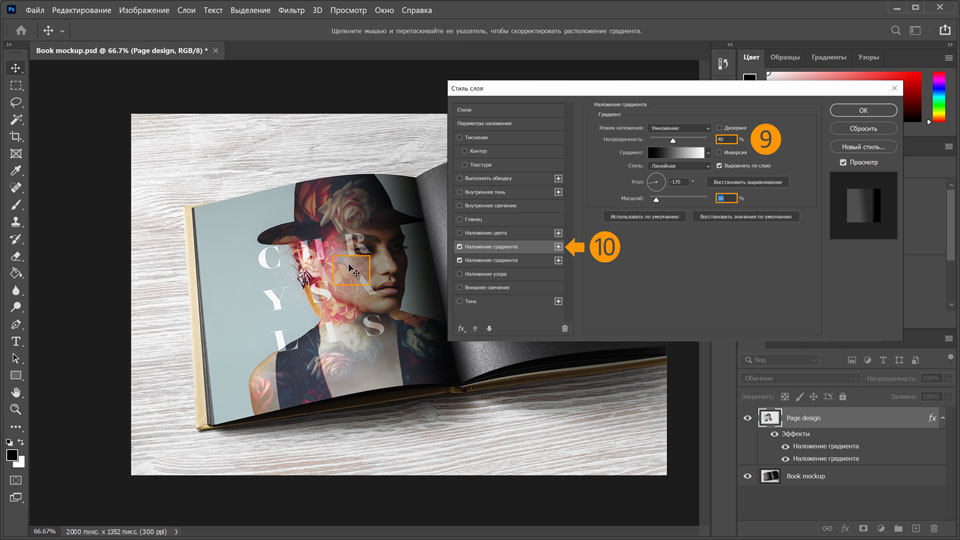
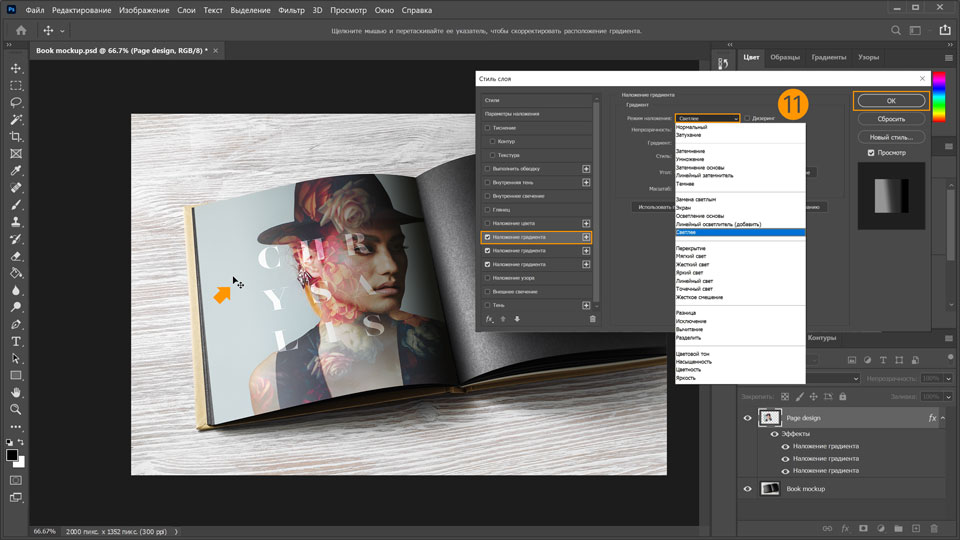
11. Установите для режима наложения параметр Экран. Перетащите градиент на изображение так, чтобы световой блик находился в левой части страницы. Нажмите OK.
Наложите макет на волокно бумаги
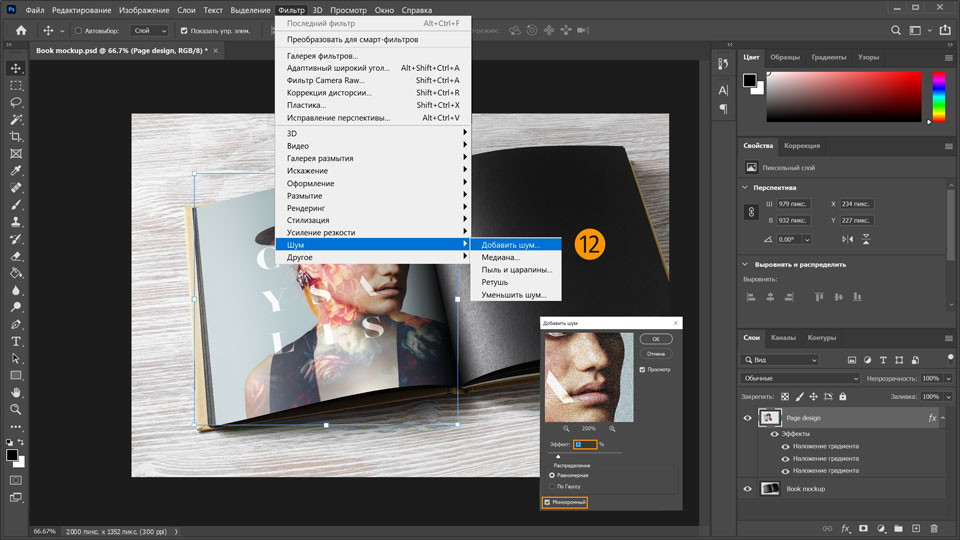
12. Наконец наложите макет на волокно бумаги. Для этого выберите Фильтр > Шум > Добавить шум. Откроется окно Добавить шум. Задайте значение в 12% и установите флажок Монохромный.
Вот и всё!
Теперь ваша очередь. Создайте макет для печати в Photoshop. Скачайте наши материалы или используйте собственные. Опубликуйте готовую работу в Facebook, Twitter или Instagram с хештегом #MadewithPhotoshop. Получайте отзывы и общайтесь с другими творческими людьми.
You can control how Adobe websites use cookies and similar technologies by making choices below. But note that if you disable cookies and similar technologies entirely, Adobe websites may not function properly.
Cookies are small text files stored by your web browser when you use websites. There are also other technologies that can be used for similar purposes like HTML5 Local Storage and local shared objects, web beacons, and embedded scripts. These technologies help us do things like remembering you and your preferences when you return to our sites, measure how you use the website, conduct market research, and gather information about the ads you see and interact with.
You can make choices in the menu below about what cookies and other technologies you want us to use on Adobe sites when you visit them from this browser. You can always change those choices later by clicking on the Cookie Preferences link at the bottom of the page.
If enabled:
We can improve your experience by tailoring the site and the content to things we think might be of interest
We can better keep track of your preferences — like what language you prefer to use
We will better understand your likely interests so we can provide you more relevant Adobe ads and content on non-Adobe websites and in non-Adobe apps
It will help us improve the performance of our website and those of our partners who use the Adobe Experience Cloud
If disabled:
We won’t be able to remember you from session to session so the experience may not be tailored to your interests
You’ll still have access to the content of the site but certain features that depend on cookies may not function
You’ll still see ads, they just may not be as relevant to you
General information
You can control how Adobe websites use cookies and similar technologies by making choices below. But note that if you disable cookies and similar technologies entirely, Adobe websites may not function properly.
Cookies are small text files stored by your web browser when you use websites. There are also other technologies that can be used for similar purposes like HTML5 Local Storage, web beacons, and embedded scripts. These technologies help us do things like remembering you and your preferences when you return to our sites, measure how you use the website, conduct market research, and gather information about the ads you see and interact with.
You can make choices in the menu below about what cookies and other technologies you want us to use on Adobe sites when you visit them from this browser. You can always change those choices later by clicking on the Cookie Preferences link at the bottom of the page.
If enabled:
We can improve your experience by tailoring the site and the content to things we think might be of interest
We can better keep track of your preferences — like what language you prefer to use
We will better understand your likely interests so we can provide you more relevant Adobe ads and content on non-Adobe websites and in non-Adobe apps
It will help us improve the performance of our website and those of our partners who use the Adobe Experience Cloud
If disabled:
We won’t be able to remember you from session to session so the experience may not be tailored to your interests
We’ll still count your use of our site and services
You’ll still have access to the content of the site but certain features that depend on cookies may not function
You’ll still see ads, they just may not be as relevant to you
Operate the site and core servicesOperate site and measure engagement
Always active
These cookies are required, and they are used to enable the site and related services core functionality. Without them the site could not operate, so they cannot be disabled.
These cookies enable the site and related services’ core functionality and collect statistics about user engagement, such as counting active use to help us understand trends. These cookies cannot be disabled.
Measure performance
These cookies are used to analyze site usage to measure and improve performance. Without them Adobe cannot know what content is most valued and how often unique visitors return to the site, making it hard to improve information we offer to you.
These cookies are used to analyze site usage to measure and improve performance. Without them Adobe cannot know what content is most valued, making it hard to improve information we offer to you.
Extend functionality
These cookies are used to enhance the functionality of Adobe sites such as remembering your settings and preferences to deliver a personalized experience; for example, your username, your repeated visits, preferred language, your country, or any other saved preference.
Personalize advertising
These cookies are used to enable Adobe and our partners to serve ads more relevant to your interests. Without them you will still see ads, but they might not be as relevant to you.
Personalize advertising
These cookies are used to enable Adobe and our partners to serve ads more relevant to your interests. Without them you will still see ads, but they might not be as relevant to you.