How to Use a Planner to Organise Your Day and Set Goals.

Learn how to use a planner to get yourself organised and stay on track.

Start designing with Adobe Express

Planners are a handy tool for any type of organisation. Whether you’re planning a project, ticking off your daily routine or setting goals, a planner can help manage your time and boost your productivity.

And the best thing – you can personalise your planner to suit your style of working. Opt for a digital version if you’re constantly on-the-go or stick with a physical planner for mindful moments at the end of the day. Add a yearly overview to keep track of your goals or daily to-do lists to help prioritise your everyday tasks. Ready to get organised? Discover how to use a planner and get tips for making your own custom planner with Adobe Express today.

Why use a planner?

It’s not just about scheduling. Planners have many benefits, especially when you know how to use them effectively. Some of the main perks of using a planner include:

Tasks
planner
Topics
study

Template IDs

(To pull in manually curated templates if needed)

Orientation


(Horizontal/Vertical)

Vertical

Width


(Full, Std, sixcols)

sixcols

Limit


(number of templates to load each pagination. Min. 5)

6
Animated
All

Sort

Most Viewed

Rare & Original

Newest to Oldest

Oldest to Newest

Newest to Oldest
Locales
GB or EN

Premium


(true, false, all) true or false will limit to premium only or free only.

false

How to choose the right type of planner for you.

There are many types of planners for different purposes and preferences. Picking the right one can make organising your daily tasks and goals easier. Here are some examples of the different types of planners you could use.

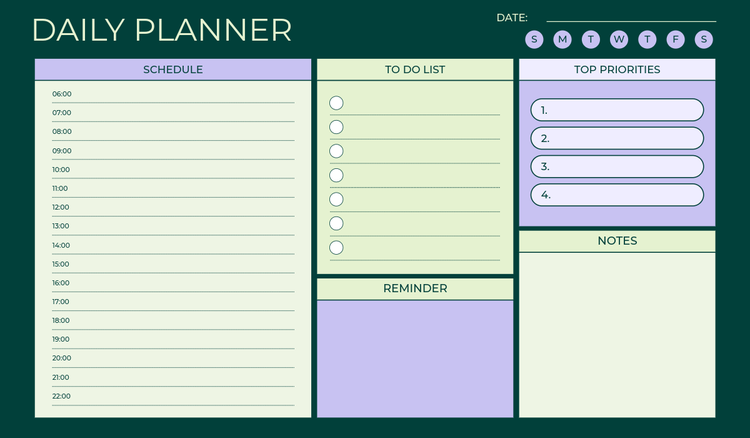
Daily planners.

If you’re someone that loves a to-do list or journalling each day, you might want to use a daily planner. Daily planners can help you keep track of your day-to-day tasks and give you a microscopic view of your day. You could use it for prioritising life admin tasks, such as house chores and errands, as well as your workload for the day.

You’ll need to set aside time at the start of the day to make your daily schedule, and a few minutes at the end to review your progress.

Weekly planners.

Prefer to have a broader view of your schedule? You could use a weekly planner to give you an overview of your week, with deadlines, appointments and other upcoming events. It helps you consider the bigger picture, rather than focusing on the day-to-day. That way, you can prioritise your tasks over a slightly longer period of time and take some of the daily pressures off.

Monthly planners.

Monthly planners are usually great for event planning, content scheduling and goal setting. Anything where you need to build out a longer-term strategy.

Within a monthly planner, you can add your weekly and daily tasks – but rather than having a narrow view, you can see how balanced your entire month is. This can help you prioritise and plan accordingly. For example, if the first week is looking particularly busy, you might move some of your lower priority tasks to later in the month.

Budget planners.

Looking to improve your finances? Learn how to use a budget planner to monitor your income and outgoings from month to month. You can use this type of planner to track bills, savings, investments and any other expenses – and better plan for future expenses.

You could also set your own financial goals within the budget planner, for things like a rainy day fund, holiday, wedding or house deposit.

Project planners.

Big projects are easier to manage when broken into smaller parts. So why not use a project planner to track tasks, milestones, and deadlines? It’s simpler than relying on memory and means everyone is working from one plan. Learn how to use a project planner with our free project planner templates.

Digital planners vs paper planners.

One of the main decisions you’ll need to make is whether you want to use a digital planner or a physical printed planner. There are pros and cons to each, but it comes down to personal preference.

Digital planners.

Digital planners are usually cloud-based planners that you can access online or through your own files. They can help reduce paper wastage and are fully editable, so you can customise and update them as and when needed.

Some digital planners also come with extra features, like built-in calendar reminders or social media connections. Our content planner and scheduler is a great example of this.

You can store your digital planner online and share it with others. This can be helpful if you’re working on a joint project with other colleagues or you’re budgeting with a partner.

Paper planners.

If you prefer a more traditional approach, you could opt for a physical paper planner. This gives you a separate space to build out your goals, events and plans, without getting distracted by digital notifications.

Paper planners provide more creative space, as you can jot things down more freely. You can add doodles, notes, tickets and other physical memorabilia so you have something to look back on too.

You can still customise a paper planner to suit your personal style. Simply design a digital version first with a daily, weekly or monthly layout, then send to print.

Free, editable planner template ideas from Adobe Express.

Tasks
planner
Topics
Day, cute, afternoon, daily log, task management AND goal, habits, tasks, tracker, time management

Template IDs

(To pull in manually curated templates if needed)

Orientation


(Horizontal/Vertical)

Vertical

Width


(Full, Std, sixcols)

sixcols

Limit


(number of templates to load each pagination. Min. 5)

6
Animated
All

Sort

Most Viewed

Rare & Original

Newest to Oldest

Oldest to Newest

Newest to Oldest
Locales
GB or EN

Premium


(true, false, all) true or false will limit to premium only or free only.

false

How to use a planner in six steps.

Knowing how to use a planner effectively varies from person to person as it depends on your needs and goals. However, there are some general tips that may help get you started:

1. Pick your planner style and layout.

Select which style suits you best. Will you go for a minimalist design, or is it going to feature bright colours and lots of details? Remember, it’s personal – so do what works for you.

2. Add in birthdays, anniversaries and other key dates.

If you’re celebrating big events, it’s a good idea to schedule them in from the start so that nothing is missed. If it’s a personal planner, make sure to add in any birthdays, anniversaries, holidays and occasions so you can plan around them. If it’s a professional planner for work or school, add in key deadlines, monthly meetings or term dates.

3. Set your monthly, weekly and daily goals.

Break down your goals into different time periods and decide whether they’re monthly, weekly or daily goals. Doing this will help you establish when things need to get done and which ones take priority. You can have a different layout for each section or choose the one that works best for you.

4. Build in habits or tasks you want to track.

Got a specific habit or task you want to tick off each day? You could create a separate tracker within your planner to tick off and keep yourself motivated. This might be something simple, like making your bed each morning or drinking enough water. Or, it might be a work-related task, like submitting a timesheet or sending your weekly round-up to the team on a Friday. Tracking these tasks can help turn them into habits that last.

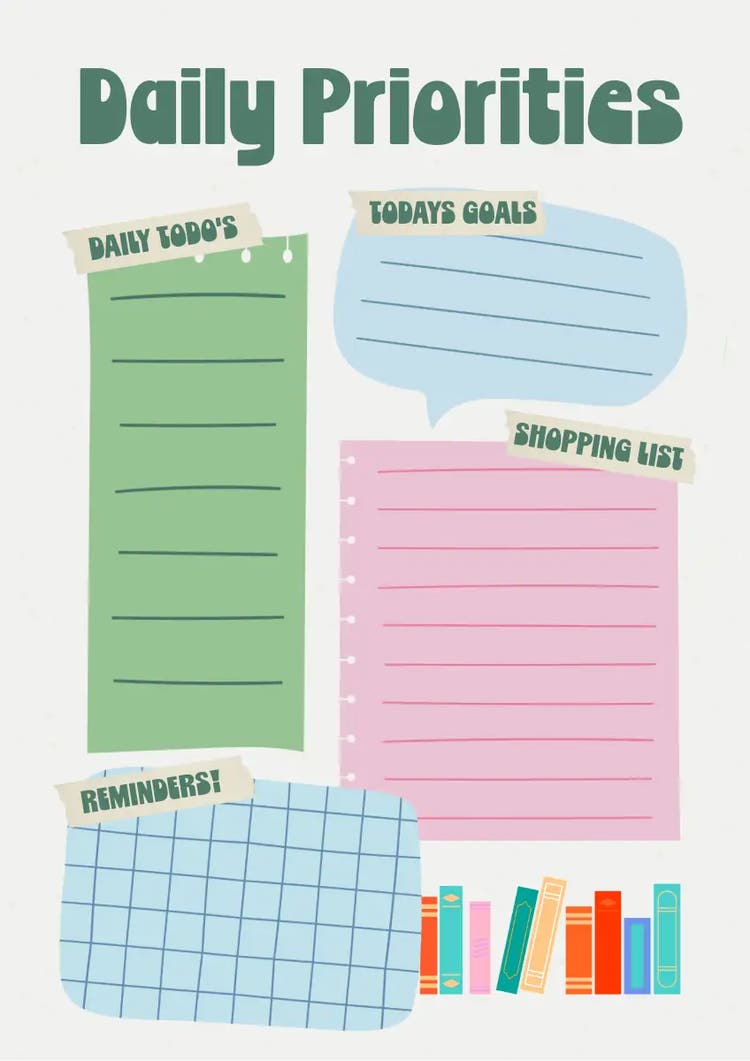
5. Create space for your to-do list and other essentials.

Don’t forget to customise your planner to include the space you need to write things down. This might be a simple notes page for reminders and meeting notes, or a dedicated to-do list or meal plan section at the start of each week. Make sure there’s enough space to include all the things you want to cover.

How can Adobe Express help you create a planner that works for you?

Now you know the theory, you can put it into action with Adobe Express. Learn how to use our free tools to create a planner with the following steps:

1. Create your own custom planner from scratch.

Want to start with a blank template? You can channel your own creativity and start from scratch using our free online planner maker.

2. Find inspiration from editable planner templates.

Struggling to get started? Don’t fret. We’ve also got a host of free planner templates for you to choose from. These can function as a good base, helping to get the process started.

3. Build a digital planner for your schedule.

Make your schedule digital, so you can add to it, remove items, and edit it to your heart’s content wherever you are. Best of all, it’s not limited to one place or device.

Get creative with AI text effects to personalise your planner.

Fan of magic? Well Adobe’s AI is the closest thing to it. If you don’t like the free text fonts provided in our library – you can create your own. Simply put in some clear commands and watch the AI text effects tool bring your design to life in a matter of moments.

It’s a simple way to add some personalisation to your planner design. Let’s say you’re a huge fan of football, you can create a football-inspired text in the colours of your favourite team. Really into scuba diving? Add a prompt to generate your own underwater font. Experiment and see what text effects you can create.

Try Adobe Express for free now

Good to know.

How do beginners use planners?

Beginners can start to use a planner by keeping it simple. No need to overcomplicate things – start with an easy base for simple tasks and build up from there. For example, focus on key details and deadlines, keeping it as succinct and concise as possible.

How do you effectively use a planner?

To effectively use a planner, you need to be consistent with it. Remember, little and often is best, don’t overdo it – only use it when you need to. You should also be flexible. Plans aren’t always set in stone and can be prone to change, so keep things open to adapt on the fly if needed.

Is Adobe Express free?

Yes, our free plan offers many core features including thousands of templates, photo editing and effects, animation, and 5 GB of storage. See our pricing page for details and to compare plans.