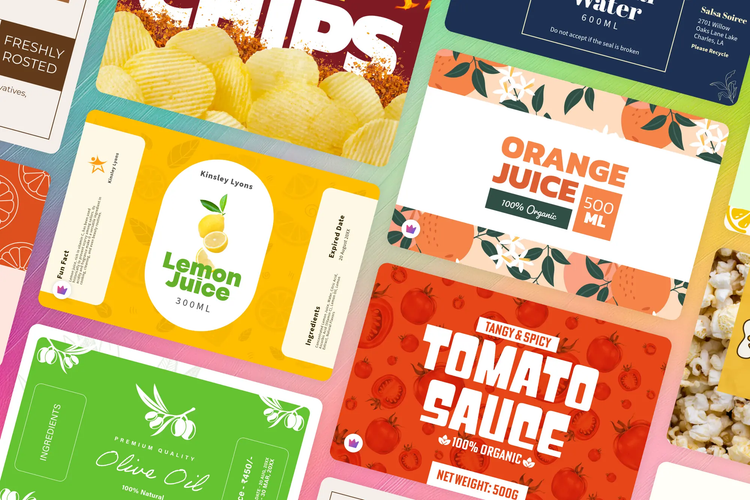
Sticker paper is a versatile tool for businesses and creative projects. You can use it to make product labels, packaging seals, promotional giveaways, or custom decorations. From professional branding to personal crafting, sticker paper offers a flexible way to share your message. With Adobe Express, learn how you can design unique, eye-catching stickers that fit your brand and project goals.
What is sticker paper, and what different types can you use?
Sticker paper is specially coated paper with an adhesive backing, designed to be printed on one side and peeled off for sticking. It gives you the freedom to create your own labels, packaging stickers, and custom designs without needing professional print runs. For freelancers and small business owners, it’s a cost-effective way to create branded materials at home or through a local printer. For marketers and creative communicators, it’s useful for short-run campaigns, seasonal promotions, and events. For example, QR code stickers can be an effective marketing tool that can be used in all kinds of campaigns. Discover more sticker ideas for personal and business use.
There are several types of sticker paper to choose from depending on your needs. Matte sticker paper is great for simple labels with a clean finish and works well for writing on with pens. Glossy sticker paper adds shine and vibrancy to designs, making it a good choice for promotional stickers or colourful product packaging. Clear sticker paper lets your design blend seamlessly with packaging, while vinyl sticker paper is more durable, waterproof, and suited to outdoor use. With so many options, you can choose the type of sticker paper that matches your brand style and practical needs. For more ideas on branded packaging, learn about creating a custom stamp logo in your brand style.
How to choose the right colours and finish for your sticker paper.
Colour choices are just as important as the type of sticker paper you select. Bold, high-contrast colours stand out well on glossy finishes, while soft or pastel tones often look better on matte paper. Keeping your brand palette consistent across stickers and packaging helps maintain recognition and trust. For personal projects or crafts, you can use more playful colour schemes that suit the mood or theme of your event.
Finishes also play a big role in the final look. Glossy finishes make colours pop, ideal for attention-grabbing promotional materials. Matte finishes feel professional and understated, perfect for corporate labels or packaging where clarity of information, like address details, is key. Clear finishes allow your background material to show through, creating a modern, minimal effect. The finish you choose should balance function with aesthetics, giving your stickers both durability and a style that reflects your brand. Learn more about colour modes and consistency when printing your designs.
Editable templates for sticker paper.
recipe
Tips for printing sticker paper to get the best results.
Good printing makes all the difference when creating stickers. If you’re printing your stickers at home, follow these tips for professional results:
- Choose the right paper settings: Make sure you select the paper type that matches your sticker paper (matte, glossy or photo). This ensures colours print accurately.
- Use high-resolution designs: Upload images at a high resolution to avoid blurry prints. Aim for at least 300 dpi for clear, crisp results. If you’re printing your logo, check out these logo printing tips for a professional finish.
- Check your margins: Keep important design elements away from the edges to avoid them being cut off during trimming. Use the editor from Adobe Express to help you do this.
- Test before full printing: When you’re happy with your design, print just one sheet to check alignment and colours before running a full batch. This prevents waste and ensures accuracy.
- Allow drying time: Give printed stickers time to dry fully before cutting or peeling them. This will help avoid any smudges or smears on your designs.
- Cut with care: Use a craft cutter or scissors for simple shapes, or invest in a cutting machine for detailed designs. Neat edges on your stickers will improve overall presentation.
By taking these steps, you’ll get stickers that look professional and are ready to use straight away. For professional printing for t-shirts, business cards, flyers, and other content, you can design and print directly through Adobe Express.
Choosing the right sticker sizes for product labels, packaging, and other uses.
Size is a crucial factor when planning your sticker paper project. Large stickers are perfect for packaging or promotional items, where they can be seen from a distance. Smaller stickers work well for subtle branding, like sealing envelopes or adding a logo to packaging. For freelancers and small businesses, smaller stickers can double as affordable giveaways that promote your brand. You can create limited-edition sticker sets for seasonal campaigns to help build some hype around your stickers. Try making personalised logo stickers to get started.
For promotional uses, larger round or rectangular stickers work well at events or on mailing envelopes, as they’re easy to spot. For crafts and personal projects, small decorative stickers or custom-shaped designs can add creativity and flair. Make your own DIY labels for jars or explore these fun and original sticker ideas for more inspiration. Whether for business or personal use, choosing the right size ensures your sticker has maximum impact without overwhelming the space it’s applied to.
Create your own stickers with templates from Adobe Express.
recipe
How to create stickers with Adobe Express.
Adobe Express gives you everything you need to design stickers for sticker paper. Start by selecting a template that suits your project, whether it’s for labels, packaging, or craft stickers. You can customise fonts, colours, and layouts to match your brand or style and upload your logo, add text or drop in photos to make your design unique.
The drag-and-drop editor makes it simple to resize and adjust elements, so your design fits perfectly on your chosen sticker paper. Once finished, download your design as a high-resolution file ready for printing. You can also save your templates for reuse, making it easy to adapt designs for new products, campaigns or events. With Adobe Express, creating stickers is fast, practical, and looks professional every time. Browse these sticker templates or create your own from scratch using the custom sticker maker.