https://main--cc--adobecom.aem.live/cc-shared/assets/img/firefly.svg | Adobe Firefly logohttps://main--cc--adobecom.aem.live/cc-shared/assets/img/ff-lockup-f4.svg | Adobe Firefly
Remove an object from a photo.
Use AI to erase unwanted elements from photos and seamlessly fill in the background.
Or tap here
File must be JPEG(JPG), PNG or WEBP and up to 100 MB.
By uploading your image or video, you agree to the Adobe Terms of Use and Privacy Policy and confirm you are 18 years of age or older.
https://main--cc--adobecom.aem.live/cc-shared/assets/svg/s2-icon-upload-20-n.svg Upload your image
Or tap here
File must be JPEG(JPG), PNG or WEBP and up to 100 MB.
By uploading your image or video, you agree to the Adobe Terms of Use and Privacy Policy and confirm you are 18 years of age or older.
https://main--cc--adobecom.aem.live/cc-shared/assets/svg/s2-icon-upload-20-n.svg Upload your image
Or drag and drop here
File must be JPEG(JPG), PNG or WEBP and up to 100 MB.
By uploading your image or video, you agree to the Adobe Terms of Use and Privacy Policy and confirm you are 18 years of age or older.
- File size larger than 100 MB
- Unable to process the request
- We are unable to process this file type. Please try again.
- Only one file can be uploaded at a time.
- Image is smaller than the minimum dimensions (512 x 512 pixels). Please resize and try again.
https://main--cc--adobecom.aem.live/cc-shared/assets/img/product-icons/svg/firefly-80.svg
Adobe Firefly
https://main--cc--adobecom.aem.live/cc-shared/assets/img/product-icons/svg/firefly-80.svg
Adobe Firefly
The next evolution of creative AI is here for all your ideas, with image, video, audio and vector tools.
Anyone can remove an object from a photo online.
Whether you’re a professional photographer cleaning up a photo for a client, a designer perfecting images for a marketing campaign or a creator editing for social media, you can clean up images with just a few clicks and simple text prompts with Generative Remove.
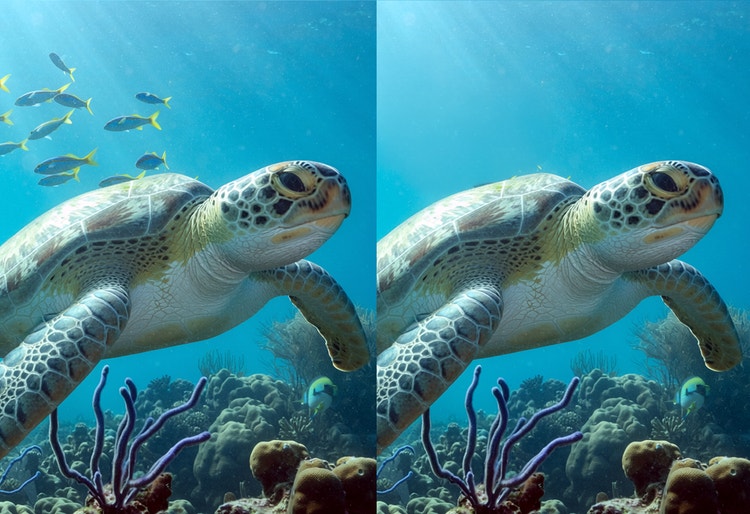
Remove objects from photos by brushing them away.
From unsightly dustbins to inconvenient tourists, you can use AI to remove any object from a photo. With Generative Remove, all you have to do is paint the object with the brush and click Generate. The object will disappear and background will be filled in so it looks natural.

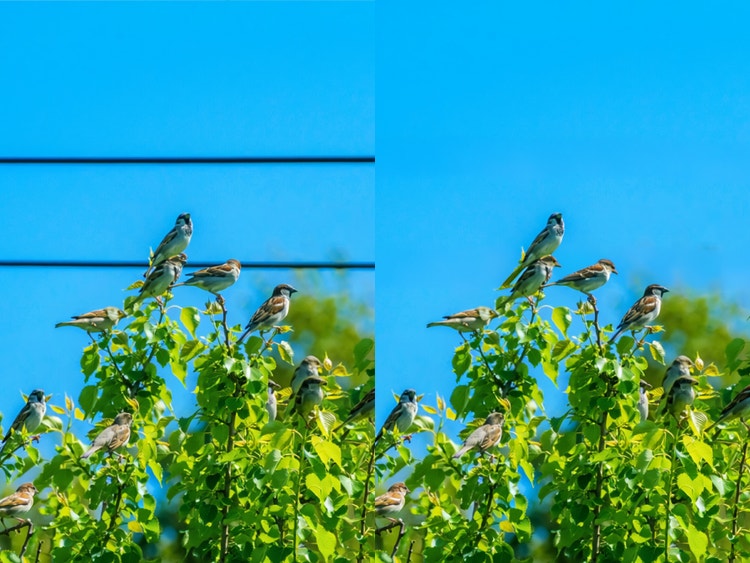
Delete distractions using the AI object remover in Firefly.
Eliminate anything that pulls focus away from your subject. Easily get rid of power lines, wires, street signs and more. Perfecting images for editorial projects or just to share with friends on social is simple with Generative Remove.
Remove text from a photo.
Keep random logos, watermarks or stray text from ruining an otherwise perfect photo. Brush away unwanted text in seconds with Generative Remove, all while preserving the details that make your image authentic. Edits blend smoothly into the background, so there’s no compromise on quality.

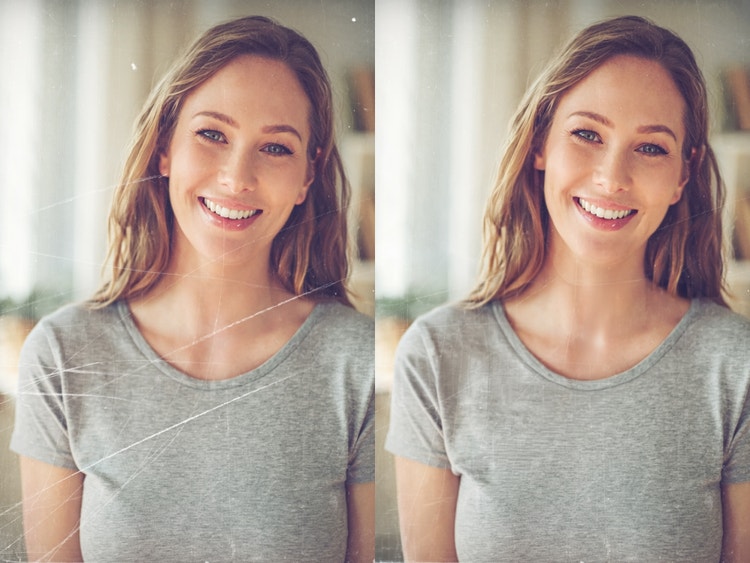
Remove objects to restore the old and improve the new.
Take out dust, scratches or reflections from old family photos or tidy up a product photo to make it look polished for ecommerce, social media or print.
How to remove an object from a photo in Firefly photo editor.
Step 1
Open the Firefly image editor.
Step 2
Select your image.
Step 3
Brush over objects to remove them.
Step 4
Remove the object.
Step 5
Download and share your edited photo.
- How to remove an object from a photo in Firefly photo editor.
- Steps on how to remove an object from a photo in Firefly photo editor
- PT5M
- firefly
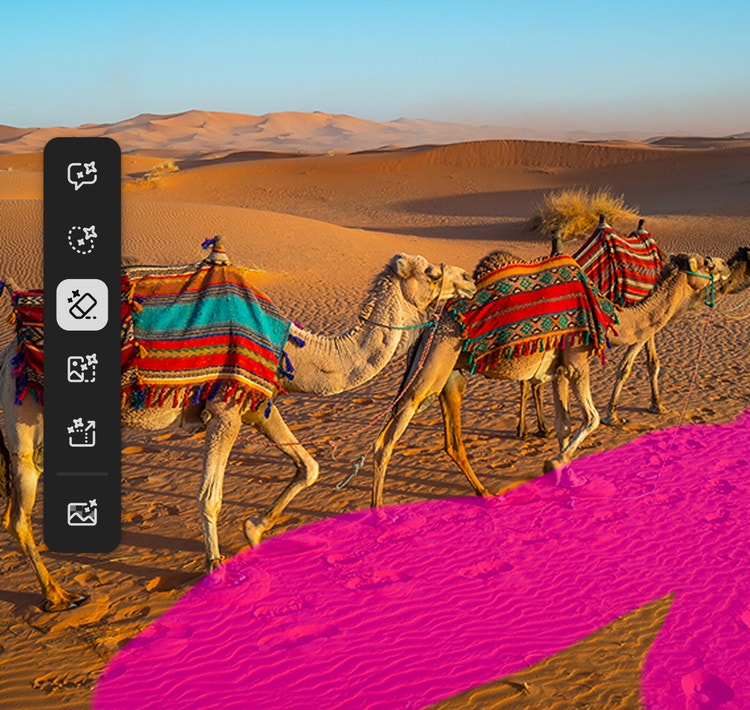
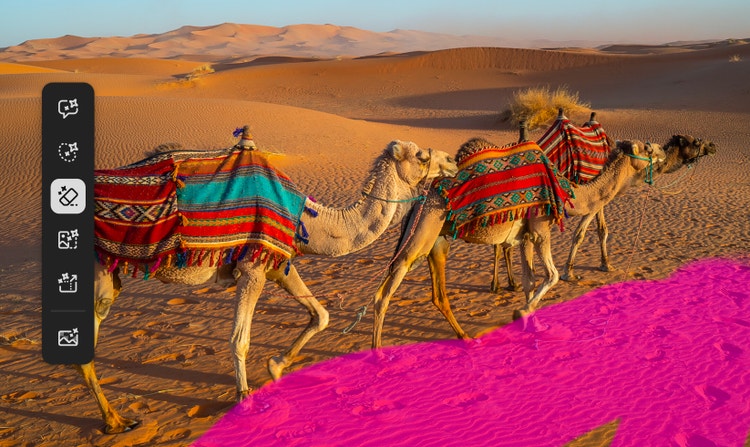
All the tools you need in one place.
Creators can add, remove, expand and enhance without switching apps.
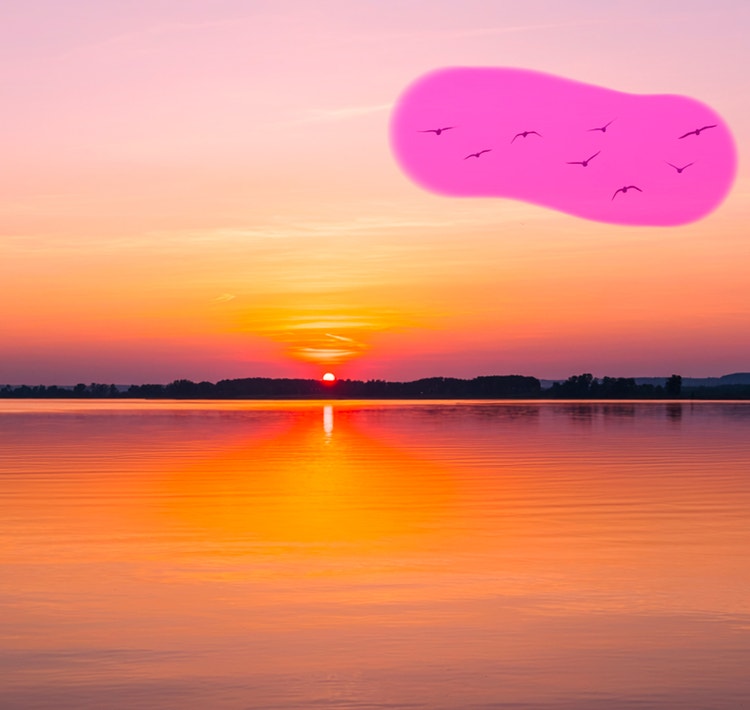
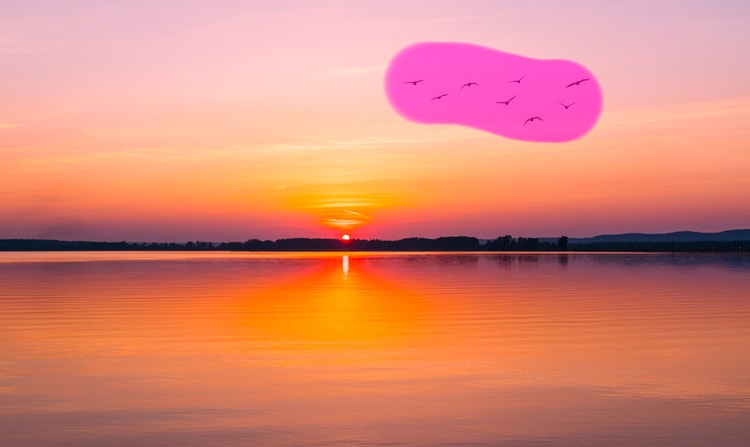
Precise control.
Creators can control which parts of an image they want to change and which they want to preserve.
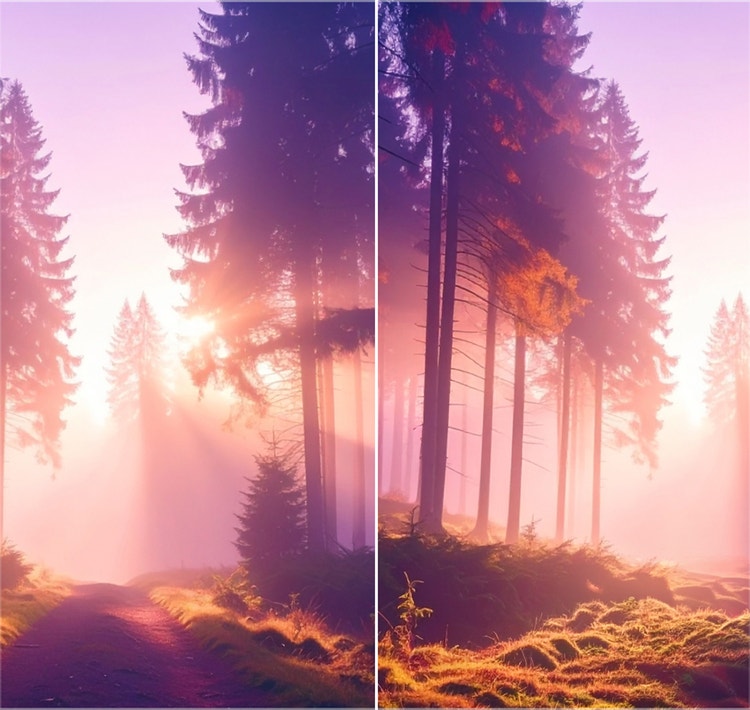
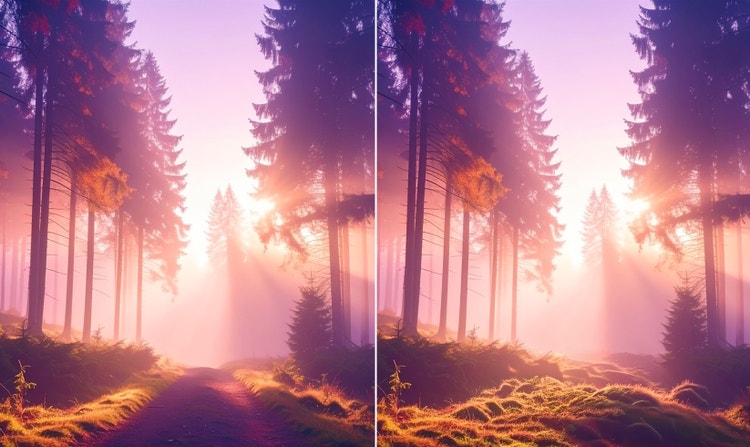
Context-aware edits.
Preserve style, lighting and perspective, ensuring results feel natural and true to the original image.


Speed.
Generative Remove eliminates tedious manual work while maintaining image integrity, so users can quickly remove objects from photos online.
See what you can do in Firefly.
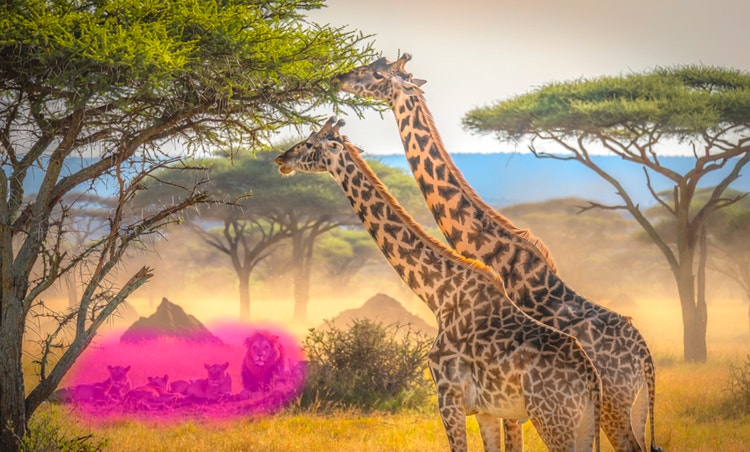




Discover even more features.
Questions? We have answers.
What is Firefly Generative Remove used for?
Is Firefly Generative Remove safe for commercial use?
What is a good app to remove objects from photos?
How can I remove people from photos?
How can I remove text from a photo?
What is an AI photo eraser?
What is the best way to remove objects from an image in Firefly?
Do I need any design skills to remove an object from a photo?
Share this page
Explore more Firefly tools.
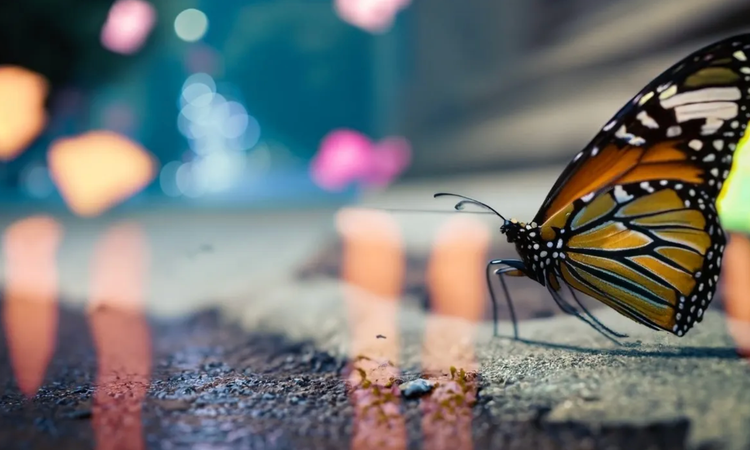
The benefits of generative AI for creatives
Learn how to use generative AI to boost productivity and discover new possibilities while maintaining creative control.
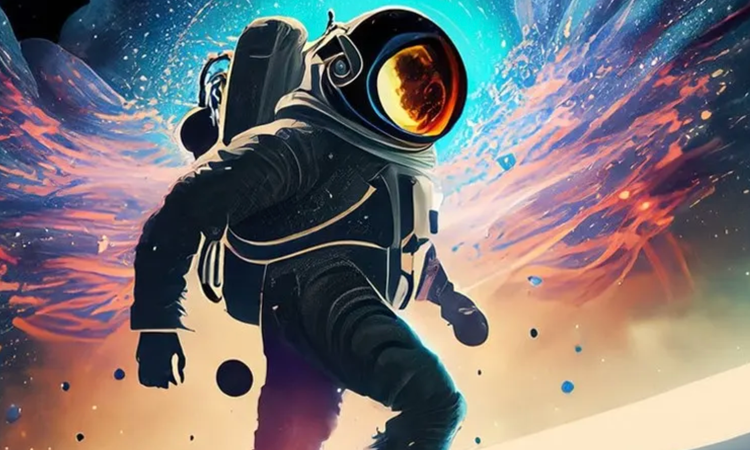
Generative AI is changing creative work
Generative AI can mimic — but not replace — human intelligence. Learn how it can help you to take your creativity to new places.
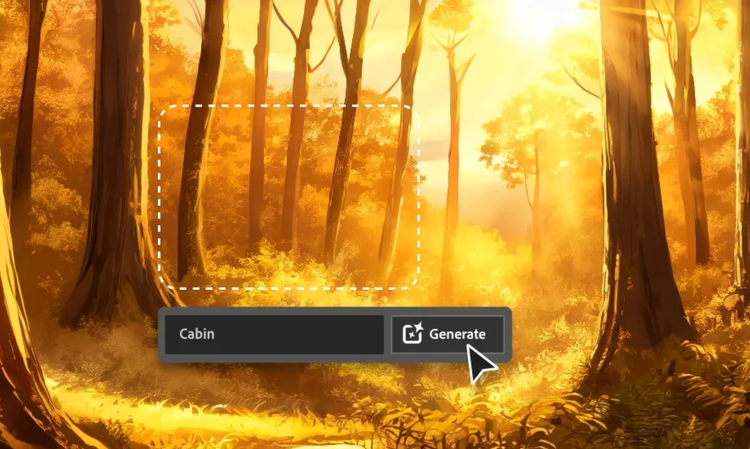
AI for graphic designers
Learn about the AI tools available to graphic designers and how they can help you be more productive and take your work in surprising directions.

AI art prompts for graphic designers
Learn how to write effective prompts for generative AI to get amazing results for graphic design.