.

How to edit a PDF on Mac.

Edit PDF text, images, and other elements in just a few steps.

Explore Acrobat Studio

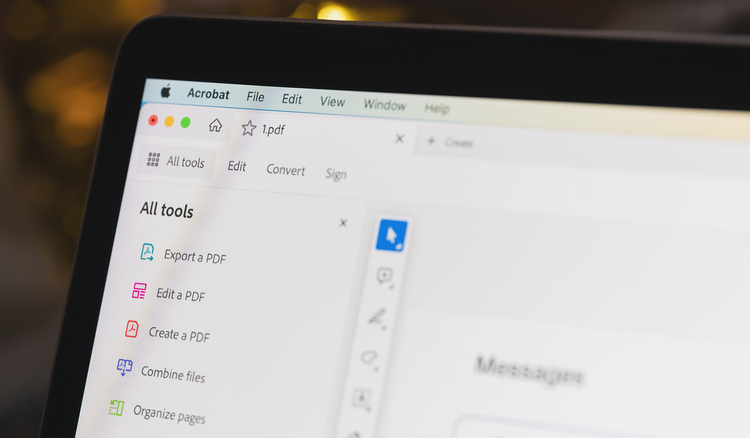
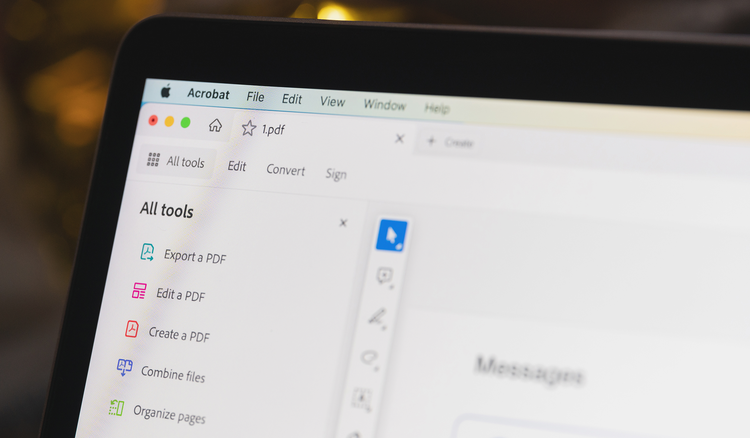
A Mac computer screen with Acrobat desktop app open.
PDFs are one of the world’s most popular document formats, and it’s easy to use them on Mac devices, which are some of the world’s most popular computers. Macs and Apple devices come with PDF viewing software already installed. PDFs are widely used for sharing documents because they preserve formatting across all devices, but making changes to them isn’t always straightforward.

Acrobat offers Mac users a complete PDF experience. Users can edit text and graphics, combine multiple files into a PDF, add security features, and more.

Explore the world of PDFs

How to edit a PDF on Mac with Preview.

MacOS, the Mac operating system, includes Preview, a free PDF Mac app that lets users open, view, and comment on PDF files. Preview is the default option when opening PDFs on a Mac. So to open a PDF with Preview on a Mac, just double-click the document you want to view.

In Preview, you can annotate a PDF on Mac with strike-through and underline. You can highlight existing text and add comments and shapes. Although you can’t edit existing text, you can add new text. Here are the steps to add new text in a PDF using the Preview app:


  1. Select Tools.

  1. Select Annotate.

  1. Tap the text icon.

  1. Place your cursor on the PDF where you want to add new text.

  1. Type the text.

  1. Use the text icon to change the font, size, and style of the text. You can also change the text color by clicking the color box in the upper right corner and choosing a shade from the drop-down color palette.

If you would like to crop a photo, follow these steps:


  1. Select the area of the image you wish to crop by clicking the image and dragging your cursor. A dotted line will appear and form a box.

  1. Continue dragging your cursor until the part of the image you want to remain is within the dotted lines.

  1. In the menu, select Tools.

  1. Select Crop.

  1. If you make a mistake, simply click Edit and Undo to start again.

How to edit a PDF on Mac with Acrobat.

Acrobat lets you do more than just view PDFs and make notes. Create a PDF from scratch, annotate files, work with images, and even create fillable PDF forms. In addition to changing the content of PDFs, Acrobat can also help you manage them. It includes numerous security features so users can password-protect and redact PDFs. You can use the PDF converter to convert PDF files into other file formats and rely on a full set of editing tools to change everything about a document.

For best results, change your default PDF viewer to Acrobat on your Apple device. To make Acrobat the default PDF viewer on your Mac, follow the steps:


  1. Download Acrobat onto your computer.

  1. Right-click a PDF file anywhere on your Mac — desktop, downloads, or another folder.

  1. Select Get Info.

  1. Select Open With.

  1. Set Acrobat as the default application.

Then, follow these steps to edit a PDF on Mac:


  1. Open the PDF in Acrobat.

  1. Open the Edit tool to edit text, add images, rearrange pages, or perform other advanced editing tasks.

  1. Save the new, edited PDF to download or share with others.

How to edit a PDF on Mac online.

If you’d like to edit your PDFs online, you can access a free online PDF editor from Adobe Acrobat, which you can access using any internet browser.
Online, you can quickly and easily communicate to collaborators what needs to be added, deleted, or changed. Just follow these steps:
Acrobat online services are easy to use and offer you tools to highlight, underline, strike through, or add text. Plus, you can add sticky notes or even draw in the PDF. Your team will be able to clearly see where to apply changes, speeding up your project’s completion.
  1. Navigate to the free Edit a PDF tool in Acrobat online services.
  2. Click Select a file.
  3. Choose a file from your internal storage, cloud storage, or Google Drive, or drag and drop it from your desktop into the drop zone.
  4. After the file uploads, sign in with your Adobe login to use the tools to add text, highlight, draw, and more.
  5. Go to the Share menu to share the document with others via email or a link.

Frequently asked questions.

Keep exploring

Acrobat Trefoil Mnemonic

Do more with Adobe Acrobat.

Start free trial