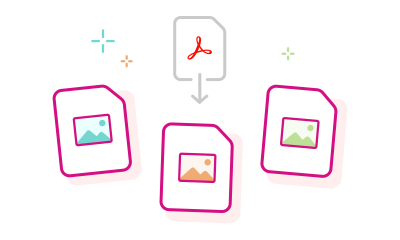
The Acrobat online converter tool lets you quickly convert a PDF to a PNG, TIFF or JPG image using any web browser. Just choose your preferred file format. The Acrobat JPG conversion process happens in seconds, delivering image quality you can trust.
You can also try Adobe Acrobat Pro for free for seven days on Mac or Windows. In addition to converting PDF files to image file formats, Acrobat PDF tools let you convert JPG, BMP, GIF, Microsoft Word, PowerPoint, Excel and other file formats to PDF. You can also convert HTML webpages. Other Acrobat Pro tools let you edit PDFs, merge PDFs, delete PDF pages and reduce PDF file sizes. You can also add watermarks and use OCR functionality to edit scanned documents.
To convert a PDF to a JPG image on your mobile device using Adobe Acrobat, follow these steps:
- Open the PDF: Launch the Adobe Acrobat app on your smartphone or tablet and open the PDF document you wish to convert.
- Access the export feature: Tap the Convert option in the top navigation bar.
- Choose image format: From the Convert panel, select Image format, then choose JPEG from the drop-down menu.
- Initiate conversion: Tap Convert to JPEG to start the conversion process.
- Save the image: Once the conversion is complete, select the folder where you want to save the image in the Save As dialog box and, if necessary, change the file name.
Each page of the PDF will be saved as a separate JPEG file. For more detailed information, refer to Adobe's official guide on converting PDFs to JPEGs.
JPG and PNG files are different image file formats. PNG file compression is “lossless,” which means that there is no loss in quality each time the file is opened and saved again. As a result, it is a higher quality file format than JPG. JPEG files, however, are often much smaller in size, making them ideal for web use.
Currently, Acrobat’s online tool converts one PDF at a time. For batch conversions, try Adobe Acrobat Pro.
Yes! Acrobat preserves high resolution during conversion, ensuring your images remain crisp and clear.
Absolutely! Before converting, simply select the pages you need, and Acrobat will generate JPGs for those pages only.
Acrobat’s free online tool supports most standard PDF sizes. For larger files,
compress your PDF first or use Acrobat Pro.
Yes - once converted, you can edit your JPG with any image editing software or Adobe Photoshop for advanced customisation.
Yes, be sure your original PDF uses proper colour profiles. Acrobat helps preserve colour fidelity - especially important for brand materials.
Check that your converted images maintain correct aspect ratios and aren't distorted or cropped. Acrobat preserves layout, but it’s good to review.
Absolutely. Once converted to JPG, you can use editing tools in Acrobat or any image editor to crop, annotate, or enhance your image.
Use Adobe Acrobat Pro for advanced options like selective image extraction, compression settings, and transparency control.