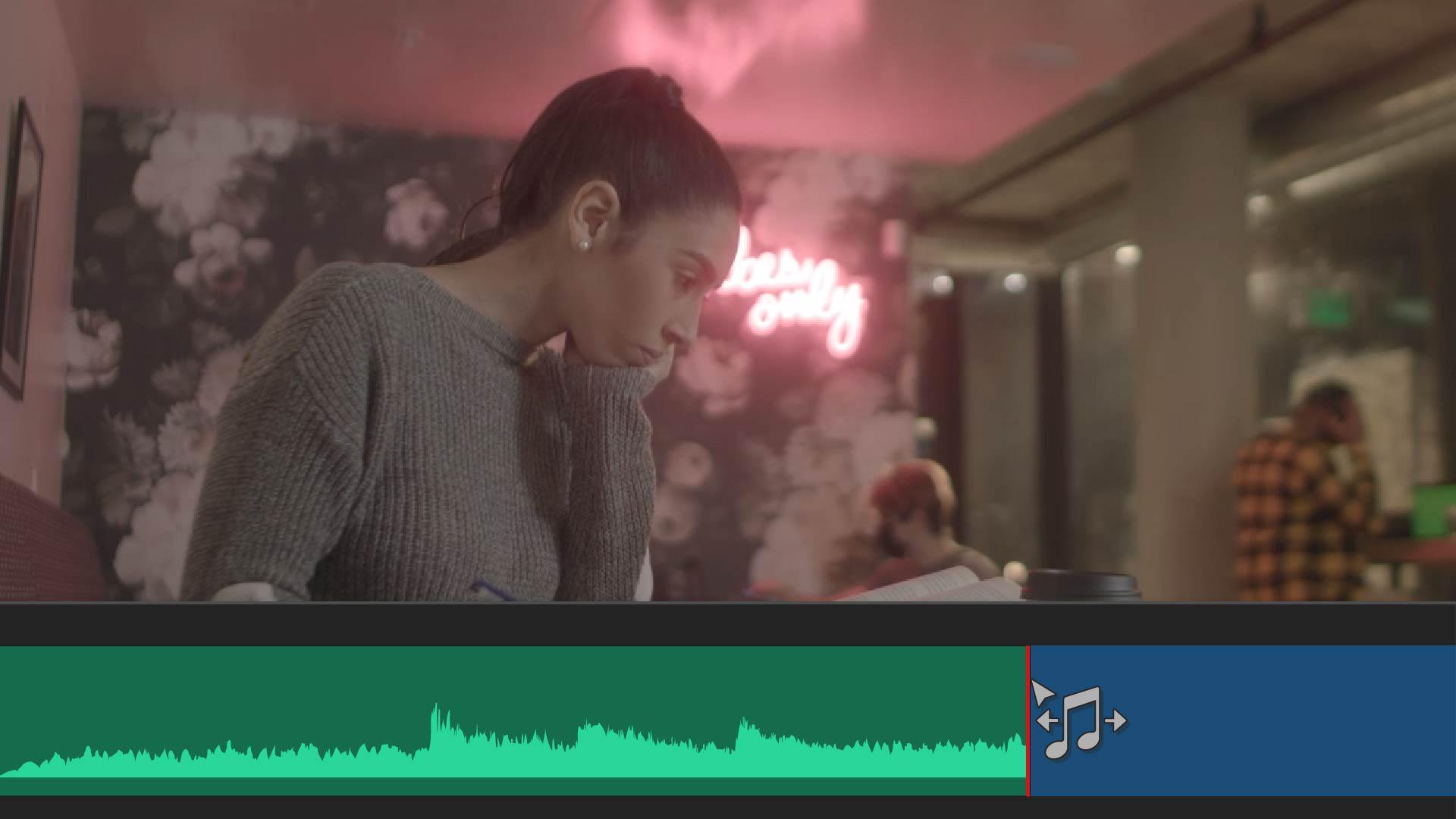
Ensure your audio is clear and well balanced using options in the Essential Sound panel.
Introduction
Hey, hey, hey, I'm Hallease.
Welcome back.
There's a lot you can do with audio in Premiere Pro, but there're a few steps you can take to make sure your audio clips sound clear and well-balanced.
For example, when recording audio, some parts of a clip are quieter than others.
If a person who is speaking is moving while talking, there will be variations in the loudness as it plays.
Let's zoom in on this audio track and look at the Waveform.
Understanding audio waveforms and loudness issues
Do you see the peaks and valleys?
This is a visual representation of an audio clip's loudness.
Now let's open the Essential Sound panel by going to Window,
Balancing audio with the Essential Sound panel
Essential Sound.
Here we can make audio adjustments to different clips.
To make the peaks and valleys more uniform, we'll just select the audio clip or clips we want to match, open the Loudness section and then select Auto-Match.
If we play it back, we can hear that the volume is more consistent now.
Auto-Match isn't just for dialog.
We can also apply it to music, effects or ambient noise.
The audio mix for this video now sounds so much better,
Fixing music length problems in a video
but there is a tiny, small issue with the music.
This song is much longer than the video.
Finding a perfect match is incredibly time consuming and often you'll see creators work around this challenge by repeating one song, using multiple songs, or cutting a song awkwardly in the middle.
Using the Remix tool to match music to your edit
Thankfully, we have the Remix Tool, which allows you to take any song you've added to the Timeline and make it the exact length you need for your project.
Premiere Pro analyzes the song and then automatically makes cuts, removes measures, and realigns the song into a brand-new version that sounds as seamless as the original.
The Remix Tool is found within the Toolbar under the Ripple Edit Tool.
Once selected, simply drag the music clip to where you want on the Timeline and let go.
Premiere Pro does the rest for you.
Audio workflow recap and next steps
Let's review.
You can correct audio loudness variations using the Auto-Match feature in the Essential Sound Panel.
And you can use the Remix Tool to effortlessly adjust the length of a song to match a video's length.
We've covered quite a bit throughout these videos, but all of this means nothing if we don't export.
You can control how Adobe websites use cookies and similar technologies by making choices below. But note that if you disable cookies and similar technologies entirely, Adobe websites may not function properly.
Cookies are small text files stored by your web browser when you use websites. There are also other technologies that can be used for similar purposes like HTML5 Local Storage and local shared objects, web beacons, and embedded scripts. These technologies help us do things like remembering you and your preferences when you return to our sites, measure how you use the website, conduct market research, and gather information about the ads you see and interact with.
You can make choices in the menu below about what cookies and other technologies you want us to use on Adobe sites when you visit them from this browser. You can always change those choices later by clicking on the Cookie Preferences link at the bottom of the page.
If enabled:
We can improve your experience by tailoring the site and the content to things we think might be of interest
We can better keep track of your preferences — like what language you prefer to use
We will better understand your likely interests so we can provide you more relevant Adobe ads and content on non-Adobe websites and in non-Adobe apps
It will help us improve the performance of our website and those of our partners who use the Adobe Experience Cloud
If disabled:
We won’t be able to remember you from session to session so the experience may not be tailored to your interests
You’ll still have access to the content of the site but certain features that depend on cookies may not function
You’ll still see ads, they just may not be as relevant to you
General information
You can control how Adobe websites use cookies and similar technologies by making choices below. But note that if you disable cookies and similar technologies entirely, Adobe websites may not function properly.
Cookies are small text files stored by your web browser when you use websites. There are also other technologies that can be used for similar purposes like HTML5 Local Storage, web beacons, and embedded scripts. These technologies help us do things like remembering you and your preferences when you return to our sites, measure how you use the website, conduct market research, and gather information about the ads you see and interact with.
You can make choices in the menu below about what cookies and other technologies you want us to use on Adobe sites when you visit them from this browser. You can always change those choices later by clicking on the Cookie Preferences link at the bottom of the page.
If enabled:
We can improve your experience by tailoring the site and the content to things we think might be of interest
We can better keep track of your preferences — like what language you prefer to use
We will better understand your likely interests so we can provide you more relevant Adobe ads and content on non-Adobe websites and in non-Adobe apps
It will help us improve the performance of our website and those of our partners who use the Adobe Experience Cloud
If disabled:
We won’t be able to remember you from session to session so the experience may not be tailored to your interests
We’ll still count your use of our site and services
You’ll still have access to the content of the site but certain features that depend on cookies may not function
You’ll still see ads, they just may not be as relevant to you
Operate the site and core servicesOperate site and measure engagement
Always active
These cookies are required, and they are used to enable the site and related services core functionality. Without them the site could not operate, so they cannot be disabled.
These cookies enable the site and related services’ core functionality and collect statistics about user engagement, such as counting active use to help us understand trends. These cookies cannot be disabled.
Measure performance
These cookies are used to analyze site usage to measure and improve performance. Without them Adobe cannot know what content is most valued and how often unique visitors return to the site, making it hard to improve information we offer to you.
These cookies are used to analyze site usage to measure and improve performance. Without them Adobe cannot know what content is most valued, making it hard to improve information we offer to you.
Extend functionality
These cookies are used to enhance the functionality of Adobe sites such as remembering your settings and preferences to deliver a personalized experience; for example, your username, your repeated visits, preferred language, your country, or any other saved preference.
Personalize advertising
These cookies are used to enable Adobe and our partners to serve ads more relevant to your interests. Without them you will still see ads, but they might not be as relevant to you.
Personalize advertising
These cookies are used to enable Adobe and our partners to serve ads more relevant to your interests. Without them you will still see ads, but they might not be as relevant to you.