Hello, hello, I'm Hallease, back again.
From titles to lower thirds, scrolling tickers and in credits, adding graphics to your video projects will help you convey your message, add visual appeal, and improve brand recognition.
Premiere includes hundreds of free and customizable templates available for you to choose from.
In this video, we'll cover how to add graphics to your sequence and customize their text and appearance.
First, we need to open the right panel.
In the Application menu, go to Window, Essential Graphics and make sure you're in the Browse tab.
Let's look for a title.
Let's search title and press Return or Enter.
Now I just need to scroll through the options until I find one that I like.
You can also hover scrub over the thumbnail to see a preview of any animation that's included.
Once I find one that I like, I'll just drag it from the Essential Graphics panel and drop it onto one of the video tracks.
Since parts of this graphic are transparent, I can drop it on the track above my video clips to show the video playing under the graphic.
This project isn't called Your Title Here, so let's edit it.
To do that, we need to move the Playhead to the middle of the graphic so we can see all of the elements in their final state.
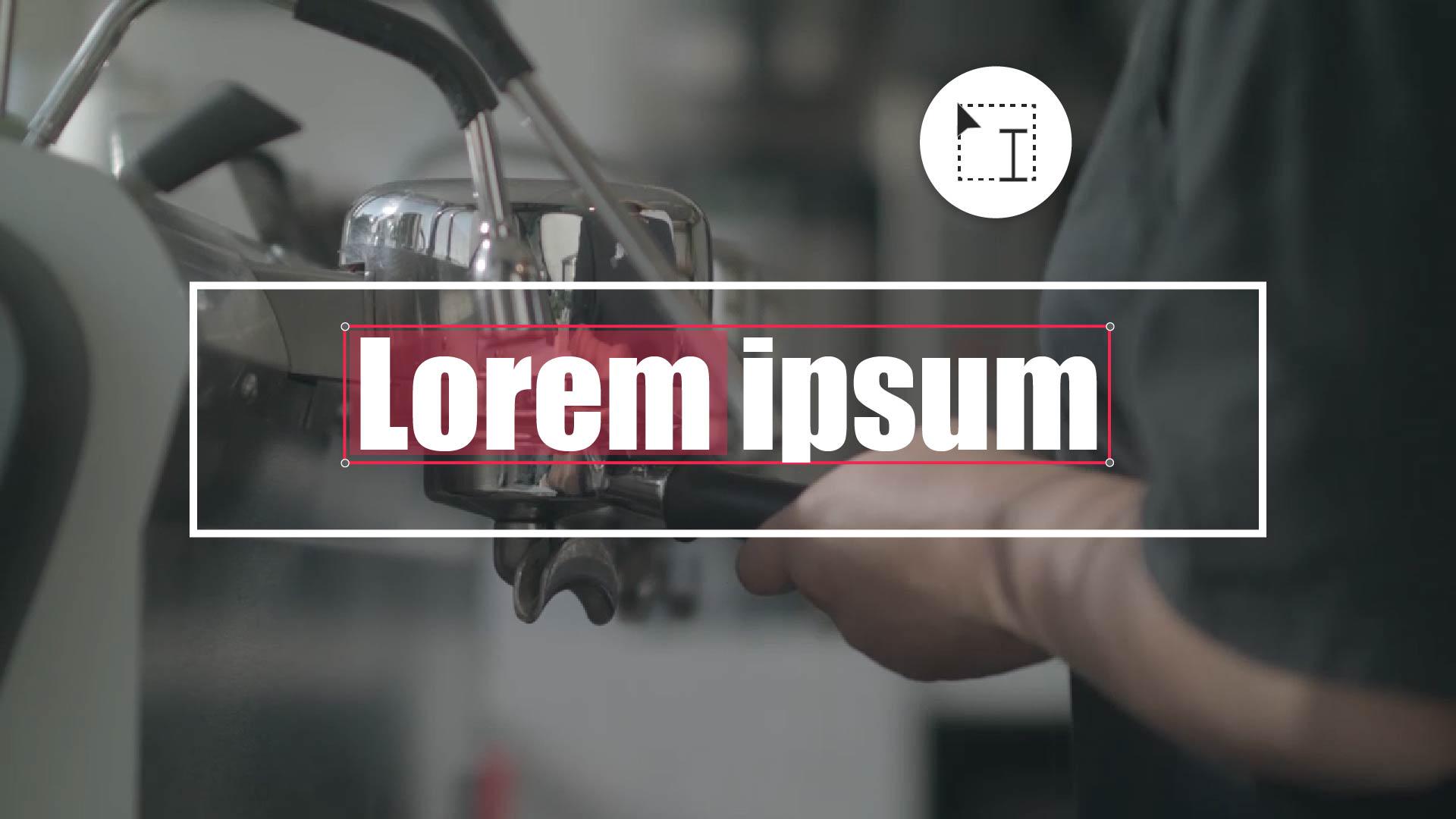
Next, double click the text directly in the Program monitor to select it for editing.
Let's change the text to read Coffee Shop Visit, so viewers know what the video is about.
Finally, press Escape to exit the Text editor.
The text isn't the only thing we can change in this template.
The layer stack at the top of the Essential Graphics panel shows all of the elements we can change.
Let's select an element to change.
Then we can look down at the different properties available to customize.
We can indeed change the Stroke or the outline of the element.
So let's click the Color Picker and choose a color we think might look nice.
Click OK and then deselect the shape to preview the changes.
So let's review.
You can convey your message, add visual appeal, and improve your brand recognition using one of the thousands of free motion graphics templates available in the Essential Graphics panel.
Change the text by moving the Playhead to the middle of the graphic, double clicking on the text in the Program monitor, making changes and then pressing Escape to exit the Text editor.
Customize other elements of the graphic template by selecting the desired element in the layer stack of the Essential Graphics panel.
Adjusting the properties like the Stroke, Color and then previewing your changes.
In the next video we're going to cover audio.
I'll see you over there.




