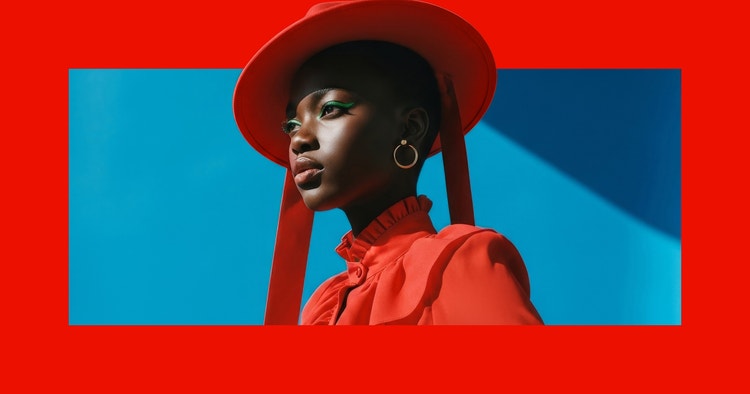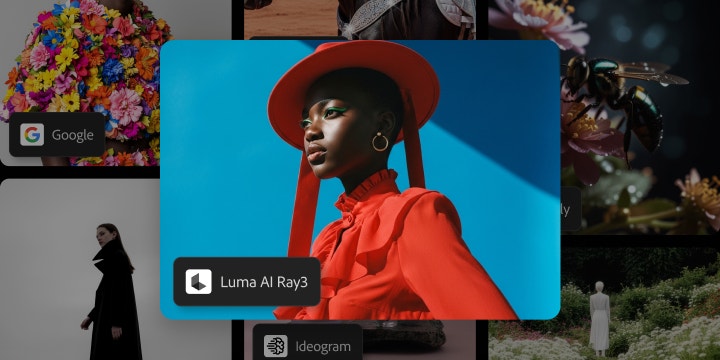

Create and modify AI video with Luma AI. Now in Firefly.
Luma AI video models including the latest Ray3.14 model brings cinematic quality to the advanced editing controls in Firefly. Quickly generate and modify videos by turning prompts into polished motion in Generate Video, Edit Video, or Firefly Boards.
https://main--cc--adobecom.aem.live/cc-shared/assets/img/product-icons/svg/firefly-80.svg

Adobe Firefly
https://main--cc--adobecom.aem.live/cc-shared/assets/img/product-icons/svg/firefly-80.svg
Adobe Firefly
The next evolution of creative AI is here for all your ideas, with image, video, audio, and vector tools.
AI video creation meets creative control with Luma AI.
Luma AI video generator is a third-party video model in Firefly that works seamlessly to turn prompts into videos. With Luma Ray3.14, modify and transform your animations, existing videos, and cinematic workflows with fewer iterations. Use Firefly and Luma Labs AI to generate and modify videos in Text to Video, Image to Video, Edit Video, or Firefly Boards for fast collaboration and iteration.
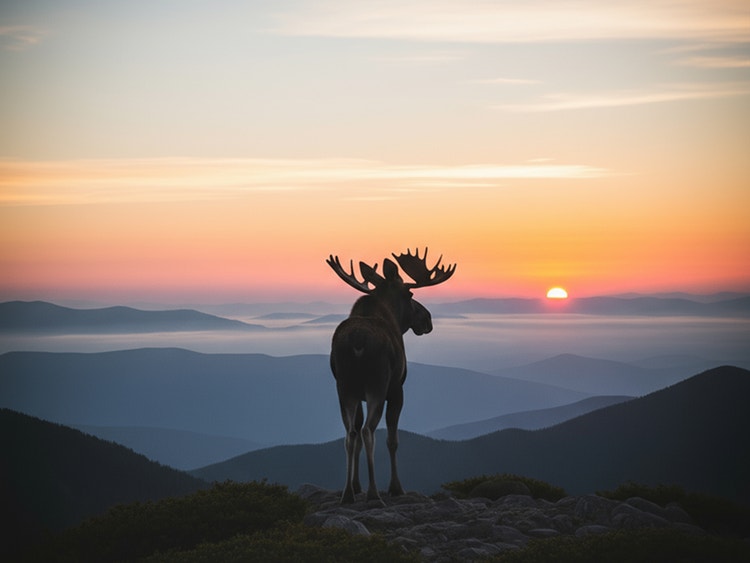
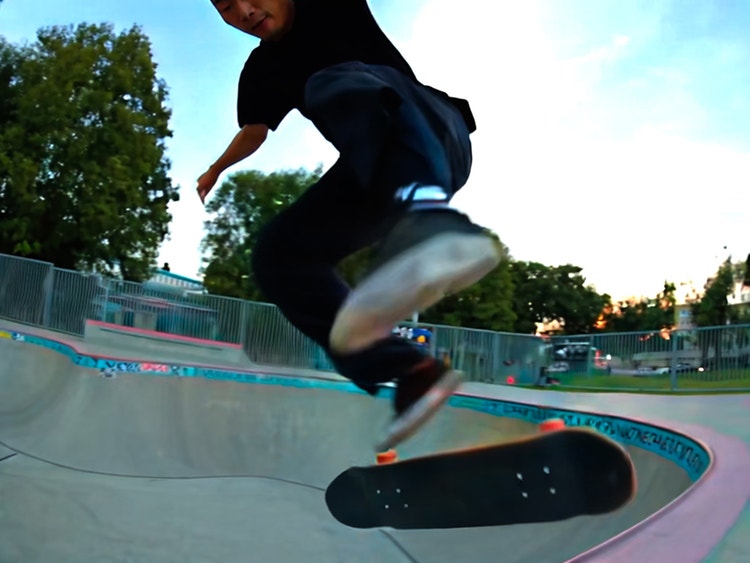
Transform the way you create and edit videos with Luma AI Ray3.
Create cinematic, lifelike video with native High Dynamic Range (HDR) for richer contrast, deeper shadows, and brighter highlights. The Ray3 multimodal model can plan coherent scenes, maintain character consistency, and produce natural fluid motion at outputs of 1080p with 4K upscaling.
Explore how Luma AI video models improve your workflow.
Ray3 seamlessly integrates into any creative process in Firefly for AI-powered video editing. It’s perfect for:
- Content creators: Use the Luma AI video generator in Text to Video to quickly generate b-roll or background footage for tutorials, Instagram Reels, or TikTok transitions then modify videos further in Edit Video.
- Filmmakers and storytellers: Explore visual directions in Firefly Boards, generate environments, shot compositions, and camera perspectives for storyboarding and scene planning. Modify existing videos with Luma Ray3.14 by editing time of day, removing characters and props, and changing costumes in scenes.
- Creative teams: Ideate, storyboard, and refine final-frame content with speed and control — without compromising your creative vision.
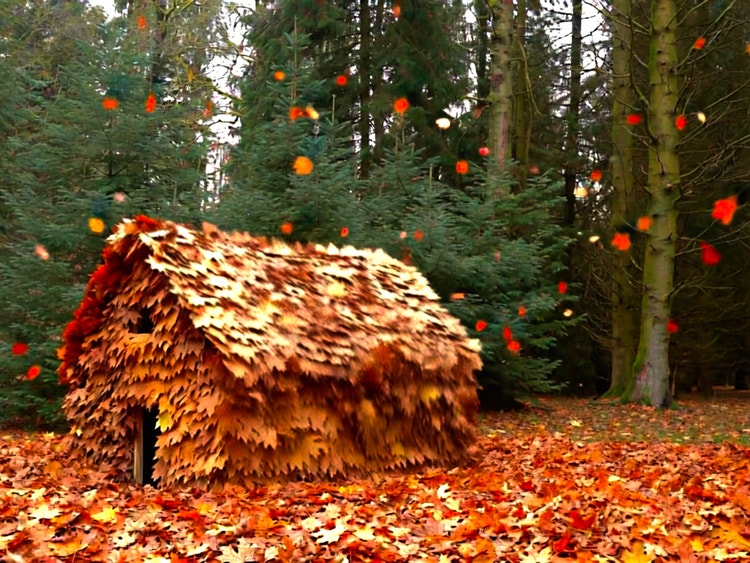
How to use the Luma AI video generator in Firefly.
Follow these quick steps to create and refine videos in Firefly with Luma Labs AI video models.
- Open Adobe Firefly.
Select Text to Video or Image to Video to get started. - Choose your preferred Luma AI video model.
In the Model dropdown menu, select Ray3 or Ray3 HDR. - Write a concise prompt.
Adjust resolution, aspect ratio, frames per second, and duration as needed. - Generate your video.
Preview the generation. Click “Generate Sound Effects” to add audio to your clip. - Modify your video.
Click on the Edit tab and select Ray3.14 from the Model dropdown. Upload image references, add a prompt and generate a modified video. - Download.
Download your clip to your device.
Discover even more features.
AI animation generator Generate with Nano Banana Generate with Flux AI video generator Photoshop Generative Fill Image to video
Questions? We have answers.
Can I use the Luma Labs AI video models within Adobe Firefly?
How can I access Luma AI in Firefly?
Can I generate videos in Adobe Firefly using Luma Labs AI?
Can I use Ray3 for professional video production?
Who can access Ray3 in Firefly?
What makes Ray3 different from other video models?
How can I modify my videos with Ray3.14?
To edit a video using Ray3.14, start by creating a video in the Firefly Generate Video module. Once your initial video is ready, switch to the Edit Video tab and choose Ray3.14 from the model selector dropdown menu.
In the prompt box, type natural‑language instructions to change elements of your video — for example, replace characters, adjust the time of day, or modify props. For more precise results, you can upload first and last frame images or reference images you want to include. When you’re ready, click Generate to apply your changes and iterate on the output.