#f5f5f5
Headshot of Erica Larson - Adobe associate creative art director, designer and artist
Erica Larson dreams up inspired designs every day as an Associate Creative Director on the Adobe Studio team. She creates visuals that inspire others to explore their own creativity, whether it’s photo background editing, graphic design, or digital art.

Before you start.

You can follow these steps using your own images, whether portraits, product shots, or travel snaps, or choose any images of your choice for practice. This guide is ideal for anyone learning how to change the background of a photo in Photoshop.

Step 1: Hide the wall

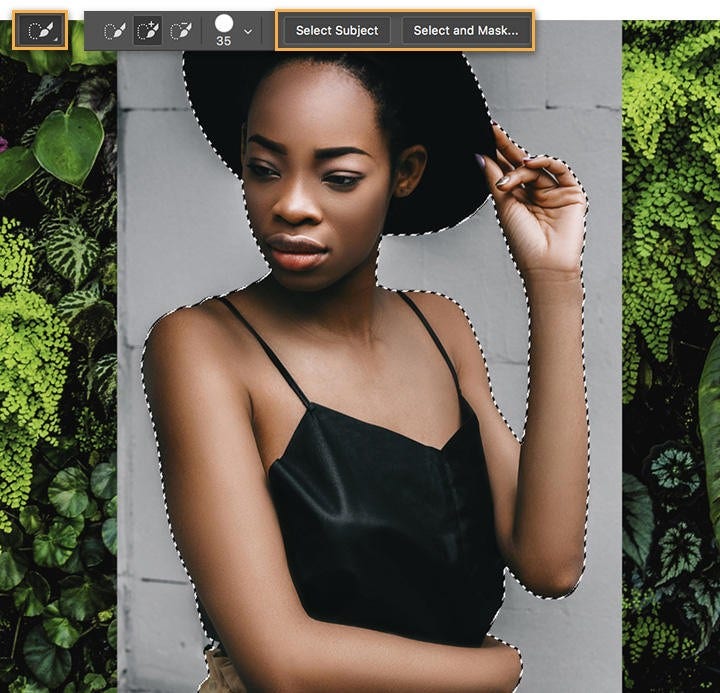
Larson’s first step is hiding the plain grey wall. Use the Quick Selection tool to isolate the shape of the model. Choose Select Subject and then choose Select And Mask to enter the Select And Mask workspace, the starting point for most Photoshop background change workflows.

Use Quick Selection tool to select model, choose Select Subject and Select and Mask in Adobe Photoshop

Step 2: Remove rough spots

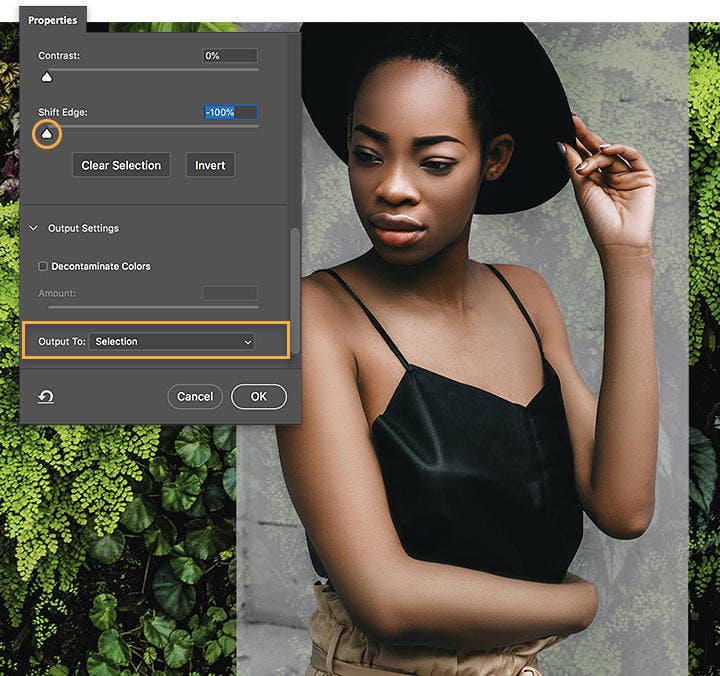
In the Properties panel of the Select And Mask workspace, move the Shift Edge slider to the left to refine the edges of the selection and choose Output To Selection.

Note: When you exit Select and Mask, the original background will reappear, a common step when doing Photoshop background editing or learning how to change the background of a photo.

Move the Shift Edge slider to refine edge and choose output to selection

Step 3: Delete the wall

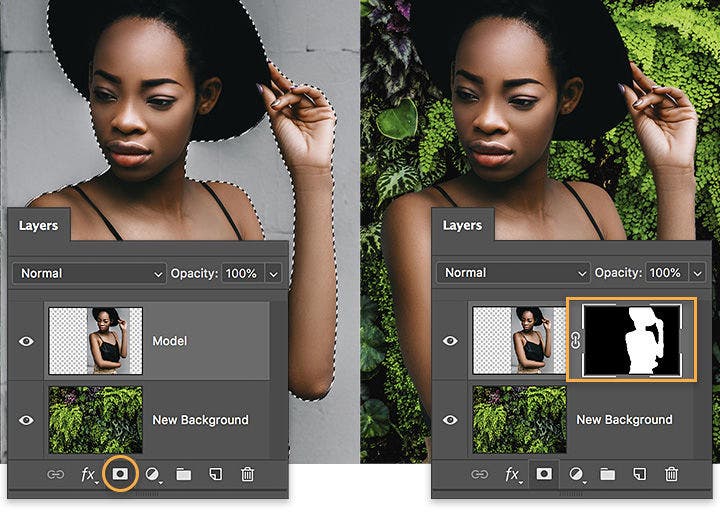
With the model layer selected, click the Add Layer Mask icon. Since Larson had output the model as a selection from the Select And Mask workspace, Photoshop automatically masked (or hid) everything that wasn’t selected. The grey wall disappeared, and only the selected model remained. This step is essential in Photoshop background editing, especially when you want to change the background of a photo precisely.

Add layer mask in Photoshop to hide background and display model

Step 4: Create a consistent look

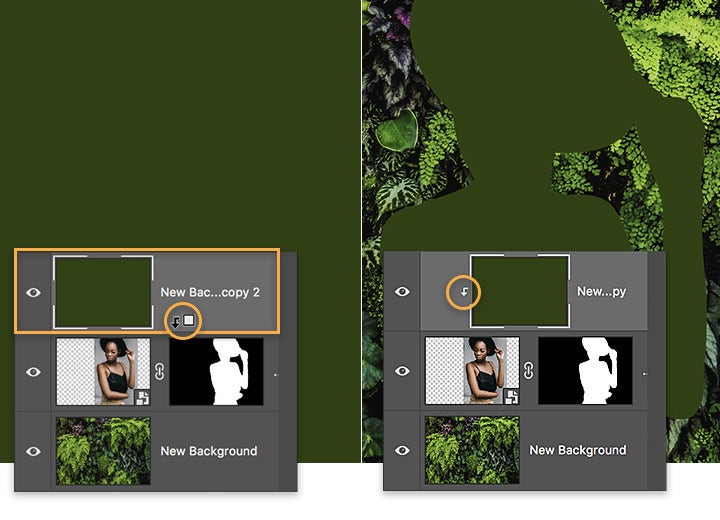
Larson wanted to match the lighting of the model with that of the background, which is a key step when aiming for realistic Photoshop background change results. To do this, duplicate the New Background layer, move it above the model layer and choose Filter > Blur > Average. Then, Option-click (or alt-click) between the green layer and the model layer to create a clipping mask for a seamless blend.

Apply filter blur and clipping mask in Adobe Photoshop, the shape of model is filled with green

Step 5: Add a new background

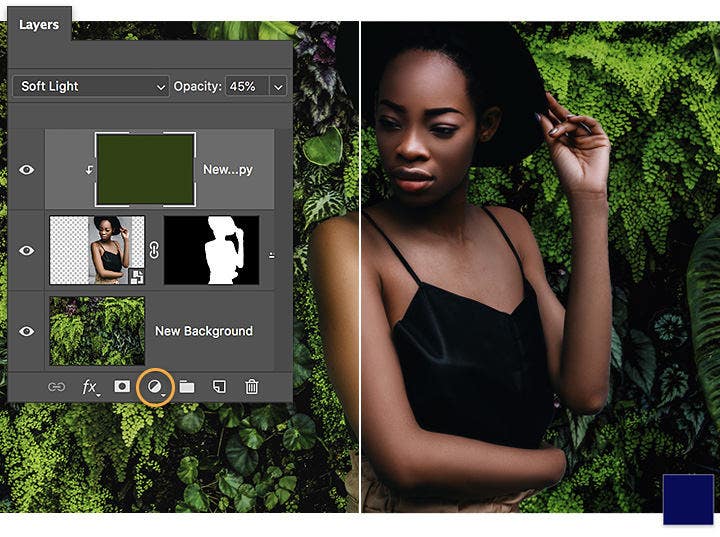
With the green layer selected, set the Blend Mode to Soft Light and reduce the Opacity setting. To create a polished effect for the new background, Larson applied a dark blue Solid Colour adjustment layer, giving each layer below it a consistent colour cast. This is a subtle but effective way to refine your Photoshop background editing and ensure the final image looks cohesive after you change the background in Photoshop. Set the Blend Mode to Soft Light for the adjustment layer as well, and reduce its Opacity accordingly.

Green layer is selected, set Photoshop blending mode to soft light, add blue solid colour adjustment layer to apply colour cast

Take your photos places.

With a new background, you can take your photos’ subject anywhere, from iconic Indian landmarks like the Taj Mahal or Gateway of India to imaginative digital landscapes. Whether you're learning how to change photo background for fun, business, or content creation, Adobe Photoshop gives you the tools to explore unlimited possibilities.

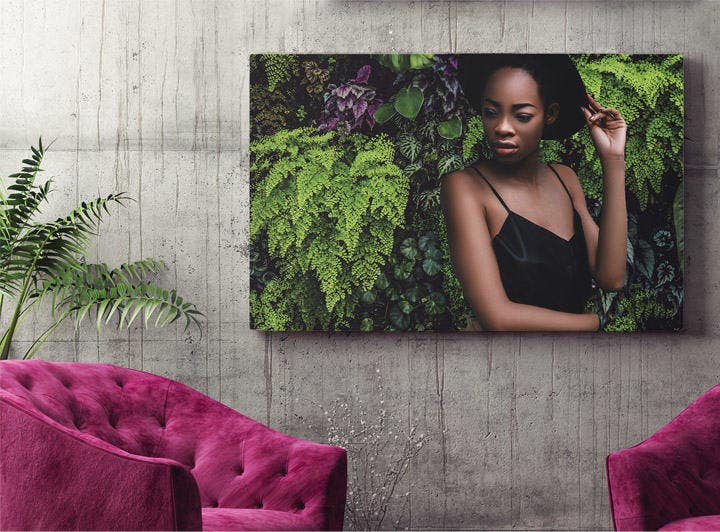
Picture of model in front of new background with green plants placed on a wall behind two fuchsia-coloured chairs

Change a photo background using Generative Fill in Photoshop.

"In addition to traditional tools, you can change a photo background using Generative Fill in Photoshop, which uses Adobe Firefly AI to make the process quicker and more intuitive. Here's how to use it:

  • Open your image in Photoshop. Start by importing the photo whose background you want to change.
  • Make a selection around the subject. Use any selection tool like the Lasso Tool or the Object Selection Tool to outline the subject. You can refine the edges using the Select and Mask workspace if needed.
  • Click 'Generative Fill'. Once your subject is selected, a contextual bar will appear. Click on Generative Fill.
  • Type your prompt or leave it blank. In the Generative Fill text box, describe the new background you want to add. For example, “sunset on a beach” or “Himalayan mountains”. You can also leave the prompt empty to let Photoshop auto-generate options.
  • Click 'Generate'. Photoshop will create several background variations. You can scroll through these and choose the one that fits best.
  • Adjust if needed. Once generated, the background will appear on a new layer. You can move the subject, fine-tune the mask, or use adjustment layers to match colours and lighting for a seamless result.

It’s a quick and creative way to give your image a brand new look."

Common uses of background change in India.

"Changing the background of a photo in Photoshop is a versatile skill that serves a wide range of creative and professional needs across India. Whether you're working with portraits, product photography, or marketing visuals, here are some of the most popular use cases:

  • Passport and ID photos: Many users in India rely on Photoshop background editing to replace backgrounds with plain white or light grey, which is often required for official documents.
  • E-commerce product listings: Sellers on platforms like Amazon India, Flipkart, and Meesho often change photo backgrounds to create uniform and distraction-free product images that meet listing guidelines.
  • Social media content creation: Influencers, digital marketers, and small business owners use Photoshop to craft visually appealing images with custom backgrounds for Instagram, Facebook, and YouTube thumbnails.
  • Wedding and event photography: Indian photographers frequently change or enhance backgrounds in couple shoots, pre-wedding albums, or traditional ceremonies to elevate the visual appeal.
  • Freelancer and student portfolios: Graphic designers, photo editors, and design students showcase their Photoshop editing background skills in portfolios, replacing and blending backgrounds to highlight creativity.

Learning how to change the background of a photo in Photoshop opens up creative opportunities in both personal and professional settings throughout India. From improving image quality to aligning with platform requirements, it’s a skill with widespread impact."

Questions? We have answers.

What is the best tool to change background of a photo in Photoshop?
The best tool to change the background of a photo in Photoshop is the Select and Mask workspace, which allows for precise selection using tools like Quick Selection and Refine Edge. You can also use the Remove Background button in newer Photoshop versions for quick results.
Can I use Photoshop background change for passport-size photos?
Yes, you can easily use Photoshop background editing to change the background of a passport-size photo. Replace the background with a plain white or light grey colour, keeping in mind Indian passport photo requirements.
Is there an automatic way to change background in Photoshop?
Photoshop includes an automatic ‘Remove Background’ option under the Properties panel when a layer is selected. This feature uses Adobe Sensei AI to detect and remove the background instantly, making the editing process faster.
How to change photo background without losing hair details?
To retain hair or fine edges while changing the photo background, use the Refine Edge Brush Tool in the Select and Mask workspace. This helps maintain natural textures and is ideal for portrait photography.
How do I make background changes look more natural in Photoshop?
To make background changes look more natural in Photoshop, focus on lighting, shadows, and colour consistency. After you change the background of a photo, use tools like Curves, Brightness/Contrast, or Hue/Saturation to adjust the subject so it blends seamlessly with the new environment. You can also add shadows manually using a soft brush on a new layer with reduced opacity. For more accuracy, duplicate the background layer, apply a Blur > Average filter, and use it as a reference to colour-match your subject. These techniques help achieve a more realistic and professional result in your Photoshop background editing workflow.
What file formats are best after background editing in Photoshop?
For background changes, export in PNG if you need transparency or in JPEG for solid backgrounds. PNG is useful for e-commerce or layering, while JPEG works well for social sharing or printing.
Can I change the background in Photoshop using a mobile device?
Yes, you can use Adobe Photoshop Express on mobile to change photo backgrounds, although it offers more simplified features compared to the desktop version. It’s a quick option for creators on the go in India.
Can I batch edit and change background of multiple photos in Photoshop?
While Photoshop doesn’t offer a one-click batch background change, you can create actions and use scripts to automate the process for similar images. This is especially useful for product photography.
Does changing a photo background affect image quality?
If done correctly using masking tools and high-resolution images, changing a photo background does not reduce image quality. Always export at optimal settings to retain sharpness and colour accuracy.
Are there Photoshop templates for background editing?
Yes, Adobe offers downloadable Photoshop templates for background changes, especially for social media, product showcases, and digital art. These templates help save time and maintain consistent design aesthetics.

https://main--cc--adobecom.hlx.page/cc-shared/fragments/seo-articles/do-more-photoshop-color-blade