



What is video resolution.
Video resolution determines the amount of detail in your video or how realistic and clear the video appears. It’s measured by the number of pixels contained in the standard aspect ratio of 16:9, the most common aspect ratio for television and computer monitors. Simply put, video resolution defines how sharp your footage looks and directly affects overall video quality. A higher number of pixels indicates a higher resolution and a lower number of pixels makes for a low-resolution video.
For the common video resolution sizes of 720 and 1080, the naming convention is based on the total number of pixels running in a vertical line down the display area. For 2K, 4K or 8K video, the resolution is named for the number of pixels running in a horizontal line across the frame.
Knowing these video resolution sizes will help you make informed choices when shooting or editing footage.
Progressive scan versus interlaced video resolution.
The “p” that often appears after a resolution number, as in 1080p, does not stand for pixels. It stands for progressive scan, the typical method for loading the pixels in each new frame of a video. In a progressive scan video resolution, each frame appears all at once, producing smoother motion and clearer detail.
The alternative method is an interlaced scan, in which the pixels for each new frame load in alternating lines, which saves bandwidth but may cause flickering or blurred lines with fast movement. Progressive scan is generally preferred today for online streaming, video editing, and high-definition playback.
Standard definition is no longer the standard.
Previously, video resolution was divided between standard definition (SD video) and high definition (HD video). Anything below 720p is considered standard definition. In modern video formats, SD video is rarely used because HD, Full HD and 4K video resolution sizes have become the new standard for streaming and content creation. As screen resolutions on computer monitors, televisions, and smartphones continue to improve, it’s less likely for anything to be shot in SD.
What is the difference between video resolution and frame rate?
Digital videos are made up of thousands of still images played in sequence. While resolution refers to the amount of data in the frame, frame rate refers to how quickly those frames are cycled through, or how many stills are packed into each second. In simple terms, resolution affects clarity, while frame rate affects motion.
As with choosing a video resolution size, select your frame rate based on the type of movement you want to capture and the platforms you plan to publish on. For example, a 24 fps frame rate gives a cinematic look, while 60 fps provides smoother motion suited for sports or gaming videos.

Higher video resolutions are not always a better choice.
Consider your end deliverable and platform when choosing a video resolution size. While it’s tempting to increase video resolution for maximum clarity, higher resolutions also create larger file sizes and longer render times. If you were looking to create thumbnails for a website, you wouldn’t want to waste space on your hard drive by saving huge images with high resolutions.
If you’re creating content for YouTube or social media, for example, a 1080p resolution is usually sufficient for high-quality playback. Using a higher resolution like 4K or 8K may not improve visible quality on smaller screens but can increase export and upload times.
“Of course you always want the best resolution possible,” says director and filmmaker Mike Leonard. “Even though I love the idea of starting as big as possible, what you could end up doing is overwhelming the amount of storage space that the editor is going to need.”
How to choose video resolution to shoot in.
Selecting the right video resolution size depends on how and where your footage will be viewed. Video resolution is like a haircut: You can always decrease a video from a high resolution to a lower one, but there’s no way to magically increase lower resolution footage after it’s been shot. So while you don’t want to waste storage space by going too high, you also want to make sure your resolution is high enough for the various formats where your footage might be seen.
You can also refer to the video resolution list below for a quick overview of different video resolution sizes and their ideal use cases.
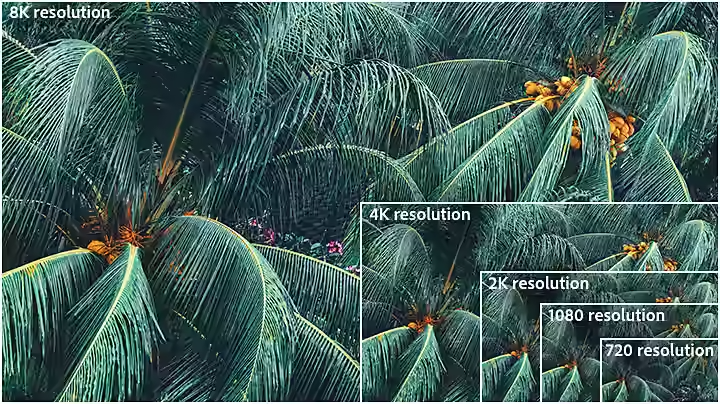
720p resolution (HD)
This is the lowest resolution to still be considered HDTV and is often called simply “HD.” Most videos are shot in at least 1080p, but 720p (1280 x 720 pixels) can be an acceptable resolution for smaller online videos, social media clips or lightweight web content. However, now that most computer screens are HD, best practice is to aim for a higher resolution than 720p for web use and streaming.
If you’re creating content primarily for mobile platforms or need faster upload speeds, 720p can still provide a clear image while reducing file size and bandwidth.
1080p resolution (full HD)
Often referred to as “full HD,” 1080p (1920 x 1080 pixels) has become the industry standard for a crisp HD digital video that doesn’t break your storage space.
1080p resolution is ideal for YouTube uploads, OTT platforms and smartphone viewing, offering a great balance between image clarity and performance. It’s also the most common screen resolution on modern televisions, monitors and mobile devices.
2K resolution or QHD (quad high definition)
The next step up from Full HD is 2K resolution (2048 x 1080 pixels) or QHD, also known as 1440p (2560 x 1440 pixels), both offering higher video resolution sizes with improved sharpness and clarity. These formats give creators more flexibility for editing, cropping and reframing without losing image quality.
2K resolution is commonly used for professional video editing and short films, while QHD is preferred for gaming monitors and larger screens.
4K resolution (ultra HD)
Also known as Ultra HD (UHD), 4K resolution (3840 x 2160 pixels) offers four times the pixel count of Full HD, producing sharper details and richer colour depth. While the visual difference between 2K and 4K may appear subtle to most viewers, 4K video resolution sizes give filmmakers and editors greater flexibility for zooming, reframing and post-production editing.
“Resolutions of 2K and 4K are really for theatrical viewing or intense colouring or graphics,” explains video editor and director Margaret Kurniawan. “And there’s not enough noticeable difference between 4K and 2K, unless you wanted to cut in closer or edit colours. So it matters in post, but it doesn’t matter much when someone’s viewing it.”
For creators who plan to distribute content on large screens or streaming platforms that support Ultra HD, 4K offers an ideal balance between quality and file size.
8K resolution
8K resolution (7680 x 4320 pixels) represents the highest commonly available video resolution size, delivering exceptional clarity and flexibility in post-production. While videographers rarely need to shoot in 8K, this ultra-high format provides maximum detail for VFX-heavy projects, green screen compositing and reframing shots without visible pixelation.
“There are two main reasons to film in 8K,” says Leonard. “One is visual effects, because it’s more pixel information for things like green screens or rotoscoping. And the other is reframing. You can reframe to a proper close-up and you won’t notice any degradation in quality.”
8K is primarily used in high-end filmmaking, advertising or large-screen display production, where image fidelity is critical.
Video resolution chart
Below is a quick video resolution chart that outlines the most common video resolution sizes and their uses:
Resolution
Pixel Dimensions
Common Name
Typical Use
720p
1280 x 720
HD
Web or social media
1080p
1920 x 1080
Full HD
YouTube, OTT, smartphones
2K / 1440p
2048 x 1080 / 2560 x 1440
QHD
Editing, gaming
4K
3840 x 2160
UHD
Film, streaming platforms
8K
7680 x 4320
Ultra HD
Cinema, VFX
Try shooting in different resolutions.
With the camera function in Adobe Premiere, you can try shooting in different HD resolutions such as 720p, 1080p and 4K to see how each affects clarity and file size. Toggle on Pro mode to adjust resolution, frame rate and aspect ratio manually before shooting.
If your device supports it, experiment with a few short clips to compare video resolution sizes side by side. This hands-on approach helps you understand how to choose video resolution that fits your content, from social media posts to cinematic edits.
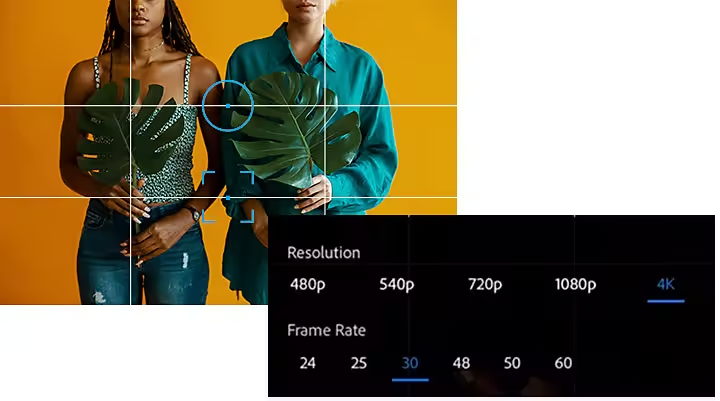
The next step is picking up a DSLR camera or video camera and playing with the available resolution settings. “The settings on your camera will make or break you,” says Kurniawan. “You need to make# sure that that they're correct and doing what you want before you shoot. And resolution is a big part of that.”
Choose the right resolution for your project ahead of time to save time and space as you edit and create the best footage for your purposes.

Free trial Buy now
Explore Adobe Premiere plans.
Browse plans for businesses or students and teachers.
Free trial Buy now
Frequently asked questions about video resolution.
Resolution in video is the measure of how many pixels make up each frame, defining the sharpness and clarity of your footage.
Choose your video resolution based on the platform, purpose, and available storage. For example, 1080p is ideal for YouTube, while 4K or higher is preferred for professional film or broadcast.
For YouTube, 1080p (Full HD) is the most common choice for balancing quality and file size. On social media platforms such as Instagram and Facebook, 720p or 1080p works well, while vertical video resolution is ideal for Stories or Reels.
The main difference lies in pixel count and image detail. 720p is HD, 1080p is Full HD, 4K offers four times more pixels than 1080p, and 8K provides exceptional clarity for high-end productions.
You cannot truly add new detail, but you can upscale footage using editing software to enhance sharpness or reduce pixelation. Tools like Adobe Premiere or After Effects can help improve perceived quality.
You can edit or adjust video resolution in Adobe Premiere by changing the sequence settings or exporting the video in a different resolution. This lets you optimise video resolution sizes for various platforms like YouTube or social media.

title
A beginner’s guide to video resolution.
tags
caas:content-type/article,caas:products/premiere-pro,caas:product-categories/video,caas:topic/edit-video
description
Get the best video quality for your needs by learning how digital video resolution relates to aspect ratio, frame rate and video editing.
cardImage

cardImageAltText
Glitched screen with a random, colourful pixel noise pattern


Speed up your video workflows with Adobe Firefly generative AI.
Visualise shots and effects ahead of the shoot, generate assets missed in production to complement your edit and eliminate tedious tasks to stay focused on your creative ideas.


