



Edit videos fast in the Firefly AI video editor. Use creative AI to trim, rearrange and refine clips, then add titles, voiceover and audio to shape finished stories.
By uploading your image or video, you agree to the Adobe Terms of Use and Privacy Policy and confirm you are 18 years of age or older.
By uploading your image or video, you agree to the Adobe Terms of Use and Privacy Policy and confirm you are 18 years of age or older.
By uploading your image or video, you agree to the Adobe Terms of Use and Privacy Policy and confirm you are 18 years of age or older.
The AI video editor is a tool where you can edit videos, upload clips, and generate new footage that fits seamlessly with your existing content. It is designed to help creators move from idea to final cut faster, without complex tools or steep learning curves.
By combining AI-powered video editing with a browser-based workflow, Firefly lets you create, refine, and export videos from anywhere.
Create a video with generative AI and use plain language to make edits in the AI video editor. Add or remove objects or change backgrounds to take your video from almost there to picture perfect.
With video editing AI, you can describe what you want to change instead of adjusting multiple settings, making it easier to learn how to edit video with AI even if you’re new to editing.
Cut, trim and rearrange video and audio clips on a simple layered timeline. Build your story with an AI video editor that simplifies editing and speeds up workflows. Firefly reduces repetitive manual tasks, so you can focus on storytelling instead of timelines and menus.
This makes it ideal for creators looking for an online video editor that balances speed, control and creative flexibility.
In the AI video editor, you can clarify dialogue and balance levels across speech, music and ambience with Enhance Audio. And there’s no need for a separate colour changer. Quickly adjust exposure, contrast, saturation and temperature using simple sliders or try one-click looks for quick enhancements.
Generate new scenes from any frame on your timeline — then use the video editor to turn your creations into finished stories. This allows you to expand existing footage or fill gaps without leaving the editor.
Create videos that explain ideas clearly and keep viewers engaged. Firefly helps you edit video with AI by trimming footage precisely, generating supporting scenes and refining edits with simple prompts.
Use it to turn raw recordings into polished demos, tutorials and training videos without complex tools or time-consuming workflows. Preview changes instantly and refine your story until every step feels clear and complete.
Follow these steps to tell a standout story with the Firefly video editor.
From the Adobe Firefly homepage, go to the Video module and choose Start from scratch or Open Editor. If you’re currently in the Generate Video experience, select Edit in the Video Editor to move into the timeline.
Sign in and open Generation History to browse your previous text to video outputs and supported Firefly video generations. Drag these clips or any uploaded files from the Media panel onto the primary timeline track. Stack additional shots on upper tracks for cutaways, overlays or titles.
Trim clips by dragging their edges to adjust timing. Use the Split tool to cut clips at specific points. Rearrange clips on the main track to tighten pacing and keep your story focused.
Open the Text panel and choose a template. Edit in the canvas and refine in Properties to change font, size, colour and more.
Drag music, voiceover or effects to an audio track. Use Properties → Volume to balance audio levels and fine-tune timing so sound aligns naturally with visual cuts.
Open Generate in the right panel. Enter a prompt, set duration and aspect ratio and generate. Your result will appear in Generation History — drag it straight into the timeline to extend your story.
Click Download and choose your preferred format to save the final video to your device. Review playback before exporting to ensure timing, audio and visuals feel complete.
Firefly makes AI video editing faster and more intuitive by combining creative control with intelligent assistance. Instead of replacing your decisions, the AI video editor supports them, helping you move from idea to finished video with greater speed and confidence.
With Firefly, you can:

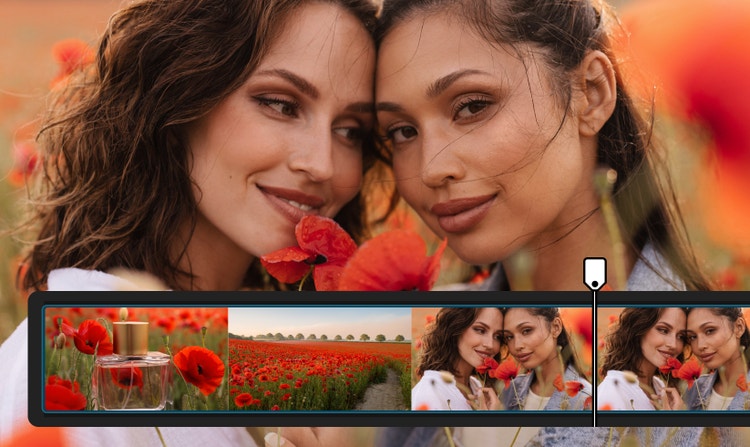
Firefly offers both prompt-based AI video editing and timeline-based tools, allowing you to create, refine and rearrange content without switching platforms.


Access leading video models in one place, compare outputs and refine results faster — giving you more creative flexibility than stand-alone tools.
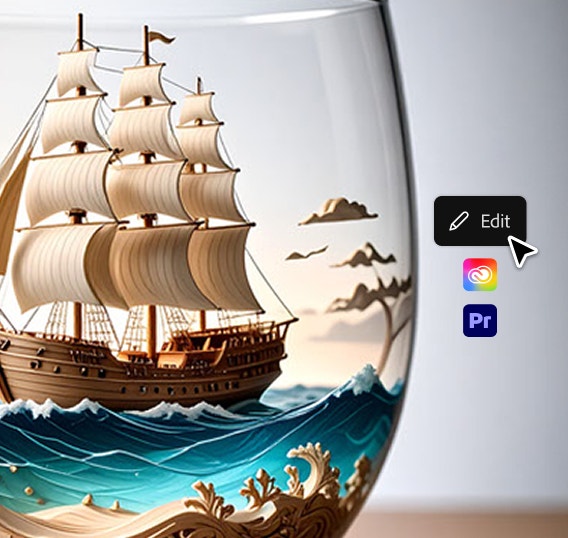

Move seamlessly from AI editing into Premiere and other Creative Cloud tools to assemble, refine and finalise your videos.
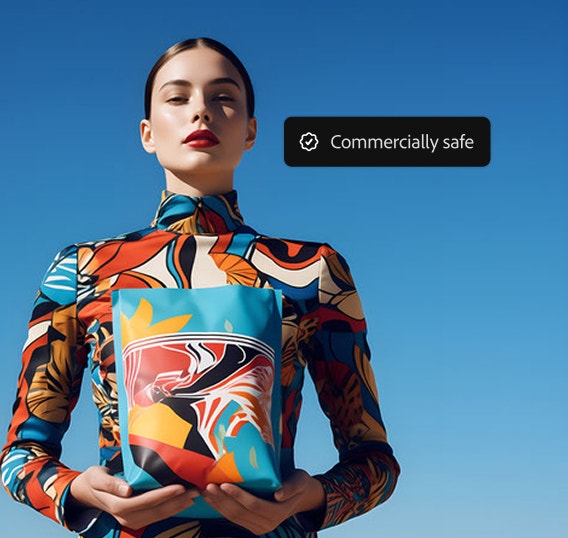

Firefly models are trained on licensed and public-domain content, so you can use them for marketing, client work and business projects.
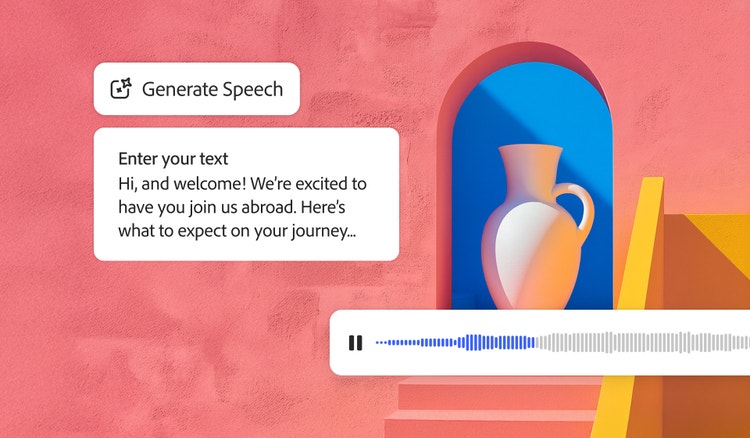
Quickly turn text into natural-sounding speech for videos, podcasts and eLearning. Add realistic, high-quality voices in 20+ languages with customisable emotion, pacing and emphasis with AI text to speech.
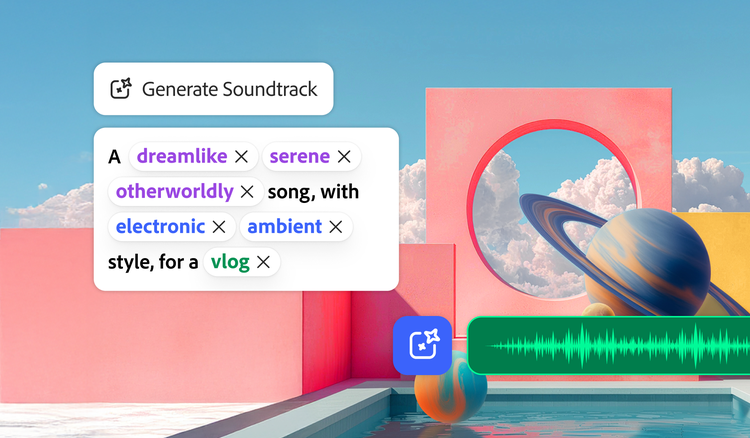
Generate Soundtrack analyses your video to match your story and compose customised, emotionally rich music for every platform. Go from ideas to tracks instantly with Firefly’s AI music generator — licensed to use anywhere.
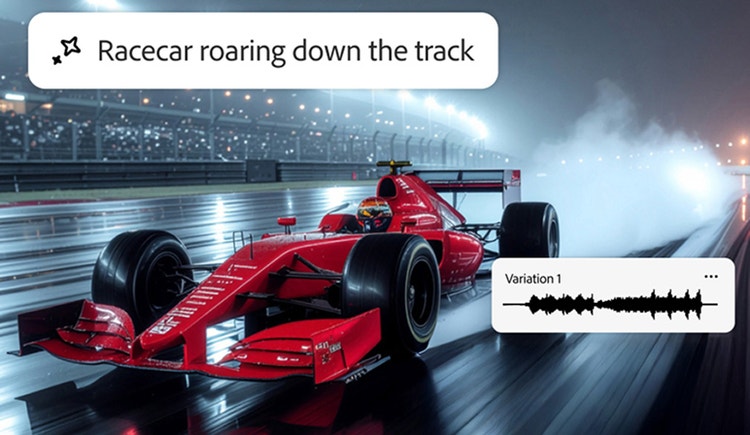
Imagine any sound effect and create it with Generate Sound Effects. Describe the effect, upload reference audio or act it out into your mic — then easily add your high-quality effect to any video.

Create a studio-grade video featuring an engaging, life-like avatar with Text to Avatar. It’s fast, easy and always safe for commercial use. Perfect for business, education or social media content.
Based on your location, we think you may prefer the United States website, where you'll get regional content, offerings, and pricing.


